Skip to content
Potto AI

AI Character Generator

Describe a character's silhouette, costume, expression and pose, then compare the concepts against that brief and keep the one you will build on.

Enter a prompt to generate

Try an example

Check one AI character across two scenes

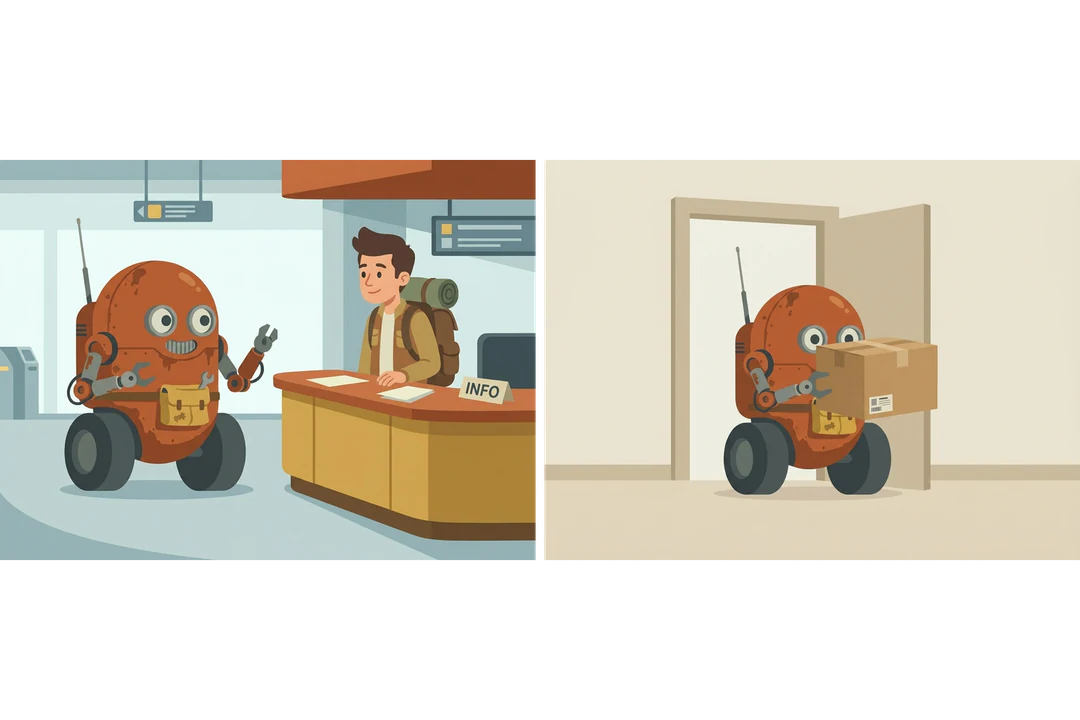
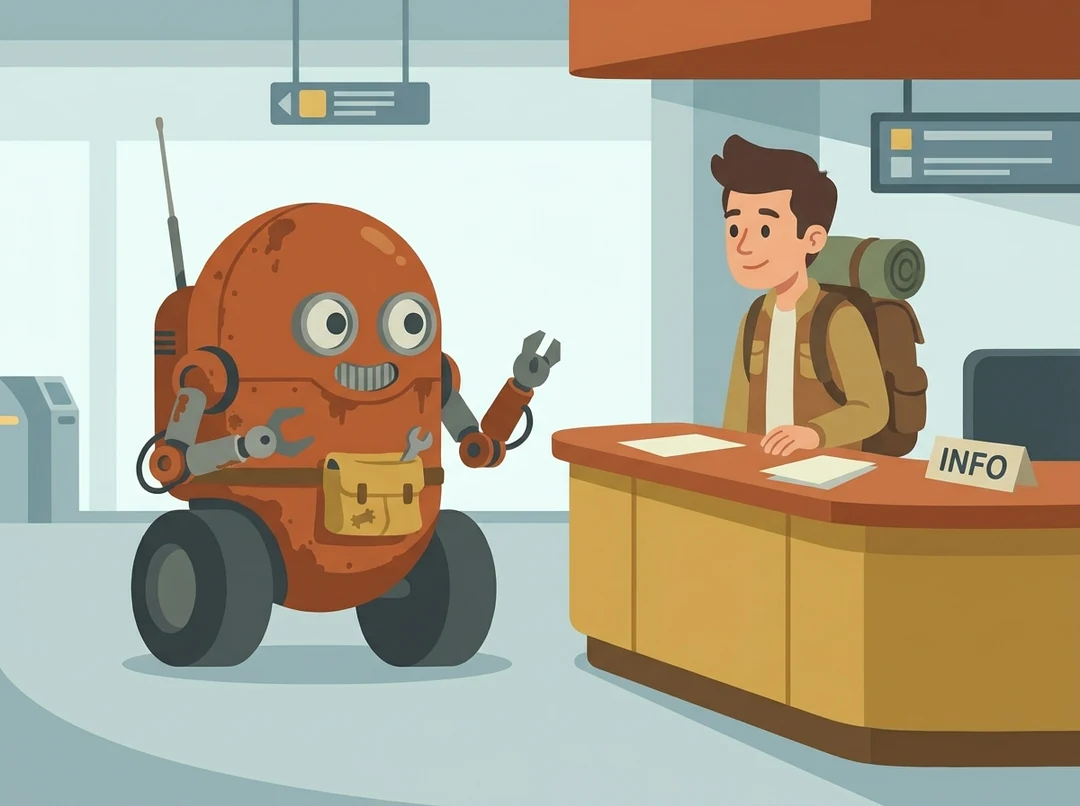
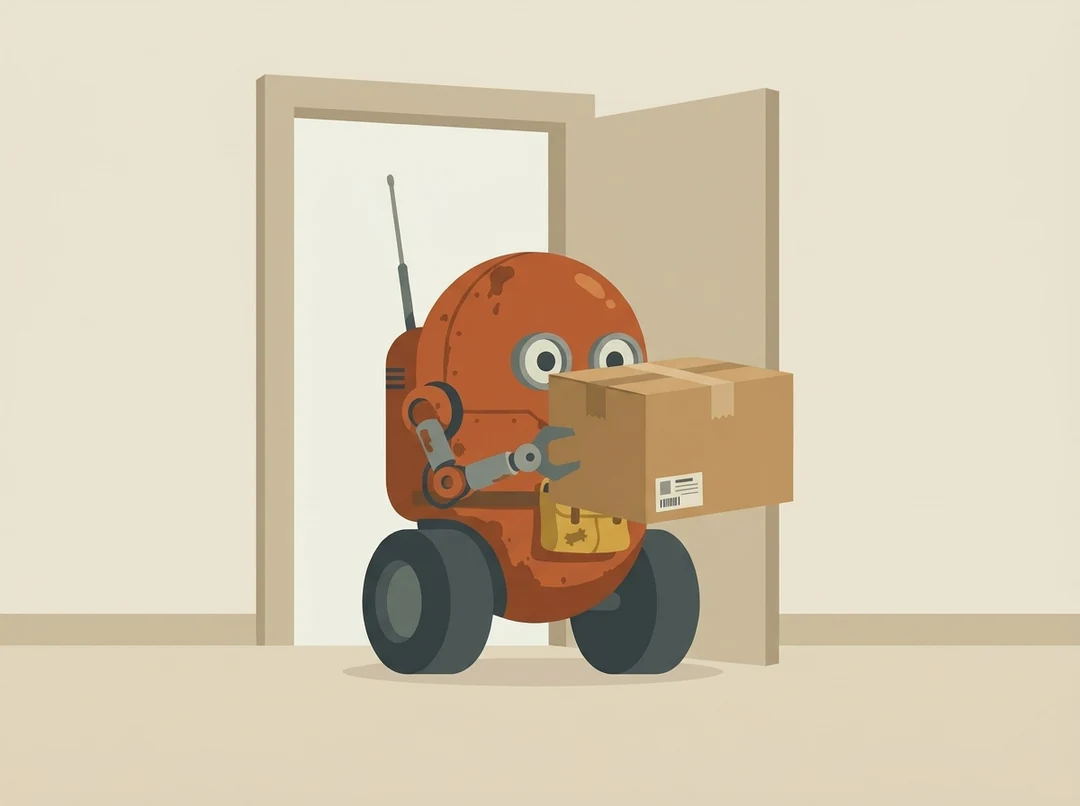
The same maintenance robot in two scenes: greeting a visitor at a station counter, then carrying a box through a doorway. The accepted reference stayed the same, so any drift shows up in the second scene.

A squat maintenance robot with an offset antenna and yellow pouch greeting a visitor at a station counter
Station counter · 4:3
The same maintenance robot carrying a box through a doorway
Doorway with a box · 4:3

What stayed

The squat rounded body, the single offset antenna, the two dark wheels and the small yellow repair pouch are all still there. These anchors read in silhouette, so they survive a change of pose and camera distance.

What changed

The pose, the camera distance and the background are new, and the box adds geometry that the reference never showed. A new action can reveal design ambiguity even when each frame looks appealing on its own.

What to check

Compare in a fixed order: silhouette and proportions, then face, colors and signature objects. Count the wheels, check which side the antenna is on, and confirm the pouch color. A reference is guidance, not an identity lock.

Use an AI character for stories, mascots and storyboards

Each of these jobs needs a different check. Name the anchors first, then judge the character at the size where it will appear.

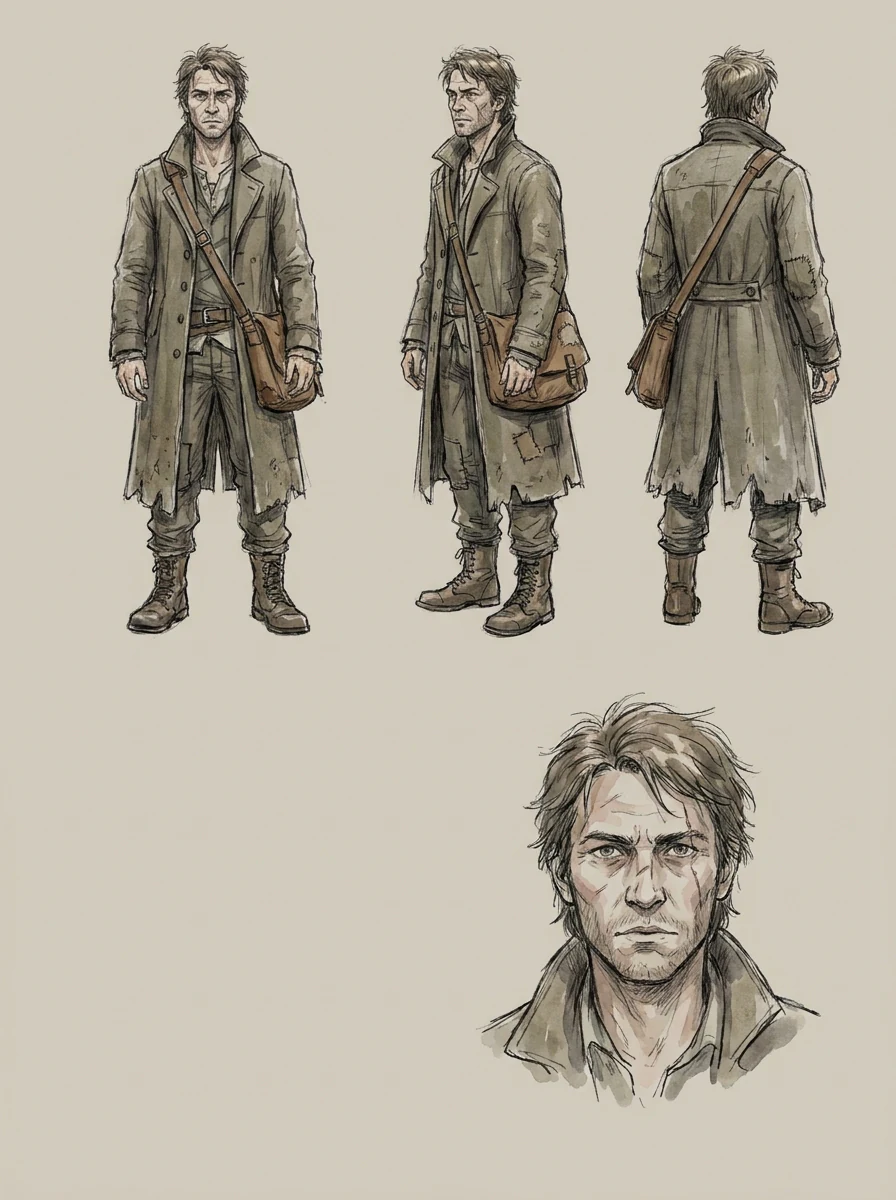
Character design sheet of a story lead in a worn coat with an alert expression

3:4 · Story lead

A recurring lead for a novel or web-fiction project

Start with the details that matter to the narrative, such as a worn coat and an alert expression, and leave the rest open. Generate a clear single view or a design sheet, then check face and body proportions before treating it as a reference. A polished image can still show the wrong age or temperament.
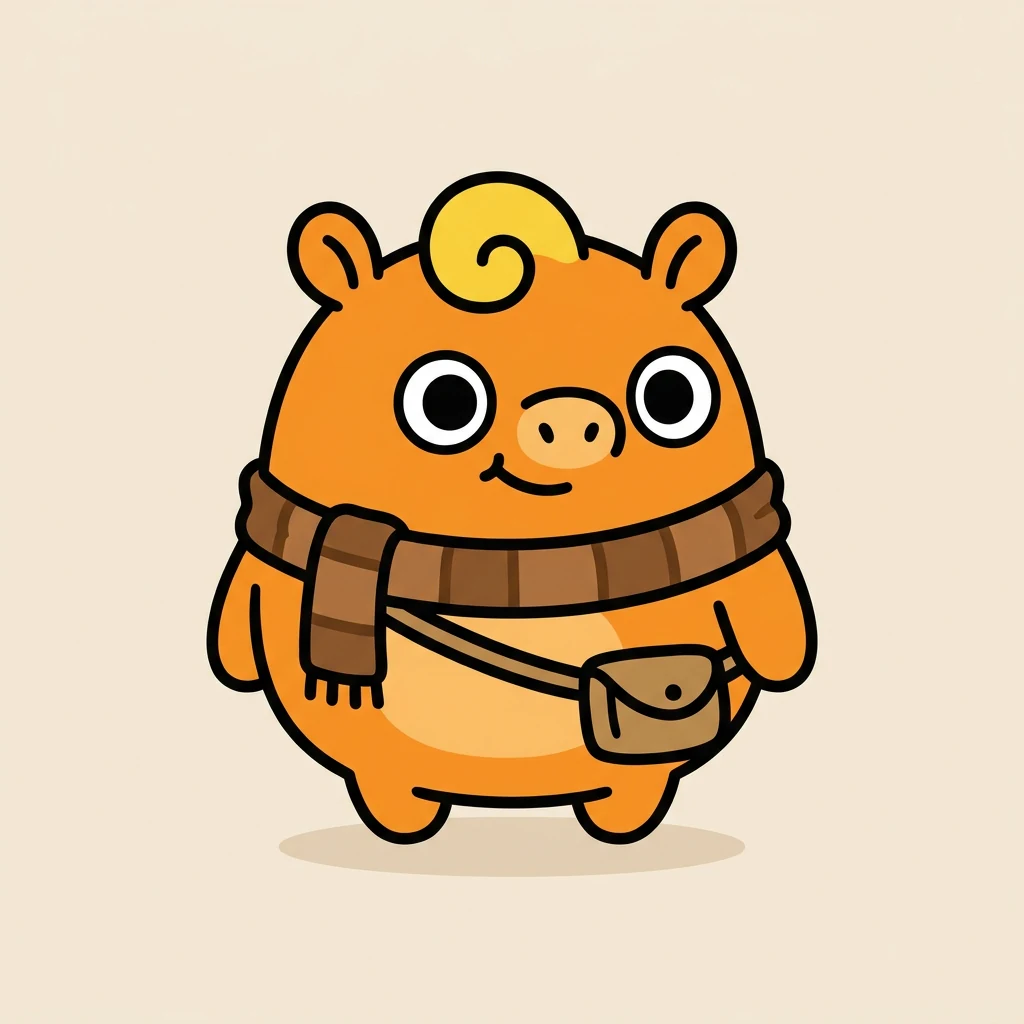
Simple round mascot concept with a few distinctive features and a clear silhouette

1:1 · Mascot concept

An original mascot for a community or product concept

Begin with a simple silhouette and a few distinctive features, then look at the outline alone: would the mascot still be recognizable with simplified colors? Keep logos and labels outside the image, and check the resemblance to existing characters before you adopt the design publicly.

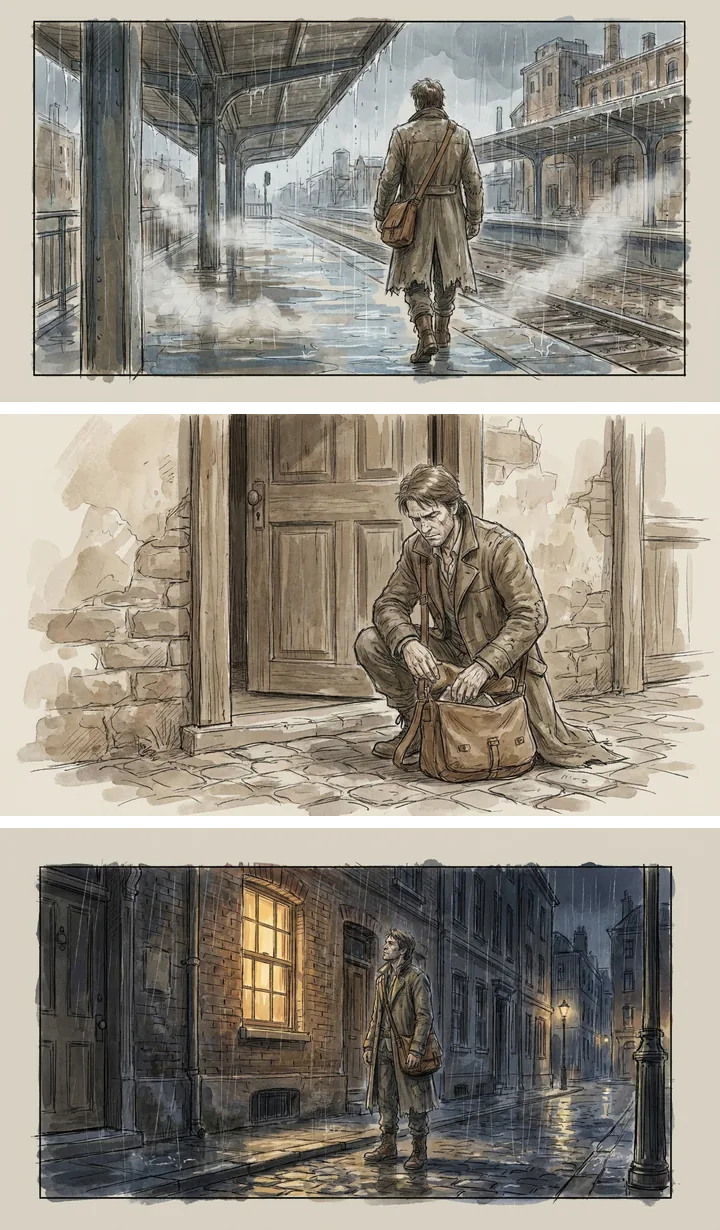
Three storyboard frames of the same character with a consistent coat and bag

16:9 · Storyboard frame

A character moving through storyboard scenes

Give each frame one action, one viewpoint and the reference features that must stay. Compare neighboring panels together: a coat that shortens or a bag that changes shape is a continuity problem even if each panel looks good alone. Treat the frames as planning material, not final animation frames.

How to create a character with an AI character generator

Three controls in the creation card above.

  1. 1. Name the anchors and add a reference

    Describe the silhouette, proportions, clothing, expression and signature objects in up to 4,000 characters. Add references that belong to the same design, up to 14, and say what each supplies. Two complementary images, such as a front view and a face close-up, tell the generator more than several near copies.

  2. 2. Pick model, ratio and count

    Choose Nano Banana or Nano Banana Pro, a supported ratio, HD, 2K or 4K, and one, two or four images. The exact pixel size depends on the model and the ratio, so check the downloaded file. Ask for a single view or one sheet type, since a crowded sheet makes each panel too small to judge.

  3. 3. Generate and review continuity

    Nano Banana HD costs 23 credits per image and Nano Banana Pro HD 45, shown on Generate before you confirm. Review silhouette and proportions first, then face, colors and clothing. Record the accepted version, and use it as the reference for the next scene.

What the AI character generator keeps consistent

Four parts of a character brief, and how to check each one across images.

  1. 01

    Fix the shapes that make the character readable

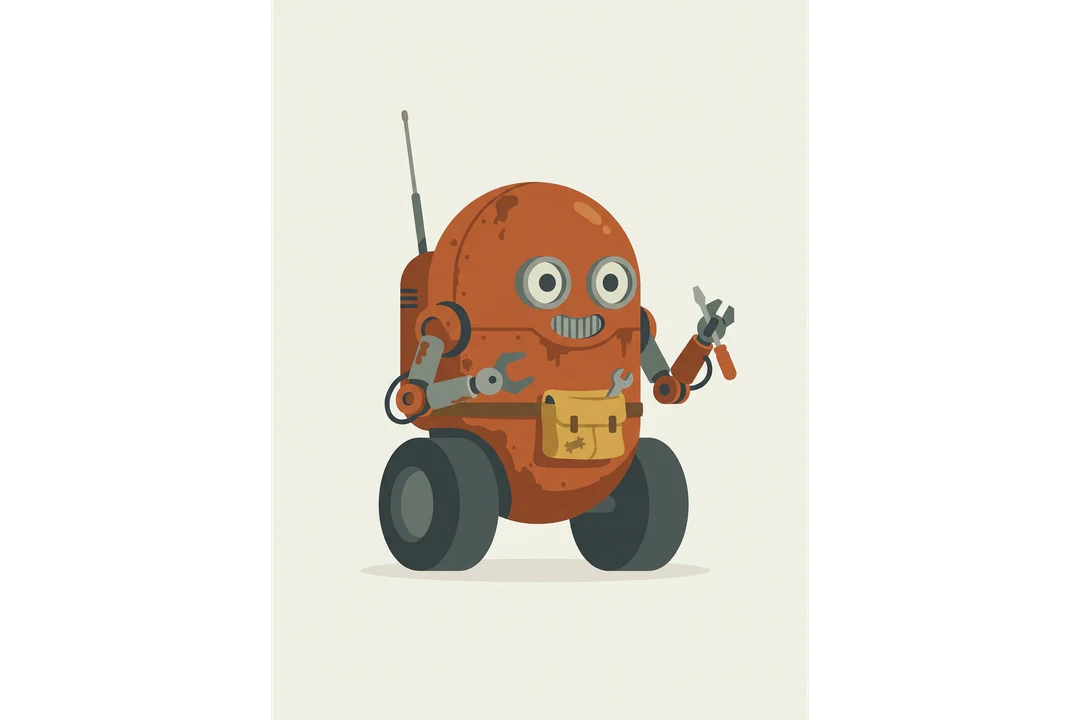
    A character is recognized by its outline before its details. Describe the silhouette, the main costume pieces and two or three colors, such as a squat rounded body, one offset antenna and dark wheels. The AI character generator then has anchors to repeat when you ask for another picture.

    • Outline and costume named first
    • Two or three anchor colors
    Front view of an original robot character with a rounded body and one antenna
    A front-view concept built from a written brief
  2. 02

    Accept one reference, then reuse it

    When a concept is close, keep that image as the reference for the character and attach it to every new request. Up to 14 references fit in one request, so you can add a front view and a side view together. Say in the prompt which parts must not change.

    • Accepted image reused as reference
    • Front and side views together
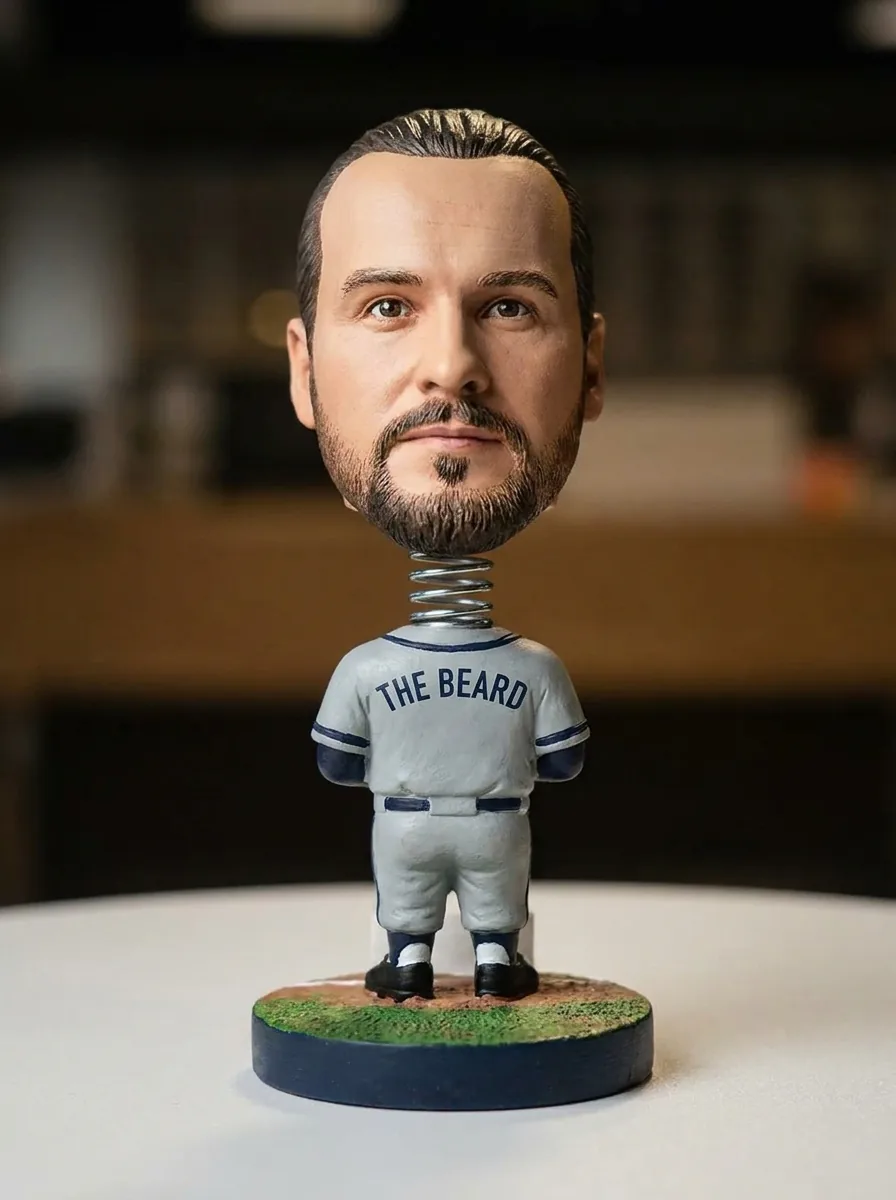
    Bobblehead figure of a man generated from a portrait reference
    Bobblehead Maker template output: a character figure made from a reference photo
  3. 03

    Place the same character in a new scene

    A station counter, a doorway with a box and a storyboard frame all need the same character in different surroundings. Describe only the new scene and the action, keep the character description unchanged, and compare each result with the accepted reference for proportions, colors and costume.

    • Scene and action described separately
    • Compared with the accepted reference
    The same robot character at a station counter and in a doorway
    One character in two different scenes
  4. 04

    Prepare a square avatar or a tall story lead

    Choose the aspect ratio for the job: square for an avatar or mascot, a tall frame for a story lead and a wide frame for a storyboard scene. Then choose the resolution and how many images to make. The quote on Generate updates with every change.

    • Square, tall or wide for the job
    • Quote on Generate before you confirm
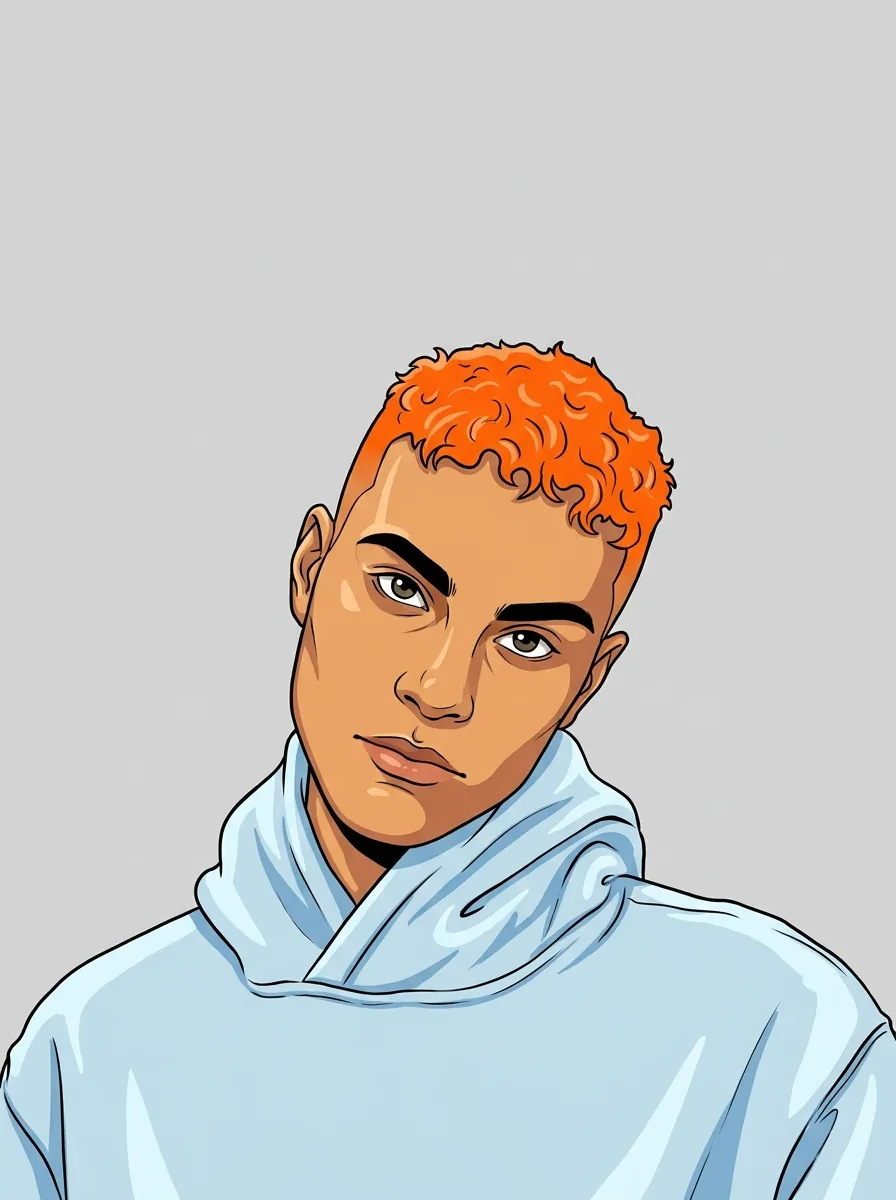
    Cartoon avatar generated from a portrait photo
    Avatar Maker template output made from a portrait photo

Keep exploring Potto AI

Pick the page that matches what your character needs next.

AI character generator FAQs

  1. What is an AI character generator?

    An AI character generator, also called an AI character creator, creates a visual concept for an original person, creature, mascot, or other character from a brief and optional references. Potto AI outputs raster images that you compare and refine. The output is a concept image, not automatically a consistent character system, a rigged model, or a production asset.

  2. What is a character reference sheet?

    A character reference sheet collects views or details intended to describe a design. A generated sheet can help explore those choices, but its panels can disagree in proportions and features. Review each panel and record the accepted anchors before sharing it as a design reference.

  3. Which sheet should I ask for?

    Pick the sheet that answers your design question. A single design view tests the core character, front, side and back views test one design across angles, an expression sheet tests the face, and costume variations test outfits. Combining all of them in one image makes each panel too small to judge, and the generator does not guarantee a mechanically consistent turnaround, so compare the panels one by one. A multi-view image is still a picture, not a 3D model or animation rig.

  4. How many reference images should I use?

    Use only references that belong to the same design, and say what each one supplies. The generator accepts up to 14, subject to the selected model. Two complementary images, such as a front view and a face close-up, add more than several near copies. Capacity is not a promise that every feature will be reproduced exactly.

  5. Can I keep the character consistent in new scenes?

    Use a clear accepted reference and a small set of recognizable features in the new brief. Compare silhouette, proportions, face, colors, clothing, and signature objects in each output. This can support a continuity workflow, but references do not guarantee an identity lock or exact consistency across scenes.

  6. What should I check for continuity?

    Review in a fixed order: silhouette and proportions first, then face, hairstyle, dominant colors, clothing and signature objects. Compare features at a similar display size, since a distant figure cannot show close-up detail. Identify actual differences rather than accepting general resemblance, and record the accepted version so later changes are deliberate.

  7. Can I use the result as an avatar?

    Yes, once you check the crop. Make the avatar crop from an accepted image and inspect it at the display size, because thin details disappear and accessories near the edge can be cut off by a circular crop. Keep the larger original too. Present an invented character as fiction, and do not use someone else’s likeness or an existing character without permission.

  8. Do I need an account to use the AI character generator?

    You can describe the character, add references and pick settings before signing in. Generate opens the sign-in dialog, and the character description stays in place.

  9. What if an AI character generation fails?

    The task shows why it stopped and offers a retry, and its credits are released. Cancel a running request from its controls. Asking for another pose or scene of a finished character is a new, charged request.

  10. How much does the AI character generator cost?

    Each character image costs 45 credits with Nano Banana Pro at HD or 2K, or 23 with Nano Banana at HD; character sheets with more images cost more. Generate shows the total first.

Potto AI

Create your character

Describe silhouette, costume, expression and pose, then compare the result against your brief. Check the quote on Generate before you start.