Skip to content
Potto AI

PPT to Video

Turn PowerPoint to video with AI: upload a deck and get a narrated explainer video, not a slide-by-slide export. Potto reads the slides, rewrites them as scenes with motion graphics, voiceover and captions, and lets you edit every scene before you export an MP4.

From PowerPoint slide to video frame

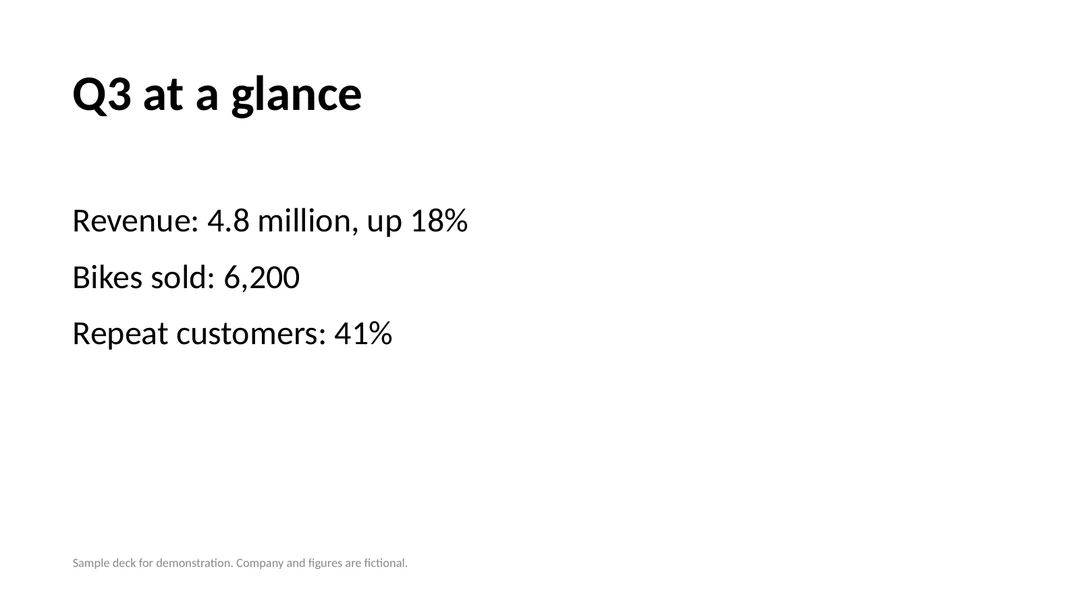
Slide 2 of the sample PowerPoint next to the frame it became when we convert PPT to video in a wide format. Numbers on screen come from that slide; the story around them becomes narration.

Slide 2 of a sample PowerPoint deck titled Q3 at a glance, listing revenue, bikes sold and repeat customers
PowerPoint slide 2 · Q3 at a glance
Video frame · 0:12 · 16:9

What PPT to video should keep

Revenue up 18%, 6,200 bikes sold and 41% repeat customers stay on screen as a short animated list with their labels. Numbers, units and names on a slide should survive word for word, so they belong in a frame, not only in narration.

What became narration

A slide holds bullets that a presenter would explain out loud. With no presenter in the room, PowerPoint to video AI turns that missing explanation into a voiceover script and captions, so each bullet gets a sentence of context in the order the scenes show them.

What to check before you export

Check every number on screen against the PPT, and read captions for units and qualifiers such as up 18%. The AI chooses which of the opening 12 slides to show, so confirm that the slides you need appear in a scene.

Match your PowerPoint to the video it should become

To convert PPT to video that people watch to the end, tell the AI who is watching and what they should take away. Your kind of presentation then decides length, which slides are worth showing and what a script should leave out.

16:9 · 47s

Business reviews and pitch decks

Lead with a conclusion and the three to five numbers that support it; 30 to 60 seconds usually covers a quarterly review or a pitch summary. Show your key chart, say risks in plain words, and leave appendix slides out. To convert PPT to video for social too, cut a vertical version from the same presentation.
16:9 · 34s

Training and onboarding decks

Turn one module into one video rather than a whole course. Keep steps in the order the slides teach them, one rule or task per scene, and end on what a new hire should do next. Exact policy names, numbers and deadlines belong on screen, not only in voiceover.

16:9 · 40s

Lectures and class slides

Slides to video works best one lecture at a time: open with a question, show the diagram slides people need to see, and let narration carry slides full of text. Add your speaking points to the brief, because a deck alone often leaves out what you would say in class.

How to convert PPT to video

Go from PowerPoint to video in three steps with the creator above. Previews are free, and the credit price appears before you export.

  1. 1. Upload your PPT and state a goal

    Upload a .pptx file of up to 20 MB, then write a sentence on who the video is for and what they should remember. Leave Video type on Auto or pick a use such as Explainer or Data Story. Potto reads text from up to 100 slides, and a project holds up to 8 attachments.

  2. 2. Review script, scenes and narration

    Read the AI script and storyboard against the original slides. Edit words on screen and voiceover for any scene, swap a screenshot, choose a focus point, or regenerate or replace an illustration. Check that names and numbers still match the slides.

  3. 3. Preview, then export an MP4

    Watch a preview in your browser for free. When you are ready to convert PPT to video, export a 1080p MP4 at 30 fps in 16:9, 9:16 or 1:1. Credits are charged only when you export, based on length, narration and illustrations.

What PowerPoint to video AI does with your slides

PowerPoint can save a presentation as a video itself, and many slides to video tools add a voice to each slide. Potto's PPT to video AI rewrites a PowerPoint for viewing: titles, numbers and bullets become animated layouts and charts with narration and captions, so your result plays like a finished explainer video rather than slides with a voice.

  1. 01

    An AI script written from your PowerPoint

    Potto reads the text on each slide, and Claude Opus 5.5 drafts an outline, storyboard and voiceover script; scenes are rendered with Remotion, with AI-generated illustrations and voiceover. When a presentation is long, only its opening part is used to write the script, so put key slides first.

    • Up to 100 slides of text read
    • Outline, storyboard and script drafted by AI
    Opening scene of the quarterly review sample
  2. 02

    Your slides as scene material

    The first 12 slides of your deck can be used as images in your video. The PowerPoint to video AI picks the ones that fit each scene of the storyboard, so some slides may not appear; you can swap in a screenshot or choose a focus point afterwards. Animations from PowerPoint are not replayed; Potto adds its own motion.

    • First 12 slides available as visuals
    • AI picks visuals scene by scene
    A scene from the vertical review sample
  3. 03

    Your brand colors, font and logo

    Select a brand kit, or turn on the default brand, and its four brand colors are applied to the visuals. Choose a font from Inter, Space Grotesk and Bricolage; your logo appears in opening and closing scenes.

    • Four brand colors in the visuals
    • Logo in opening and closing scenes
    Square report summary sample, made from a PDF
  4. 04

    Narration in 32 languages, with captions

    Choose any of 32 narration languages or let Potto detect a language automatically. Captions highlight each word as it is spoken. Background music comes from Potto's own library of original tracks, picked to fit the style and length, and you can change it. Listen once for names, numbers and abbreviations taken from the deck.

    • 32 narration languages or auto-detect
    • Word-by-word captions
    A scene from the PDF manual sample
  5. 05

    One presentation, wide and vertical

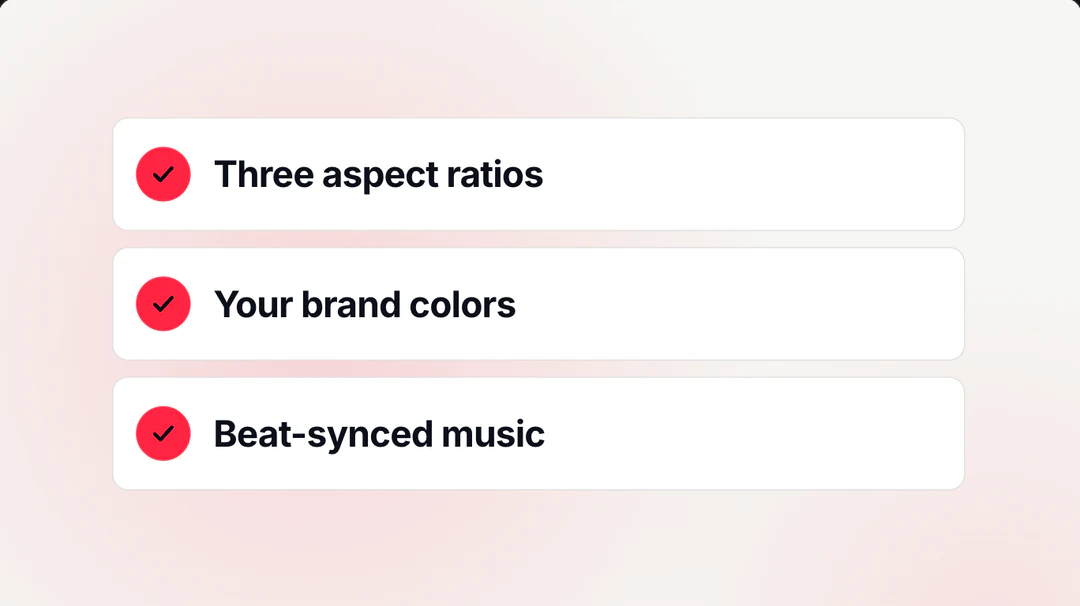
    Potto exports a 1080p MP4 at 30 fps in 16:9 (1920×1080), 9:16 (1080×1920) or 1:1 (1080×1080). Aspect ratio does not change the price, so the same presentation can become a wide video for meetings and a vertical cut for social; the review samples show one deck in both shapes.

    • 16:9, 9:16 and 1:1 frames
    • Price not affected by aspect ratio
    One review deck in 16:9 and 9:16

Keep exploring Potto AI

PPT to video is one way to start. These pages cover other starting points and tools around it.

PPT to Video FAQs

What PPT to video means, how it differs from exporting in PowerPoint, and the slide limits, edits and prices to know before exporting.

  1. What is PPT to video?

    PPT to video, also called PowerPoint to video, is the process of turning a presentation into a video people can watch without a presenter, with visuals, narration and captions carrying what the slides say. The simplest slides to video method plays each slide for a few seconds, with or without recorded audio. Potto is a PPT to video AI: it reads your slide text, writes a storyboard and script, turns titles, numbers and bullets into motion graphics, uses some slides as images, and renders an MP4. It does not film footage or generate a digital presenter.

  2. How is PPT to video AI different from exporting a video in PowerPoint?

    PowerPoint's own video export records your slides as they are: each slide stays on screen for a set time, with the narration, timings, animations and transitions you added yourself. Potto's PPT to video AI starts from the content instead: it writes a script and voiceover you did not have to record, rebuilds slides as animated scenes, and lets you pick a 16:9, 9:16 or 1:1 frame. Export from PowerPoint when you want the deck exactly as designed; use PowerPoint to video AI when you want an explainer made from it.

  3. How do I convert a PPT to video?

    To convert PPT to video, upload your .pptx file in the creator at the top, write a sentence about your audience and goal, and start the project. Potto drafts a script, storyboard, narration and captions; you edit them scene by scene, preview for free in your browser, and export an MP4 once it reads right.

  4. Which presentations work best with PPT to video AI?

    Presentations with real text on the slides work best: business reviews, pitch decks, training modules and lecture slides. Potto's PowerPoint to video AI writes its script from text it can read, so clear titles, exact numbers and short bullets give it more to work with. Slides that are only pictures, or text saved inside an image, give the script little to use; for slides to video from a deck like that, put those points in your brief instead.

  5. How many slides can Potto read?

    Potto reads text from up to 100 slides, and a single .pptx file can be 20 MB. When a presentation is very long, only its opening part is used to write the script, so do not expect every section to be covered. The first 12 slides can be used as visuals, and the PPT to video AI picks the ones that fit the storyboard, so not every slide appears in your video.

  6. Do my slide animations and transitions carry over?

    No. For PPT to video, Potto takes the slide text and still images of up to 12 opening slides, so animations, transitions and timings set in PowerPoint are not replayed. Motion comes from Potto's own animated scenes instead. Audio or video clips placed inside a deck are not used either, and Potto currently cannot take an existing video to analyze or edit.

  7. Can I edit the script and scenes before exporting?

    Yes. Before you export, you can edit what the PPT to video AI drafted: the words on screen and the voiceover script for each scene. For visuals, you can swap a screenshot, choose its focus point, regenerate an AI illustration or replace it with your own upload. Preview again after each change.

  8. Can I turn Word documents, PDFs or other slides into a video?

    Yes. Word to video works the same way as PPT to video: upload a .docx file with the same limits of 20 MB, 100 pages of text and the first 12 pages as visuals. PDF files work too; PDF to video covers reports, handouts and manuals. If your slides were made in another presentation app, download them as a .pptx or PDF file first, and slides to video follows the same three steps.

  9. Does the video keep my brand colors and fonts?

    Yes, when you select a brand kit or turn on the default brand. Its four brand colors are applied to the visuals, the font is your choice of Inter, Space Grotesk or Bricolage, and your logo appears in opening and closing scenes.

  10. What formats and sizes can I export?

    Potto exports a 1080p MP4 at 30 fps, rendered from your scenes rather than recorded from a slideshow. Choose 16:9 (1920×1080) for a meeting room screen or website, 9:16 (1080×1920) for phones, or 1:1 (1080×1080) for feeds. A 4:5 frame and GIF export are not available.

  11. How many credits does one PPT to video export cost?

    Generating and previewing a presentation to video project in your browser is free; Potto charges credits only when you export. The price depends on video length, narration length and how many AI illustrations you use, and aspect ratio does not change it. For example, a 30-second video with English narration and no illustrations costs 153 credits, and adding 2 illustrations brings it to 199 credits. Each account can start up to 30 video projects and generate 60 illustrations a day.

Potto AI

Turn your slides into a video

Upload a PowerPoint deck, review scenes and script, and see the credit price before you convert PPT to video as an MP4.