Black Friday: 50% off every yearly plan for the first year. Ends Dec 1.
Potto AI
AI IMAGE

AI Art Generator

Pick a medium, a palette and a composition in the free AI art generator. Then review how they work together in the result.

  • Chapter opener: example result

    Chapter opener

  • Harbor settlement: example result

    Harbor settlement

  • Lighthouse poster: example result

    Lighthouse poster

Compare two media from one AI art generator prompt

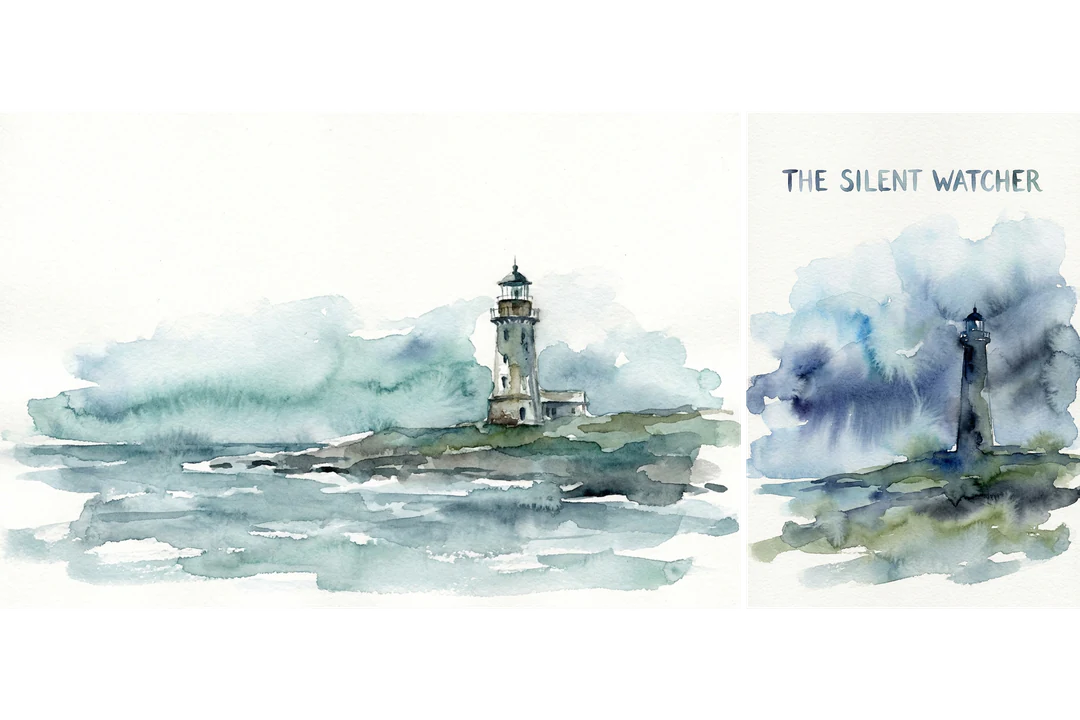
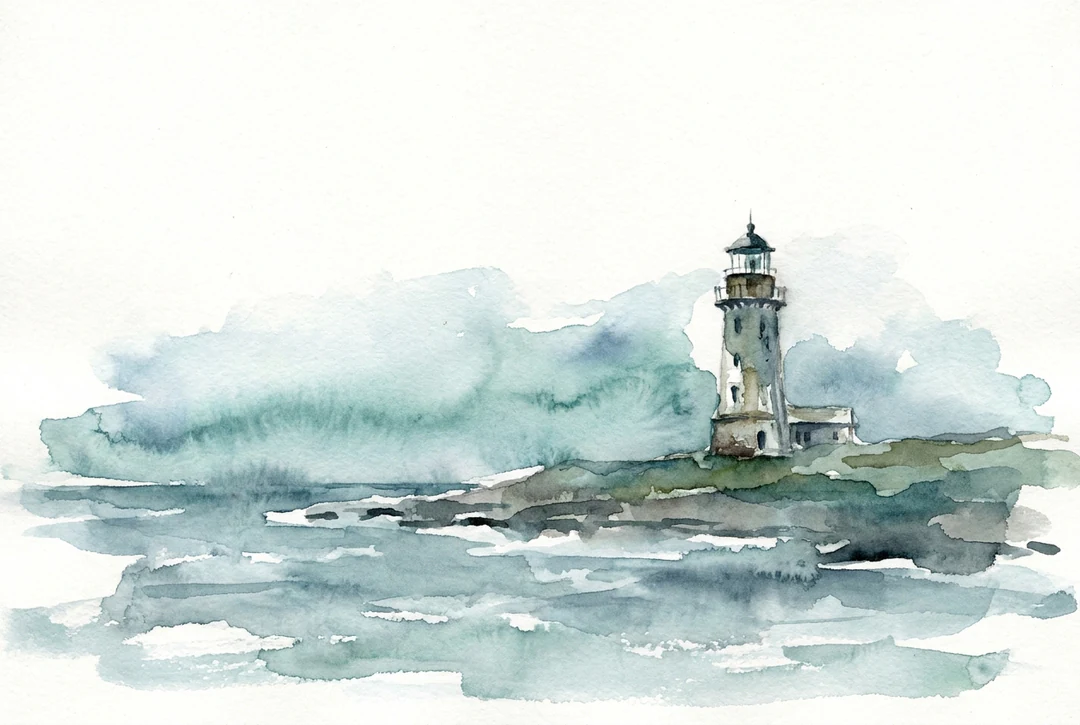
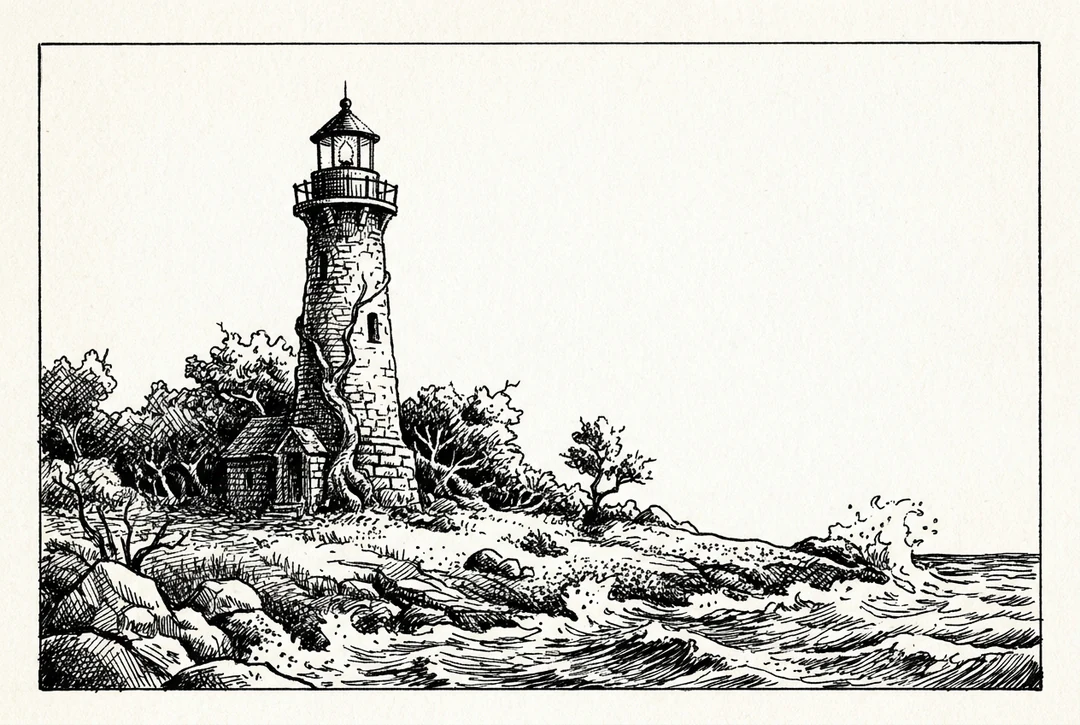
The same lighthouse on a low headland, generated twice. Only the medium changed, from loose watercolor to dense ink. The differences come from the treatment, not from a new scene.

A lighthouse on a low headland in loose watercolor-like washes
Watercolor-like · 3:2
The same lighthouse and headland as a dense ink illustration with hatching
Ink illustration · 3:2

What stayed

The lighthouse, the headland, the horizon line and the 3:2 frame are the same in both images. Only the medium word in the prompt changed. That makes the two results easy to compare.

What changed

Watercolor-like washes soften edges and let the tower blend into the sky. Ink adds hard contours and hatching, and the dark rock gets heavier. Texture, edge and value structure moved. The composition did not.

What to check

Does the lighthouse stay the focal point? Are the dark areas too heavy for the layout? Does the texture survive at the final size? Judge each image in its real placement. The file is a raster image, not editable strokes.

How to create artwork with the AI art generator

Three controls in the AI art generator from text above.

  1. 1. Describe the art and add references

    Write the subject, viewpoint, lighting, medium and palette in up to 4,000 characters. Describe them in terms a reviewer can check. Add references (up to 14) only when each one answers a question, such as subject, composition or visual direction. Say in the prompt which job each image has.

  2. 2. Pick model, ratio and count

    Choose Nano Banana or Nano Banana Pro. Then set a supported ratio, a resolution and PNG or JPEG, and pick one, two or four images. Set the ratio first: 16:9 suits a banner and 3:4 a cover. Several candidates help only when each tests a clear question.

  3. 3. Generate, review and iterate

    Nano Banana HD costs 23 credits per image and Nano Banana Pro HD 45. Generate shows the total before you confirm. Review the whole image and one key detail at full size. Adjust a couple of decisions per iteration. Keep the prompt with the result you save.

Use the AI art generator for chapters, game worlds and posters

Each job needs a different check. Describe the look in terms you can see, then judge the image where it will sit.

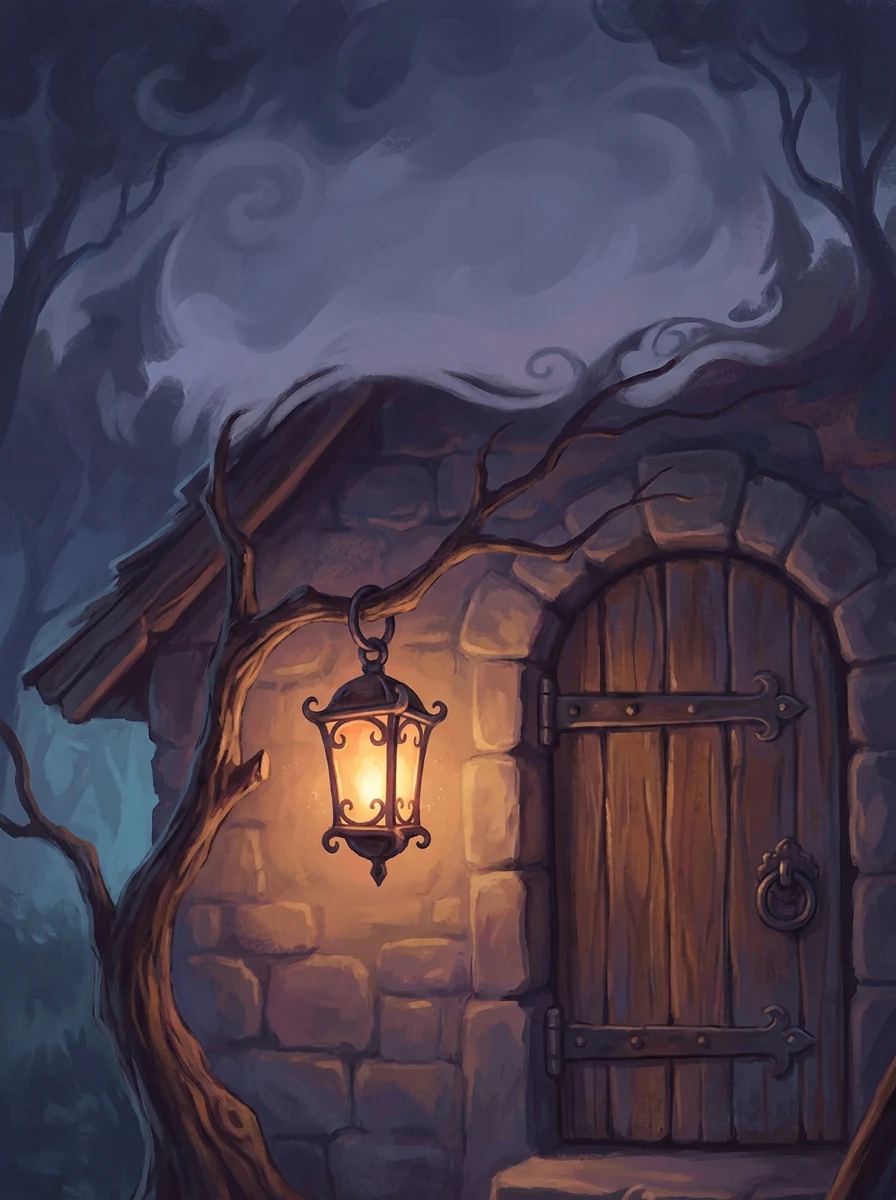
Lantern beside a door as a chapter-opening illustration with room for the title

3:4 · Chapter opener

A chapter-opening illustration for a story

Pick the one image that matters to the chapter, such as a lantern by a door. Keep a few objects so the focal shape stays readable in a narrow column. Describe the space reserved for the title. Add the exact wording in your layout app, not in the generated pixels.
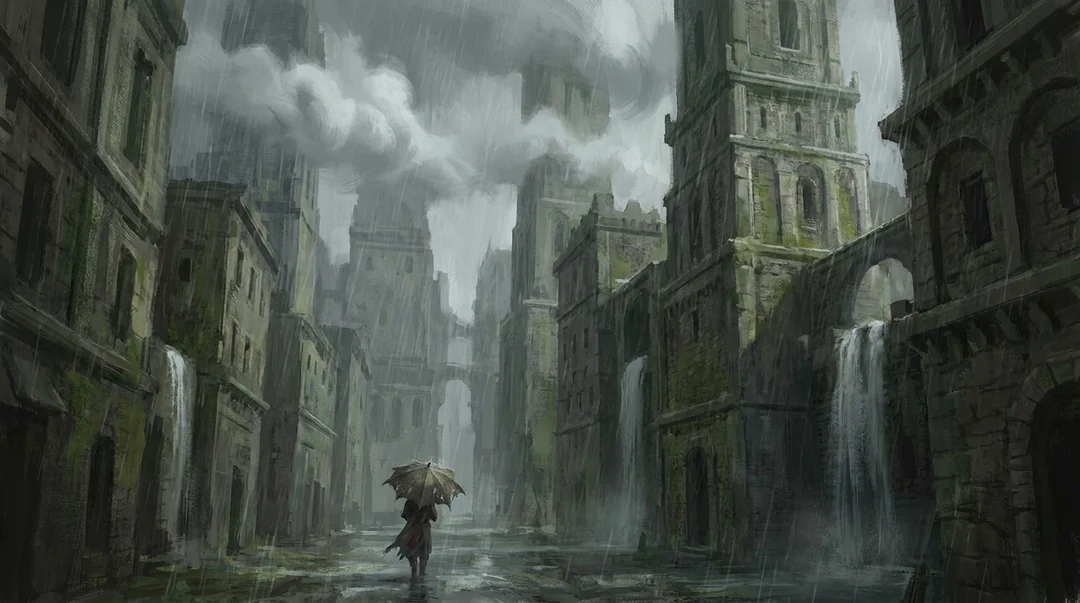
Game environment concept of stone buildings in rain with a small figure for scale

16:9 · Game environment

Environment concept art for a game or tabletop setting

Describe the scale of the buildings, the materials, the weather and the viewpoint. Add a small figure for scale. The result shows mood and broad layout, not a measured map or game-ready assets. Check doorways, stairs and bridges, which can look plausible but fail to connect.

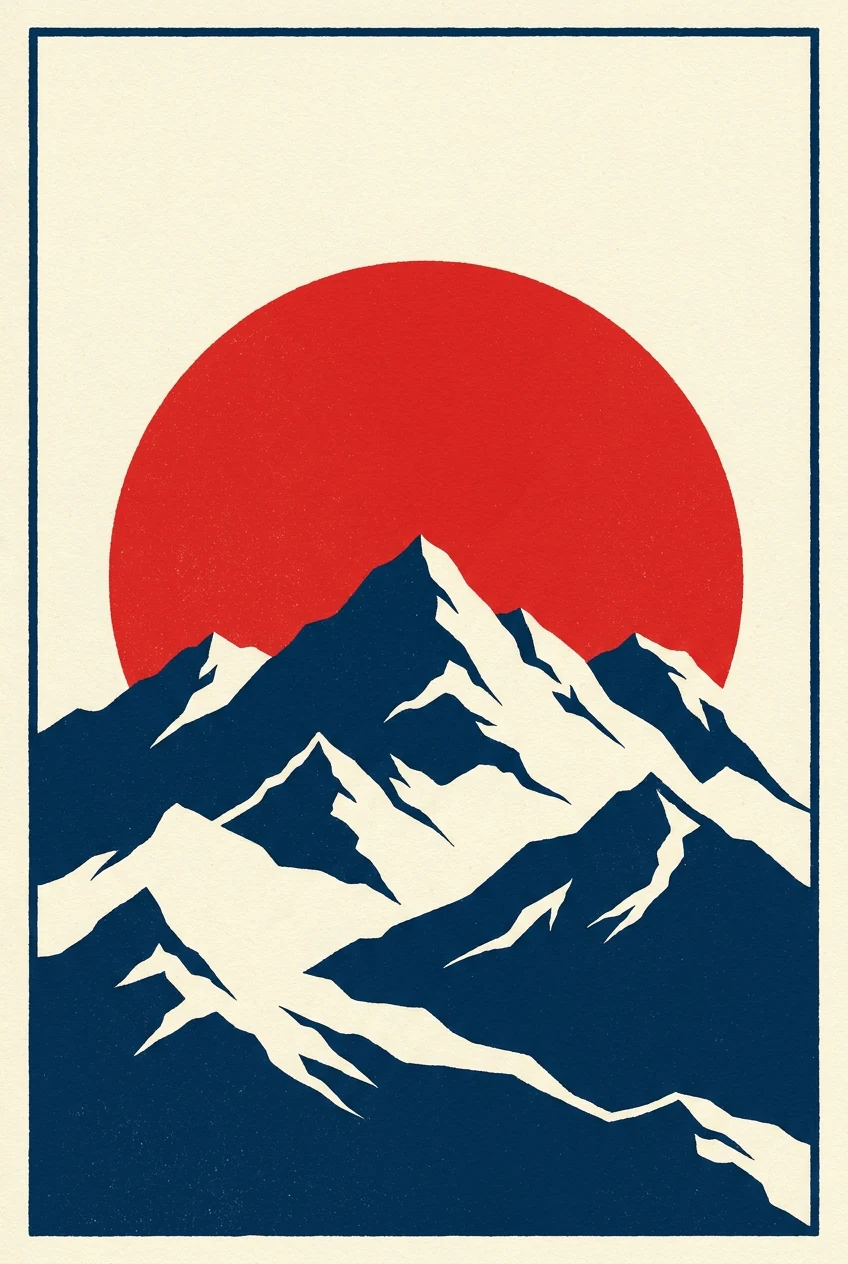
AI art poster of a red sun over navy snow mountains in a limited palette with a thin cream border

2:3 · Poster art

Artwork for a poster with a clear hierarchy

Start from one dominant shape or scene, a limited palette and strong contrast. Reserve open space where the type will go. Set the words later. Look for stray marks along the edges. Test a tall poster crop against a square one.

What the AI art generator lets you decide

Four choices for an AI art generator from text, each set in words and checked in the result.

  1. 01

    Name the medium and the surface

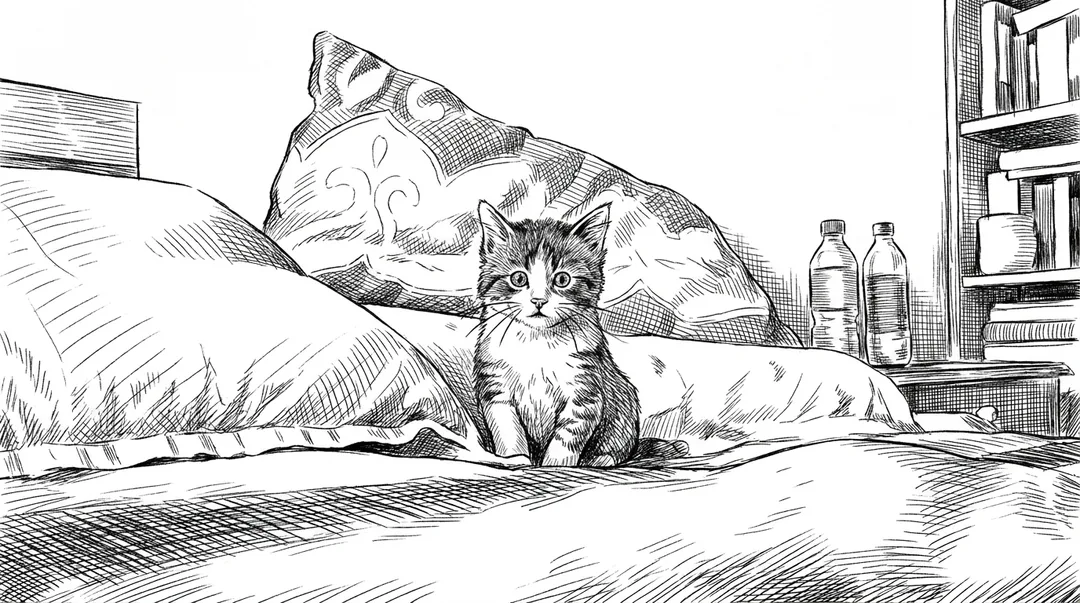
    Loose watercolor, dense ink, gouache and digital paint each leave visible marks. Name the medium in the first sentence of the prompt. The AI art generator then treats it as the main instruction, not a detail. Rendering one scene twice shows what a medium changes.

    • Brushwork or line quality named
    • Same scene in two media to compare
    Ink illustration of a cat generated from a reference photo
    Ink Drawing template applied to a reference photo
  2. 02

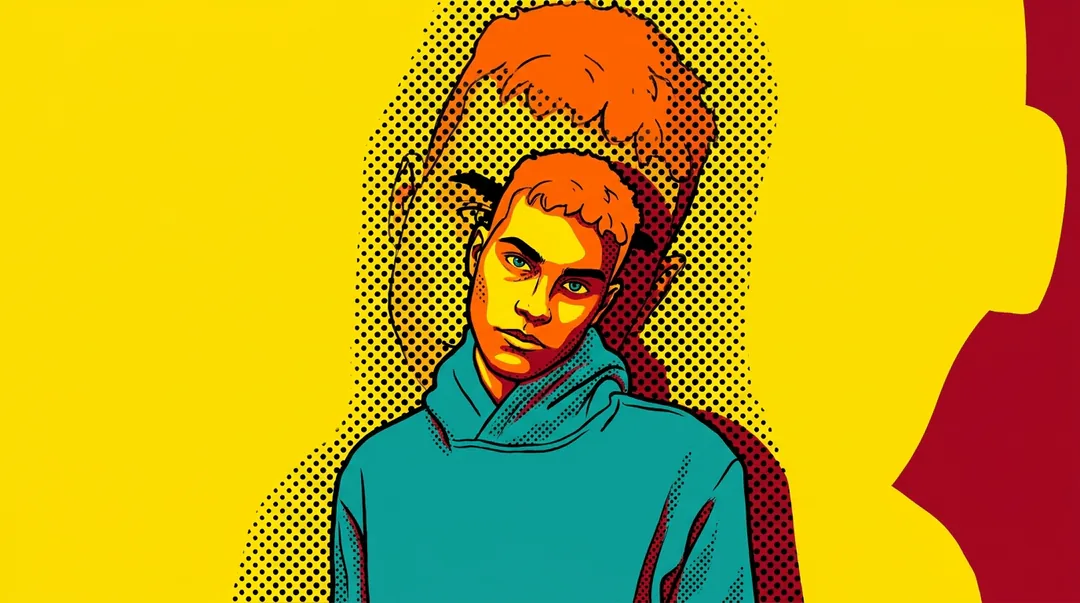
    Hold a palette across the picture

    A restricted palette keeps a picture from drifting. Name two or three main colors, or say “restrained cool colors”. Ask for bold flat color for a pop-art look. Check whether the accents still read at the final size.

    • Two or three named colors
    • Accents checked at final size
    Pop art portrait with bold flat colors generated from a reference photo
    Pop Art Portrait template output with bold flat color
  3. 03

    Plan space for a title or a layout

    A poster or a chapter page needs empty areas. Say where the open space goes, such as the top third for a title. Say where the main shape sits. A lighthouse is arranged differently in a 3:2 scene than in a 2:3 poster. Add the lettering in your layout tool.

    • Open space placed on purpose
    • Ratio set for poster, chapter or scene
    Lighthouse on a headland composed for a 3:2 scene and a 2:3 poster
    One scene composed for a landscape and a poster frame
  4. 04

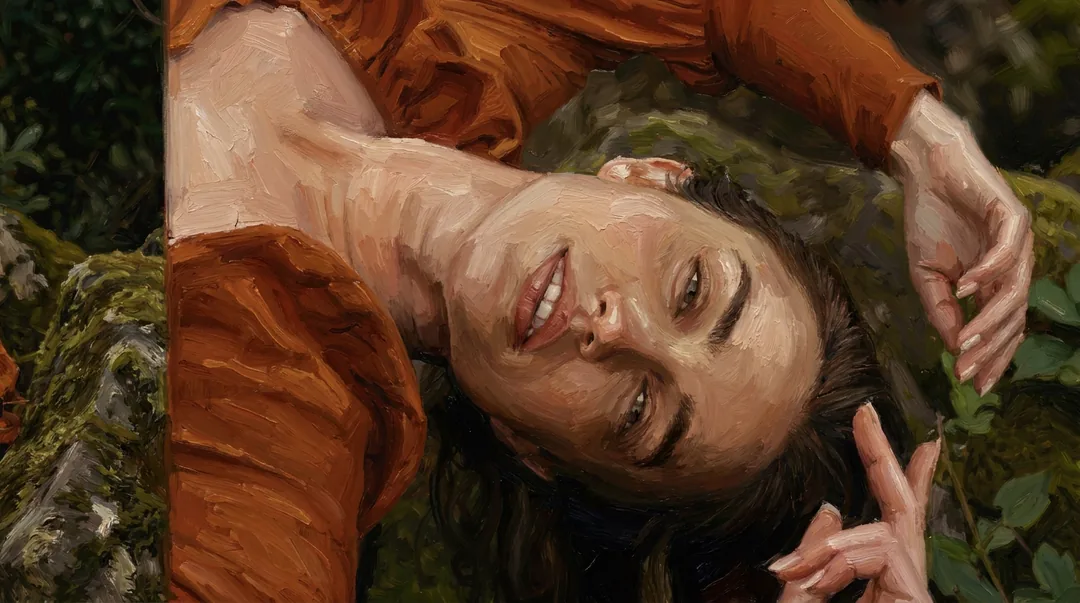
    Add references for subject or style

    With an AI art generator from photo references, attach them to carry over a character, an object or a look. Say what each one contributes. The generator combines the reference with the medium you named. Review the result against the references, because details can still shift.

    • Up to 14 references
    • Each reference given one job
    Oil painting portrait generated from a reference portrait photo
    Photo to Painting template applied to a portrait

Choose Your Plan

Choose your credits and generation priority. Potto does not add a visible watermark to your downloads.

  • Lite

    Black Friday -50%
    $16$8/month

    Billed $96 for the first year, then $192/year

    Choose Lite

    Monthly HD images

    Learn more
    44 images
    86 images
    • 2,000 monthly credits
    • Up to 86 fast images
    • Standard queue
    • No Potto watermark
    • Batch image tools
    • Private creations
    • All premium skills
  • Pro

    Black Friday -50%
    $40$20/month

    Billed $240 for the first year, then $480/year

    Choose Pro

    Monthly HD images

    Learn more
    111 images
    217 images
    • 5,000 monthly credits
    • Up to 217 fast images
    • Priority queue
    • No Potto watermark
    • Batch image tools
    • Private creations
    • All premium skills
  • Recommended

    Max

    Black Friday -50%
    $80$40/month

    Billed $480 for the first year, then $960/year

    Choose Max

    Monthly HD images

    Learn more
    333 images
    652 images
    • 15,000 monthly credits
    • Up to 652 fast images
    • Highest priority queue
    • No Potto watermark
    • Batch image tools
    • Private creations
    • All premium skills

AI art generator FAQs

  1. What is an AI art generator?

    An AI art generator from text makes artwork from a written description and optional references. It is also called an AI art maker. The request can describe a subject, composition, palette and medium. Potto AI provides generated raster images to review and download. The result is not a physical original or an editable set of brush strokes.

  2. How should I describe a medium to the AI art generator?

    Describe visible qualities: color washes, hard outlines, hatching, paper texture, limited colors or flat shapes. For example, ask for loose watercolor washes with soft edges. Or ask for dense ink contours with cross-hatching. Link those qualities to the artwork’s purpose. Keep the subject stable when comparing media.

  3. Can I use the output as vector or layered artwork?

    The download is a raster image, not vector paths or a layered file. Build those deliverables in a design workflow. Check lettering and object detail before a production handoff. An art-like look does not make a file editable.

  4. Can the AI art generator put exact text in the artwork?

    Generated lettering can contain mistakes or stray marks. Add exact words in your layout app, where spelling and placement stay editable. Ask for open space where the text will go. Check the margins and corners for letter-like marks before you place the image.

  5. Can I print the result?

    Check the pixel dimensions of the downloaded file against your printer’s requirements. HD, 2K and 4K are output tiers, not a print specification. The generator adds no bleed or editable print layout. Review a proof at the intended size, because paper changes how colors read.

  6. How many reference images can I add to the AI art generator?

    Up to 14, subject to the selected model and the upload requirements in the interface. Say what each image supplies: a subject, a composition or a visual direction. Several images do not guarantee every detail is preserved. Conflicting references can produce an uncertain blend.

  7. How do I improve a result I almost like?

    Save the prompt with the selected result. Note what still needs work, such as a crowded foreground or colors that compete with a headline. Change one or two related decisions in the next request. Each revision is a new request and can use credits again. When you hand the file to a teammate, include the placement, the crop and the prompt.

  8. Do I need an account to use the free AI art generator?

    You can write the art prompt, add references and choose settings before signing in. Generate opens the sign-in dialog. The prompt stays in place. New accounts get 100 credits, enough for four HD images with Nano Banana. That is how the free AI art generator starts.

  9. What if an AI art generation fails?

    A failed artwork shows the reason and a retry, and its credits are released. Stop a running request with the cancel control. Generating another version of finished artwork is a new, charged request.

  10. How much does the AI art generator cost?

    Each artwork costs 45 credits with Nano Banana Pro at HD or 2K, or 23 with Nano Banana at HD. 4K and more images cost more. The total is on Generate before you confirm.

Potto AI

Create your artwork

Describe the medium, palette and composition in the free AI art generator. Then review the result in its real layout.