3:49:16
Vertical story
A tall ratio adds space above and below. Subjects near the middle fit best.
Pick a new ratio. This AI image expander fills the space around your photo.
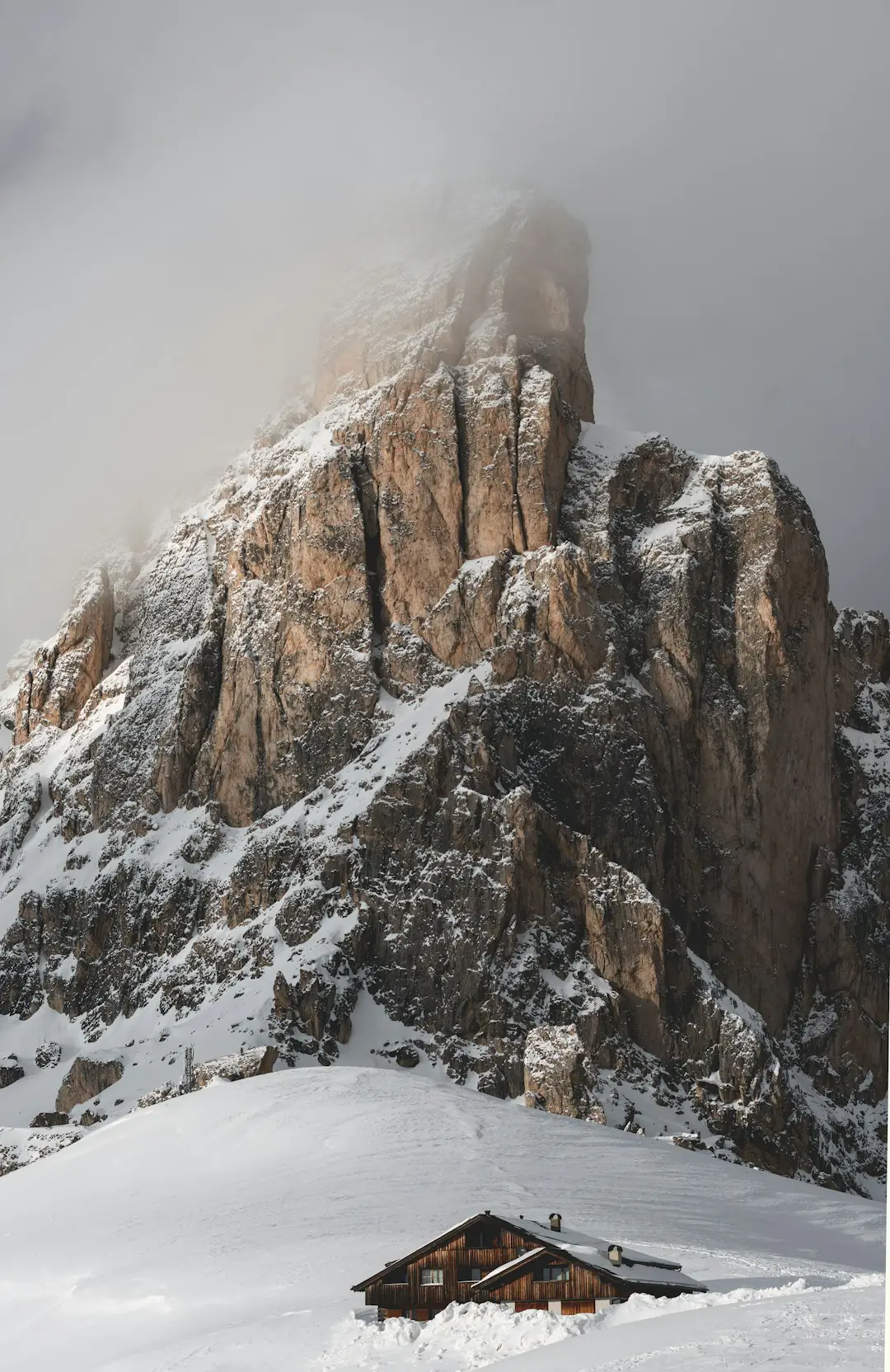
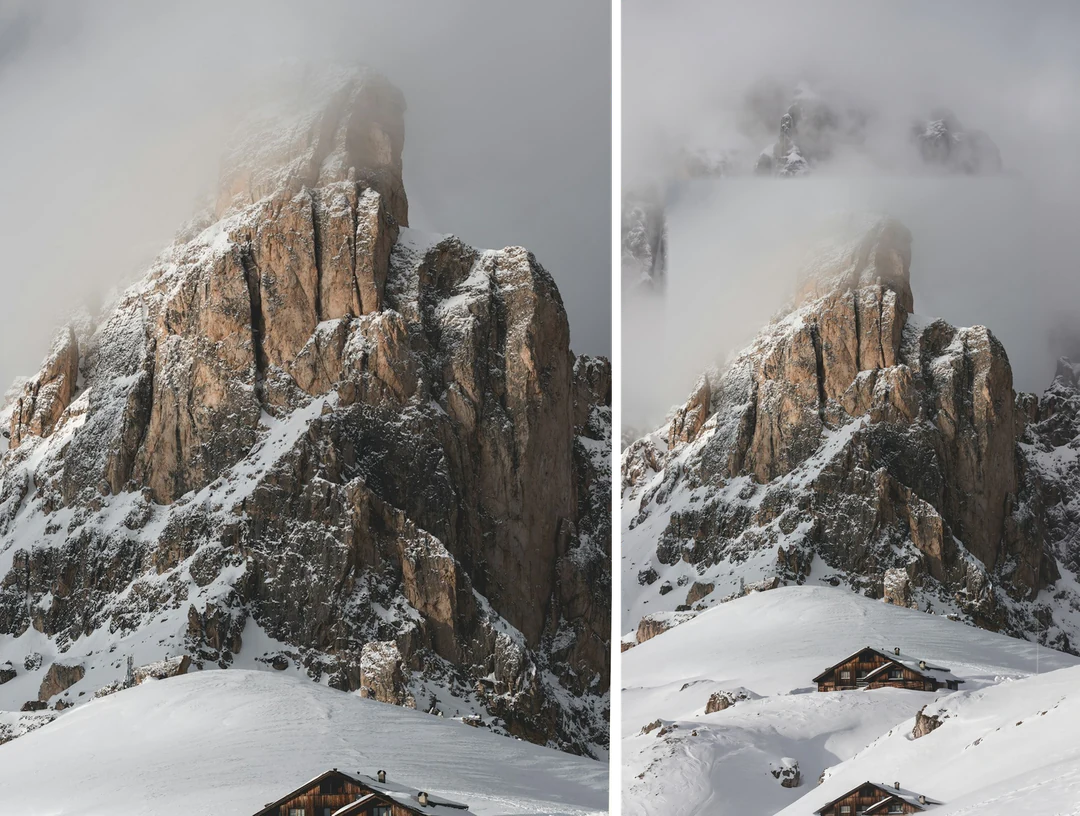
A tall 2:3 desert photo expanded into a 16:9 banner.
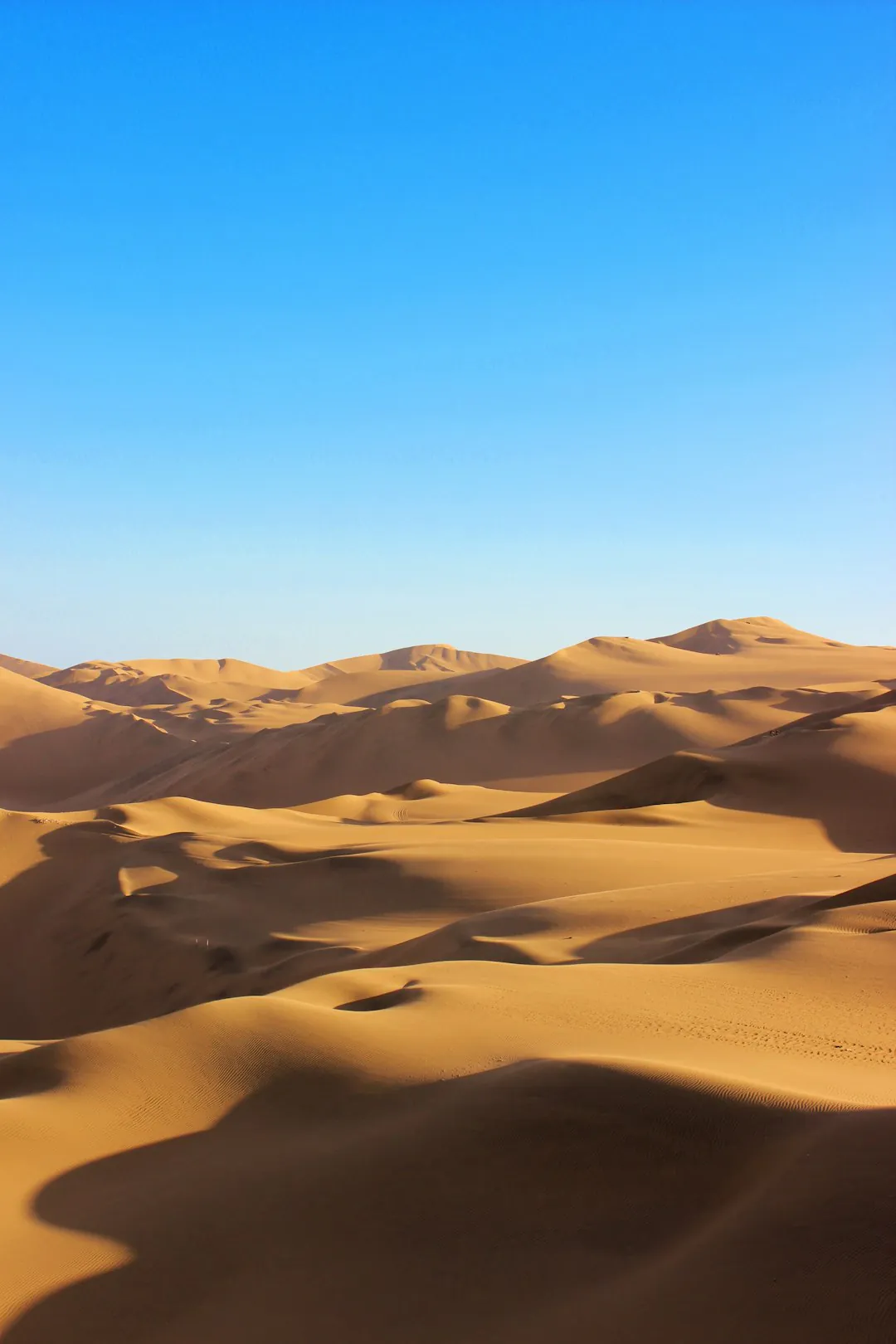
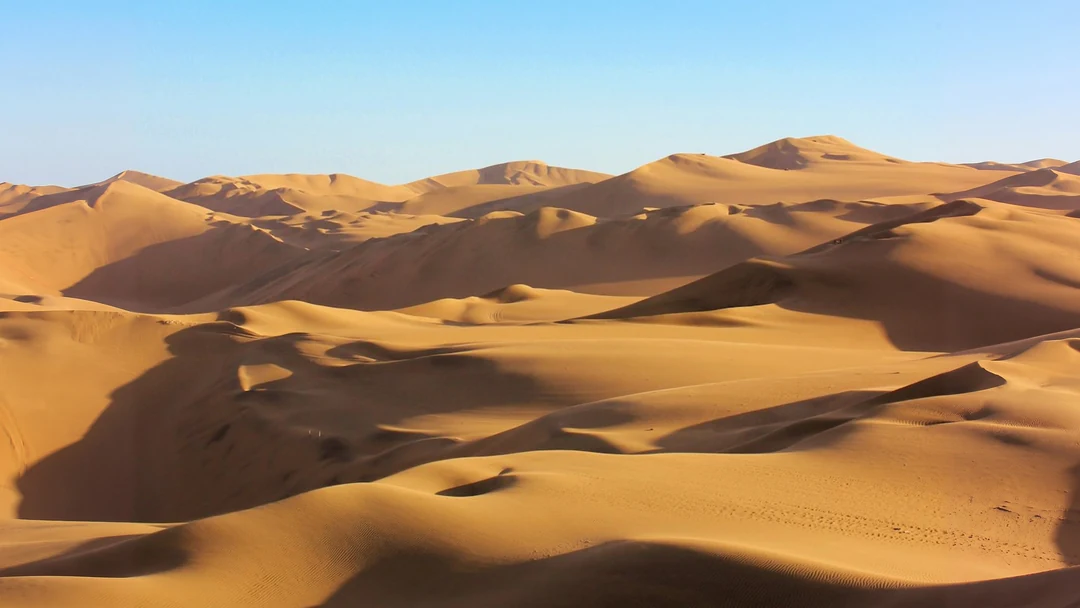
The frame turned from tall to wide. Sand and sky now fill the width.
The scene is still dunes under open sky. The light stays warm.
Look at dune edges and shadows. View the result at your final size.
Choose the ratio for the place the image will go.
3:49:16
A tall ratio adds space above and below. Subjects near the middle fit best.
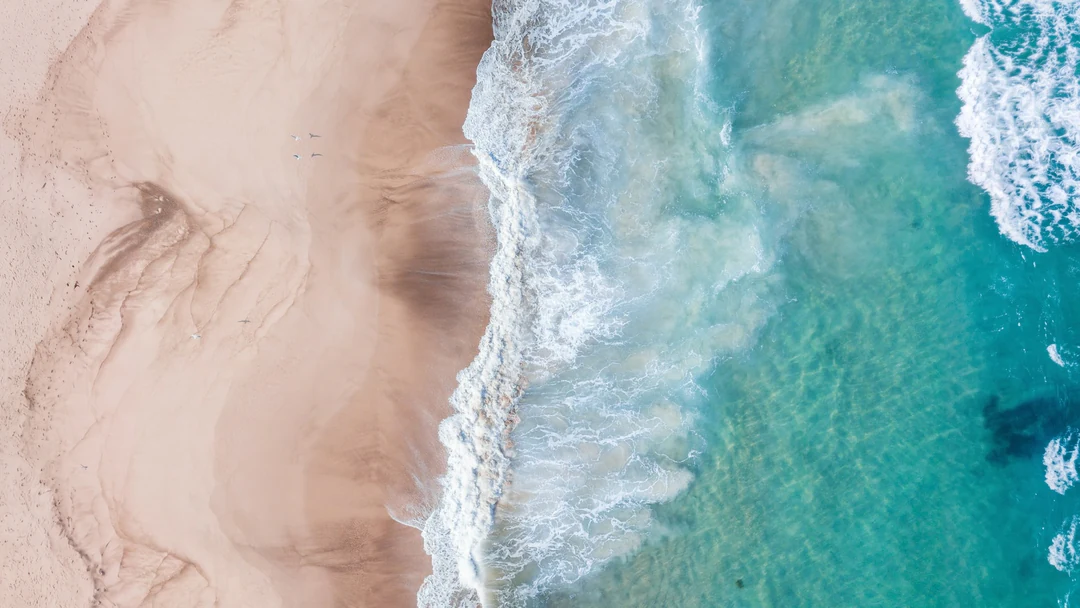
16:9
A wide ratio adds room on both sides. Leave the new space for a headline.
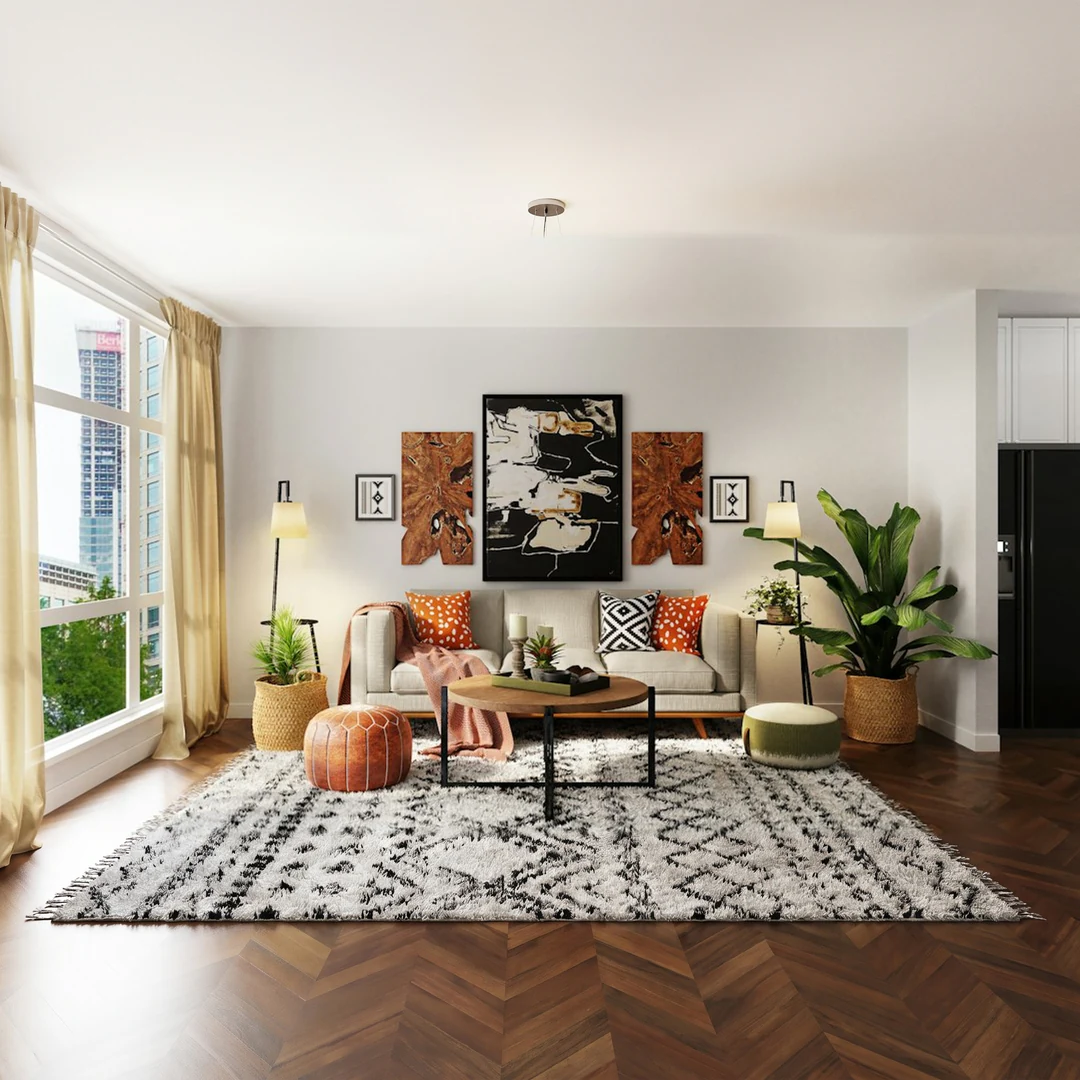
16:91:1
A square adds room above and below a wide photo. Walls and floors carry on.
Three controls in the panel run the image expander.
Add a file. The stage shows where it sits.
Pick one of five ratios, then Standard or HD. Red marks the new space.
Press Generate. Compare the middle with your original, then download.
The image expander changes the frame, not your photo.
01
Start with one photo. Pick any of the five ratios. The image expander adds the missing width or height.
02
The photo scales to fit the new frame and sits in the center. The tool generates only the space around it.
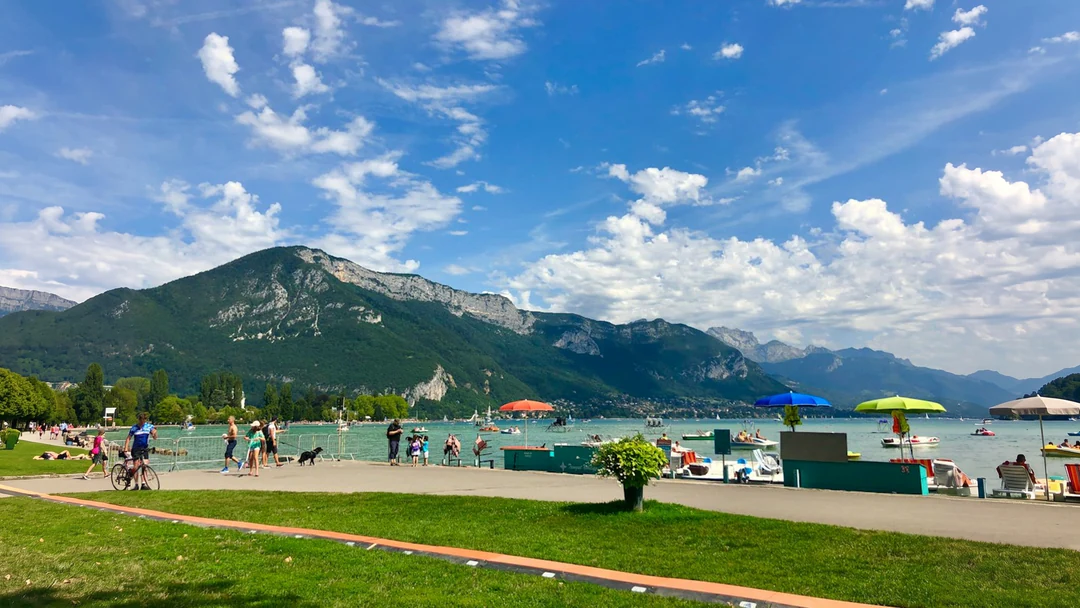
03
Sky color, floor lines and shadows carry on into the new space. Straight edges should stay straight.
Need a different edit? Try these next.
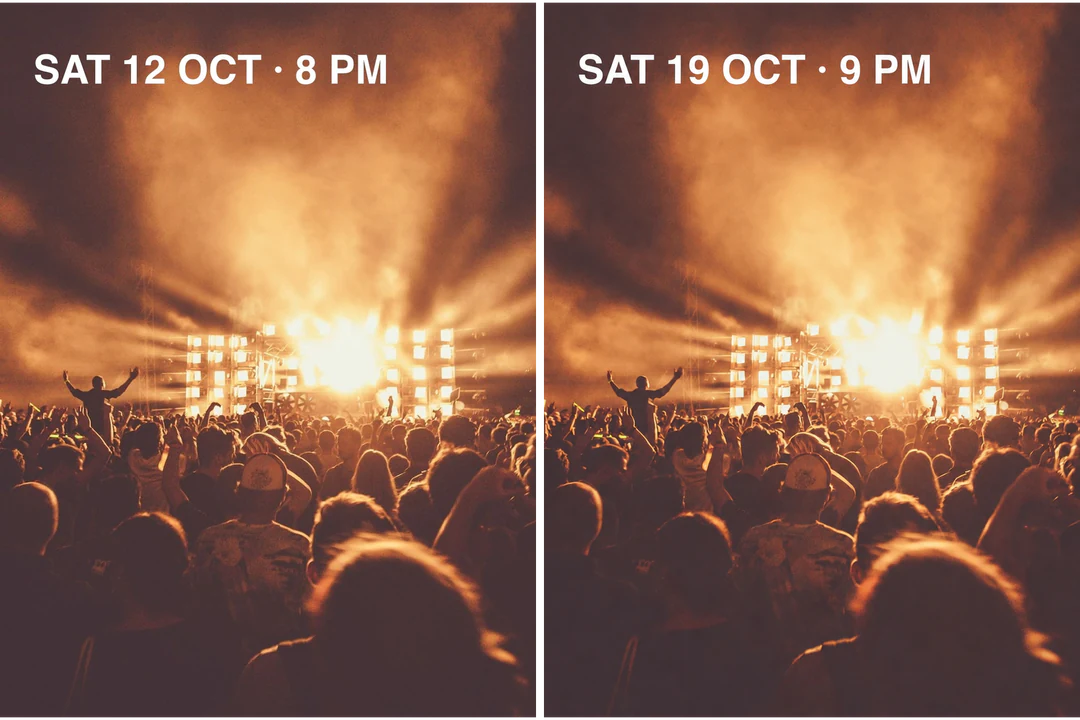
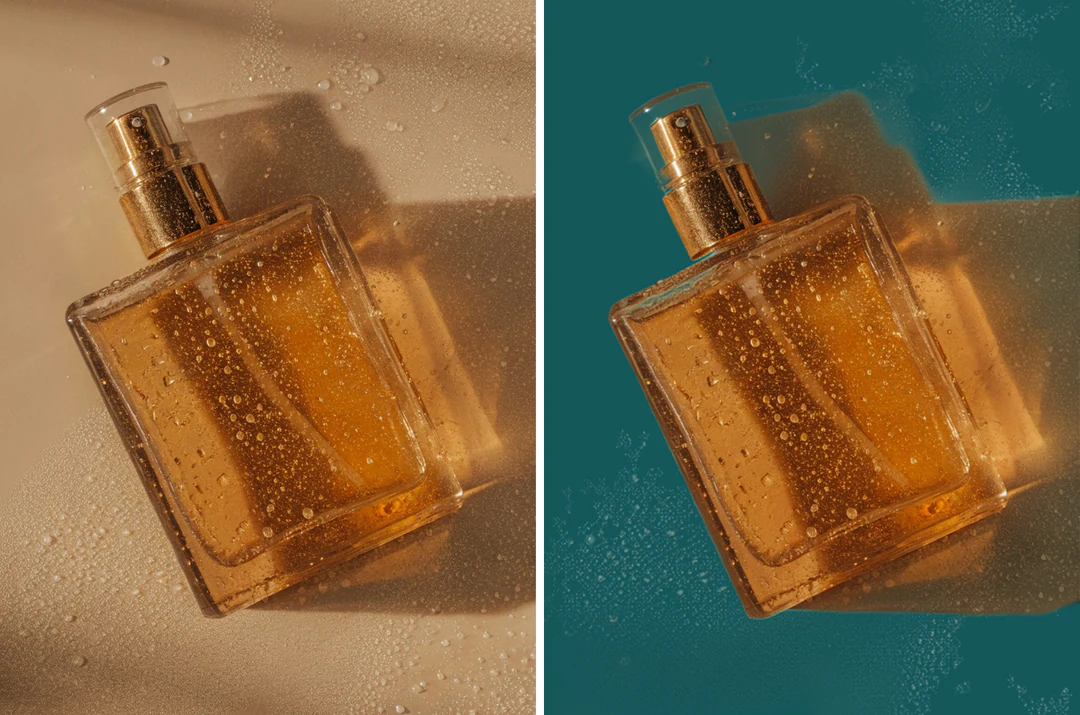
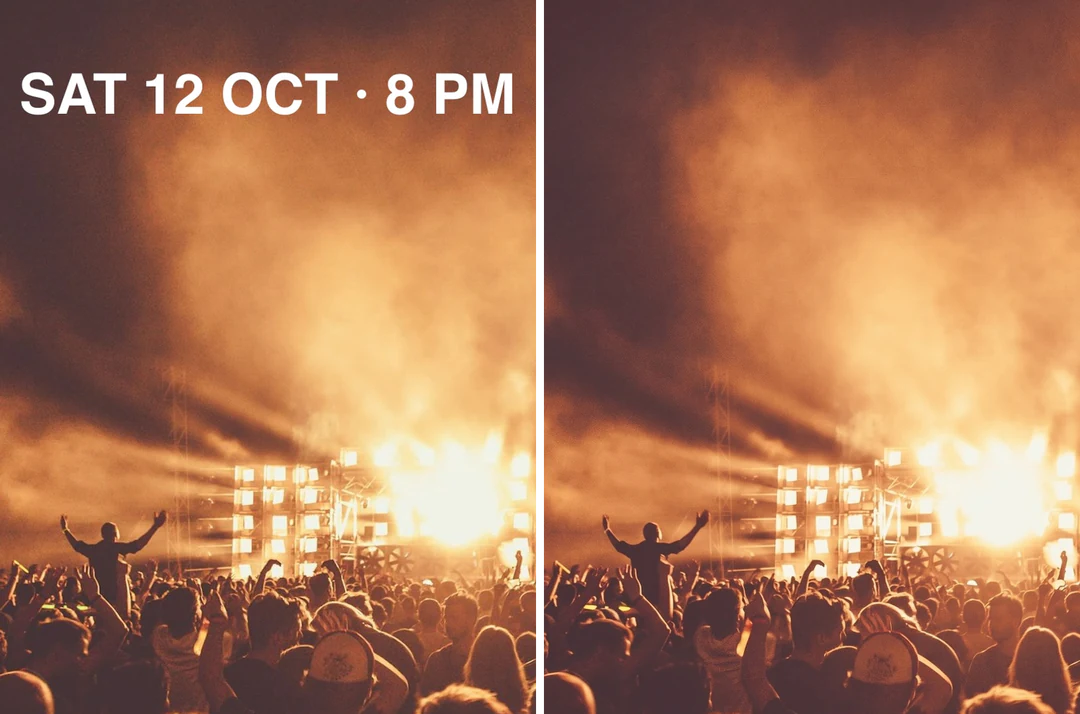
What the image expander does, which ratios it offers and what it costs.
An image expander adds new picture area around a photo. Your original stays at the center. The tool fills the rest to match a new ratio.
An AI image expander uses a model to draw the new area. It reads the light, color and edges of your photo. Then it paints space that carries on the scene.
A photo expander adds room around the picture. An upscaler adds pixels inside the same frame. Expand for a new shape. Upscale for a larger file.
It takes JPG, PNG or WebP files up to 20 MB. Choose from 1:1, 3:4, 4:3, 9:16 and 16:9. Standard output is 1280 pixels on the long edge. HD output is 1920 pixels.
Upload the 16:9 photo and choose 9:16. Pick Standard or HD, then press Generate. The photo sits in the middle and new space fills above and below.
Open scenes such as sky, sand, water and plain walls work best. Fences, windows and signs are harder to carry on. Faces cut off at the edge need a close look.
It keeps your original in the center and builds space around it. Exact pixel match is not guaranteed. Check the center against your file before you download.
Look at the area just outside your original first. Follow horizons, edges and shadows across it. Then zoom to the size you will post or print.
Generate stays off until a photo is loaded. It also stays off when the photo already has the chosen ratio. Pick a different ratio to continue.
One image costs 81 credits. Generate shows the price before you confirm. If a task fails, the reserved credits come back. Pricing lists plans and credit packs.
You can load a photo and set the controls without one. You need an account to generate or download. Your photo and settings stay after you sign in.
Upload a photo, choose a ratio and press Generate.