Skip to content
Potto AI

AI plushie: the same subject before and after

One subject photo and the plush toy generated from it, in the template's fixed 3:4 ratio.

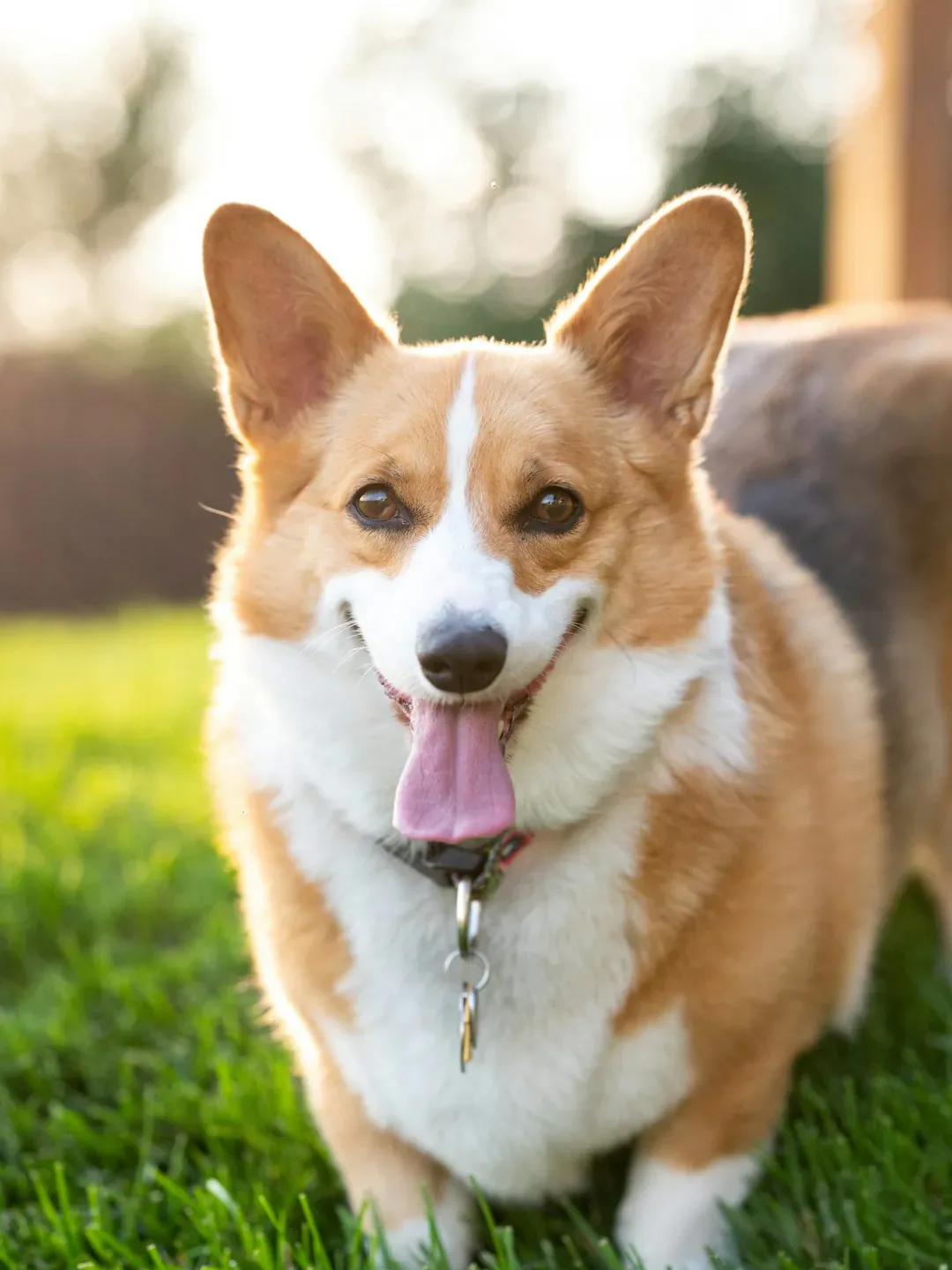
Original subject photo before the plushie treatment
Original photo
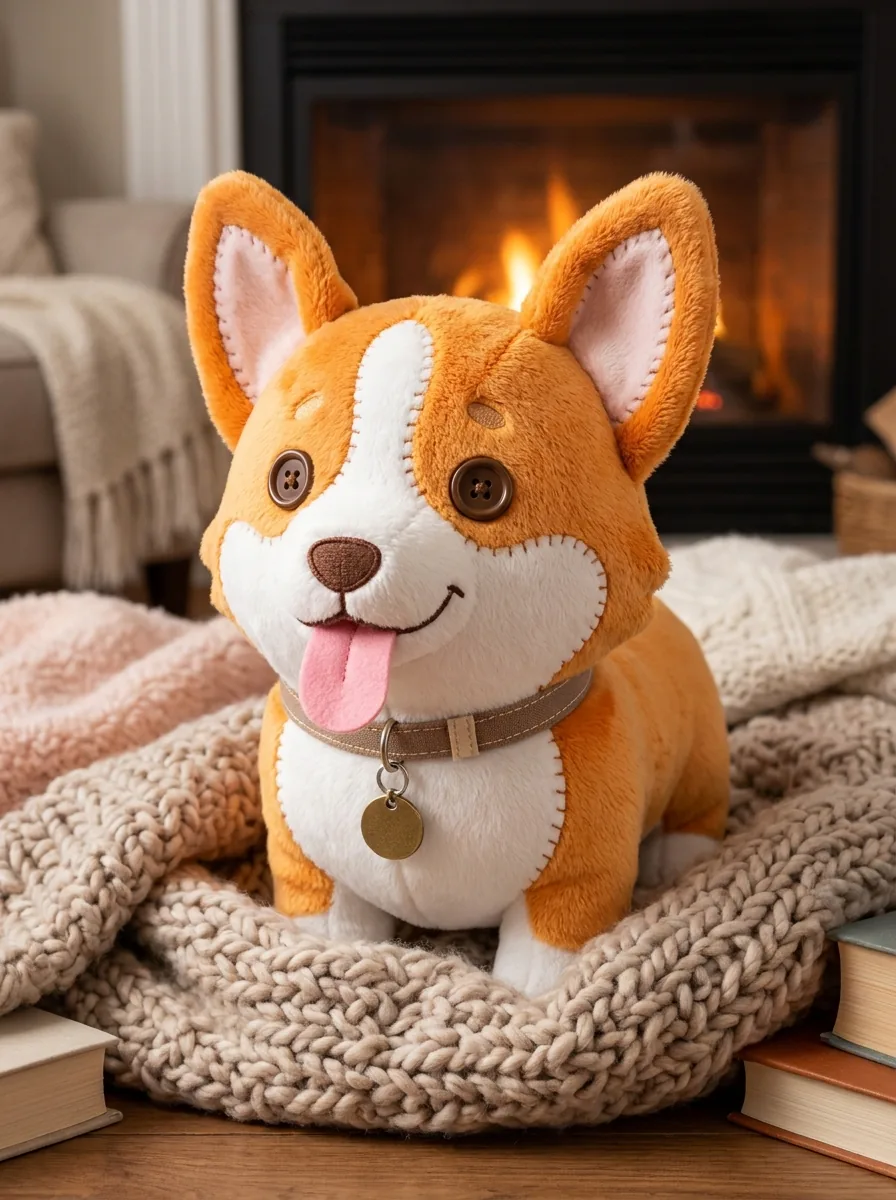
Plush toy generated from the same subject photo, with fuzzy fabric and button eyes
AI plushie result · 3:4

What stayed

The recipe asks for the subject's key features, pose and colors to stay recognizable. For a pet that means the ear shape, muzzle and main markings; for a person, the hairstyle and clothing colors. Compare where the colors sit on the body, not only the palette, because a patch that moves from the left ear to the right can change which animal the toy appears to be.

What changed

The subject becomes a soft toy: fuzzy fabric, visible stitching and button eyes in a cozy setting. Proportions turn rounder and faces simplify, and fine detail such as tiny logos or lettering may become stitches or abstract shapes.

What to check

Confirm the identifying marking is on the right side, then look at seams and attachments: paws and ears should connect plausibly, and a stitch line should not cut across an eye. This is an image of a toy concept, not a sewing pattern or a tested product.

Where an AI plushie image fits

Three common uses. In each one the plush image is a concept, and your own layout carries names and messages.

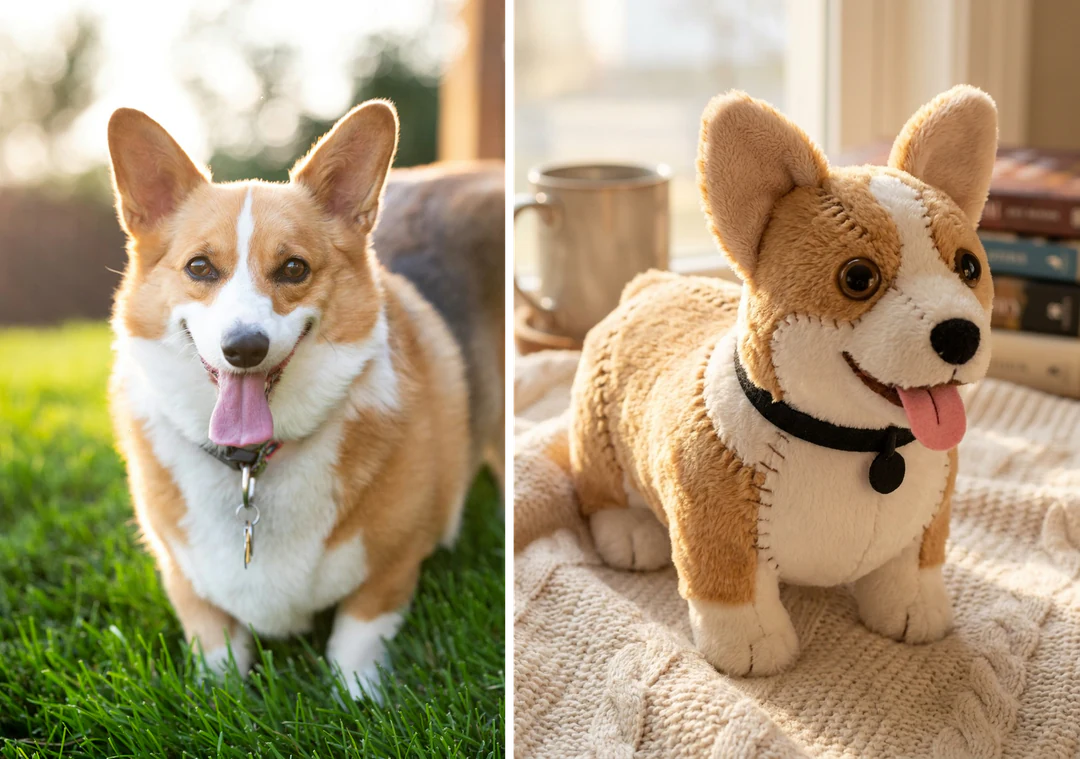
Plush toy version of a dog that keeps its coat pattern and ear shape, beside the original pet photo

3:4 · Pet

Pet keepsake

Pick a photo where the coat pattern and ear shape are visible, since a tight face crop leaves the body markings open to interpretation. Put the original photo beside the plushie image so the recipient sees why the toy belongs to that animal. Add the name in your own layout. The picture is a concept, not evidence that a toy exists.
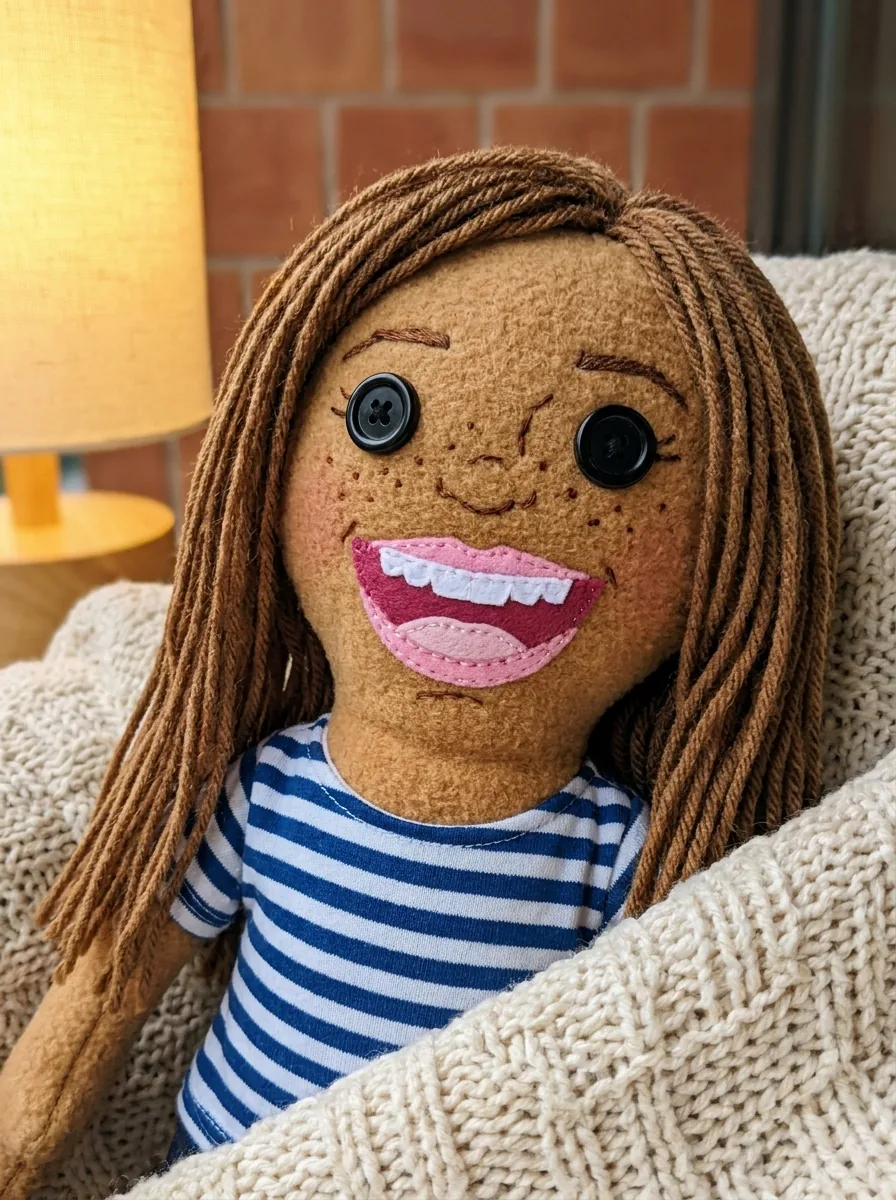
AI plushie version of a smiling woman made of fuzzy fabric with visible stitching and button eyes

3:4 · Gift

Playful portrait for a friend

A person can become a plush character for a birthday message or a private joke. Choose a photo whose expression and clothes suit the context, and make sure the person is happy to see the transformation. Check the hairstyle, face shape and main clothing colors, then add the caption in a layout app. Do not present it as a purchasable toy.

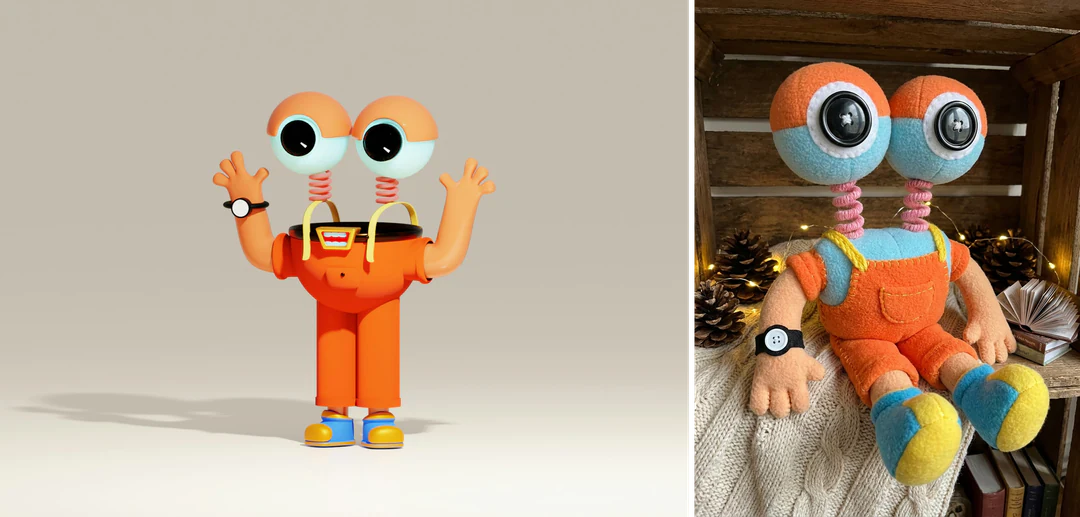
Original orange mascot artwork beside its plush version with the same colors and outline

3:4 · Mascot

Original mascot or story character

Use artwork you own, with a clear outline and a stable color scheme. The result shows which features survive when a design becomes round and tactile. Keep the accepted mascot art as the identity reference and treat the plush image as a separate exploration; another run may change ears, stitching or clothing.

How to turn a photo into an AI plushie

Upload a subject, check the fixed output, then compare the markings before you download.

  1. 1. Upload one subject photo

    Add one JPG, PNG or WebP image up to 20 MB of a pet, person, mascot or object. Choose a photo with separated ears, limbs and tail and a clear color pattern, free of heavy filters and overlapping objects. Use one you own or have permission to edit.

  2. 2. Check the fixed settings

    There is no fabric, stuffing, seam or size control; the panel shows the fixed output, one 3:4 PNG at HD from Nano Banana Pro. Crop the photo first so the subject fills the frame.

  3. 3. Generate and compare

    Each AI plushie result costs 45 credits, shown on Generate before you confirm. When the plushie is done, compare its markings and shape with your original, check the seams and eyes, then download it.

What the AI plushie template does to your subject

The AI plushie generator turns a pet, person, mascot or object into a soft toy image.

  1. 01

    Pets, people, mascots and objects all work as input

    Upload one photo of the subject. The recipe asks for its key features, pose and colors to stay recognizable: ear shape and markings for a pet, hairstyle and clothing colors for a person. A subject with separated ears, limbs and tail gives the cleanest toy.

    • One photo per run, up to 20 MB
    • A clear color pattern carries over best
    Original subject photo before the plushie treatment
    The reference: markings and colors come from this photo.
  2. 02

    Fuzzy fabric, visible stitching and button eyes

    Every plushie gets the same toy treatment: fuzzy fabric, stitched seams and button eyes, photographed in a cozy setting. Rounder proportions and simpler faces are part of the look, but an identifying marking should still sit on the correct side.

    • The same plush look on every run
    • Fabric, stuffing and size are not adjustable
    Plush toy generated from the same subject photo, with fuzzy fabric and button eyes
    The result: one 3:4 plush toy image.
  3. 03

    An image of a toy, not a sewing pattern

    The output is one HD PNG at 3:4 for 45 credits. Use it as a gift idea, a character reference or a profile picture. It does not include a pattern and does not show how a real toy would be made or tested.

    • Check seams, paws and eyes at full size
    • Keep the original photo to compare markings
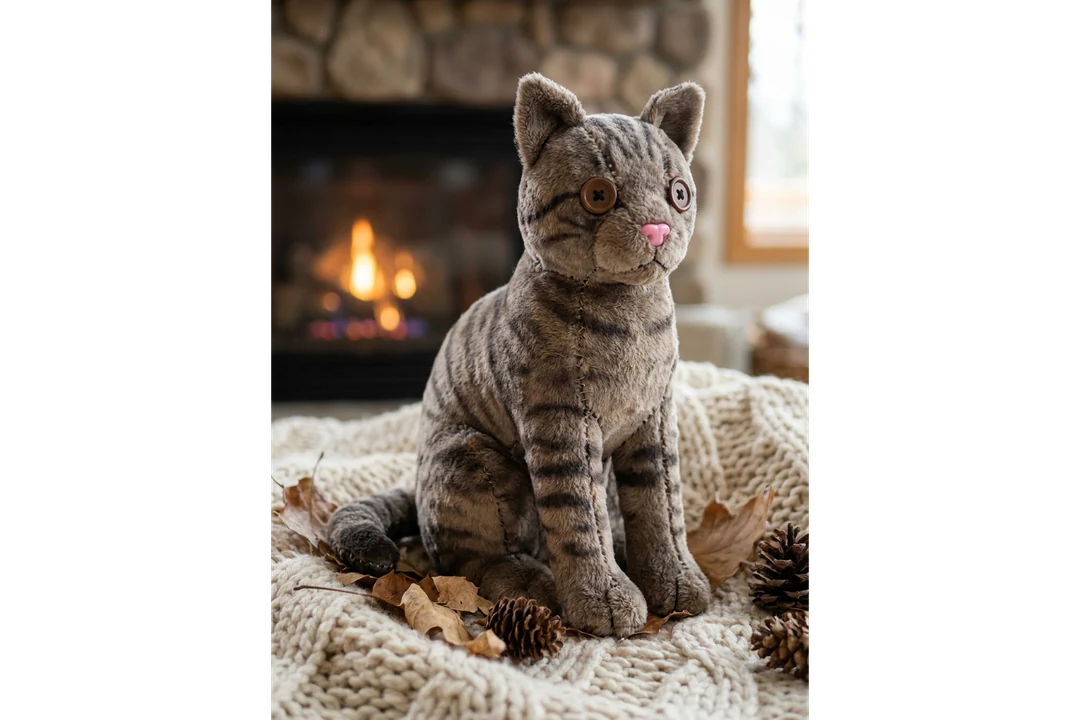
    Plush toy version of a cat with fuzzy fabric and button eyes
    A second plushie, made from a photo of a cat.

Keep exploring Potto AI

More ways to turn a photo into a keepsake or a character.

AI Plushie FAQs

  1. What is an AI plushie?

    An AI plushie is a generated picture that gives a subject the look of a soft stuffed toy. This AI plushie generator redraws one reference, such as a pet, a person or a mascot, with fuzzy fabric, visible seams and button eyes in a cozy setting. It produces an image, not a physical toy, and it deliberately simplifies the subject, so compare the toy with the source before you share it.

  2. Can I turn a pet or mascot into a plushie image?

    Yes, the preset can use a pet, character, or object reference as its starting subject. Pick an image where the identifying colors, outline, and features are easy to see. Check those same cues in the generated toy. For a mascot, use a design you can appropriately work with; a resemblance in an image is not proof of a producible toy design.

  3. Which photo works best for an AI plushie?

    Use one clear photo where the features that make the subject recognizable are easy to see: separated ears, limbs and tail, and a visible color pattern. Avoid heavy filters, strong color casts and objects that overlap the subject, such as a hand holding a pet, because they can become part of the toy. Use an image you own or have permission to edit.

  4. Why do facial features look simplified?

    The preset translates the subject into toy construction, including button-like eyes and rounded forms. Simplification is expected, but a misplaced marking or changed silhouette can still make the result unsuitable. Judge whether the toy retains the subject’s recognizable cues rather than requiring each photographic detail to stay literal.

  5. Will the colors match my photo exactly?

    Not exactly. The recipe asks for the subject’s colors to stay recognizable, so check where each color sits: a black-and-white animal can look like a different animal if the patches move. The result is a picture, not a color specification for fabric, and screen appearance and simulated texture change how a shade looks.

  6. Does the result include a sewing pattern?

    No. The output is a raster concept image with the appearance of a plush toy. It does not include measured panels, seam allowances, stuffing quantities, materials, or safety testing. If you discuss the concept with a maker, use it as a visual reference and obtain a separate production design.

  7. Can I make a different kind of toy?

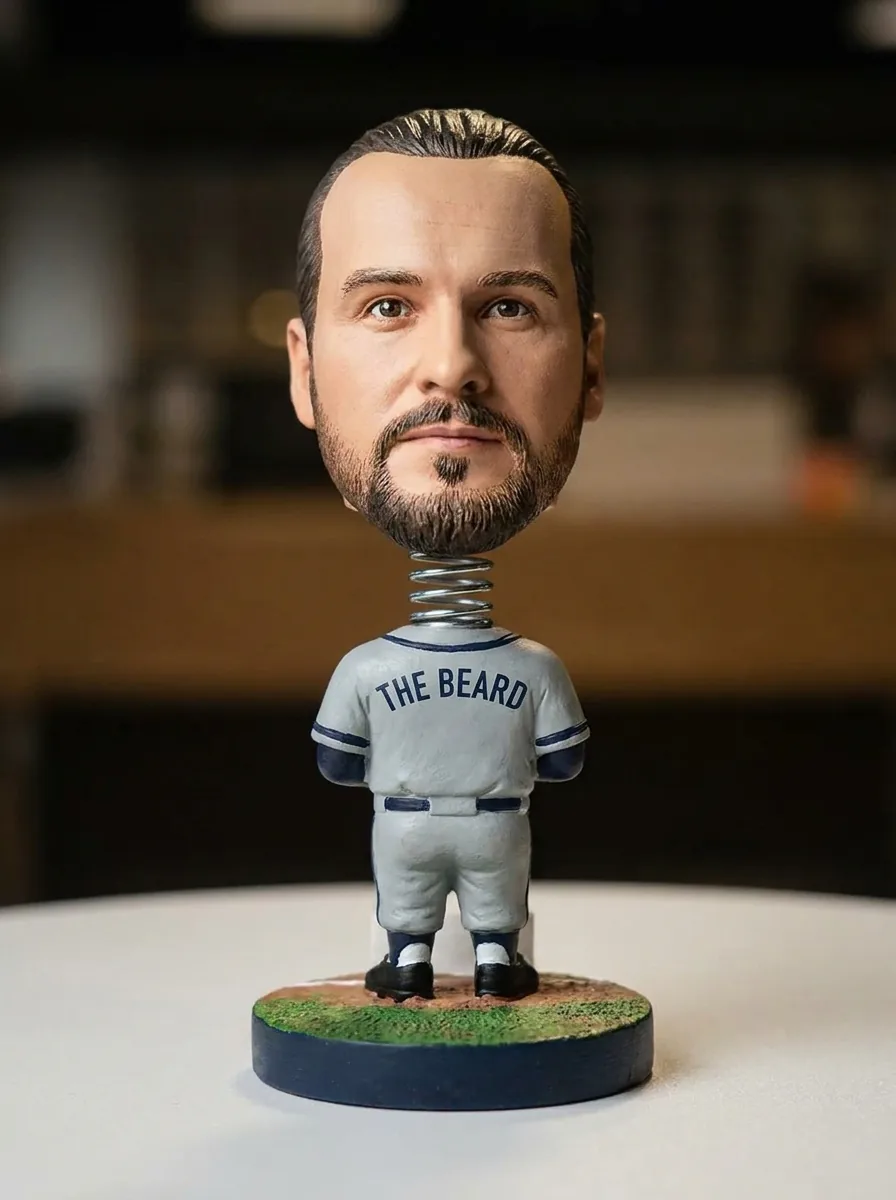
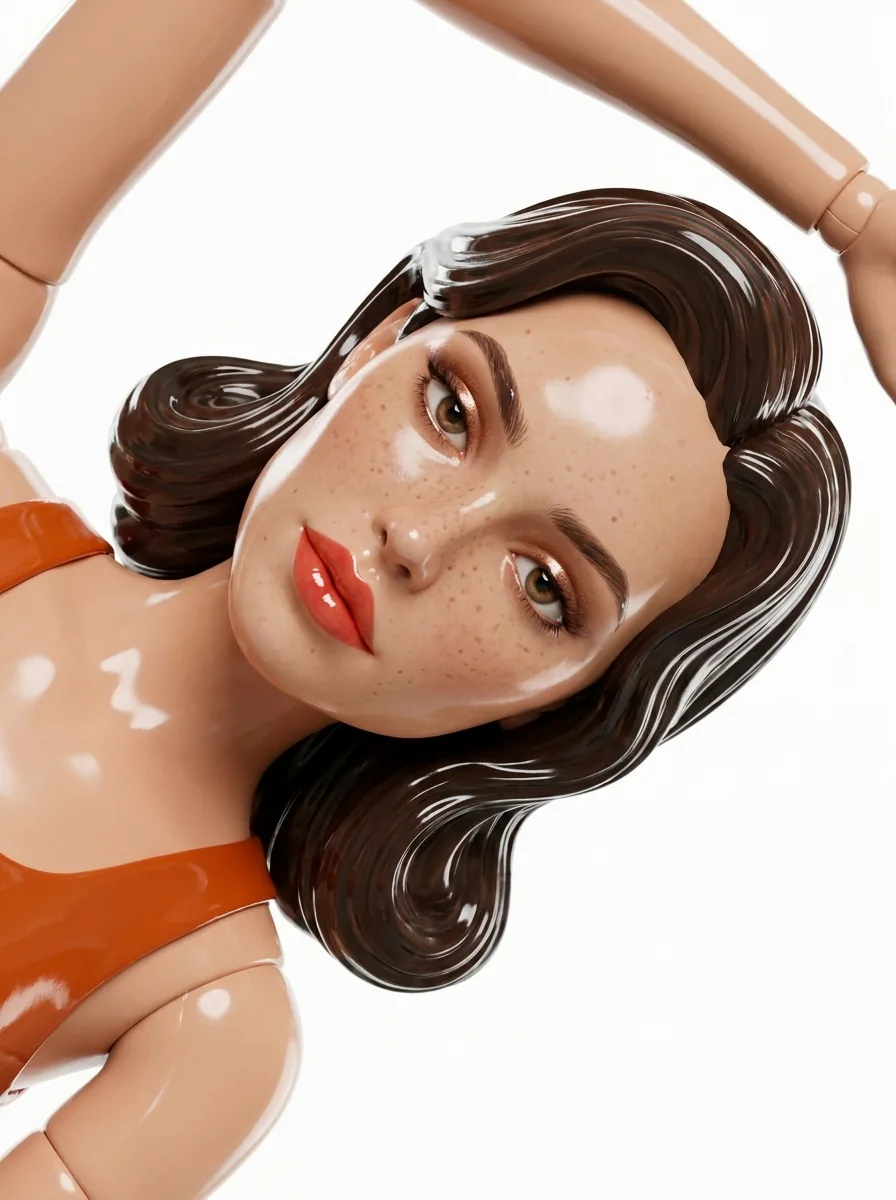
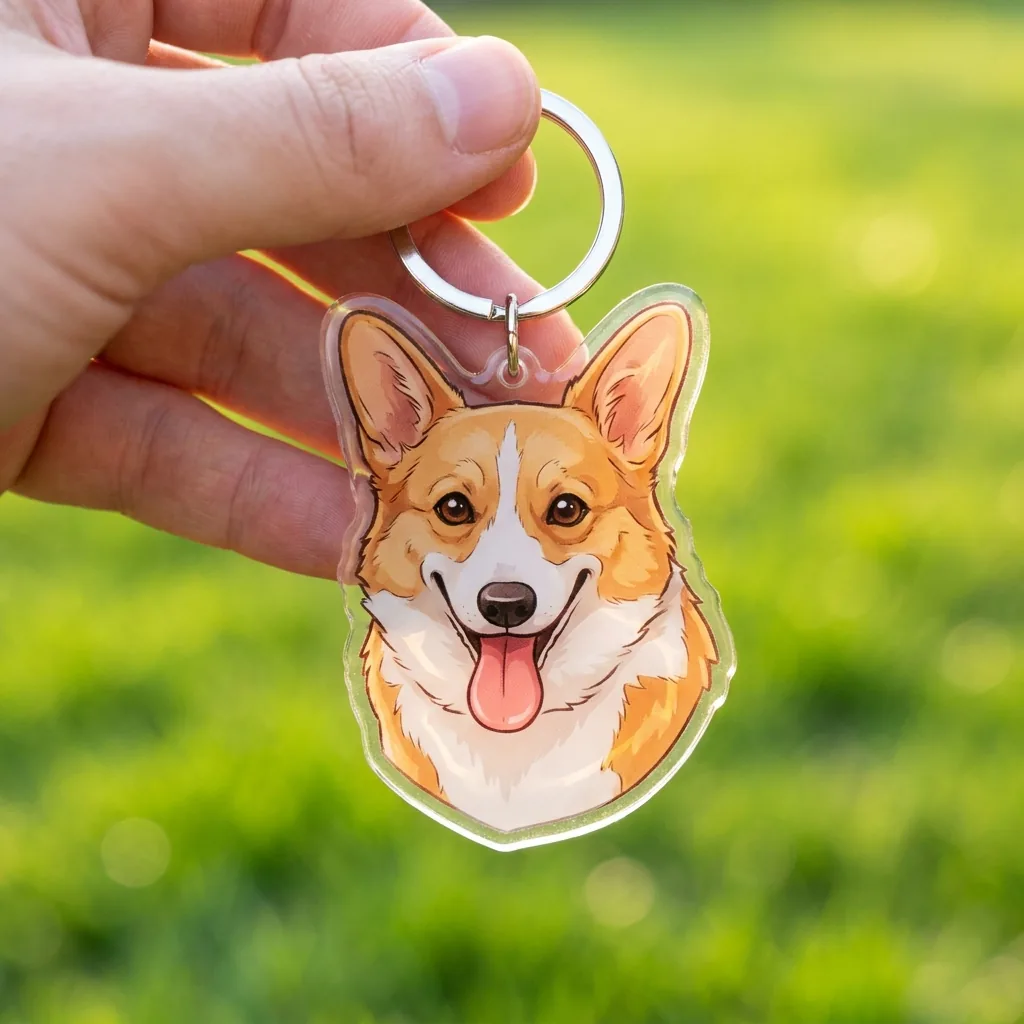
    Not on this page; it always makes the same fuzzy plush toy with stitching and button eyes. For a collectible figure with a head on a spring, use Bobblehead Maker; for a glossy figure with styled hair and makeup, Doll Maker; for a small acrylic charm, Keychain Design.

  8. What does an AI plushie cost, and what file do I get?

    45 credits per run for one 3:4 PNG at HD, made with Nano Banana Pro. The amount appears on the Generate button before you confirm.

Potto AI

Make your AI plushie

Upload one clear photo of your subject, review the credit estimate, and compare the toy with the original before sharing it.