Skip to content
Potto AI

Product Launch Video

Turn product screenshots or a product page into a product video that explains a feature or a workflow, with captions, voiceover and music.

Product screenshots to video frames

The same source image before and after it becomes a scene. The frame adds a caption, a focus crop and a cursor highlight; the picture in it is the source.

Sample source image used as the first screenshot scene
Source image · sample asset
Video frame · 0:05 · 16:9

What stayed

The screenshot supplies the interface. Control names, labels and the visible state come from the source, not from the video. Check that the frame still shows the state the caption describes.

What was added

A caption, a focus crop on the key control, a cursor highlight and the motion between scenes. These guide attention. They do not add behavior the screenshot does not show.

What to check

Whether the label is readable at the size you will publish, whether the crop shows the state the narration describes, and whether the cursor motion implies a click you never captured. Call an arranged sequence composed, not recorded.

Pick the product story by who is watching

The audience decides how much context the opening needs. Choose the message first, then the ratio and length that fit where the video will play.

16:9 · 19s

Feature launch

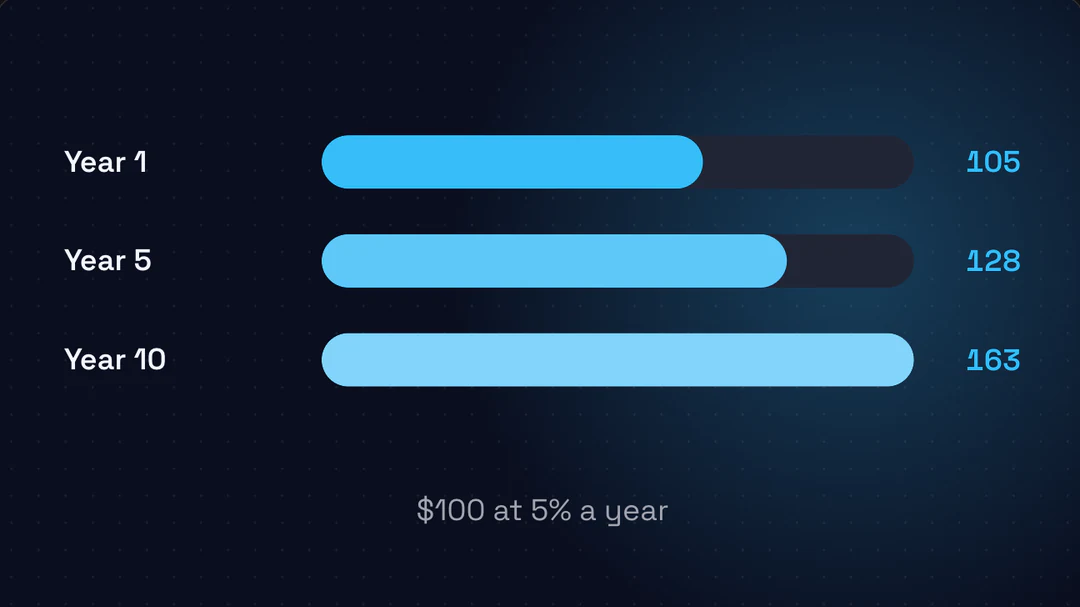
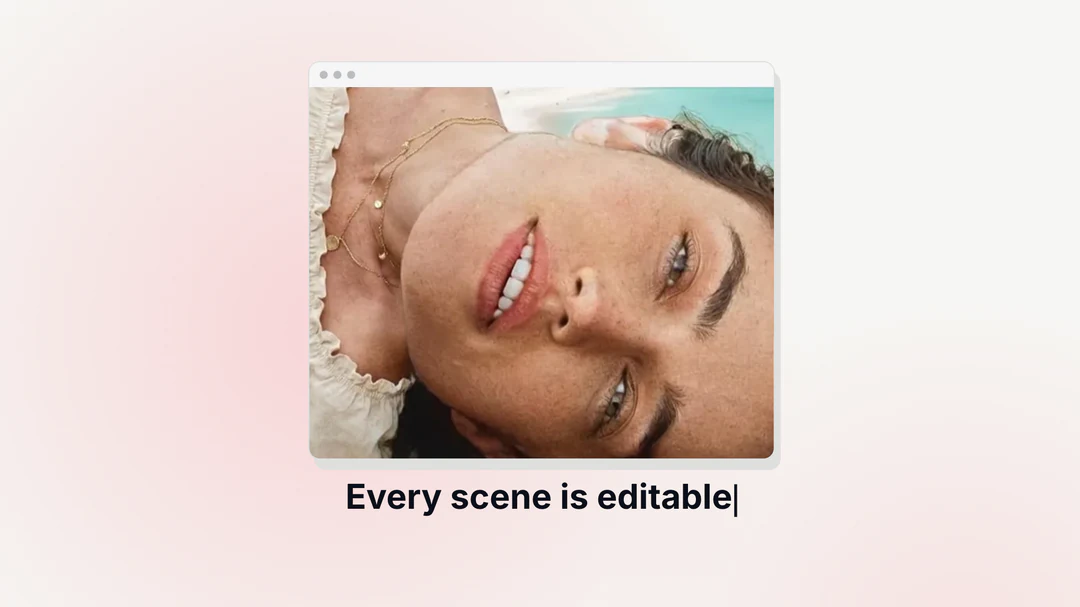
Start with the task the feature changes, then show the entry point, the feature state and the result. Three well-chosen screenshots tell a clearer story than a tour of every menu. Give each scene one job, and confirm the final message matches the version people can use when the video is published.
16:9 · 13s

Product introduction

For viewers who have never used the product, open with the problem, show one representative workflow and end with a single invitation to continue. Pick screenshots that reveal the structure of the product without a full tour, and keep screen text short enough to read at the pace of the video.

9:16 · 8s

Release update

Existing users need what changed, where to find it and how it affects their work, not a new pitch. Crop the screenshot to the changed control so it stays readable in a tall frame, and say so if the change depends on a plan or rollout, so the video does not imply universal access.

How to make a product video

Three steps in the creator above. The project quote is shown before you export.

  1. 1. Add screenshots and a brief

    Attach up to 8 images, documents or audio files, or paste a URL. Video clips are not accepted. Say who will watch, what they should understand and the one action to take, and put exact names, dates and numbers in the brief.

  2. 2. Choose shape and length

    Pick 16:9, 9:16 or 1:1 and a target of 15, 30, 45, 60 or 90 seconds. The default is 30 seconds in 16:9 without narration. The target is a budget: narration and revisions can change the final length.

  3. 3. Review the storyboard and export

    Check the claims in the outline and storyboard before you judge transitions, then export a 1080p MP4. The base rate is 5 credits per second, so 30 seconds starts at 150 credits before narration and illustrations. The project quote shows the exact amount. Download the file and play it to the end.

What the product video does with your screenshots

Your screenshots stay the evidence. Potto adds the crops, captions, motion and formats around them, and you review every scene before you export.

  1. 01

    Your screenshots become the scenes

    Attach up to 8 images, documents or audio files, or paste a URL. Each screenshot becomes a scene, so the interface in the video is the interface you supplied, in the state you captured.

    • Images, documents, audio and a URL
    • Control names stay exactly as captured
    A screenshot scene with a caption, from a sample product video
  2. 02

    Focus crops that point at one control

    A focus crop zooms to the control that matters, and a cursor highlight marks where to look. They guide attention without adding behavior your screenshot does not show, so crop to the changed control and let the caption name it.

    • One focus crop per scene
    • Captions name the change, not the whole screen
    Focus crop and caption on a feature scene
  3. 03

    One project in 16:9, 9:16 and 1:1

    Pick the shape for where the video will play: 16:9 for a site or a channel, 9:16 for stories and vertical feeds, 1:1 for feed posts. After you change the shape, check that the crop still shows the control at the new size.

    • Wide, tall and square frames
    • Same screenshots, reframed for each format
    Sample product videos in 16:9, 9:16 and 1:1
  4. 04

    Review the storyboard, then export

    Read the outline and storyboard against your source, and fix any claim that does not match before you judge the transitions. The project quote shows the cost, with a base rate of 5 credits per second, before you export a 1080p MP4.

    • Claims checked scene by scene
    • Quote shown before export
    A storyboard before export

Keep exploring Potto AI

A product video starts with clean screenshots and ends as a finished video. These pages cover the tasks on either side.

Product Launch Video FAQs

What a product video is, which materials it accepts, and what to check before you publish it.

  1. What is a product video?

    A product video explains a product, a feature or a workflow to a specific audience. Potto AI makes it as motion graphics: your screenshots and other materials move through template-based scenes with captions, optional narration and music, rendered as an MP4. Choose one product message and check that your sources support it.

  2. What is a product launch video?

    A product launch video shows how a product or feature works. Potto AI can arrange screenshots into an explanatory sequence, but that is not automatically a continuous recording of the interface. Use genuine screen recording when exact interaction behavior or timing needs to be demonstrated as evidence.

  3. Which materials can I add?

    Screenshots are the core material: add images of the screens you want to show, plus documents or audio files, or paste a product page URL, with up to 8 attachments in one request. An existing video clip is not supported. A URL supplies source material, not permission to invent features the page does not show, so put exact names, prices and numbers in the brief.

  4. How should I prepare screenshots?

    Use current screenshots that show the relevant state, crop out unrelated or private information, and identify the control or change the viewer should notice. Verify feature names and availability. Build the video around one message the source supports, such as a feature's starting state, action and result, and name the audience and the next action in the brief.

  5. How do I choose the shape and length?

    Choose 16:9, 9:16 or 1:1, and a target of 15, 30, 45, 60 or 90 seconds. The default is 30 seconds in 16:9 without narration. The target is a budget, so narration and revisions can change the final length. After changing the shape, check the text and screenshot crop at the new size: a desktop screenshot can become too small in a tall frame or a narrow page column.

  6. Do I need an account to make a product video?

    You can add screenshots, a link or a brief and pick the format before signing in. Starting the product video opens the sign-in dialog, and your sources and settings stay in the workspace.

  7. What if a product video fails or I want to stop it?

    Drafts, outlines and storyboards are free to redo. If a render or export fails, the project shows the reason and you can retry; credits are only charged for a finished export. Use the export cancel action to stop work in progress.

  8. How much does a product video cost?

    Planning, storyboards and chat edits are free. Exporting costs 5 credits per second, so a 30-second product video is 150 credits. The export button shows the total before you confirm.

  9. Is the video a screen recording?

    No. Potto AI arranges your screenshots with template motion, so cursor highlights and transitions guide attention but are not a capture of a live session. Review the downloaded MP4 from start to finish, and use a real screen recording when exact interaction timing must be shown as evidence.

Potto AI

Make your product video

Add your screenshots or a product page, choose the format, and review the export quote before you render.