Skip to content
Potto AI

GPT Image 2.5 Flare

Generate and edit images with GPT Image 2.5 Flare from a prompt and up to 14 references, in HD, 2K or 4K, then choose Flare or Flare High for the finish the job needs.

gpt-image-2.5-flareHD to 4KUp to 14 ReferencesPNG or JPEG
Enter a prompt to generate

Try an example

From a prompt or reference to an image with GPT Image 2.5 Flare

Start with a brief for a new image, or a reference for a specific change. Decide the composition around where the image will appear.

Create a cafe scene with room for a headline

Give GPT Image 2.5 Flare three decisions: what to show, how it should look and where the empty space sits. Keep the headline for the page layout, where you can check every letter, and describe only the quiet area the text will occupy. The image on the right was generated from this brief with GPT Image 2.5 Flare.

Subject
A latte and an open notebook on a cafe window seat.
Style
Warm afternoon light with a soft film look.
Composition
One focal object, with an empty area at the top for a headline.
Latte and an open notebook on a cafe window seat in warm afternoon light, made with GPT Image 2.5 Flare
Generated from this brief with GPT Image 2.5 Flare

Cozy cafe window seat with a latte and an open notebook, warm afternoon light, soft film look, one focal object, empty area at the top for a headline, no text.

Use a reference to try a new setting

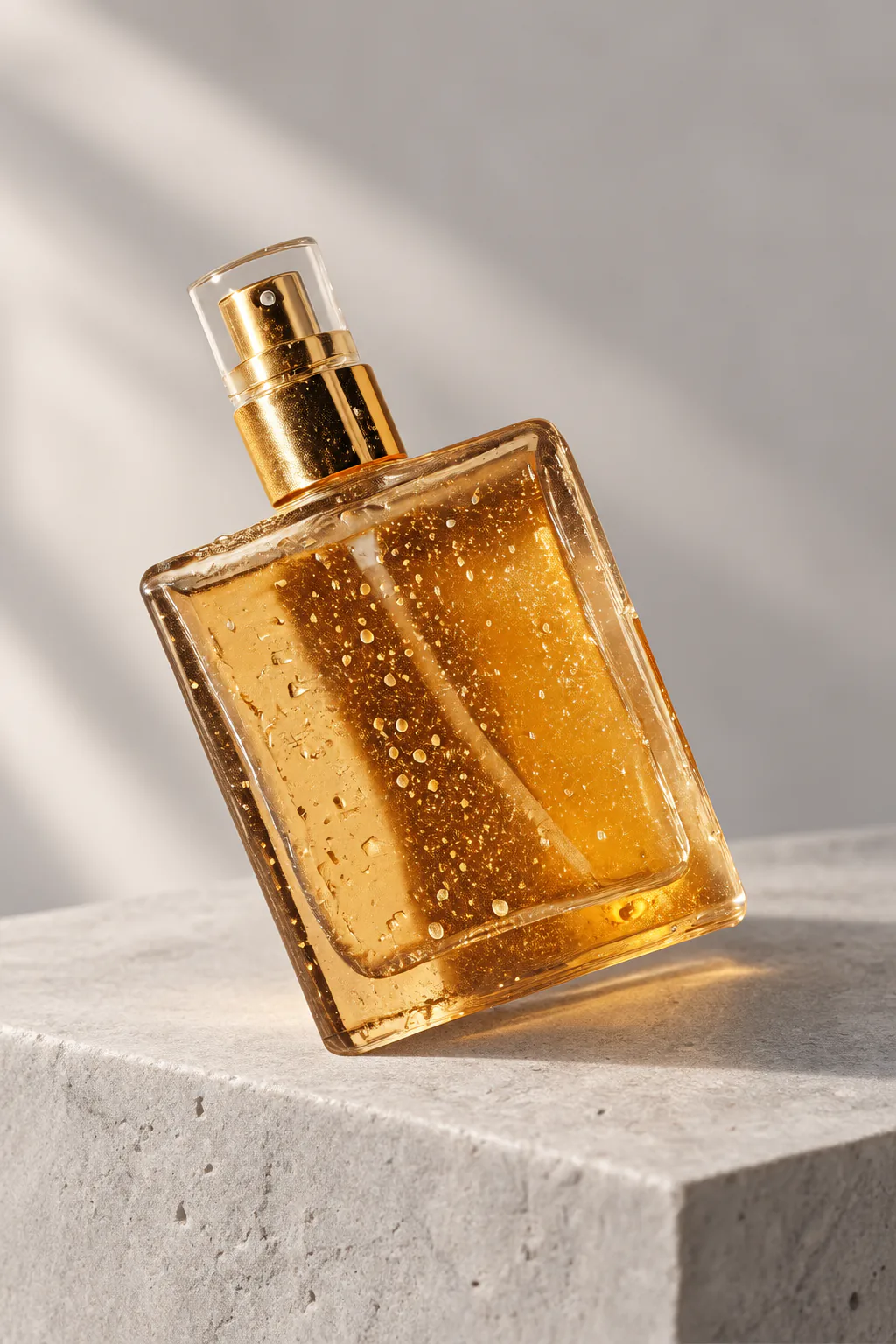
Upload a supported image and say what should stay recognizable and what should change. GPT Image 2.5 Flare treats a reference as guidance, not as an exact copy, so compare the bottle shape, the cap and the shadows with the source before you use the result.
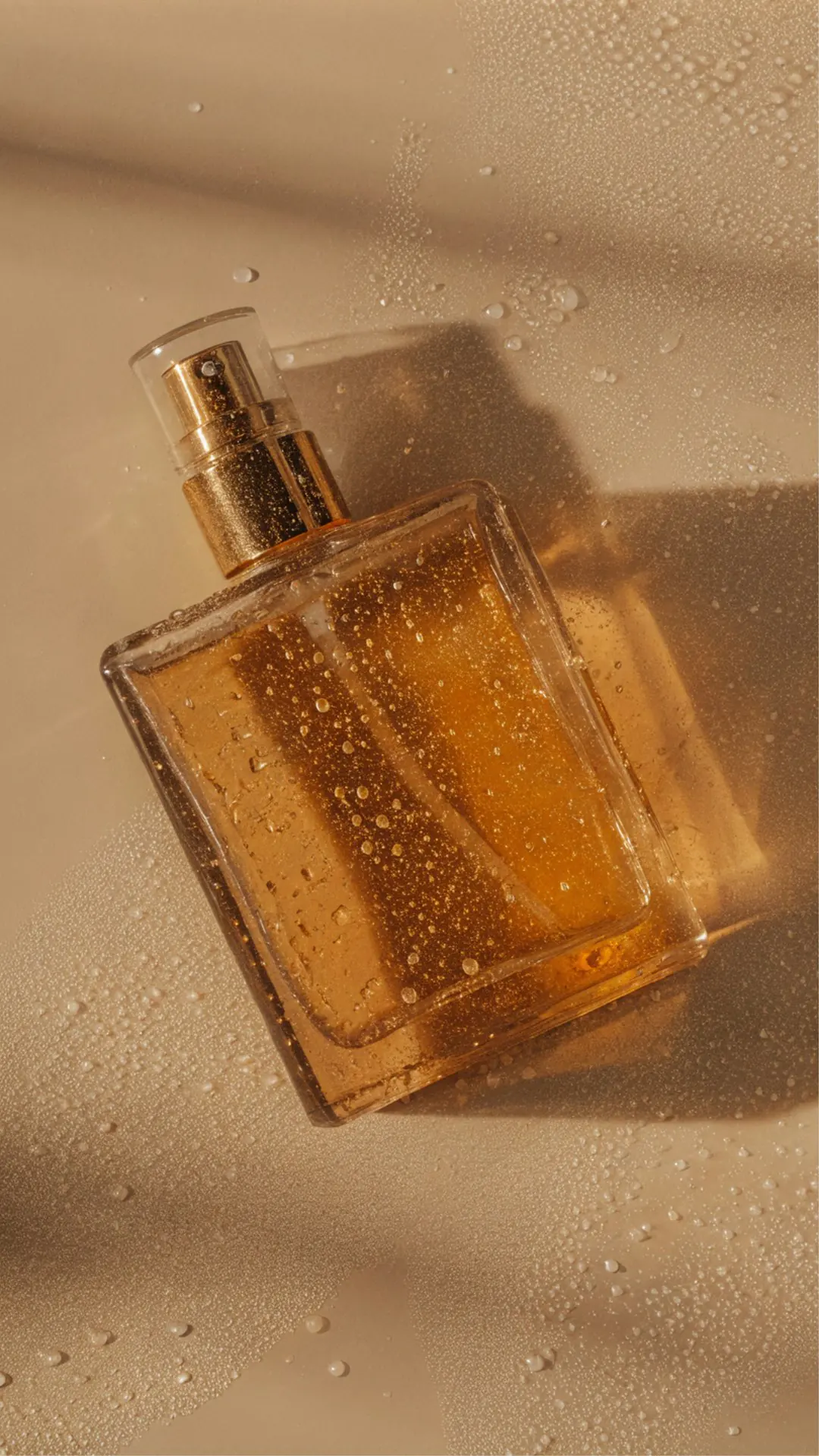
Amber glass perfume bottle with a gold spray cap on a beige surface with water drops, used as the reference photo.
Reference photo
The same perfume bottle standing on a pale grey stone plinth in soft daylight, made with GPT Image 2.5 Flare.
Result: the same bottle on a pale stone plinth, made with GPT Image 2.5 Flare

How to generate with GPT Image 2.5 Flare

Three actions in the creator above.

  1. 1. Describe the image or add references

    Write the subject, style and composition in the prompt box, up to 4,000 characters. Add references only when each one has a job, such as a product shape or a room layout. The creator accepts up to 14 in total.

  2. 2. Choose Flare or Flare High and the output tier

    Open the model menu to pick GPT Image 2.5 Flare, or its High variant when the image needs more finish. Then pick the aspect ratio for where the image will appear, HD, 2K or 4K, the number of images and PNG or JPEG. Start at HD while you compare directions.

  3. 3. Generate, check and download

    Review the actual image request before you confirm. The Generate button shows the estimate: 5 credits per HD image, 9 per 2K and 15 per 4K on Flare, and 18, 33 and 60 on Flare High, multiplied by the number of images. Check the result at its real display size, then download it or send it to an editing tool.

What GPT Image 2.5 Flare does with your brief

Four jobs where the fast Flare model, and its High variant, earn their place.

  1. 01

    Fast drafts for everyday images

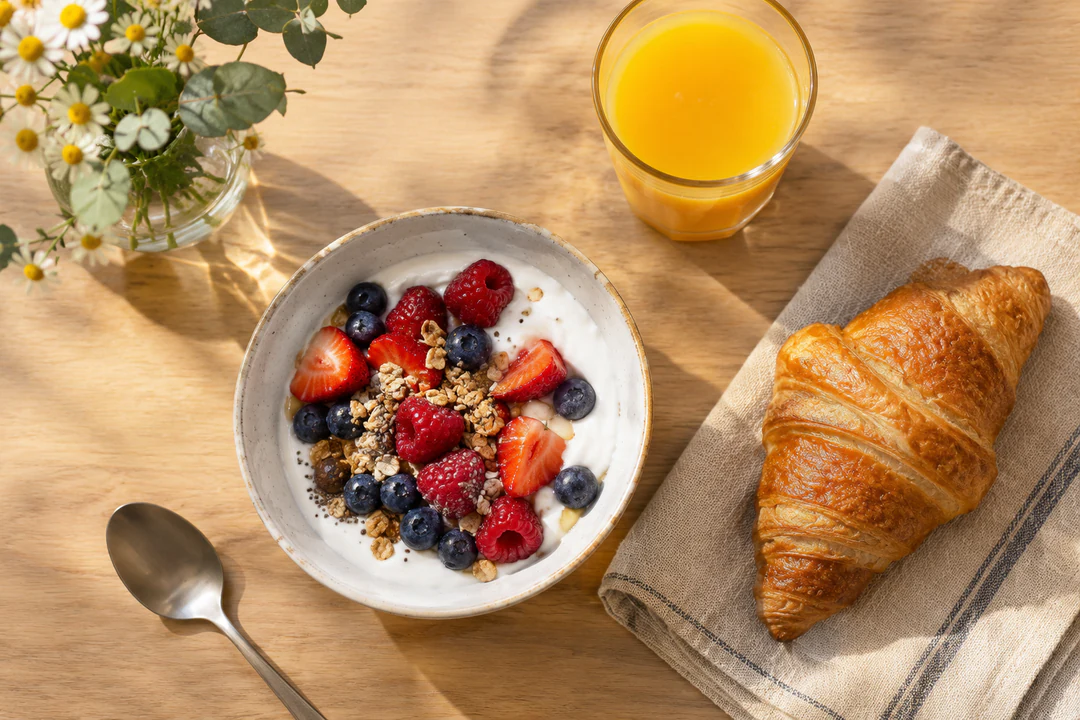
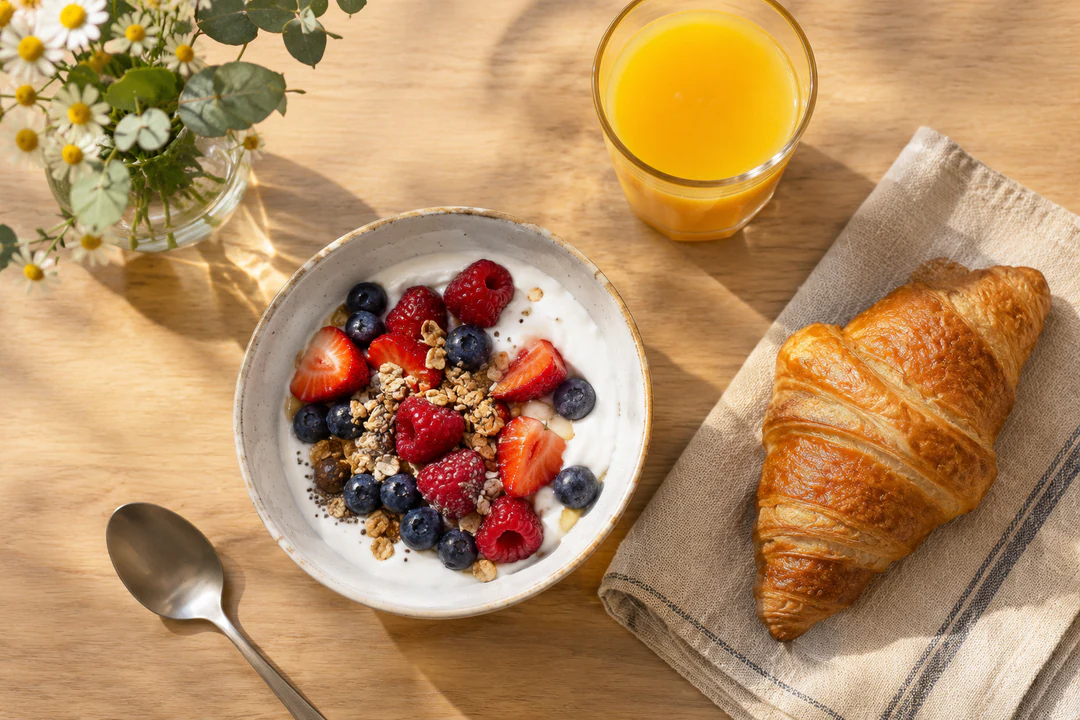
    OpenAI calls GPT Image 2.5 Flare its fastest model for high-quality, everyday image generation. Use it for the images you make often, such as breakfast tables, product shelves and story backgrounds, and ask for two or four per request to compare directions before you settle on one.

    • Compare two or four candidates against one brief
    • Raise the tier only for the image you keep
    Overhead breakfast table with yogurt, orange juice and a croissant, a quick draft made with GPT Image 2.5 Flare
    One prompt, one draft: a breakfast table at 3:2.
  2. 02

    Up to 14 references, each with a job

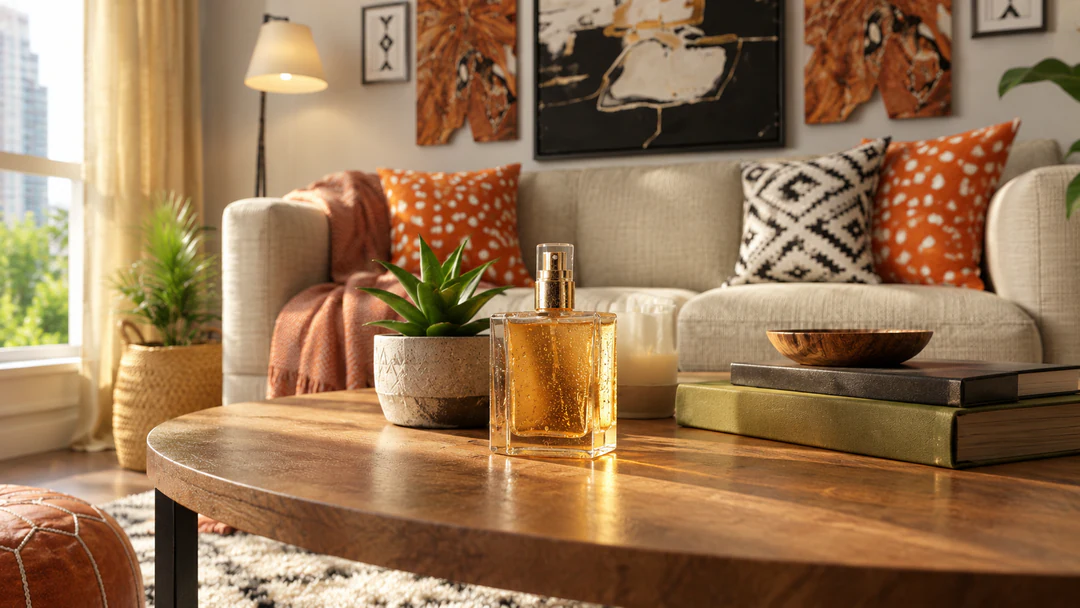
    Attach a product, a room or a palette and say what each reference is for. GPT Image 2.5 Flare accepts text and image inputs and reads references as guidance, not as an exact copy, so compare shape, caps and labels with the source.

    • Name each reference's job in the prompt
    • Compare small details with the source
    Perfume bottle placed on the coffee table of a bright living room, generated from two references with GPT Image 2.5 Flare
    Two references: a perfume bottle and a living room.
  3. 03

    Flare High for the closest draft

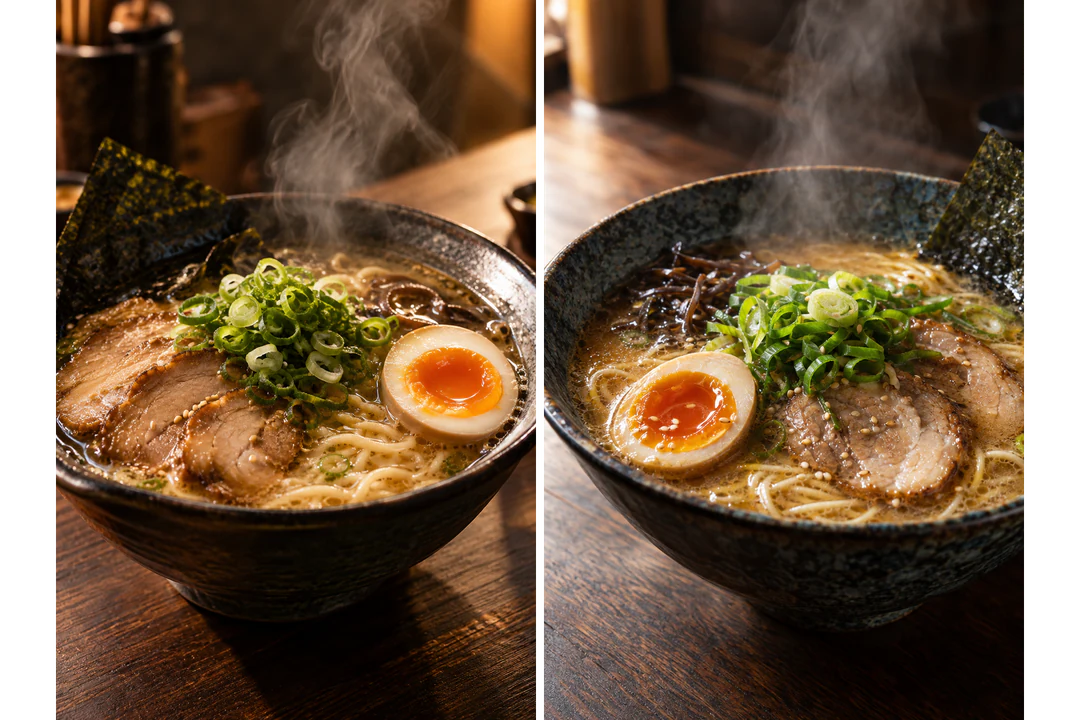
    GPT Image 2.5 Flare High is the same model at a higher quality setting. It costs 18 credits at HD against 5 for Flare, so test the idea on Flare and rerun the closest direction on Flare High. A higher setting is not better for every brief, so compare both on your own prompt.

    • Draft on Flare, finish on Flare High
    • Compare both results on the same prompt
    Ramen bowl rendered twice from one prompt, on the left with GPT Image 2.5 Flare and on the right with Flare High
    Same prompt: Flare on the left, Flare High on the right.
  4. 04

    Fixed pixel sizes for ten ratios

    Each ratio has a fixed size at every tier: a 16:9 image is 1280 by 720 at HD, 2560 by 1440 at 2K and 3840 by 2160 at 4K. OpenAI marks 4K as experimental on this model, so check a 4K result against your brief before you rely on it.

    • Choose the ratio for the placement first
    • Treat 4K as experimental and check the result
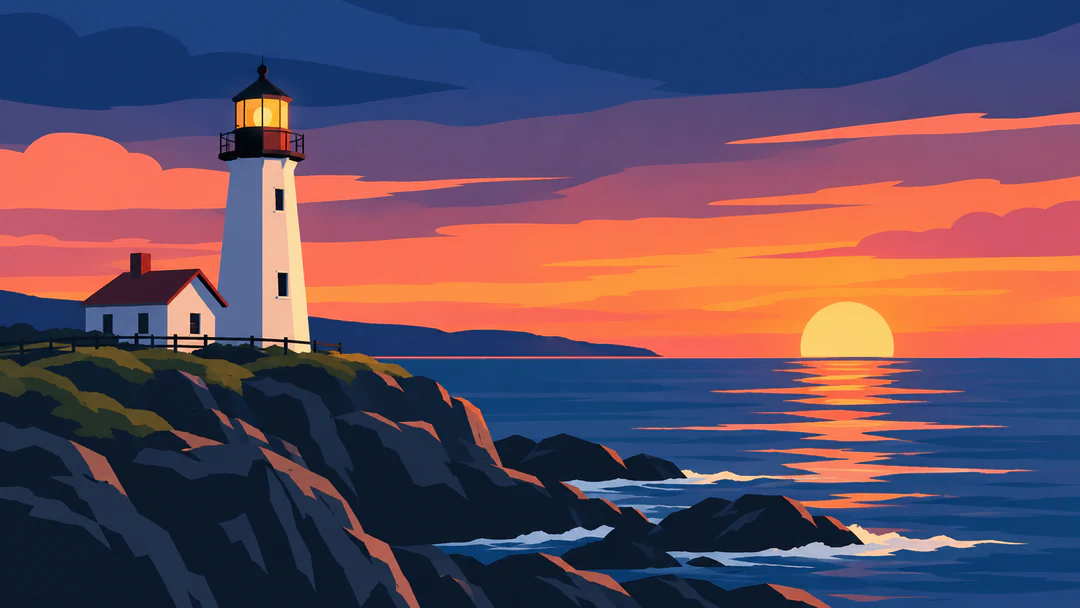
    Flat illustration of a lighthouse at sunset in a wide 16:9 frame, generated at HD with GPT Image 2.5 Flare
    A 16:9 frame at HD is 1280 by 720 pixels.

GPT Image 2.5 Flare, Sunburst or Nano Banana for the job

Both GPT Image models and Nano Banana accept text and reference images and offer HD, 2K and 4K. They differ in price and focus, so compare them on one brief before you choose. GPT Image 2.5 Flare High is the Flare column's model at a higher quality setting, for 18, 33 and 60 credits.

Model comparison
GPT Image 2.5 FlareGPT Image 2.5 SunburstNano Banana
Best forFast, high-quality everyday image generation and editingPrecise image editing with strong instruction followingFast, capable image generation and editing
ResolutionHD · 2K · 4KHD · 2K · 4KHD · 2K · 4K
Reference imagesUp to 14Up to 14Up to 14
Credits per image5 HD · 9 2K · 15 4K5 HD · 9 2K · 15 4K23 HD · 34 2K · 51 4K

Keep working on the image you create

Generate another image to test a different direction. Edit the one you have when the subject works and one part needs attention.

GPT Image 2.5 Flare FAQs

  1. What is GPT Image 2.5 Flare?

    GPT Image 2.5 Flare is OpenAI's fastest model for high-quality, everyday image generation, with the model ID gpt-image-2.5-flare. It accepts text and image inputs and produces images. In Potto AI you choose it in the generator, with up to 14 reference images and HD, 2K or 4K output, from 5 credits per image.

  2. What is GPT Image 2.5 Flare High?

    GPT Image 2.5 Flare High is the same gpt-image-2.5-flare model run at its high quality setting instead of medium. It appears as a variant in the generator's model menu, not as a separate model, and keeps Flare's 14 references, ten ratios and three tiers at 18, 33 and 60 credits per image. Potto fixes the quality setting for each variant, so you pick the variant rather than a setting.

  3. How is GPT Image 2.5 Flare different from GPT Image 2.5 Sunburst?

    Flare is the fast GPT Image model for everyday images, while OpenAI positions Sunburst for workflows where editing precision matters most. In Potto AI both run at medium quality, accept up to 14 references and cost 5, 9 and 15 credits per image at HD, 2K and 4K, so run the same brief through both and compare the results.

  4. How does GPT Image 2.5 Flare compare with Nano Banana?

    GPT Image 2.5 Flare costs 5, 9 and 15 credits per image at HD, 2K and 4K, while Nano Banana costs 23, 34 and 51. Both accept up to 14 references and the same three tiers. They are different models with different strengths, so use one brief, the same references and the same ratio, then judge the two results against your criteria.

  5. What can I make with GPT Image 2.5 Flare?

    Everyday images from a prompt, with or without references: food and interior photographs, product shots, flat illustrations, character art and backgrounds with room for a headline. Describe the subject, the style and where the empty space should sit, and keep any headline in your page layout so you can check every letter.

  6. How many reference images can I add?

    Up to 14 in total. Add a reference only when it has a specific job, such as supplying a product, a room or a palette, and say so in the prompt. Several images do not guarantee that every detail is preserved, so compare the caps, labels and proportions with each source.

  7. Which sizes, ratios and formats does GPT Image 2.5 Flare offer?

    HD, 2K and 4K output, ten aspect ratios and PNG or JPEG. Each ratio has a fixed pixel size at every tier: a 1:1 image is 1024 by 1024 at HD, 1920 by 1920 at 2K and 2880 by 2880 at 4K. The generator marks 4K as experimental on this model, so results may vary and deserve a check against your brief.

  8. When should I use Flare High instead of Flare?

    When your closest draft deserves a higher quality setting. Test directions on GPT Image 2.5 Flare at 5 credits for an HD image, then rerun the strongest prompt on Flare High at 18. A higher setting does not guarantee a better image for every brief, so compare both results before you spend more.

  9. Does GPT Image 2.5 Flare guarantee correct text or exact references?

    No. Verify every word and compare the important reference details in the actual result. Keep approved wording in editable layout text. A higher tier, several references or the Flare High variant do not establish correct lettering, exact product fidelity or an identity lock.

  10. How do I revise a result I only partly like?

    Name the one unresolved issue, such as space for text or the lighting direction, and write the next instruction around it while keeping the working parts of the brief. To change one area of a finished image, use the AI Image Editor; a prompt to change one object is not an exact mask, so check the rest of the picture.

  11. Do I need an account to use GPT Image 2.5 Flare?

    You can write a prompt, add references and choose GPT Image 2.5 Flare settings before signing in. Generate opens the sign-in dialog, and everything you entered stays in the creator.

  12. What if a GPT Image 2.5 Flare request fails?

    The task explains why it stopped and offers a retry, and its credits are released. Stop a running request with the cancel control, since leaving the page does not stop it. Generating again after a finished image is a new request.

  13. How much does GPT Image 2.5 Flare cost?

    GPT Image 2.5 Flare costs 5 credits per image at HD, 9 at 2K and 15 at 4K. Flare High costs 18, 33 and 60. More images multiply the price, and the Generate button shows the total before you confirm.

Potto AI

Create your next image with GPT Image 2.5 Flare

Describe the image, add references only where they have a job, and review the quote before you generate. Flare is the fast, lower-priced way to test an idea, and Flare High is there when the closest draft needs more finish.