Skip to content
Potto AI

Product Demo Video

Paste a link to your product or add screenshots, and Potto turns your real interface into a narrated product demo video with captions and music, so viewers see how your product works and what it does for them.

From product screenshot to demo scene

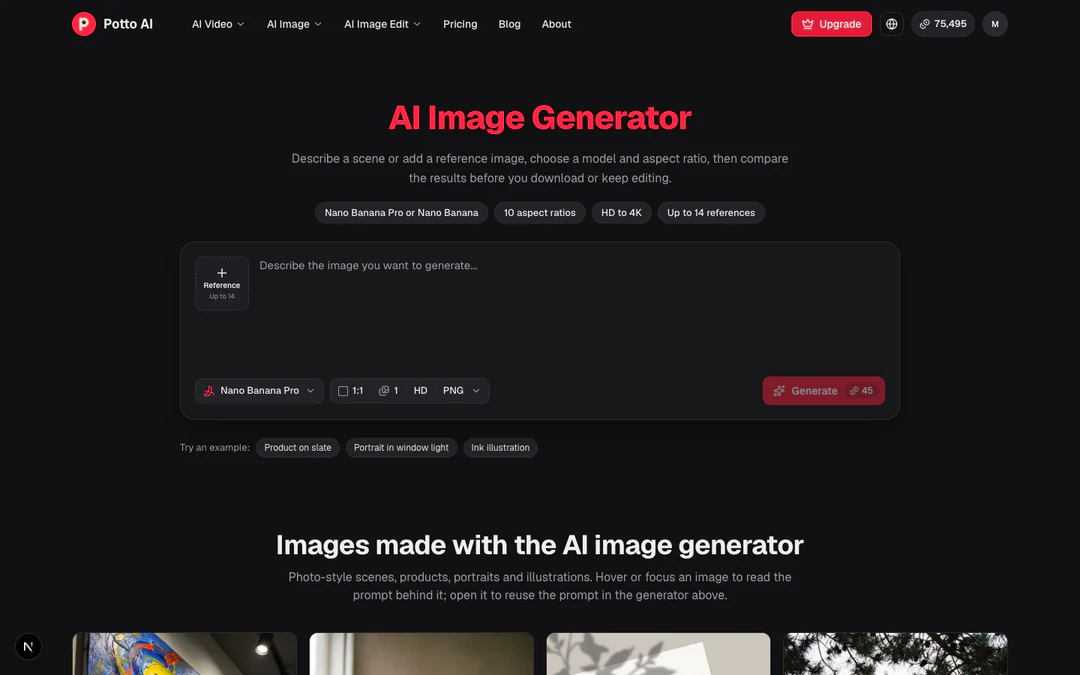
A screenshot of our AI image generator page, uploaded together with the page link, next to the frame where it opens the product demo video. The interface is the real page; the demo adds a caption, narration and motion.

Screenshot of the Potto AI image generator page at 1440×900, uploaded with the page link
Uploaded screenshot · 1440×900
Demo frame · 0:02 · 16:9

What stays from your product

Buttons, labels and layout in the frame come straight from the uploaded screenshot. Your product demo video is only as accurate as the screens you give it, so use screens that match the current version.

What the demo adds

A short caption, narration that explains the step, and motion between scenes; you can also set a focus point to pull attention to one control. None of this adds behavior your product does not have; it points at what is already on the screen.

What to check before you export

Make sure each caption names the control that the focus point shows, and that the order of scenes matches the order a person would really click. If a step happens behind a login, add a screenshot of it, because a link only gives Potto public pages.

Pick the demo by where people will watch it

Product demo videos work best when each one follows one task for one audience. Decide where your demo will play first, then set its inputs, length and frame in the product demo video maker to match.

16:9 · 28s

Homepage and landing page demos

Show a visitor what your product does in one path: the input, the action and the result. A public product link is enough to start, since Potto reads the page and its brand. Keep it to one task, and end on the screen that shows the result a visitor came for.
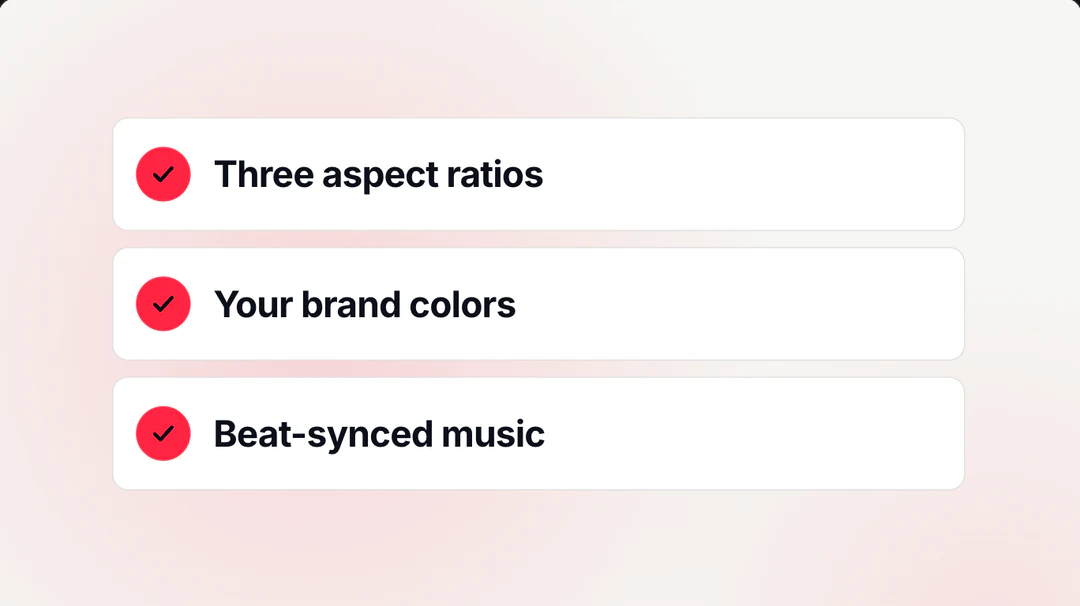
16:9 · 30s

Sales, onboarding and help center demos

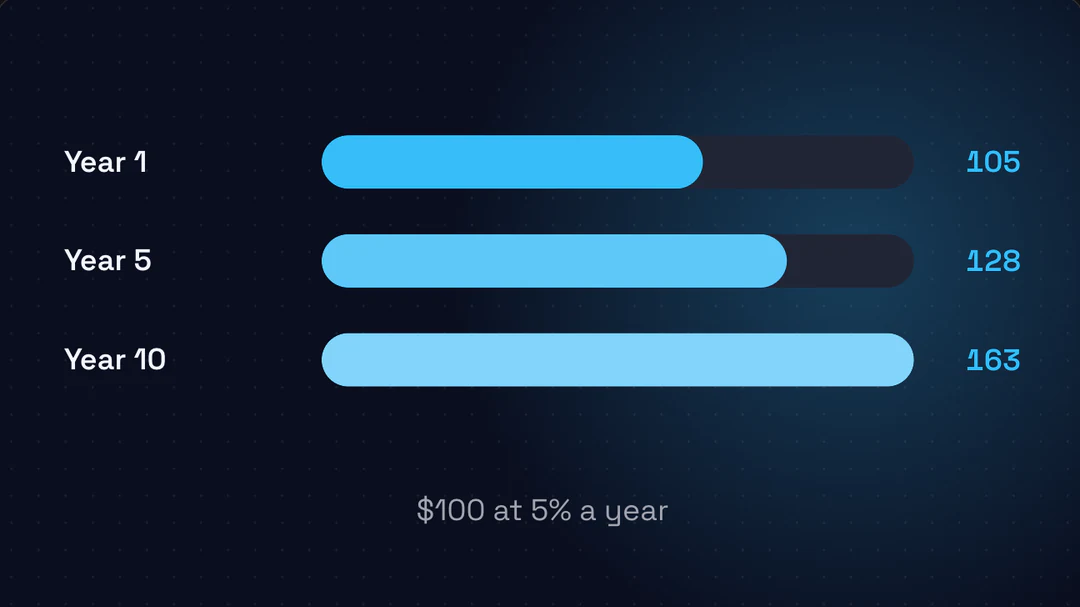
When the steps happen inside your app, upload screenshots of each screen in order, with sample data rather than real customer details. A demo for new users or a help article can go one step per scene, so narration has time to name each control before the next screen.

9:16 · 18s

Demo clips for social feeds

Cut a demo down to the single moment that makes people want to try it, and export it in 9:16 for phones or 1:1 for feeds. Captions carry the message for viewers who watch without sound, so keep each line short and specific.

How to make a product demo video

Use this product demo video maker in three steps with the creator above. Generating and previewing are free, and a credit price appears before you export.

  1. 1. Add your product link or screenshots

    Paste a public link to your product page, or upload screenshots of each step, up to 8 attachments per project. Set Video type to Product Demo, then write a sentence on the task to show and who will watch the demo video.

  2. 2. Review the storyboard and scenes

    Read the outline, storyboard and voiceover script that Claude Opus 5.5 drafts. For any scene, edit words on screen and narration, swap a screenshot or choose a focus point, so every step points at the right control.

  3. 3. Preview, then export an MP4

    Watch your product demo video in the browser for free. When it reads right, export a 1080p MP4 at 30 fps in 16:9, 9:16 or 1:1. Credits are charged only when you export, based on length, narration and illustrations.

What the product demo video maker does with your screens

Many demo video makers record your screen or build a clickable tour, and others put an AI presenter in front of slides. Potto's product demo video maker keeps your real interface on screen and builds a narrated video around it: a script that follows one task, scenes that point at each control, and an MP4 you can post on your site or in a feed.

  1. 01

    A demo script written from your product

    From your brief and the pages Potto reads from your link, Claude Opus 5.5 drafts an outline, storyboard and voiceover script for your product demo, and your screenshots are placed into its scenes. Scenes are rendered with Remotion, with AI-generated illustrations and voiceover where a scene needs them, and the preview you watch is the same composition you export.

    • Outline, storyboard and script drafted by AI
    • Preview matches the exported MP4
    Opening scene of the image generator demo
  2. 02

    Your interface, not a mock-up

    Screenshots you upload, and the first view captured from a public link at 1440×900, become the screens in your demo video. In each scene you can choose the focus point so viewers look at one control, or swap in a different screenshot when your product changes.

    • Up to 8 screenshots and files per project
    • A focus point for each screen
    A scene built from an uploaded screenshot
  3. 03

    Your brand from your link or brand kit

    Your product link gives Potto your brand name, colors, fonts and logo. With a brand kit selected, or the default brand turned on, four brand colors are applied to the visuals, the font is one of Inter, Space Grotesk or Bricolage, and your logo appears in opening and closing scenes.

    • Brand pulled from your product link
    • Logo in opening and closing scenes
    Closing scene with the logo and colors from a link
  4. 04

    Narration in 32 languages, with captions and music

    Choose any of 32 narration languages or let Potto detect a language automatically. Captions highlight each word as it is spoken, and background music comes from Potto's own library of original tracks, matched to the style and length; you can change the track by hand.

    • 32 narration languages or auto-detect
    • Word-by-word captions
    A scene from the image generator demo with narration and captions
  5. 05

    One demo video, three aspect ratios

    This product demo video maker exports a 1080p MP4 at 30 fps in 16:9 (1920×1080), 9:16 (1080×1920) or 1:1 (1080×1080). Aspect ratio does not change the price, so pick the frame that fits your website, app store page or feed.

    • 16:9, 9:16 and 1:1 frames
    • Price not affected by aspect ratio
    One sample report in 16:9, 9:16 and 1:1

Keep exploring Potto AI

Product demo videos show how your product works. These pages cover other videos and tools around a demo.

Product Demo Video FAQs

What product demo videos are, how this product demo video maker uses your link and screenshots, and the edits, formats and prices to know before exporting.

  1. What is a product demo video?

    A product demo video is a short video that shows the product being used, so viewers see how it works and what problem it solves before they try it. A good product demo follows one task from start to result on the real interface, with narration that explains each step. In Potto, each product demo video is built from your own screens: screenshots or a captured product page become scenes, with motion, captions, voiceover and music added around them.

  2. What is a product demo video maker?

    A product demo video maker is a tool that turns material about your product, such as screens, a page or notes, into a finished demo video without filming or editing by hand. Some demo video makers record your screen or click through an interactive tour; Potto's product demo video maker writes a script and storyboard with Claude Opus 5.5 and renders your screenshots into animated scenes, so you get an MP4 rather than a recording or a clickable tour.

  3. How is a product demo video different from a product launch video?

    A product demo video shows how the product is used and what it does, while a launch video announces something new, such as a release or a feature update. Choose Product Demo when viewers need to understand a workflow, and Product Launch when they need to hear what changed and why it matters now. Both start from the same creator; the Product Launch Video page covers launch and release videos.

  4. How do I make a product demo video with Potto?

    To make a product demo video, paste your product link or add screenshots in the creator at the top of this page, set Video type to Product Demo, and write a sentence about the task you want to show and who will watch. Potto drafts an outline, storyboard and voiceover script; you review and edit them scene by scene, preview in your browser for free, and export an MP4 when every step reads right.

  5. Can the product demo video maker work from a link?

    Yes. Paste a public http or https link and Potto reads that page and up to 2 more pages on the same site, such as about, features or product pages. It pulls your brand name, colors, fonts and logo, and captures the first view of the page at 1440×900 for screens that need it. Pages behind a login cannot be read, so for in-app screens, upload screenshots instead.

  6. Which screenshots work best in product demo videos?

    Full-window screenshots of each step in one task work best: a starting screen, the screen where a person acts, and the result. Capture them at the size people use your product, with realistic sample data and no personal details. A project holds up to 8 attachments, screenshots and documents combined, and in each scene you can choose a focus point so viewers look at the right control.

  7. Does the product demo video maker record my screen or use an AI avatar?

    No to both. The product demo video maker builds each demo from still screenshots and captured pages, with animated scenes, captions, voiceover and music, so it does not record your screen and does not generate an on-camera presenter. At the moment you cannot upload an existing video or screen recording to analyze or edit; this page is for making a new product demo video.

  8. Can I edit the script and scenes before exporting?

    Yes. Before you export your product demo video, you can edit the words on screen and the voiceover script for each scene, swap in another screenshot, choose its focus point, and regenerate an AI illustration or replace it with your own upload. Preview again after each change to check that the narration matches the screen it describes.

  9. Which languages, captions and music does a demo video get?

    Narration can use any of 32 languages, or Potto can detect a language automatically, and captions highlight each word as it is spoken. Background music comes from Potto's own library of original tracks, picked for the video style and length, and you can change it by hand. Listen once for product names and feature terms before you export.

  10. What formats and sizes can I export?

    Every product demo video exports as a 1080p MP4 at 30 fps. Choose 16:9 (1920×1080) for a website, help page or sales deck, 9:16 (1080×1920) for phones, or 1:1 (1080×1080) for feeds. A 4:5 frame and GIF export are not available.

  11. How many credits does a product demo video cost?

    Making and previewing your product demo video is free; credits are charged only when you export. The price depends on video length, narration length and how many AI illustrations you use, and aspect ratio does not change it. For example, a 30-second video with English narration and no illustrations costs 153 credits, and adding 2 illustrations brings it to 199 credits. Each account can start up to 30 video projects and generate up to 60 illustrations a day.

Potto AI

Make your product demo video

Paste your product link or add screenshots, choose Product Demo, and review every scene before you export a narrated MP4.