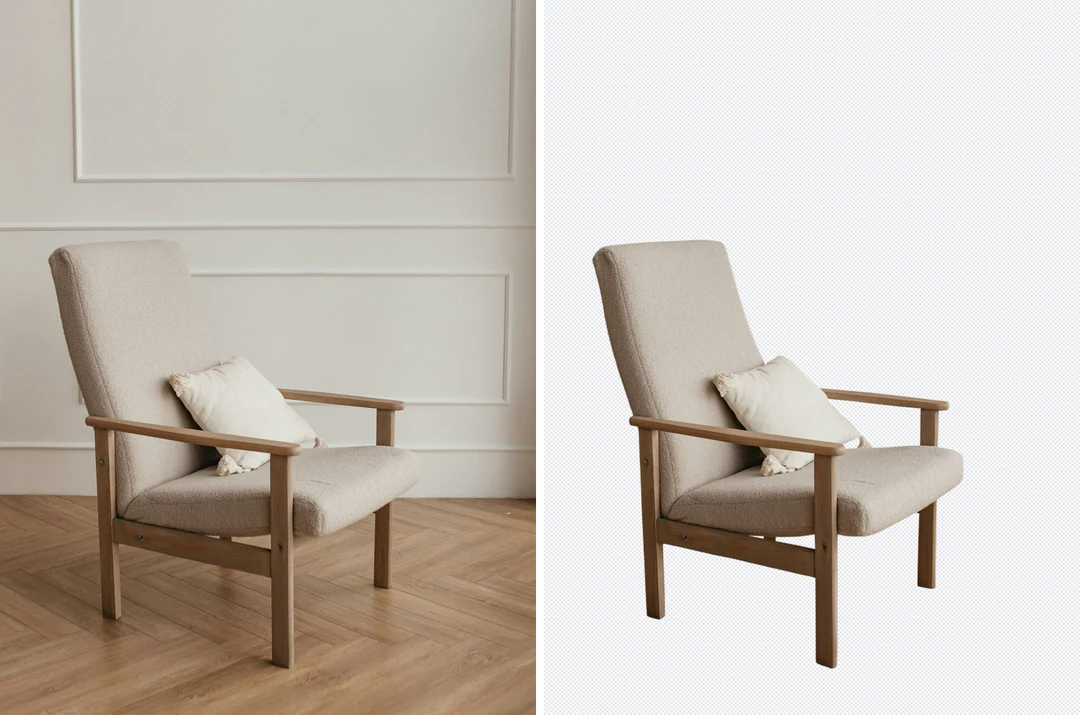
ChairTransparent
Prepare a product for a catalog
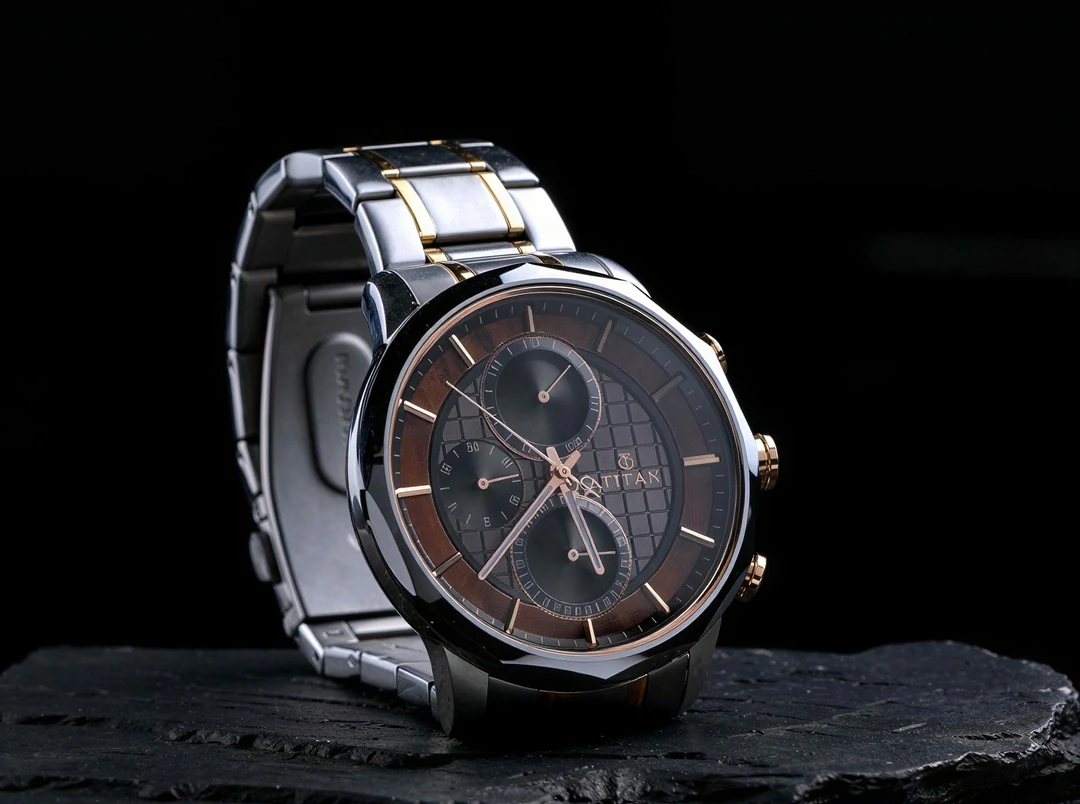
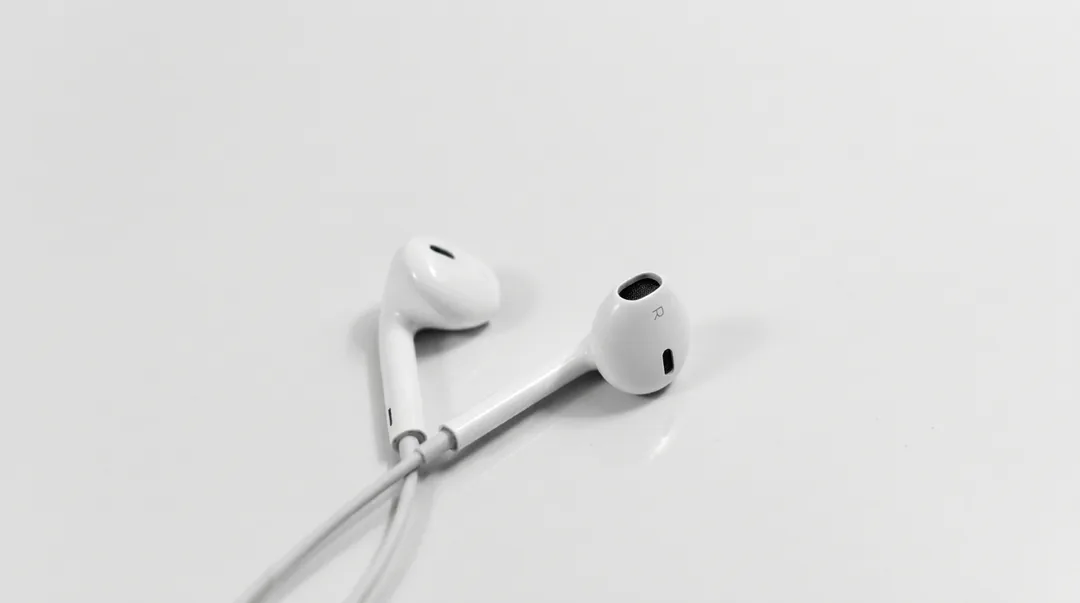
Decide what a buyer needs to see: the shape, label, handles or cables. Compare narrow handles and gaps with the source. A clean silhouette that drops a cable misrepresents the product.
Remove the background from a photo with the AI background remover. Download a transparent PNG, then check hair and fine edges.

A portrait shot in front of a wall, before and after the AI background remover. The checkerboard shows what was removed.

Follow the outer contour first, then the gaps, such as the space between neck and collar. A smooth outline is not enough if a gap stays filled or clothing disappears.
Place the cutout on the real card color, then on a dark backdrop. A pale halo can vanish on white and show on dark.
Judge the whole object, not only its contour. A new backdrop does not rebuild the shadow.
Three steps in the panel above.
Add your photo. Use the original, not a screenshot. Keep the whole subject in the frame.
Look at the whole silhouette first. A missing part matters more than a faint fringe. Then check gaps, hair and small labels against the source.
Keep transparency, pick a solid color or place your own image behind the cutout. Download PNG for the transparent version, or PNG or JPEG for a flattened copy.
A product, a person and an animal need different checks. Decide what must survive, then check it first.
ChairTransparent
Decide what a buyer needs to see: the shape, label, handles or cables. Compare narrow handles and gaps with the source. A clean silhouette that drops a cable misrepresents the product.
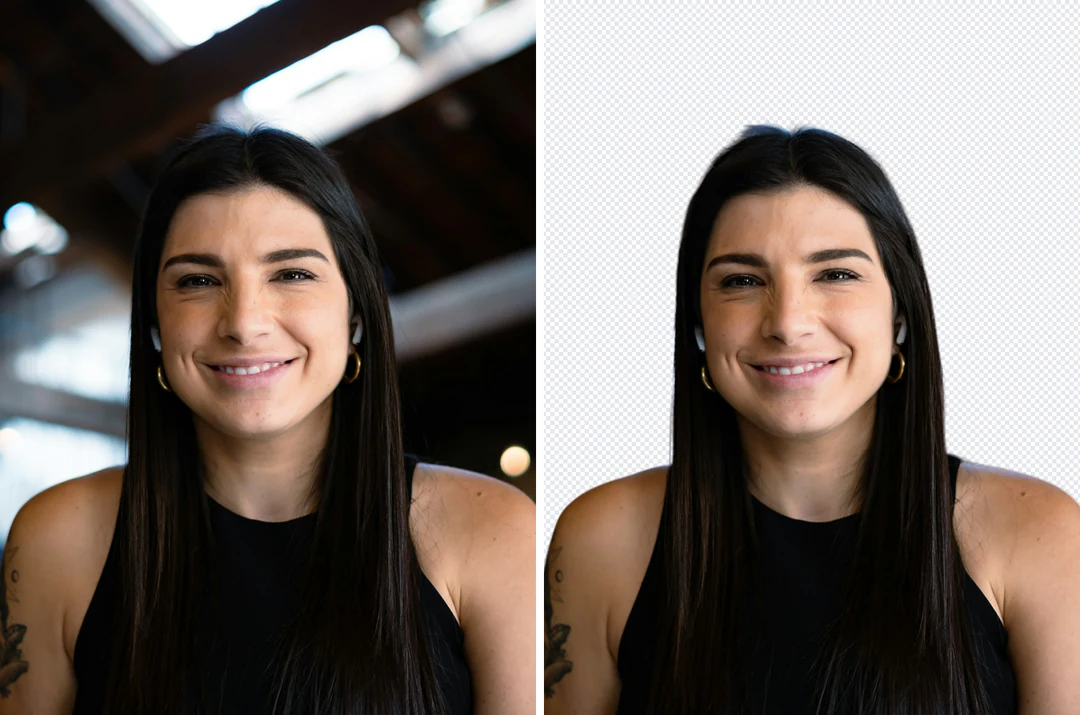
OfficeTransparent
Pick a source with a clear face and shoulders. Keep the crop you need inside the frame, because removal cannot recover a hand outside it. Hair needs more care than a jacket edge.
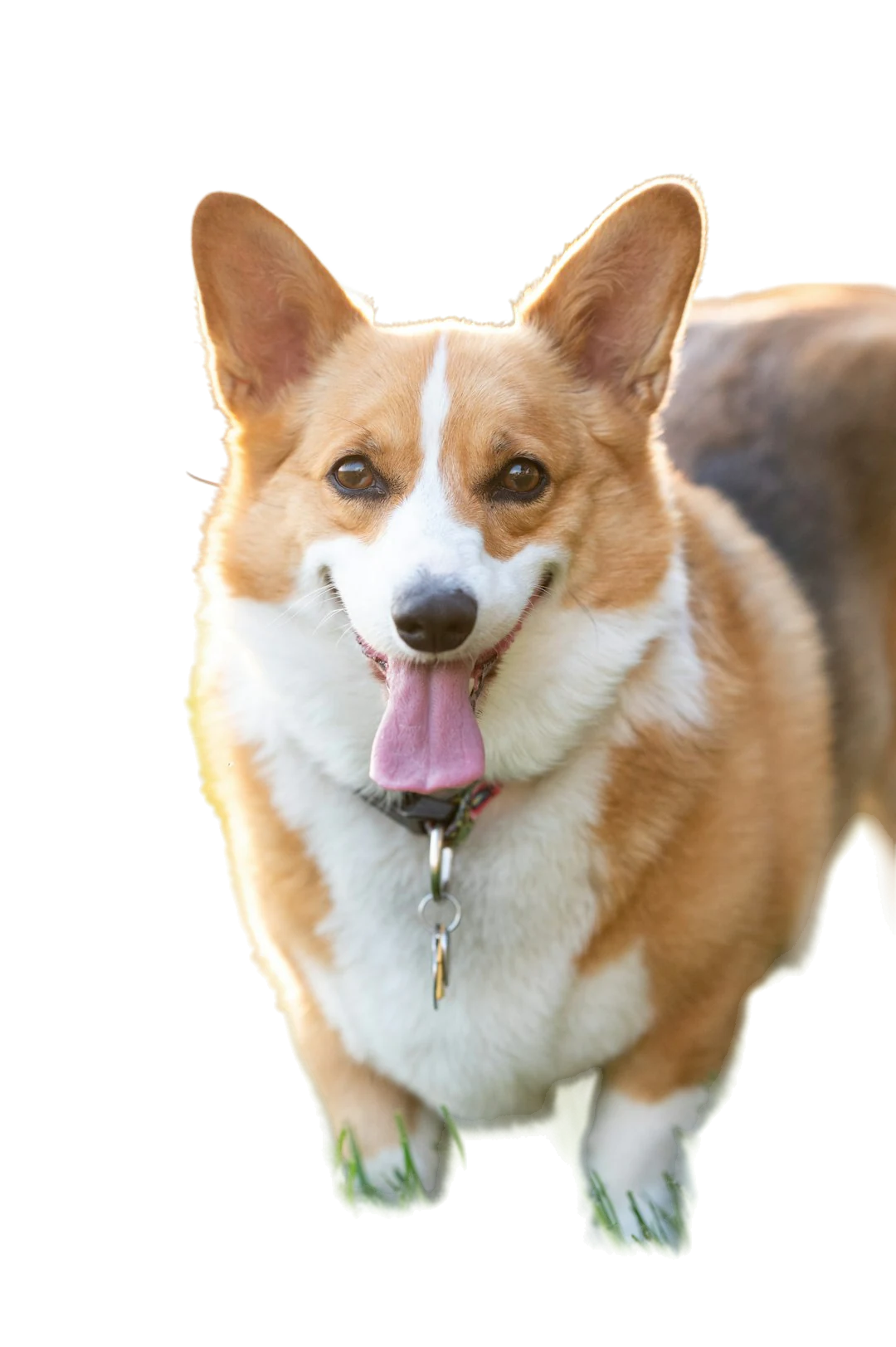
SofaTransparent
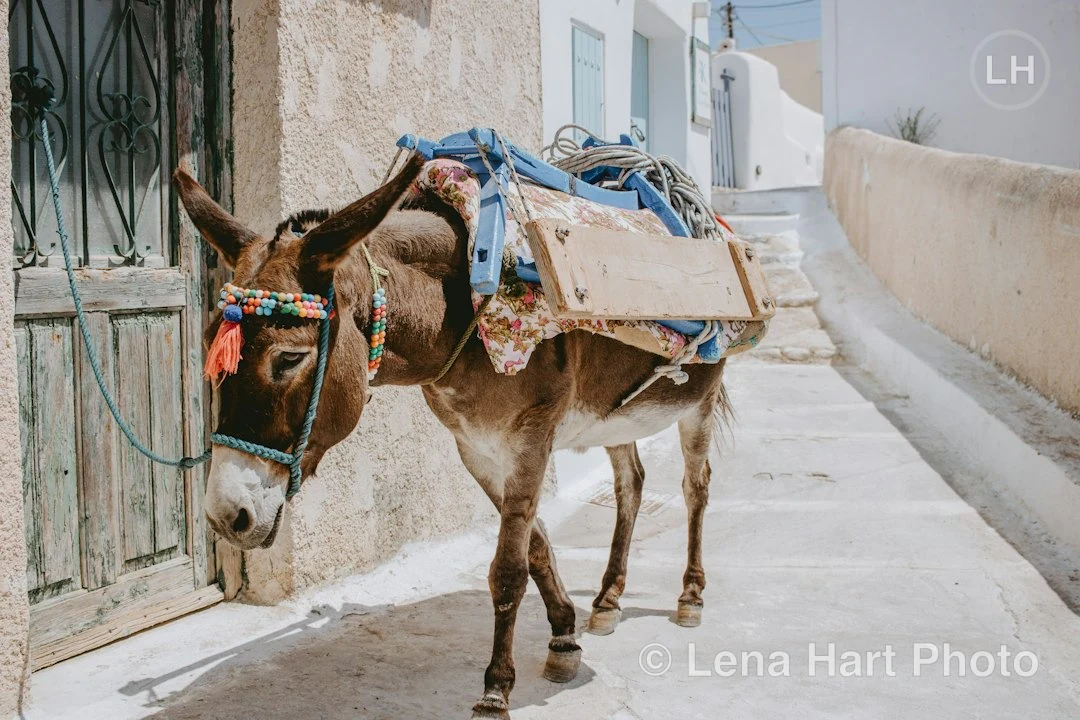
Pet photos combine fine fur, whiskers and soft focus. Start with an animal that is in focus. Check ears, tails and paws on a contrasting surface.
Three things decide whether a cutout is ready: the outline, the fine edges and the source.
01
The AI background remover finds the silhouette and removes everything outside it. A transparent PNG comes back.
02
Hair, whiskers and fine strands are the hardest part. Start from a source where the subject is in focus. Some background color can remain along thin edges.
03
A subject in front of a plain wall separates far more reliably than hair over a busy pattern. Keep the original beside the result and compare the silhouette first.

A background remover isolates the subject. These tools handle what comes next.



Choose your credits and generation priority. Potto does not add a visible watermark to your downloads.
Billed $96 for the first year, then $192/year
Billed $240 for the first year, then $480/year
Billed $480 for the first year, then $960/year
What the background remover does and how to check a cutout.
A background remover separates the subject of a photo from everything behind it. Potto AI returns a transparent PNG. Keep it transparent, or put it on a solid color or a picture of your own.
Keep transparency when the cutout goes into several designs. Use a color for a plain, predictable backdrop. Add your own image when the subject belongs in a scene. The image fills the canvas with a centered crop, so its edges can be cropped.
No. The background remover only isolates the subject. It does not match light or build new shadows. A different light direction in the new backdrop can look misplaced.
You can upload a photo and look at the controls without one. Removing the background and downloading need an account. The sign-in dialog keeps your photo in place.
Upload JPG, PNG or WebP files up to 20 MB. The result is a transparent PNG at the source size. Start from the original, because repeated saving adds blocks near edges. A flattened JPEG cannot keep transparency.
Check them on a light and a dark backdrop. Thin strokes can be lost, and some old background color can stay at the edges. Glass shows the scene behind it. Shadows are not kept or rebuilt. Thin lettering can be lost.
Background removal costs 4 credits per image. The Generate button shows the price before you start. Credits reserved for a failed task are released. A new color or backdrop is applied in your browser at no extra cost. Plans and packs are on Pricing.
Yes. It cuts out people, products and pets. A subject that is in focus and distinct from its surroundings separates best.
Yes, on a paid plan. Images from the free plan are for personal use. Potto adds no watermark. Remove backgrounds only from photos you own or may edit. Review the cutout before it goes into a listing or an ad, where a missing strap misrepresents the item.
Upload a photo, run the AI background remover and check the edges before you download.
Edit & Enhance