Black Friday: 50% off every yearly plan for the first year. Ends Dec 1.
Potto AI

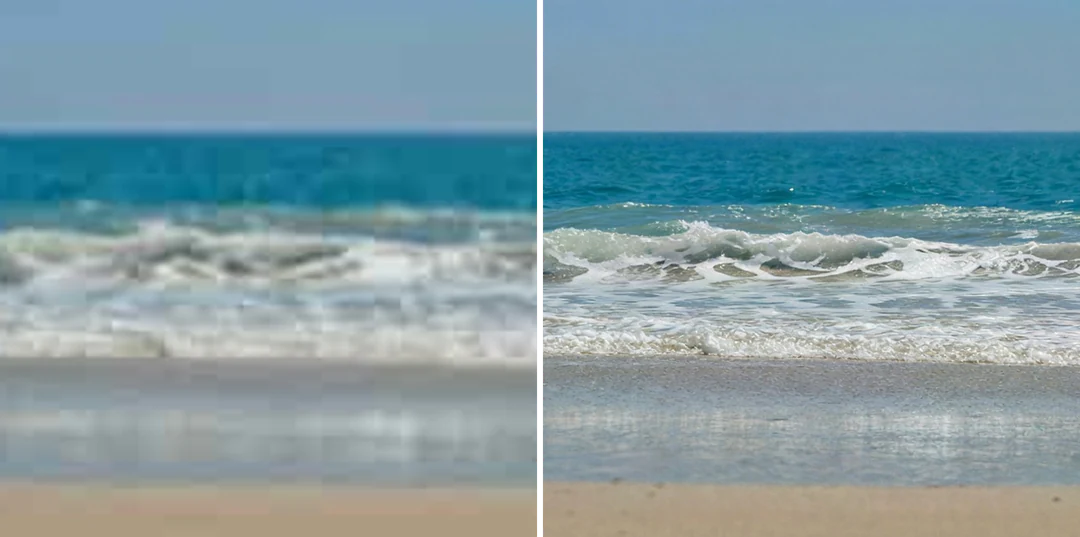
Image upscaler before and after

The same illustration before and after a 2x upscale in the AI image upscaler. Both are shown at the same display width.

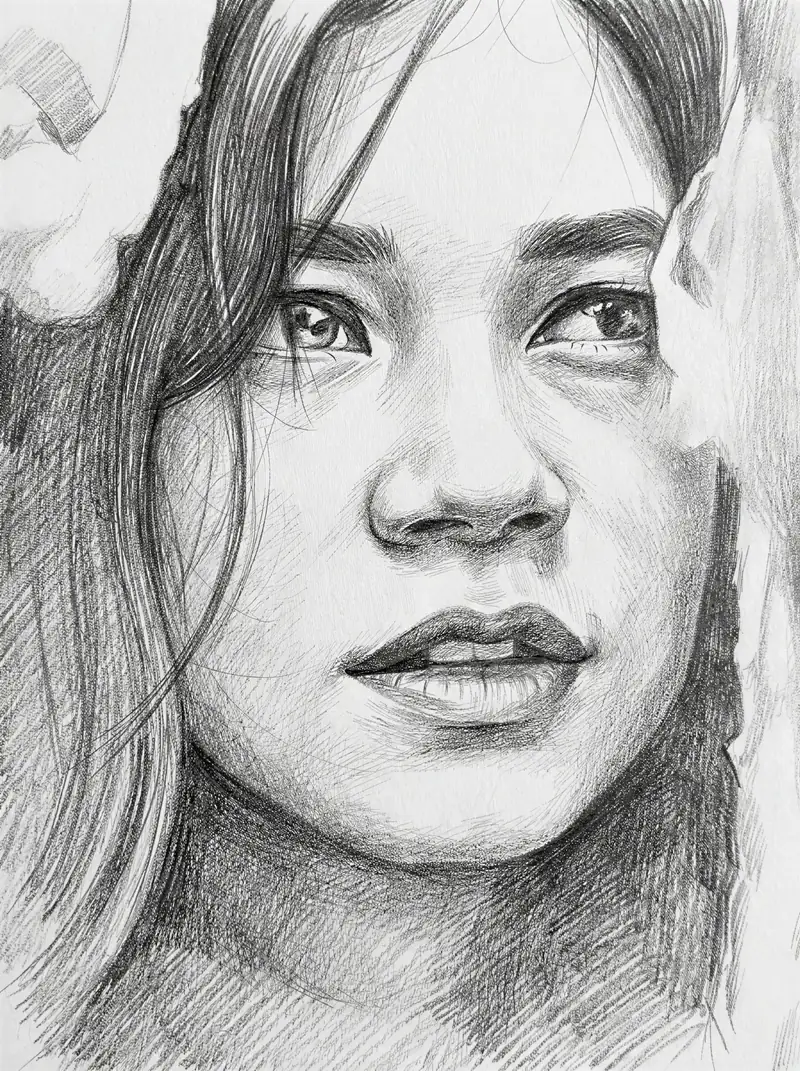
The same pencil portrait at 448×600 before upscaling, soft and low in detail
Source
Graphite pencil portrait enlarged 4x with the AI image upscaler, hair strokes and paper grain sharp
Upscaled 2x

Lettering and shapes

A crisp letter from the image upscaler can change its meaning. A softened diagonal can become an invented outline. Compare real characters and fine edges with the source.

Smooth and dark areas

The image upscaler can add texture to a plain wall that it never had. Dark regions can show invented structure. Keep the version with fewer unwanted changes.

Size in place

Place the result at its real display width, then zoom to full size. Each view finds problems the other misses.

How to upscale an image

Three steps in the panel above.

  1. 1. Upload the best source

    Add your image to the image upscaler. A chat or screenshot version is worse than the original. Keep an untouched copy.

  2. 2. Choose 2x or 4x

    Measure the space the image must fill. A 1,500 by 1,000 source cannot reach 3,000 by 2,000 at 2x, so it is scaled to fit. Check the output size, not the label.

  3. 3. Generate, compare and download

    Compare source and result at matching display size. Then inspect faces, lettering and edges at full size. Download the accepted image and check its real dimensions.

What the AI image upscaler must keep

The scale follows the destination. Decide what must stay dependable, then check it first.

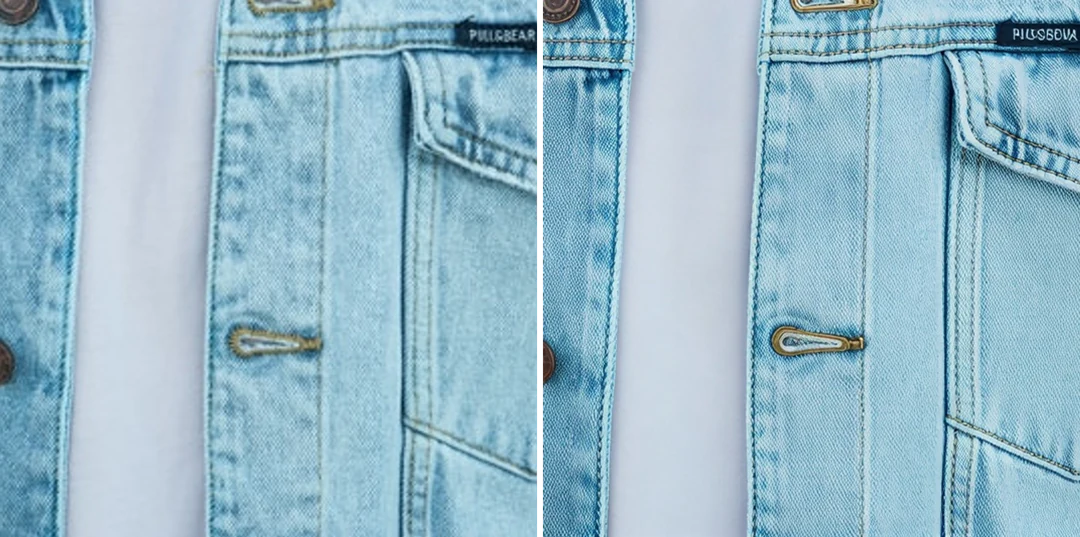
Product photo at 800 pixels beside the same photo enlarged to 1,600 pixels, with seams and buttons in close-up

8001,600 px

Prepare a small product photo for a larger listing

Ask the supplier for a better original before you use the image upscaler. If you must enlarge, check outlines, buttons, seams and printed claims. Keep source and result under different names.
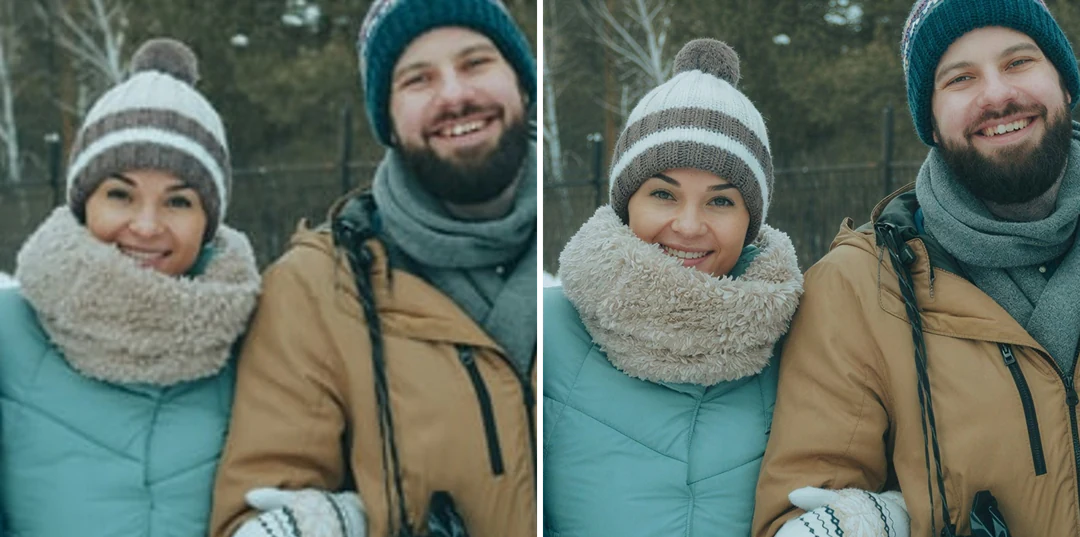
Small 600-pixel photo of four people in winter scarves beside the same photo enlarged to 2,400 pixels, faces at full size

6002,400 px

Make a family photograph easier to view

Look for the original scan or print first. After the image upscaler runs, compare eyes, mouth and hairline. A plausible face is not always the same face. Enlarging does not remove scratches or restore faded color.

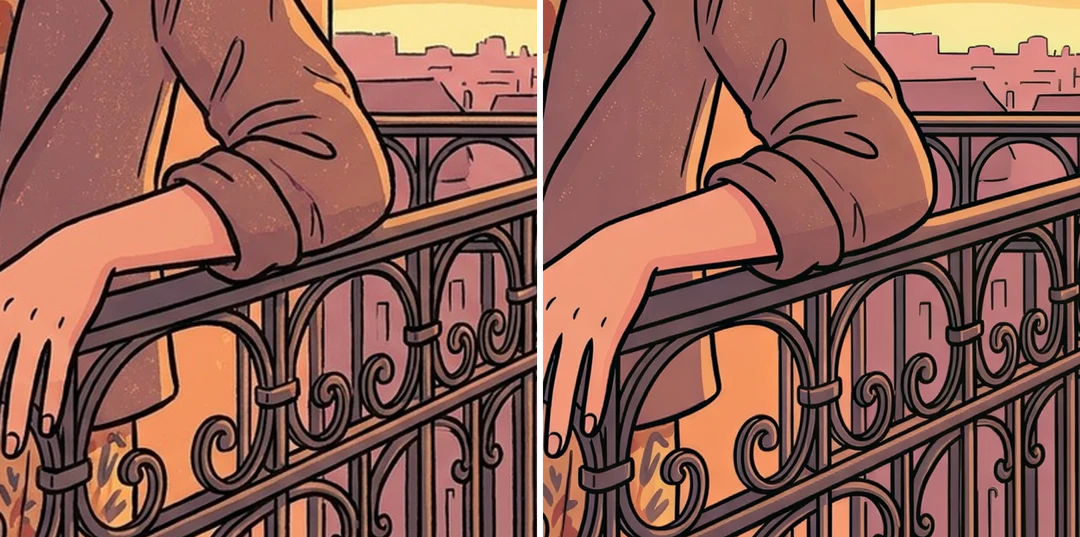
Generated illustration at 1,200 pixels beside the 2,400-pixel version, zoomed on fingers and a railing

1,2002,400 px

Enlarge generated art without hiding its defects

An image upscaler fixes the size, not the anatomy, lettering or geometry. Inspect fingers, railings and reflections. Enlarging makes existing problems easier to see. Revise the concept before you enlarge.

What the image upscaler does

An image upscaler adds pixels to the frame you already have.

  1. 01

    Pick the scale for the space

    Measure the space before you pick. A source that would pass the cap is scaled to fit, so the real factor is smaller.

    • Credits shown before you confirm
    • The output keeps your aspect ratio
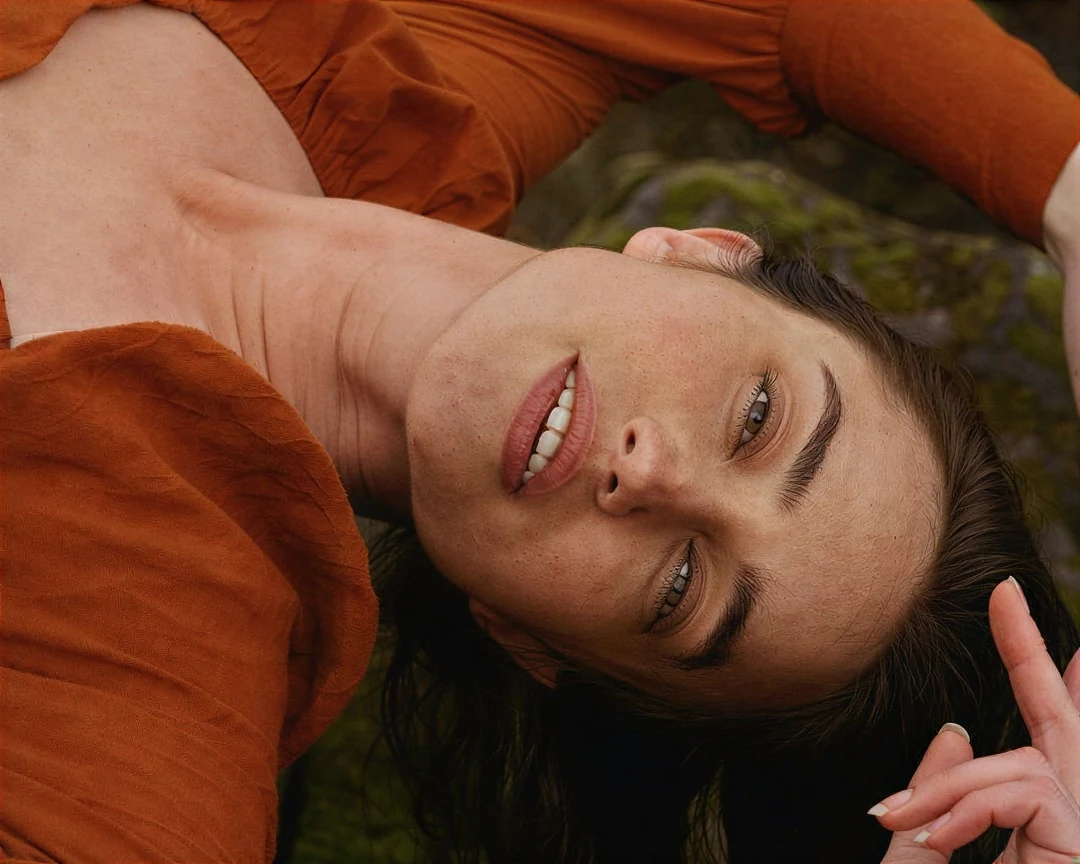
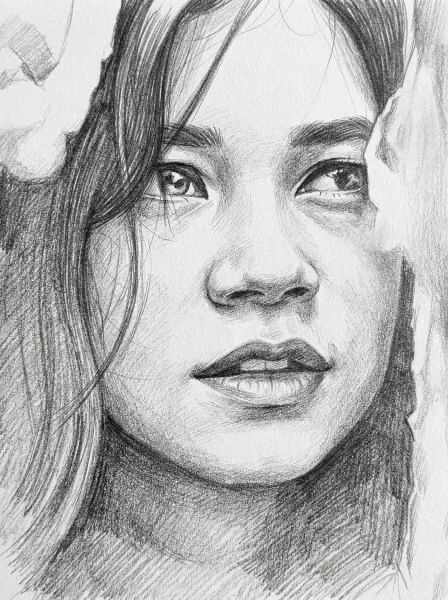
    Graphite pencil portrait enlarged 4x with the AI image upscaler, hair strokes and paper grain sharp
    Example: a sketch illustration after a 2× upscale.
  2. 02

    Cleaner edges and texture

    The AI image upscaler adds detail it can see, so outlines, seams and surfaces look cleaner. A sharper texture is not always the correct one. On a product photo, check buttons and printed claims against the source.

    • Zoom to 100% on edges and text
    • Inspect lettering and small marks
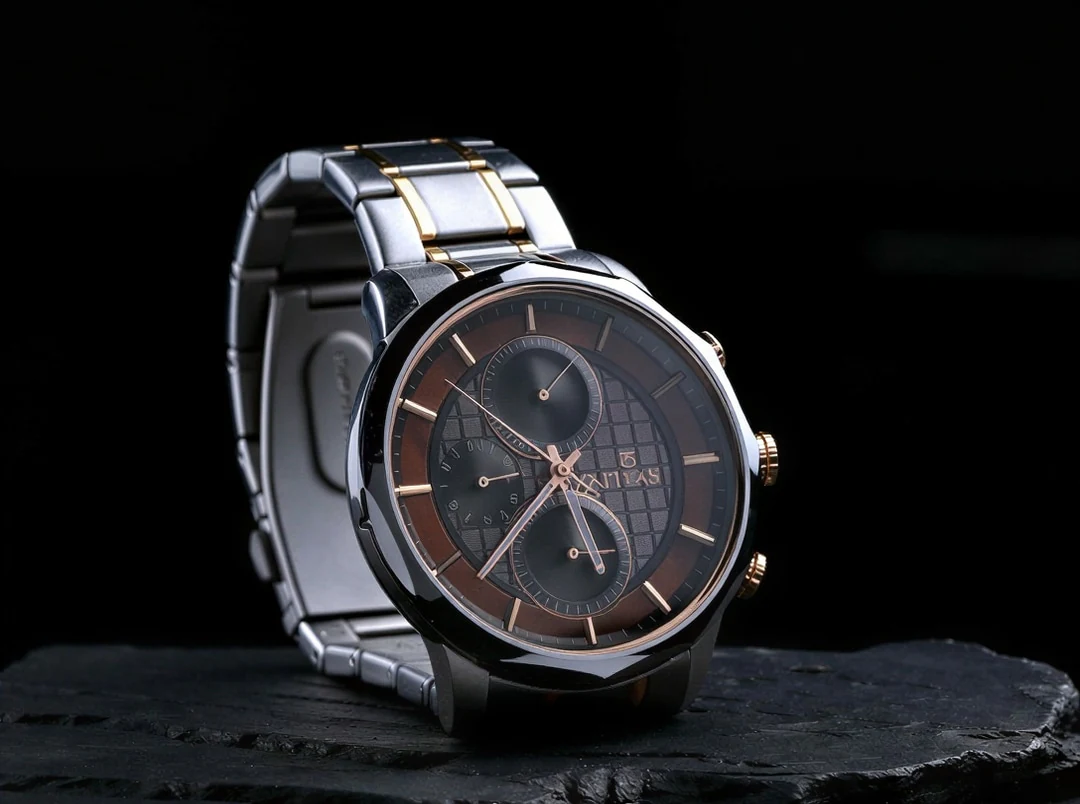
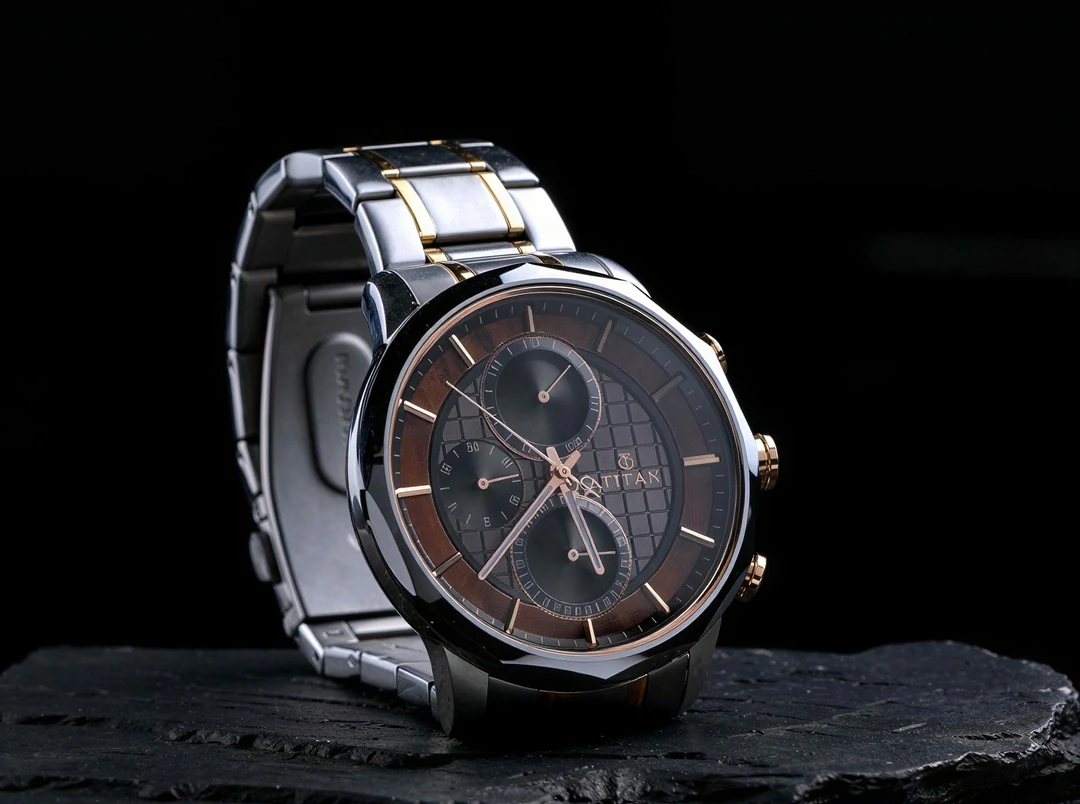
    A chronograph wristwatch with a steel bracelet on dark slate
    Example: a watch photo enlarged. Check the dial and the bracelet.
  3. 03

    The same frame, enlarged

    The image upscaler never crops or stretches the source, and it does not add scene around it. Paid plans add a batch of up to 10 images.

    • The output keeps the upload format
    • A failed image does not block the completed ones
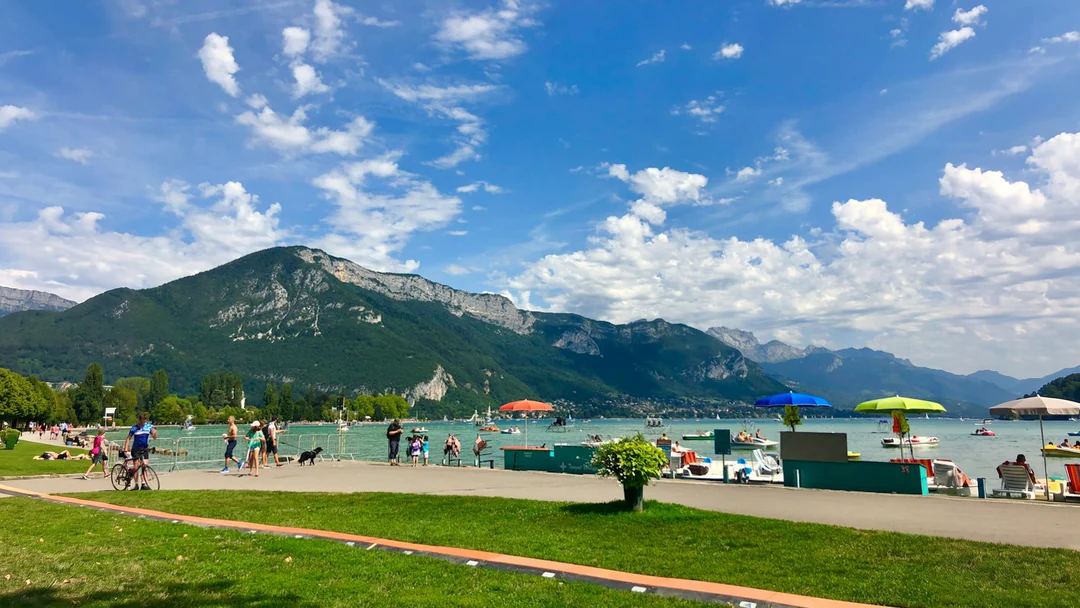
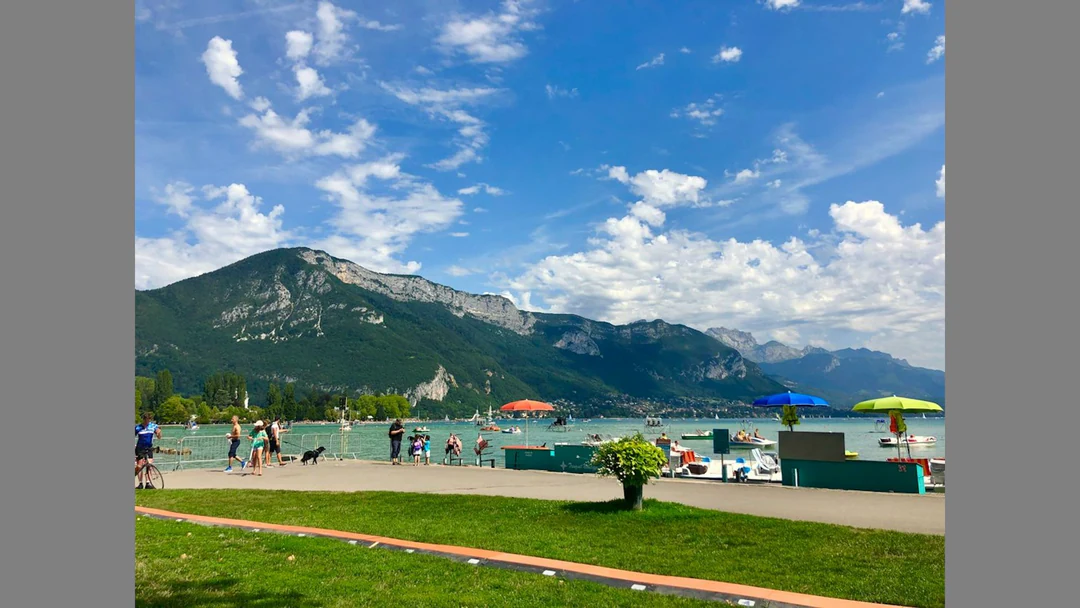
    Lakeside park and mountains extended from a 4:3 photo to a 16:9 frame with the uncrop tool
    A 16:9 landscape keeps its ratio at either scale.
  4. 04

    Old prints and scans

    Old prints are a common reason to upscale an image. Scan the original at the highest resolution you can. A better scan beats a bigger enlargement. Treat sharper faces as interpreted, not recovered.

    • Generated facial detail is not evidence of the original
    • Keep the untouched scan beside the result
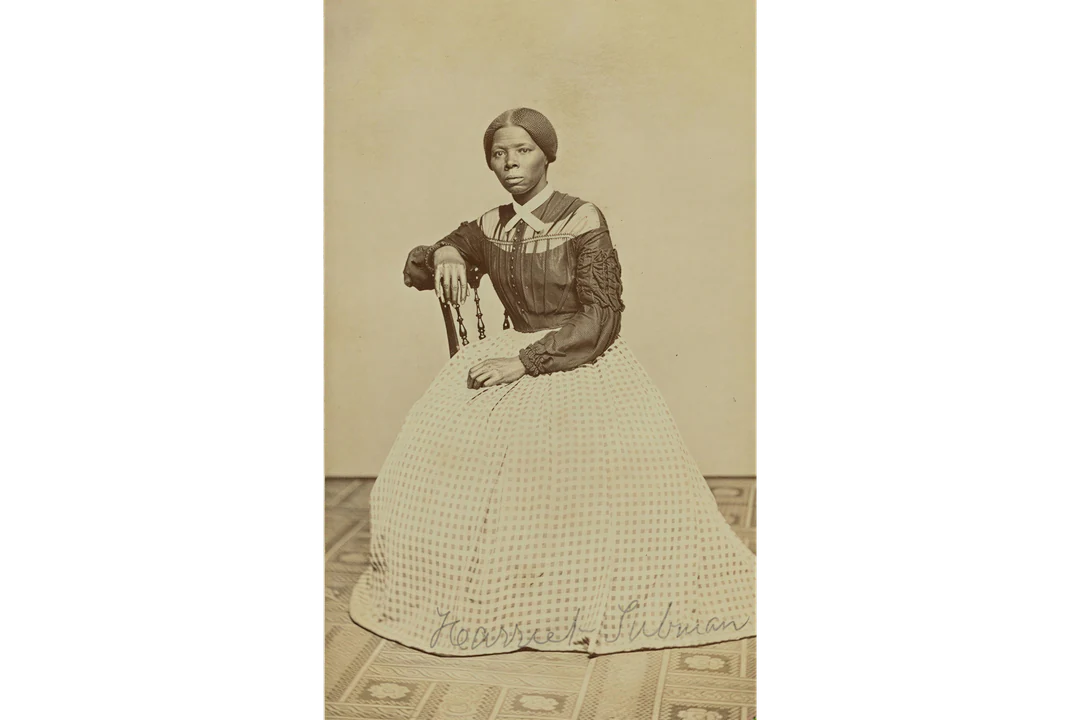
    An old sepia studio portrait of a seated woman in a long checked dress
    An old studio portrait: compare the face with the scan.

Choose Your Plan

Choose your credits and generation priority. Potto does not add a visible watermark to your downloads.

  • Lite

    Black Friday -50%
    $16$8/month

    Billed $96 for the first year, then $192/year

    Choose Lite

    Monthly HD images

    Learn more
    44 images
    86 images
    • 2,000 monthly credits
    • Up to 86 fast images
    • Standard queue
    • No Potto watermark
    • Batch image tools
    • Private creations
    • All premium skills
  • Pro

    Black Friday -50%
    $40$20/month

    Billed $240 for the first year, then $480/year

    Choose Pro

    Monthly HD images

    Learn more
    111 images
    217 images
    • 5,000 monthly credits
    • Up to 217 fast images
    • Priority queue
    • No Potto watermark
    • Batch image tools
    • Private creations
    • All premium skills
  • Recommended

    Max

    Black Friday -50%
    $80$40/month

    Billed $480 for the first year, then $960/year

    Choose Max

    Monthly HD images

    Learn more
    333 images
    652 images
    • 15,000 monthly credits
    • Up to 652 fast images
    • Highest priority queue
    • No Potto watermark
    • Batch image tools
    • Private creations
    • All premium skills

Image upscaler FAQs

What an image upscaler does, how to pick a scale and what to check.

  1. What is an image upscaler?

    An image upscaler enlarges the pixels of an image and redraws the visible detail. The AI image upscaler adds detail at 2x and 4x. The result keeps the source's aspect ratio. New detail is interpreted, not proof of the original.

  2. Will 2x or 4x always multiply the exact size?

    No. The output long edge is capped at 2,048 pixels for 2x and 4,096 for 4x. A request over the cap gets a smaller factor. A source already at the cap cannot use that option. Read the output size before you choose.

  3. Does the image upscaler crop or stretch?

    No. The aspect ratio stays the same. Pick the scale to match your layout. If the layout needs more canvas, use Uncrop instead.

  4. Can an image upscaler recover faces or text?

    No. It enlarges the existing frame. It cannot recover unreadable lettering or the exact detail of a small face. A sharp result can still change a number or a facial feature, so compare what matters with the source. Flaws in AI art are enlarged too.

  5. Do I need an account to use the AI image upscaler?

    You can upload images and try the 2x and 4x options without one. Upscaling and downloading need an account. The sign-in dialog keeps your images in place.

  6. Which files and batches can I upload to the AI image upscaler?

    Upload JPG, PNG or WebP files up to 10 MB each. The output keeps the format. Use the earliest copy you have, because repeated saving adds blocks that read as texture. Paid plans take up to 10 images in one batch. Each image is its own task, so a failed one does not block the rest.

  7. How much does it cost to upscale an image?

    2x costs 2 credits per image and 4x costs 6. The Generate button updates the price when you change the scale. In a batch, each image is charged on its own. A failed image releases only its own credits. Plans and packs are on Pricing.

  8. Can I use the result commercially?

    Yes, on a paid plan. Images from the free plan are for personal use. Potto adds no watermark. Use the image upscaler only on images you own or may use. Check enlarged labels, numbers and faces against the source before a print or a product page.

Potto AI

Upscale your image

Upload an image, pick 2x or 4x in the AI image upscaler and compare the result with the source before you download.