1×2×
Portraits
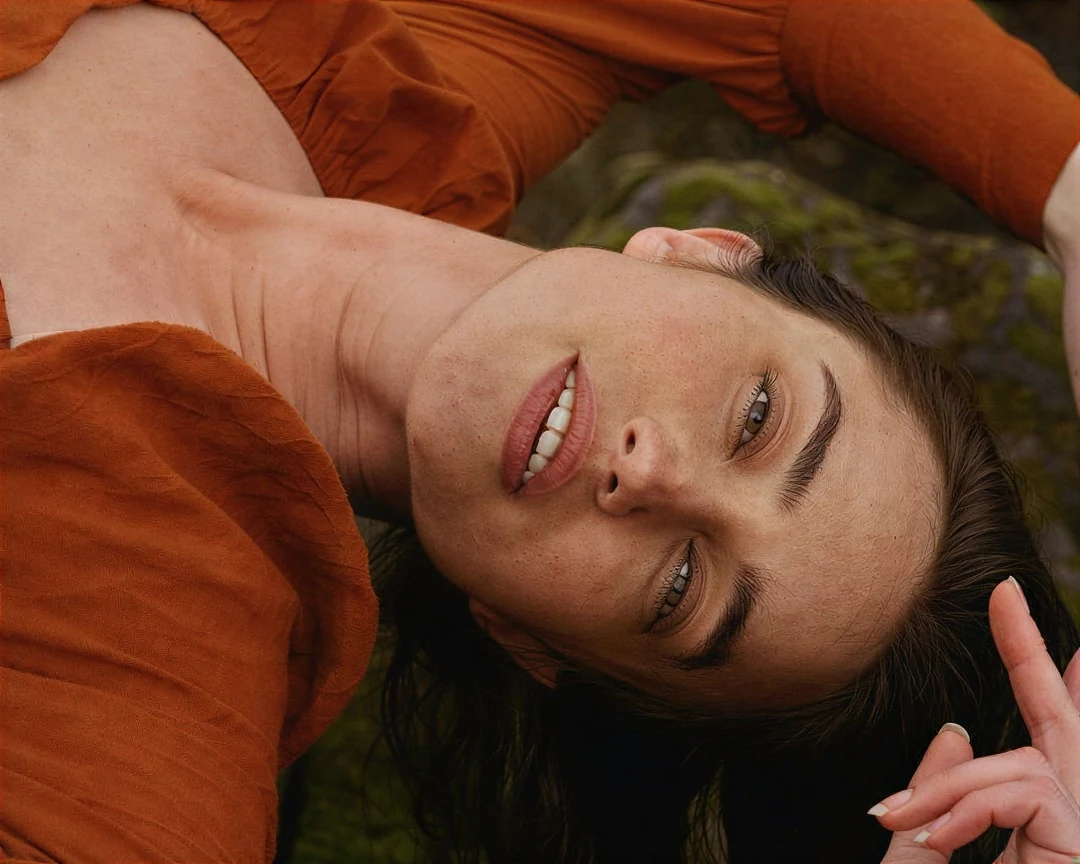
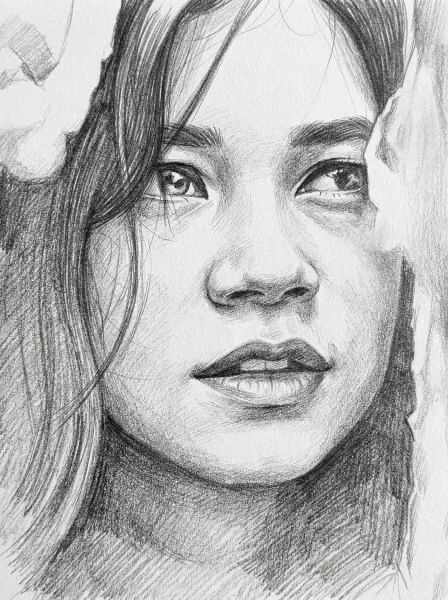
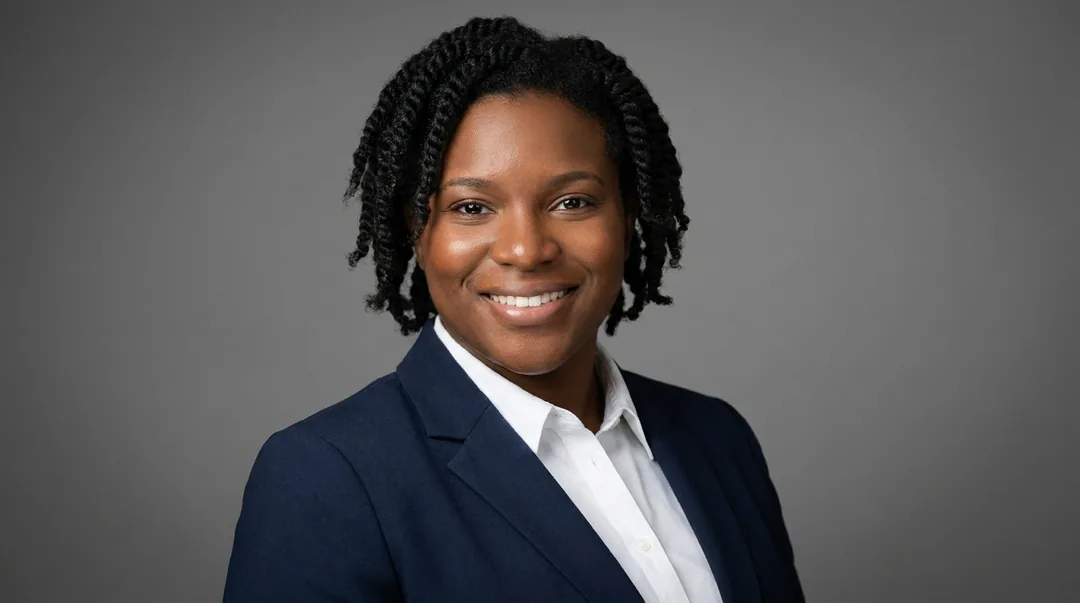
Compare the shape of the eyes, mouth, eyebrows, hairline and jaw. A smoother face can feel flattering while looking less like the person. Review identity before polish.
Enhance a photo with the AI photo enhancer. It rebuilds detail at a larger size. Then check faces, texture and edges.
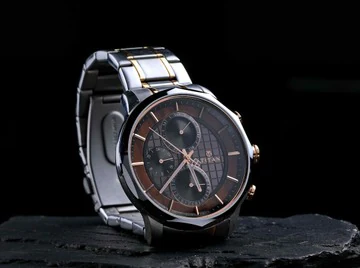
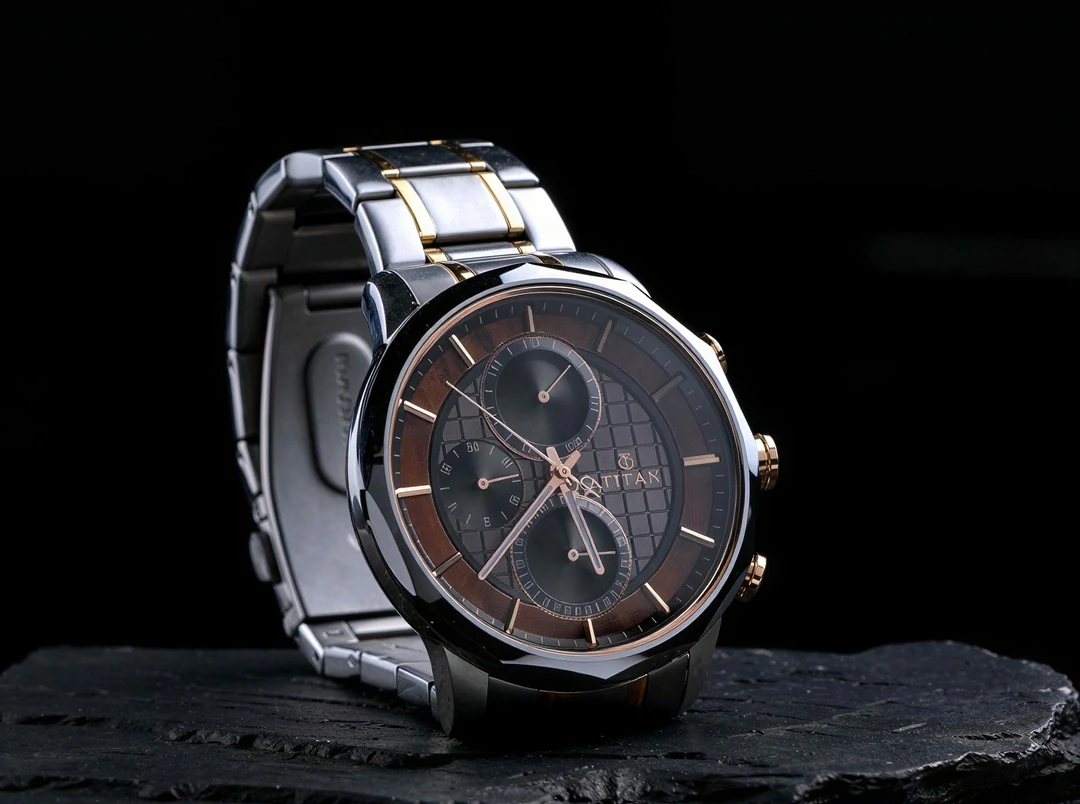
A real example: a reduced copy of a watch photo beside its 4x upscale from Potto. Your own output may redraw fine detail.
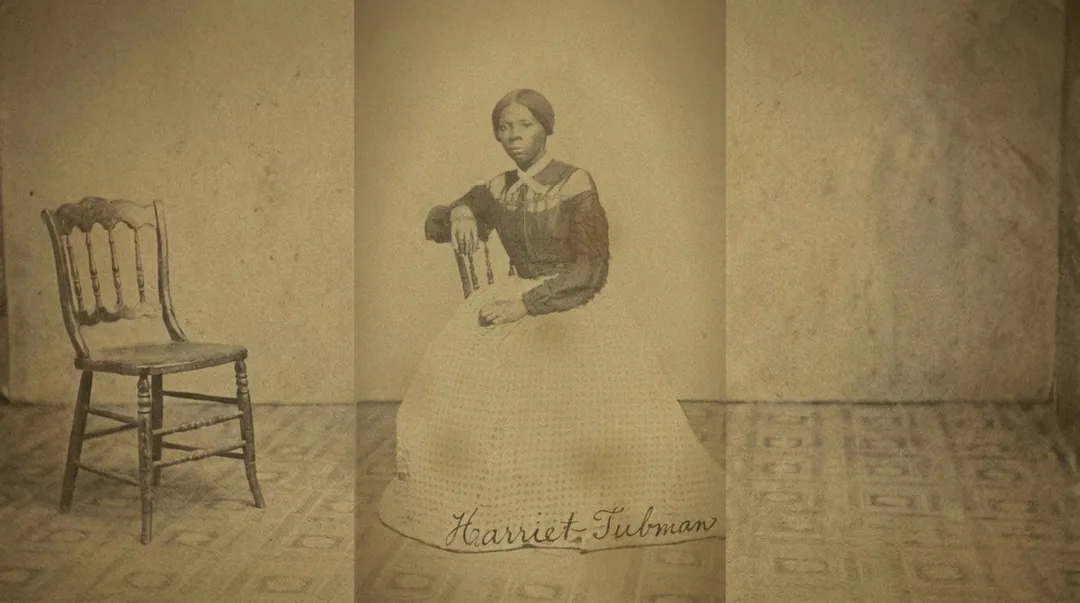
The same vintage portrait before and after a 2× enhancement in the AI photo enhancer. The result is a larger derivative, not a recovered record.
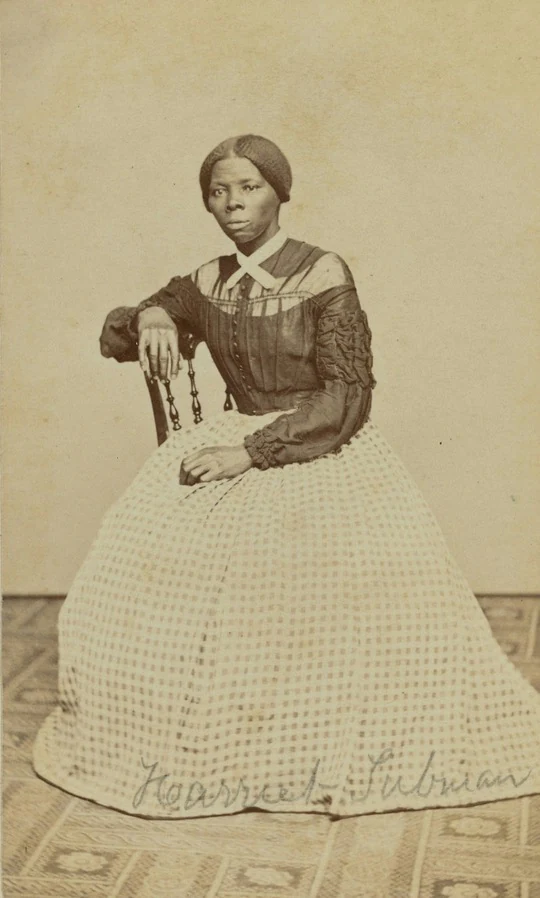
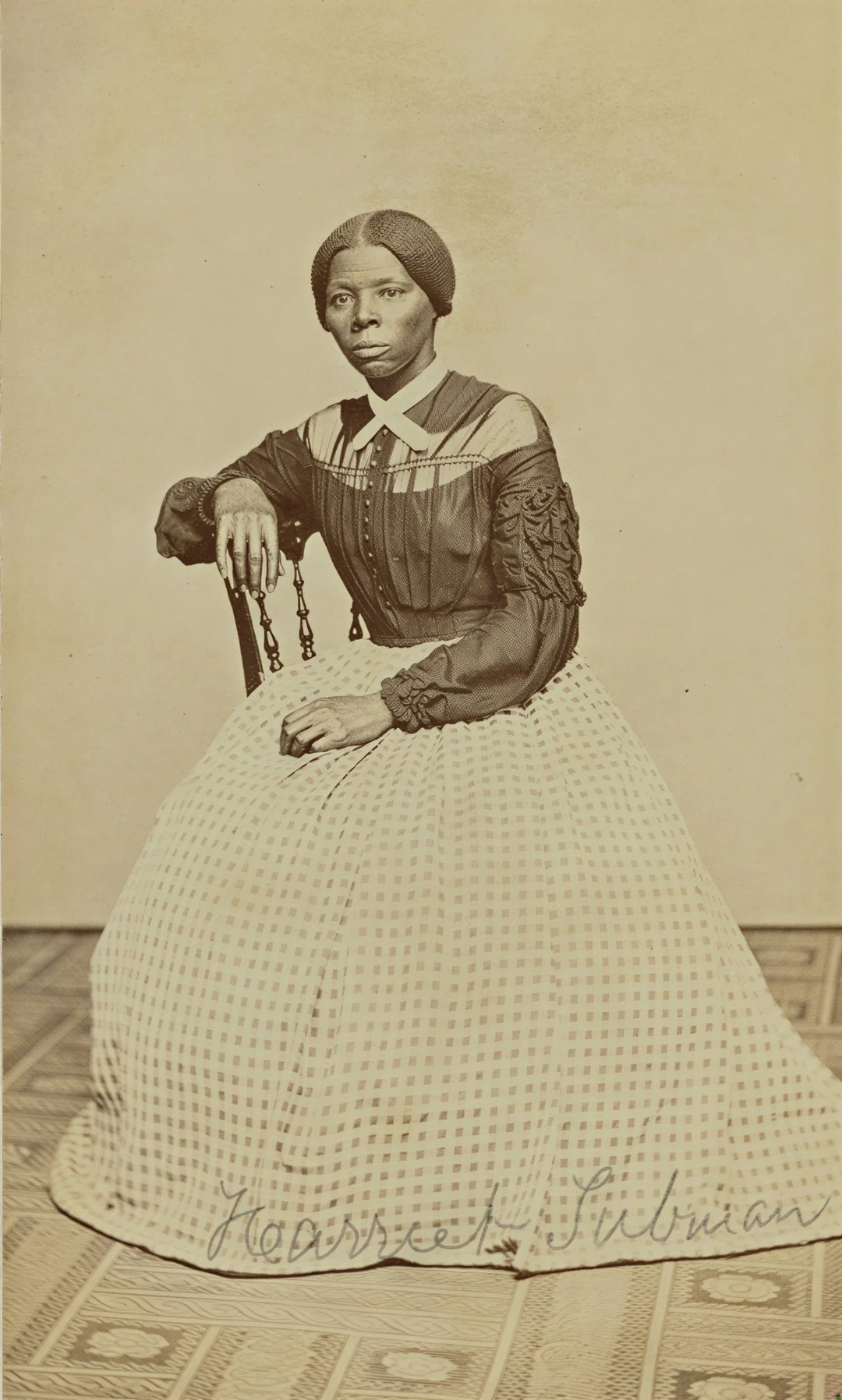
The framing, composition and aspect ratio stay the same. The photo is enlarged, not recomposed.
Interpreted detail: edges and textures that look sharper than the source recorded. It is plausible, not recovered. The AI photo enhancer enlarges the same way as the image upscaler.
Compare the eyes, mouth, hands, clothing texture and any lettering with the original at matching size, then at full size. For a print, proof it at the real print size.
Three steps in the AI photo enhancer for portraits.
Upload the best original, not a copy saved from a message. Decide first what must survive: an expression, markings, a product's shape.
Use 2× for screens and small prints. Use 4× when a small file has to reach a large print.
The Generate button shows the price first. Compare the result with the original at matching display size. Then look at faces, hair and lettering at full size. Keep the original.
Decide what must survive before you use the AI photo enhancer: an expression, a marking, a face in a family photograph.
1×2×
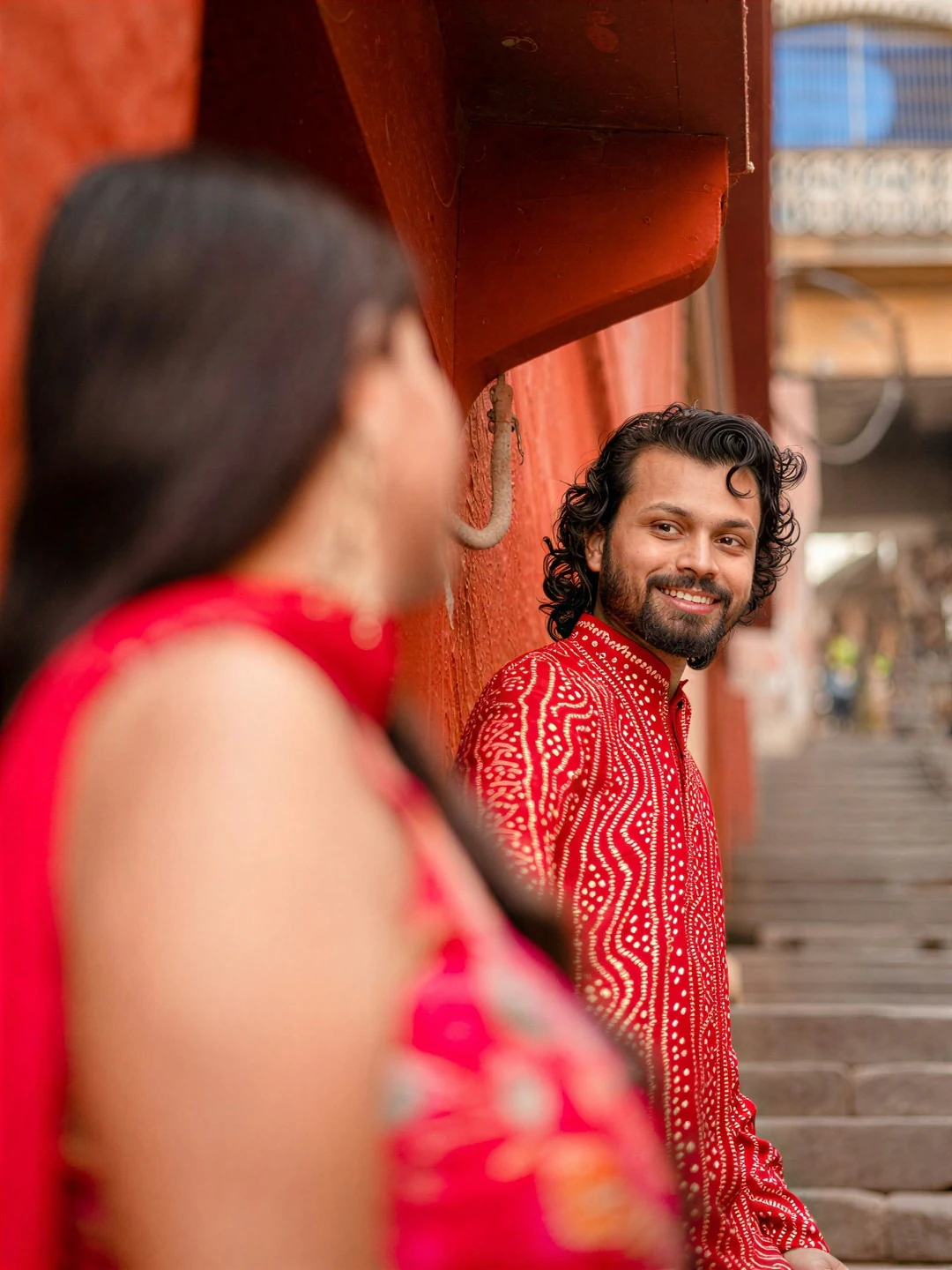
Compare the shape of the eyes, mouth, eyebrows, hairline and jaw. A smoother face can feel flattering while looking less like the person. Review identity before polish.
1×4×
Use the best copy of each family photograph, with its date or description. Test one image before running a group. A larger file of unknown origin can be less useful than a smaller original. Keep both copies together.
1×2×
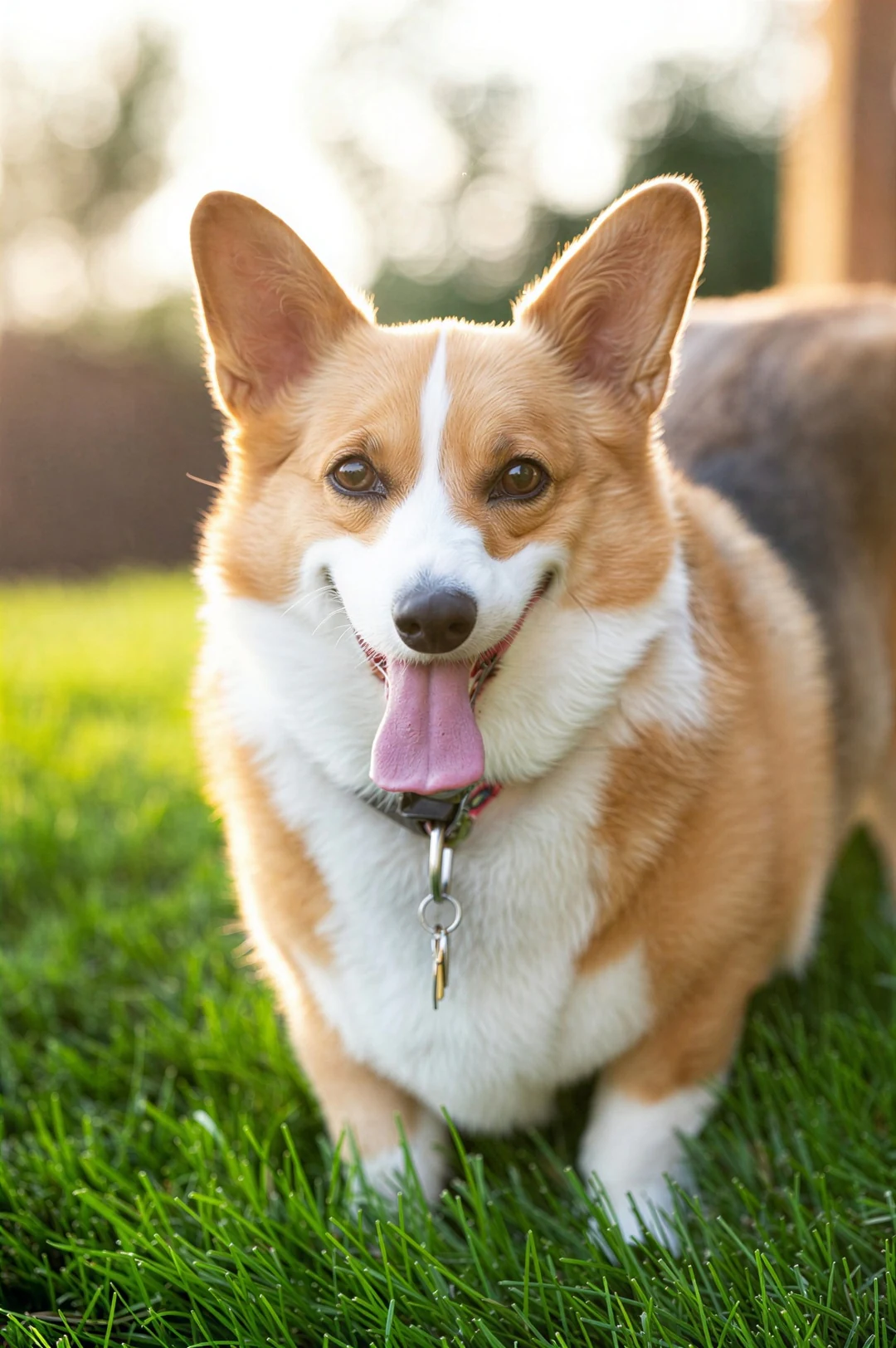
Fur pattern, eye color, ear shape and a collar make a pet recognizable. Compare the fur around the eyes and muzzle and any distinctive patch. Choose a clear, well-framed source, not a tiny face at the edge of a group.
The AI photo enhancer enlarges a real photograph. Four points: faces, texture, scale and limits.
01
Portraits are the most common job for a photo enhancer. Eyes, lips and hair gain pixels and read more cleanly, but the detail is interpreted. Check expression and likeness against the original.
02
Pets, clothing and skin carry fine texture that soft photos lose. The photo enhancer adds plausible texture, not recorded texture, so a fur pattern or a fabric weave can differ slightly from the real thing.
03
The result line says when a photo was scaled to fit. Choose by final print size.
04
There are no tone or noise controls, and scratches are not repaired. For a damaged print, restore it first, then enhance a clean copy. An enhanced photo is a reviewed copy, not a record.
When enlarging a photograph is not the whole job, these tools take over.
Choose your credits and generation priority. Potto does not add a visible watermark to your downloads.
Billed $96 for the first year, then $192/year
Billed $240 for the first year, then $480/year
Billed $480 for the first year, then $960/year
A photo enhancer processes a photograph so it works better for a purpose, such as a sharper portrait on screen or a larger print. Potto AI's photo enhancer enlarges the photo 2× or 4× and rebuilds fine detail. The result contains interpreted detail, so compare faces with the original.
Upload the photo, pick a scale and press Generate. Compare it with the original, then download it.
Enhancement deals with viewing size and apparent clarity. Restoration deals with damage such as scratches and stains. This page does not repair damage. For a damaged print, use Old Photo Restoration first.
Keep the original photo as the evidence of what was recorded. An enhanced result can add plausible facial, clothing or background detail. A sharper look does not prove small lettering, a street sign or a face in a scan. If the print can be rescanned, a better scan may keep more real information.
Upload a JPEG, PNG or WebP image up to 10 MB, then pick a scale. The longest output edge is capped at 2,048 pixels at 2× and 4,096 at 4×. A 1,500 by 1,000 photo cannot reach 3,000 by 2,000 at 2×, so it is scaled to fit. The result keeps the upload format.
No. The photo enhancer has no exposure, color grading, noise-removal or skin-retouching controls. It cannot know detail the camera failed to record. A better original often helps more than enhancing again.
Choose the final crop and print size first. Check the print service's requirements, then proof the photo at the real print size. A larger pixel count does not guarantee convincing faces on paper. If detail turns implausible, pick a smaller print or a better source.
You can upload a photo and pick a scale without one. Enhancing opens the sign-in dialog, and the photo stays in the photo enhancer.
A failed task shows the reason and a retry, and the credits are released. If the upload failed, use a supported file within the size limit. Enhancing the same photo again is a new, charged request.
Enhancing a photo costs 2 credits at 2× and 6 credits at 4×. You see the price before you confirm, and failed tasks release their credits.
Upload a photo to the AI photo enhancer, pick a scale and compare faces and details with the original before you download.
Edit & Enhance