Black Friday: 50% off every yearly plan for the first year. Ends Dec 1.
Potto AI

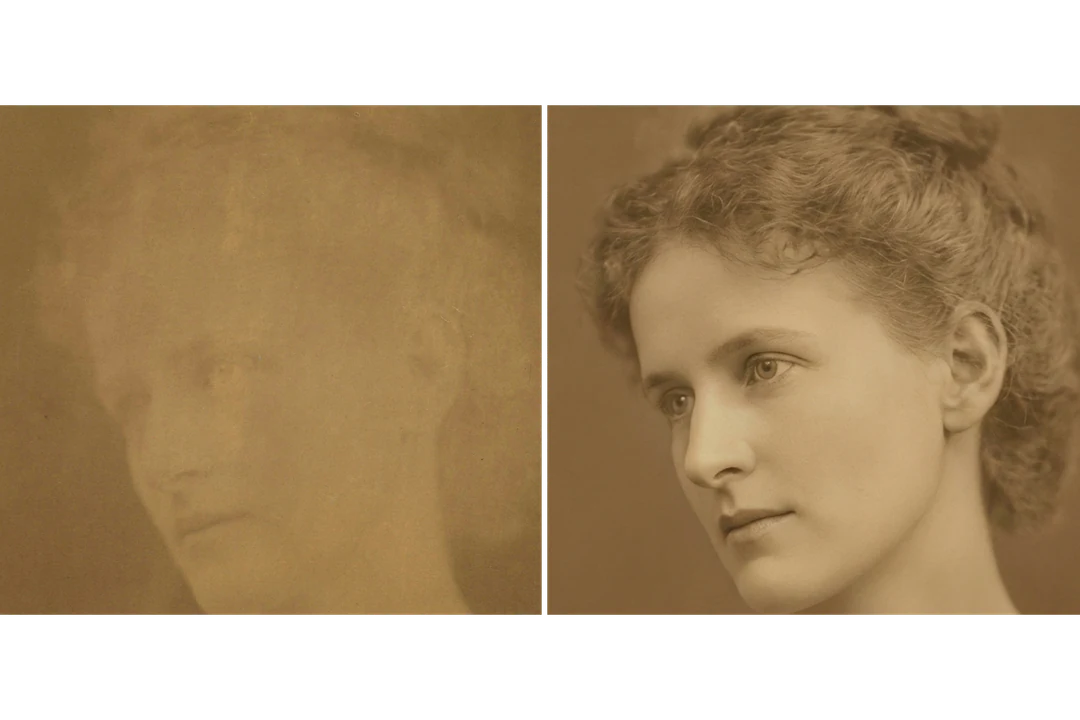
Old photo restoration: the same scan before and after

One damaged scan in, one restored photo out. The ratio is the closest supported one to your scan.

Damaged old photo scan before restoration
Original scan
The same photo with scratches, stains and fading repaired
Old photo restoration result

What stayed

Toning, composition, framing, people and faces should stay the same. Compare each face with the scan first.

What changed

Scratches, stains, creases and fading are repaired, and clarity improves slightly. Where damage hid detail, the repair is the model's interpretation.

What to check

Look at areas where damage crossed an eye or mouth. Treat repaired signs or handwriting as uncertain. Keep the scan beside the result.

How to restore old photos

Upload your scan, check the fixed output, then compare faces and damaged areas.

  1. 1. Upload your best scan

    Add one image up to 20 MB. JPG, PNG and WebP work. Scan the whole print with its edges. Keep the original scan unchanged as a separate file.

  2. 2. Check the fixed settings

    There is no style, ratio or size selector. The panel shows one PNG at HD, in the ratio closest to your scan. Adding color is a separate task.

  3. 3. Generate and compare

    Each old photo restoration result costs 45 credits, shown on Generate before you confirm. Compare faces first, then each damaged area against the scan. Download it only if it serves your use.

Where old photo restoration fits

Three reasons to restore an old photo. The restored photo is a generated repair, and the original scan stays as the record.

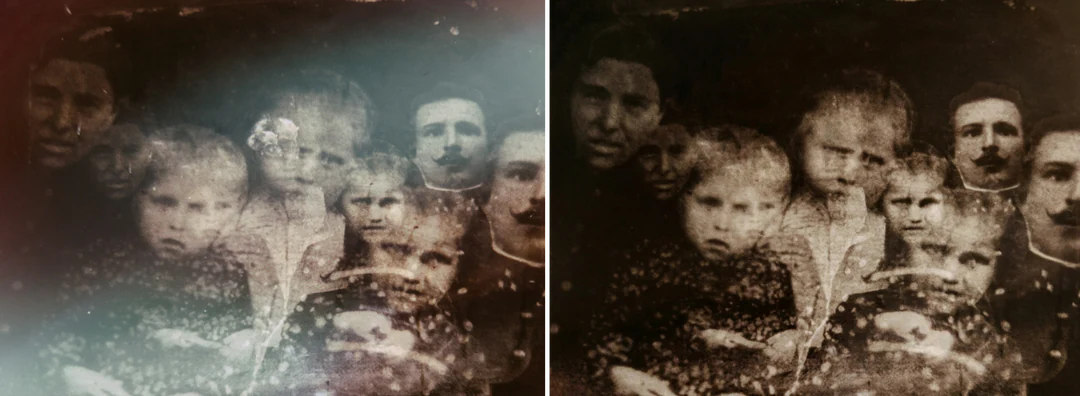
Damaged old family photo beside the restored version: colour cast and some scratches reduced, mould spots remain

Input ratio · Portrait

Family portrait with scratches

Start with a clear scan and note scratches that cross faces or clothing. After generating, compare expressions and proportions before judging how clean it looks. A removed scratch only helps if the person underneath is unchanged. Label the edit as a restoration.
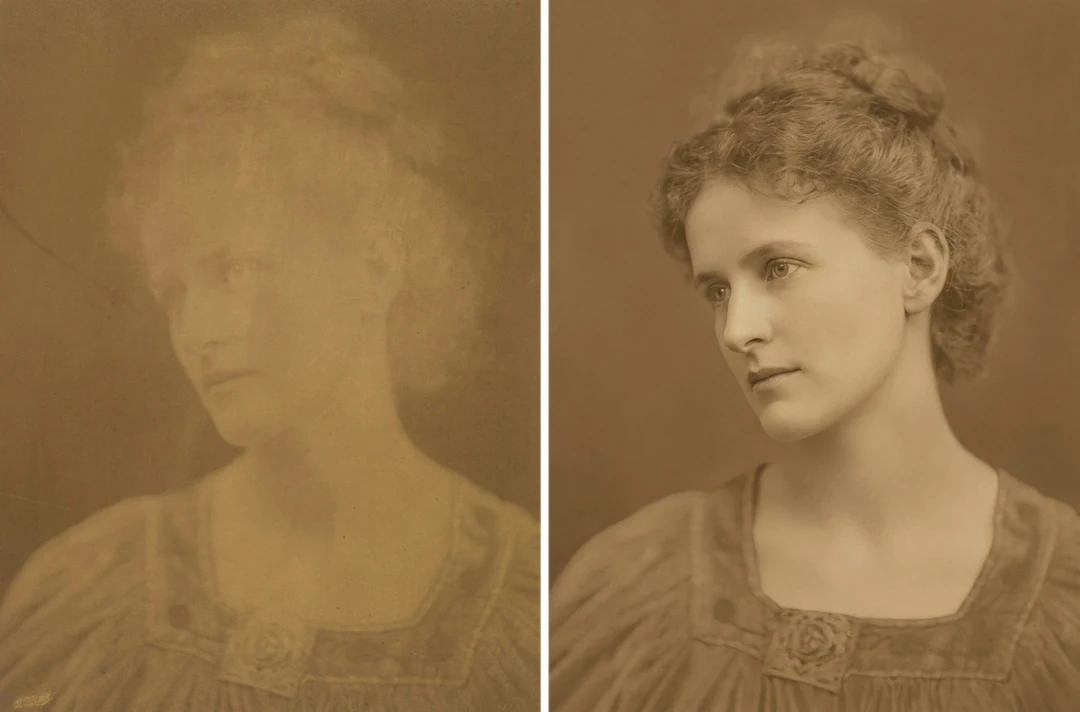
Faded sepia portrait with weak contrast beside the restored version with clearer shadows and highlights

Input ratio · Faded

Faded print with weak contrast

Use the best digital copy you have and see whether the subjects are easier to tell apart. Compare shadows and highlights as well as faces. Stronger contrast can hide detail in dark clothing. Do not claim the tones are exact.

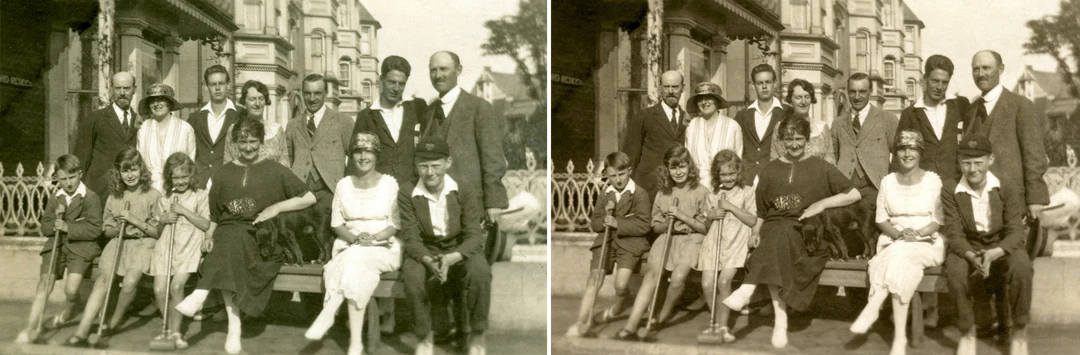
Old group photo of adults and children on a bench beside its restored version

Input ratio · Group

Group photo for a family archive

Check every face, including people at the edges and small, shadowed ones. Build a family archive entry from the scan, the restored photo and notes on uncertain areas. Ask relatives to confirm who is pictured.

What old photo restoration does to a damaged print

AI photo restoration repairs the damage and keeps the photograph itself the same.

  1. 01

    A good scan gives the repair more to work with

    Detail that never made it into the file cannot be brought back. Include the whole print and any writing.

    • One scan per run
    • A fresh scan beats a forwarded copy
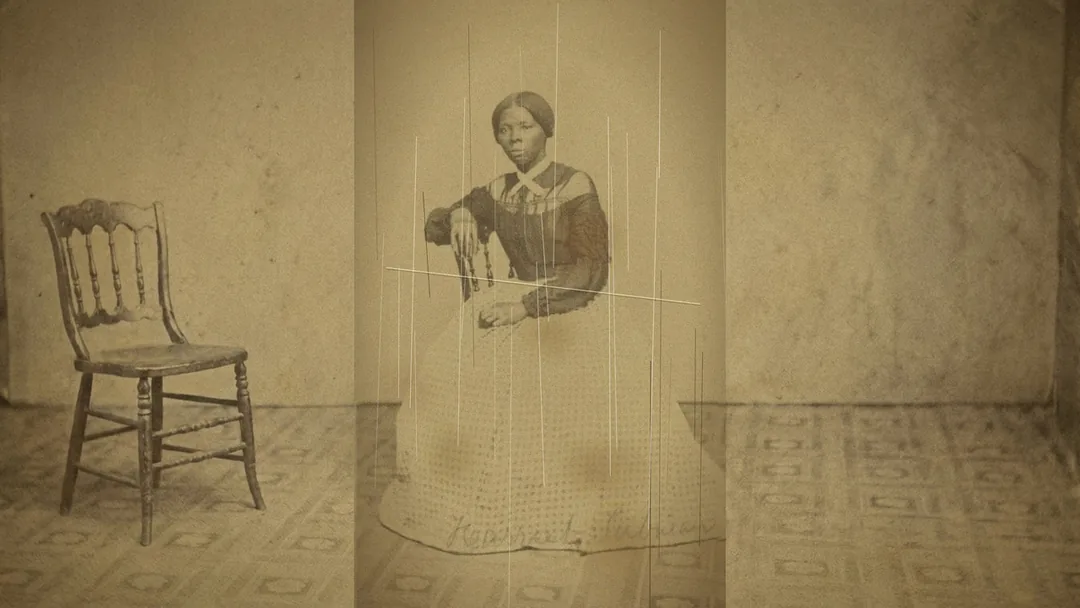
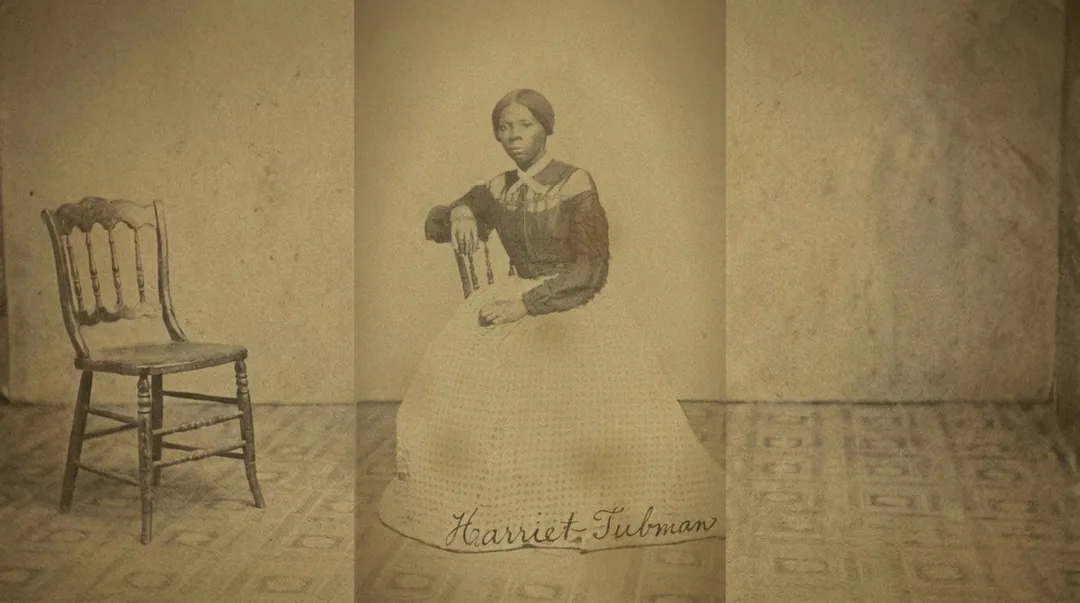
    Sepia scan of a seated woman in a long dress with scratches and fading
    Original scan with scratches and fading
  2. 02

    The damage is repaired, the photo stays

    The repair covers the whole print, then lifts clarity and contrast a little. The result is still recognizably the same photograph.

    • Original toning stays
    • Hidden detail is interpreted, not recovered
    Sepia portrait of the same seated woman with scratches and fading repaired
    Result of the restoration treatment
  3. 03

    Check faces and writing yourself

    A repaired face or line of handwriting can look convincing and still be wrong. Check each face against the original before the writing. Park the damaged original next to the restored copy.

    • Faces first, writing second
    • Store names and dates in a separate record
    Restored face and the original scan of the old photo compared at the same size
    Face and damage check

Choose Your Plan

Choose your credits and generation priority. Potto does not add a visible watermark to your downloads.

  • Lite

    Black Friday -50%
    $16$8/month

    Billed $96 for the first year, then $192/year

    Choose Lite

    Monthly HD images

    Learn more
    44 images
    86 images
    • 2,000 monthly credits
    • Up to 86 fast images
    • Standard queue
    • No Potto watermark
    • Batch image tools
    • Private creations
    • All premium skills
  • Pro

    Black Friday -50%
    $40$20/month

    Billed $240 for the first year, then $480/year

    Choose Pro

    Monthly HD images

    Learn more
    111 images
    217 images
    • 5,000 monthly credits
    • Up to 217 fast images
    • Priority queue
    • No Potto watermark
    • Batch image tools
    • Private creations
    • All premium skills
  • Recommended

    Max

    Black Friday -50%
    $80$40/month

    Billed $480 for the first year, then $960/year

    Choose Max

    Monthly HD images

    Learn more
    333 images
    652 images
    • 15,000 monthly credits
    • Up to 652 fast images
    • Highest priority queue
    • No Potto watermark
    • Batch image tools
    • Private creations
    • All premium skills

Old Photo Restoration FAQs

  1. What is old photo restoration?

    Old photo restoration repairs damage and fading in an old photograph. This AI photo restoration template repairs scratches, stains, creases and weak contrast, and keeps faces and tones. Details that the damage hid are reconstructed. The result does not prove the original face or scene is recovered exactly.

  2. Is restoration the same as colorization?

    No. Restoration repairs damage and faded detail. Colorization adds plausible colors to a monochrome photo. This recipe keeps the original toning. Use Colorize Photo for a separate color concept, and do not treat invented color as history.

  3. What scan works best for old photo restoration?

    Use the best scan of the whole print, with any writing visible. Do not add filters that hide damage. A fresh scan holds more detail than a copy forwarded through messages. Enlarging a file does not recreate lost detail.

  4. Can it recover a face hidden by damage?

    It may generate a plausible face detail, but it cannot verify what the source lacks. Compare with other reliable photos where you can. If a damaged eye or mouth matters, a cleaner scan is stronger evidence than a polished guess.

  5. Can I trust repaired text or writing?

    No. A damaged sign or handwritten note can look repaired and still contain invented letters. This template is not a transcription tool. Treat reconstructed text as uncertain, and keep dates and names in separately verified captions.

  6. Should I keep the damaged original?

    Yes. Preserve the best scan unchanged and save the restored result separately. That supports comparison, future work from a better source, and an honest record of what was repaired.

  7. Can I add color or enlarge the photo as well?

    Not in the same run. This page only repairs damage and leaves the toning alone. After restoring, try Colorize Photo for color, Image Upscaler for a larger print, or the AI photo editor for one more correction.

  8. Does it work on color photos as well as black and white?

    Yes. It repairs damage on both and keeps existing toning. A sepia print stays sepia. A faded color print keeps its colors. To add color, restore the print here first, then run Colorize Photo on the repaired copy.

  9. Is old photo restoration online free?

    New accounts get 100 free credits, enough for two restorations. Each run costs 45 credits and uses Nano Banana Pro. The quote appears on the Generate button before anything is charged.

Potto AI

Try old photo restoration online free

Bring your cleanest scan. Check the credit estimate. Compare the restored photo with the original.