Skip to content
Potto AI

Image to Image AI

Make a new picture from a photo you already have: give each reference a clear role, then check which details carried over and which changed.

Enter a prompt to generate

Try an example

From reference photo to image to image result

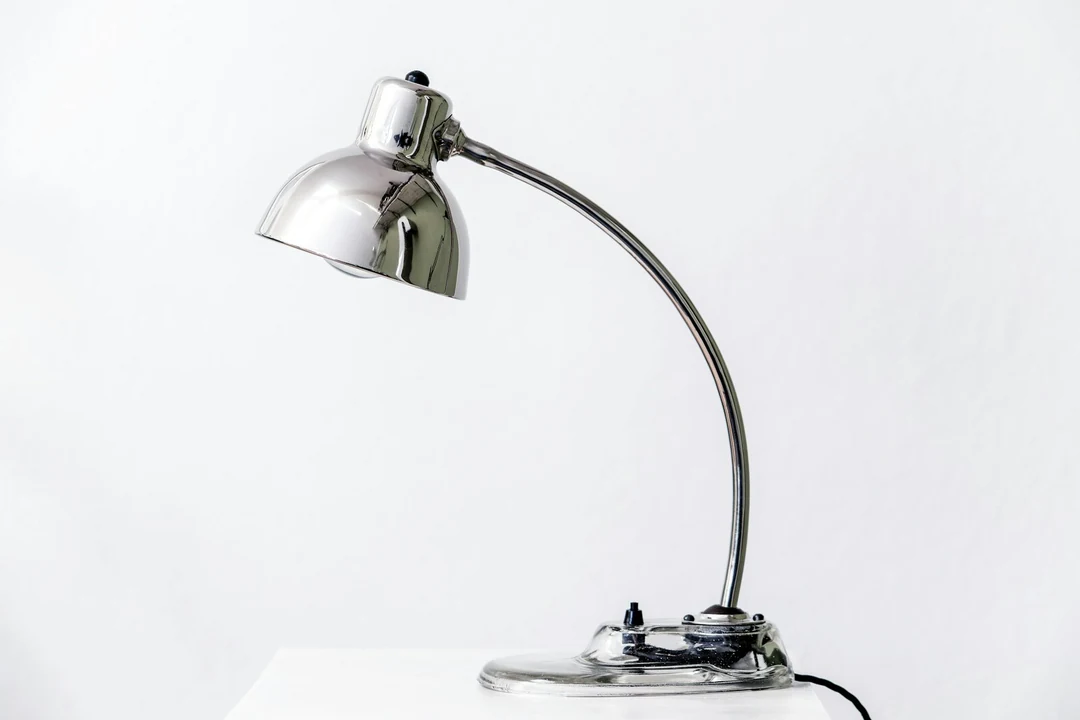
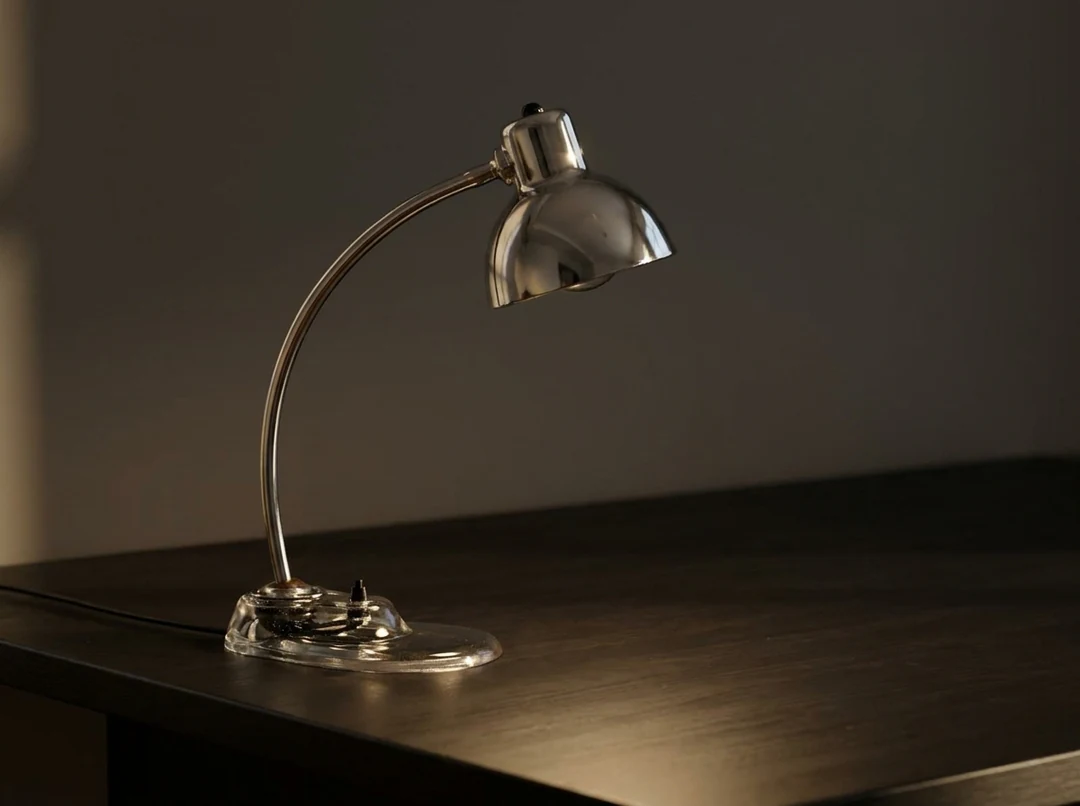
A desk lamp photo, and the result generated from it with the request “Place the lamp from the reference on an uncluttered dark desk with soft light from the left.” The lamp is guided by the reference; the desk and light are generated.

Desk lamp photographed on a plain background, used as the reference
Reference photo
The desk lamp from the reference placed on an uncluttered dark desk with soft light from the left
Result

What carried over

The lamp’s overall body and shade shape follow the reference, and the new desk keeps the lamp as the prominent object. The reference guides the model’s interpretation and does not lock any area, so carried over means similar, not identical.

What changed

The workspace is new: a darker, uncluttered desk with soft light from the left. Framing and shadows are generated, and the lamp itself can show small differences that come from reinterpreting the reference.

What to check

Compare the stem, switch position, shade opening and visible cable with the real lamp. A convincing concept can still misrepresent a small detail. If the job is to document the real lamp, use the original photo or a background tool instead.

Image to image AI for three kinds of reference

The result depends on what the reference carries, so each kind of reference needs a different request and a different review.

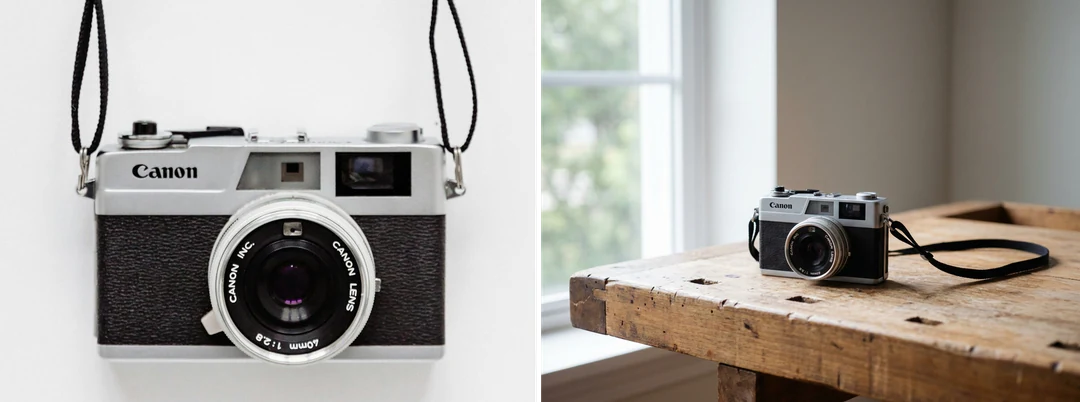
Reference product photo beside the same product placed on a quiet work surface in soft side light

4:3 · Product setting

A new setting for a product image

Start from a clear photo where the product’s surfaces and edges are visible, then state the setting, the placement and the light. A quiet work surface with soft side light is enough. Compare the product with the source before judging the background, because a convincing scene can still misrepresent a small port or seam. Treat the result as concept art, not a catalog record.
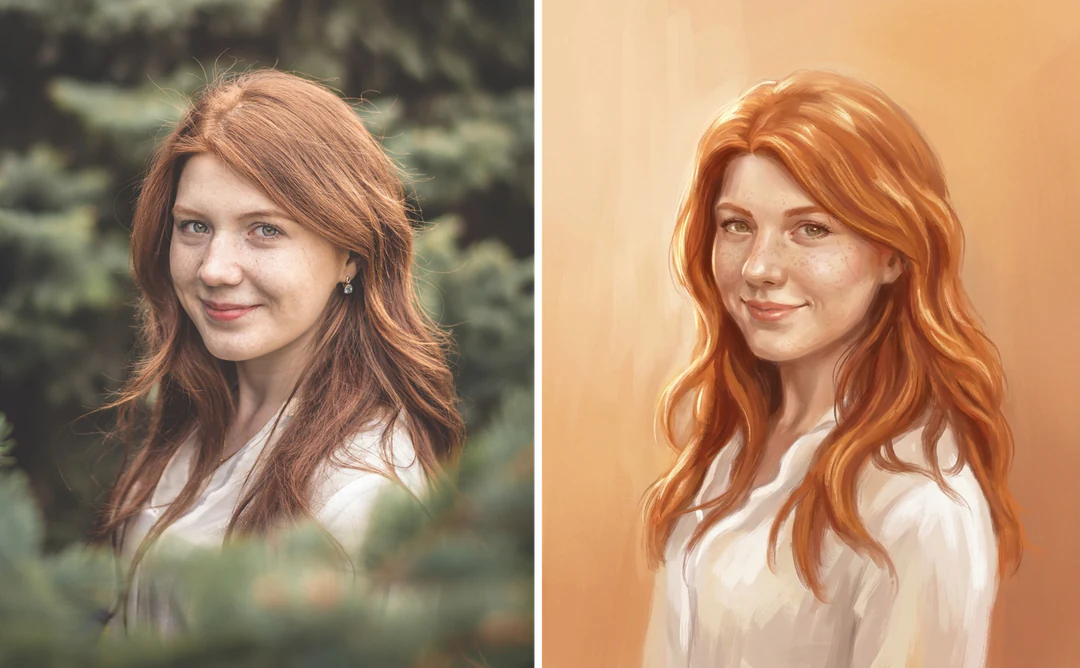
Reference portrait beside an illustrated version with softer window light and the same expression and hair

4:5 · Portrait treatment

A portrait treatment, not an identity lock

A portrait reference can guide an illustrated avatar or an editorial concept, but a generated face may differ from the source. Use a clear photo and ask for one treatment, such as softer window light or a graphic palette. Compare expression, hair, clothing and silhouette with the source; a recognizable interpretation is not an unchanged photograph.

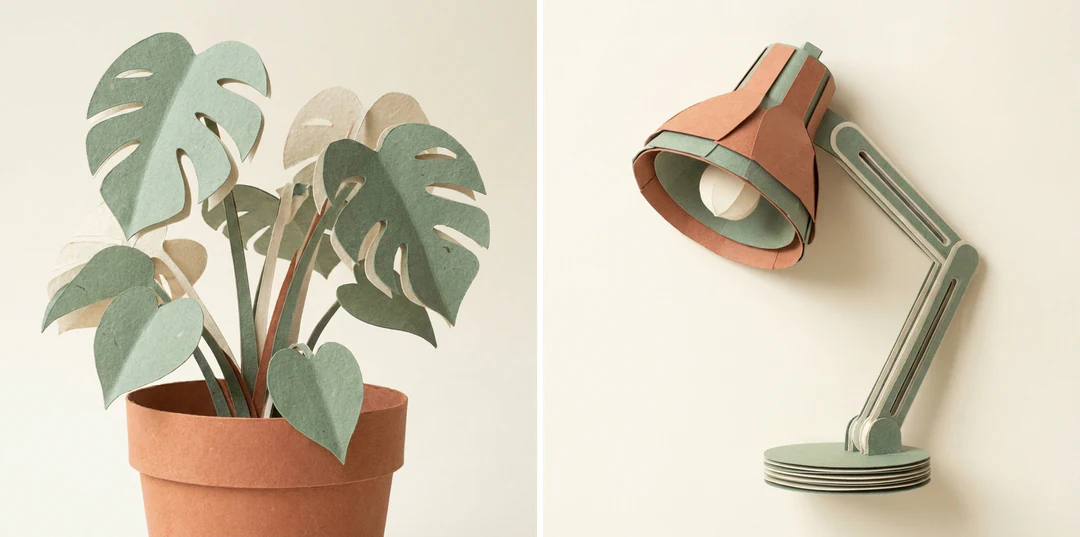
Paper-style plant reference beside a desk lamp drawn in the same paper texture and palette

1:1 · Illustration set

Related illustrations from one visual direction

Choose a reference that makes the treatment visible, such as line weight, texture or palette, and describe the new subject separately so the prompt does not repeat the original scene. A paper-style plant can guide a desk lamp. Review the images as a group; line weight and lighting can drift enough to make one image feel out of place.

How to generate with a reference image

Three steps in the creation card above.

  1. 1. Prepare the reference

    Pick an image that shows the feature that matters clearly, such as the front panel of a product or the full pose of a figure. Avoid heavy filters, interface screenshots and crowded collages, and keep the original for review. The generator accepts up to 14 reference images, subject to the model; use only images you are entitled to use.

  2. 2. Say what each reference does

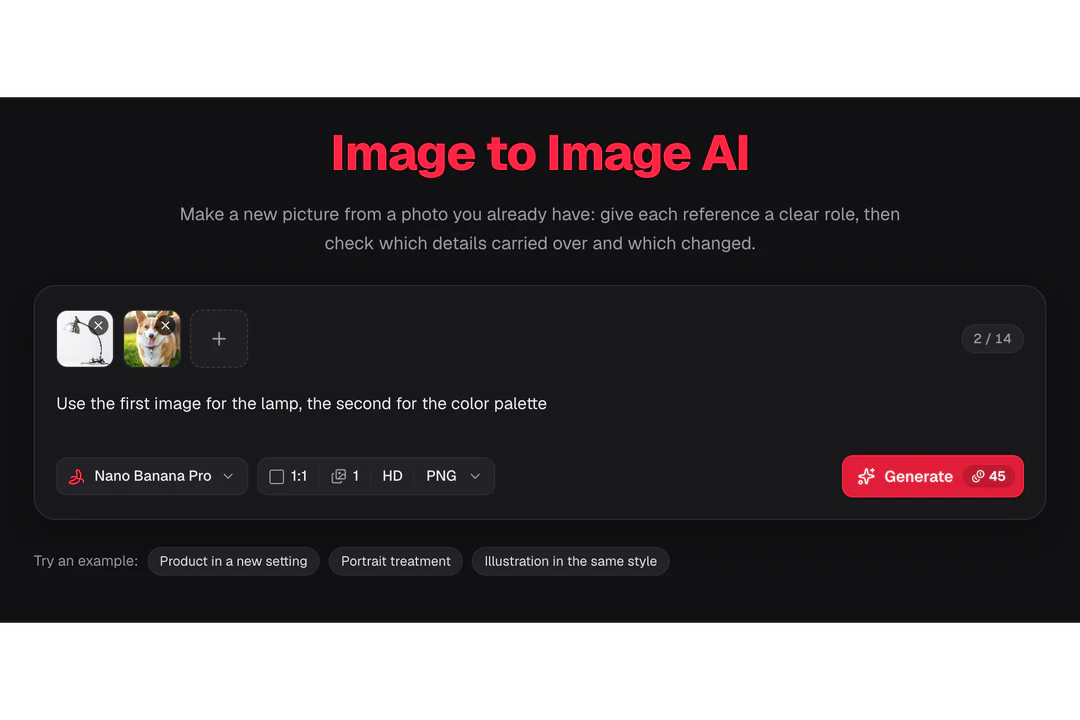
    In the prompt, give every reference one job, for example: use the first image for the lamp, the second for the color palette. Say which wins if they disagree. Add another reference only when it answers a question the others cannot.

  3. 3. Set the shape, check the quote, generate

    Choose the aspect ratio for the placement, then model, resolution and one, two or four outputs. One Nano Banana HD image costs 23 credits and one Nano Banana Pro HD image costs 45, shown on Generate. Compare the result with the original subject first, then judge the crop at real size.

What image to image AI does with your reference

Four ways a reference image shapes the result, and what to check in each.

  1. 01

    Give each reference one clear job

    Image to image AI starts from a picture you already have. Say whether a reference supplies the subject, the setting, the colors or the style, so the request does not blur them together. With several references, name the job of each one in the prompt before you generate.

    • Up to 14 reference images
    • One job per reference in the prompt
    Creation card with two reference images, each described in the prompt
    Two references with different jobs in one request
  2. 02

    Keep the subject, build a new setting

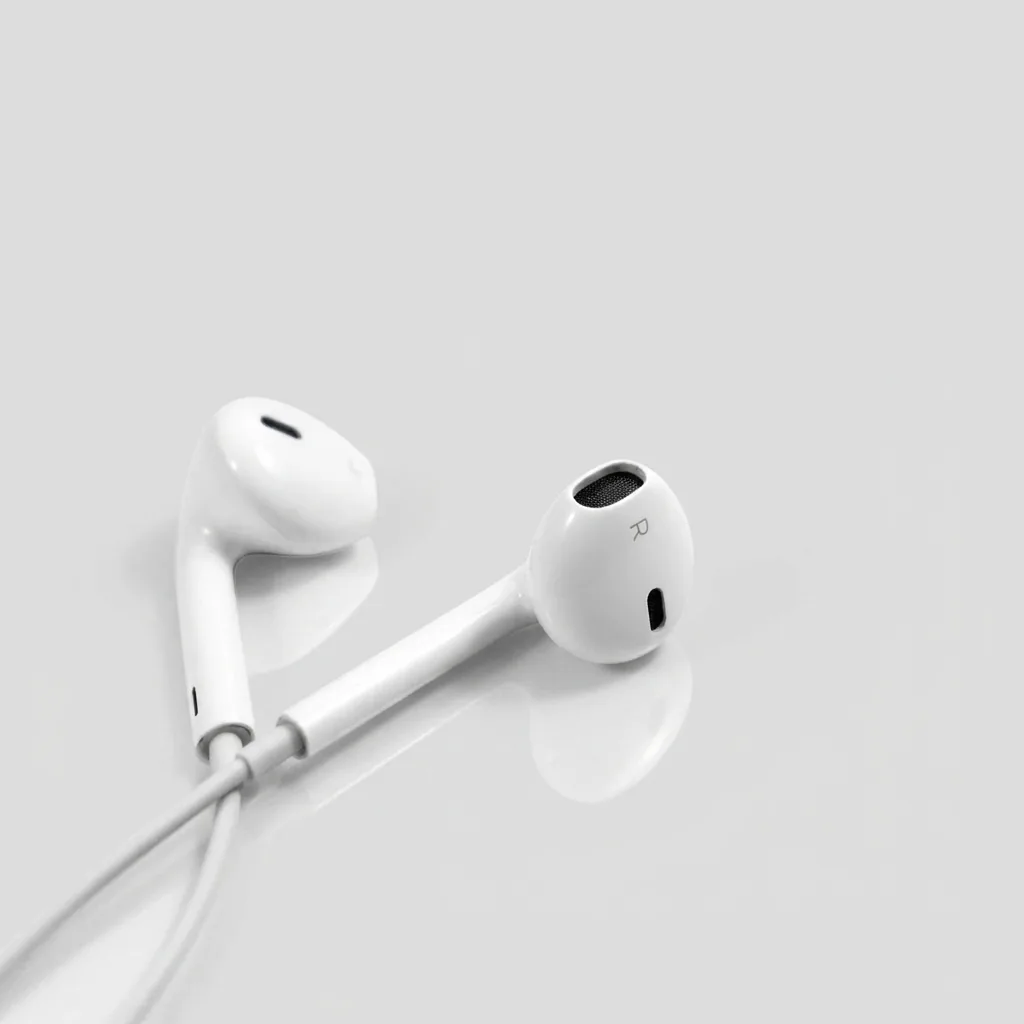
    A product photo can move to a quiet surface with new light while the object stays recognizable. The reference guides the subject, and the surroundings are generated from your words. Compare the result with the source for shape, labels and proportions before you use it.

    • Subject guided by the reference
    • Setting and light described in words
    Product photo of headphones generated from a reference photo
    Product Photography template output made from a reference photo
  3. 03

    Restyle a photo without starting from scratch

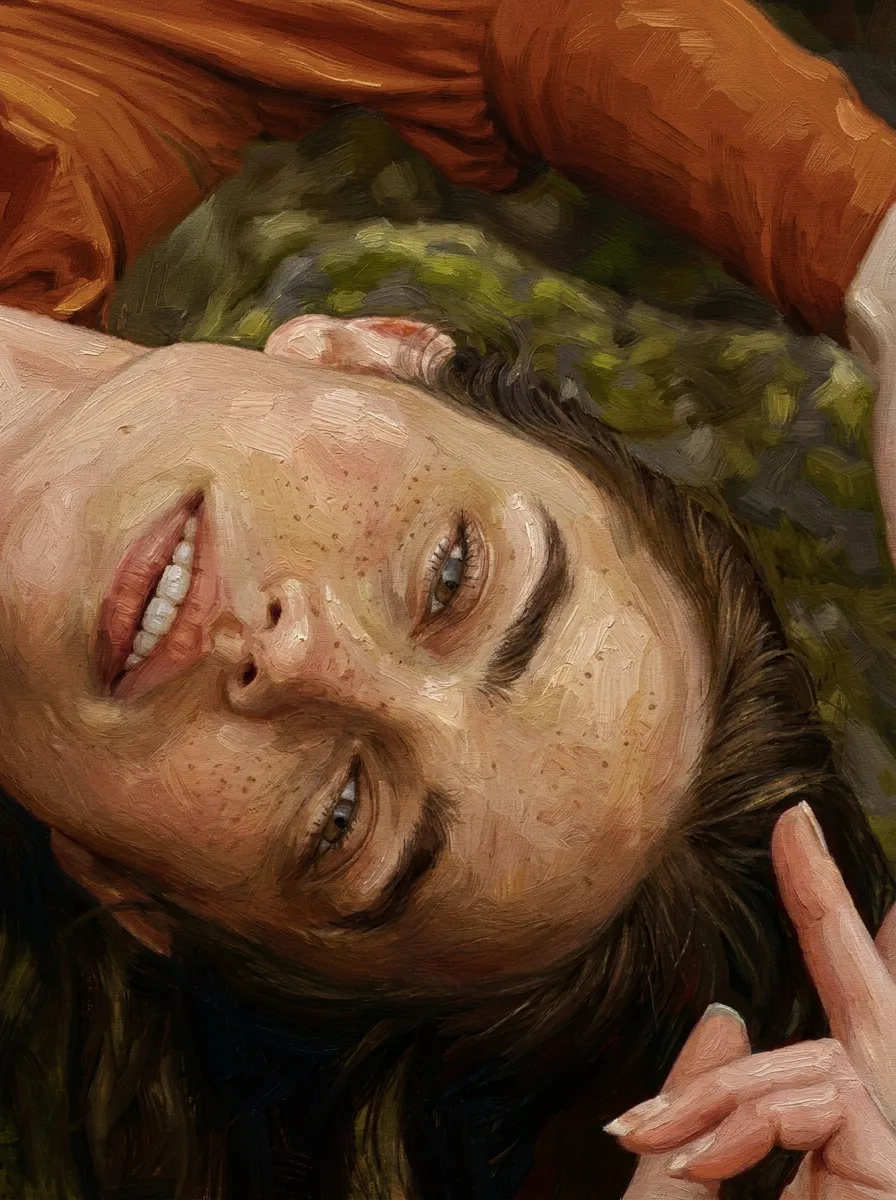
    A portrait can be repainted as an oil painting, redrawn in ink or turned into a cartoon while the composition follows the original. The reference sets pose and framing, and the prompt sets the treatment. Check faces and hands, because a treatment can change details the reference showed clearly.

    • Pose and framing follow the reference
    • Treatment set by the prompt
    Oil painting portrait generated from a reference portrait photo
    Photo to Painting template output made from a reference portrait
  4. 04

    Set the shape of the new image

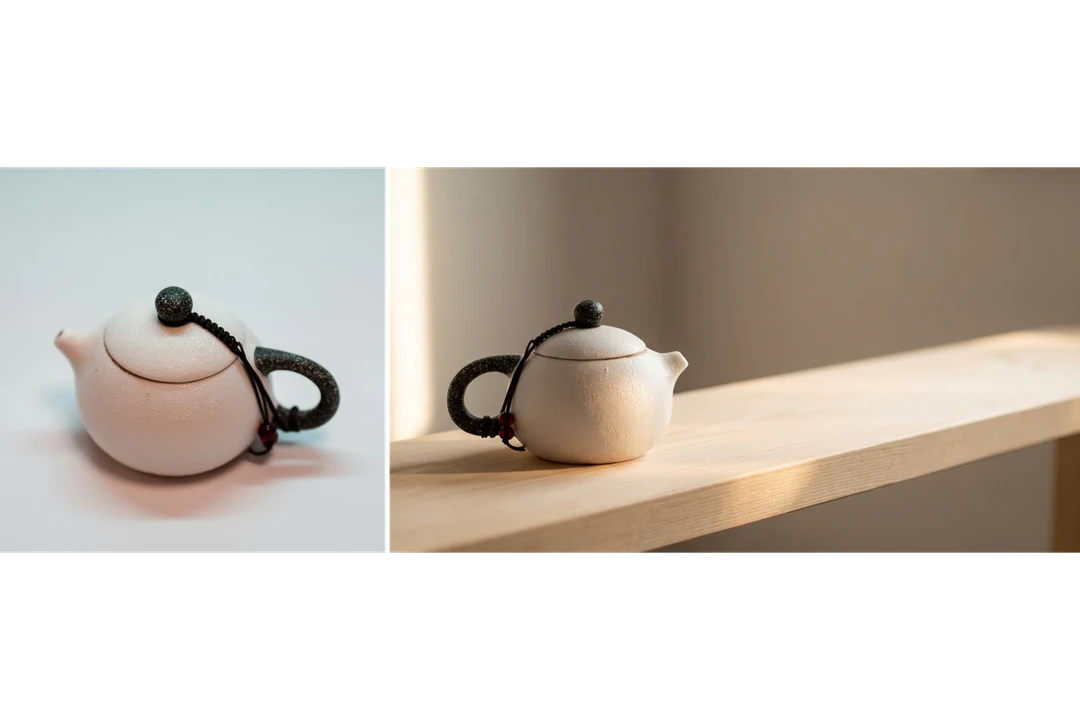
    The result does not have to match the ratio of the reference. Choose the aspect ratio and resolution for where the new image will be used, and the quote on Generate updates with every change. PNG or JPEG sets the file you download.

    • New ratio and resolution per request
    • Quote shown before you confirm
    Square reference photo next to a wide image generated from it
    A square reference turned into a wide result

Keep exploring Potto AI

Pick the page that matches the change you want to make next.

Image to Image AI FAQs

  1. What is image to image AI?

    Image to image AI generates a new image using one or more existing images with a written request. The references guide visible information such as a subject, layout, or treatment. Potto AI uses this as reference-guided generation. The output can reinterpret details, so it should not be treated as an exact copy or a guaranteed identity-preserving edit.

  2. How is a reference different from a style selector?

    A reference is visual material supplied to the request; a style selector is a specific interface control. Explain which part of the reference should guide the result. This workflow has model and output controls, but an example style shown in the page is not automatically another available menu option.

  3. Can several references keep a product or character consistent?

    They can provide useful information, but consistency still needs comparison. Use clear, complementary references and identify stable features such as silhouette, colors, and distinctive objects. Reject contradictory or inaccurate results. A collection of references does not create an identity lock or a verified product specification.

  4. What makes a good reference image?

    One that shows the feature that matters clearly. If the task depends on a product’s front panel, a distant lifestyle shot carries too little detail; if it depends on a pose, a crop that cuts off the hands omits it. Avoid heavy filters, screenshots with interface overlays and crowded collages, and keep the original available for review. Enlarging adds pixels but not information that was never visible. Use only images you are entitled to use.

  5. How do I give several references different jobs?

    Write each role into the prompt in ordinary language: which image supplies the subject, which the composition, which the lighting, treatment or color direction, and which wins if they conflict. The generator takes up to 14 reference images, subject to the selected model, but that limit is a ceiling, not a target. Afterward, trace important details back to their intended source.

  6. When should I use the editor or a dedicated tool instead?

    Use the AI image editor when you have a selected picture and can describe one specific change; a written instruction is not a precise mask, so check the rest of the image. Use a dedicated tool when the operation itself is the task, such as removing a background, expanding a canvas or enlarging an image. Use a template for a fixed creative treatment. Use image to image AI when a source should guide a new scene or interpretation.

  7. Do I need an account to use image to image?

    You can upload a reference image, write the instruction and set the output before signing in. Generate opens the sign-in dialog, and the reference and instruction stay in place while you sign in.

  8. What if an image to image request fails?

    A failed request shows the reason and a retry option, and its credits are released. If the reference did not upload, add a usable JPG, PNG or WebP file. Stop a running request with its cancel control; a new attempt on a finished result is charged again.

  9. How much does image to image cost?

    The cost follows the model, resolution and number of images, not the number of references: 45 credits per image with Nano Banana Pro at HD or 2K, 23 with Nano Banana at HD. Generate shows the total before you confirm.

Potto AI

Make a new image from your reference

Add a reference, say what it should contribute, and compare the result with the source before you download.