Skip to content
Potto AI

Text to Image

Describe the subject, composition, and visual direction before comparing generated image candidates.

Enter a prompt to generate

Try an example

One prompt, one change: compare two text to image results

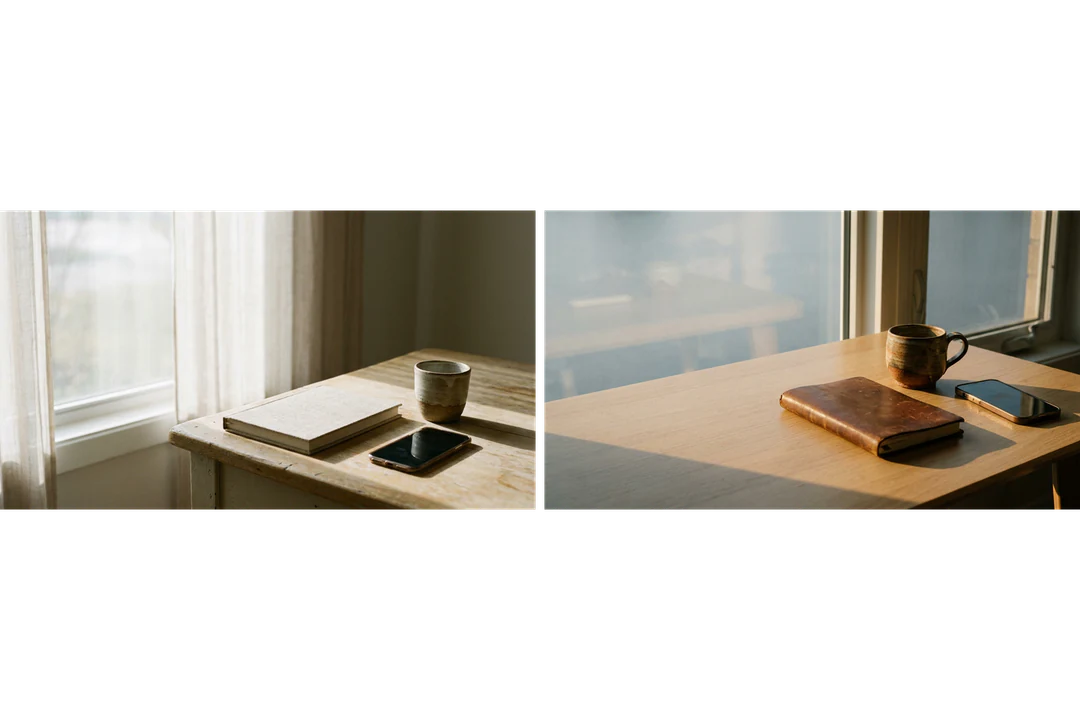
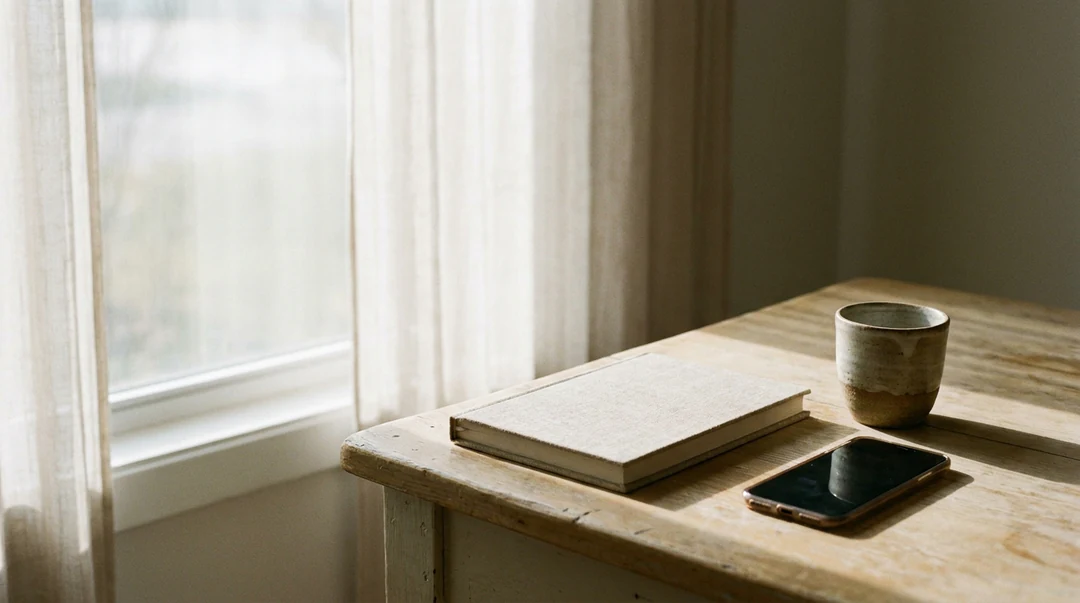
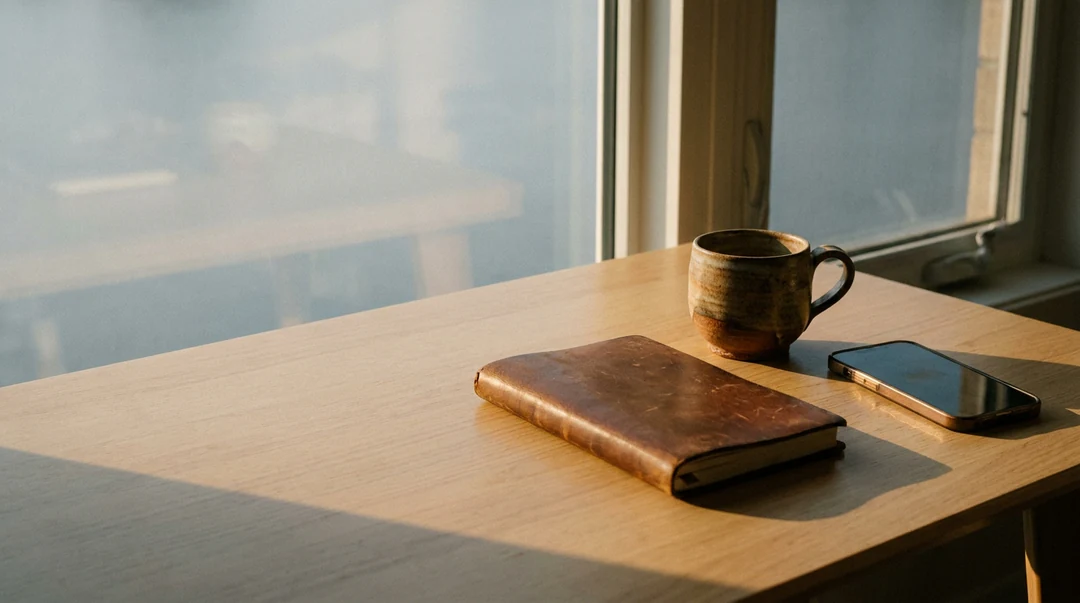
One text to image prompt for a notebook, a cup and a phone, run twice. Only the light direction changed.

Closed notebook, ceramic cup and a phone on a wooden table beside a window, lit from the left
Light from the left
A leather notebook, mug and phone on a wooden table by a window, lit from the right with shadows falling left
Light from the right

What stayed

Both prompts name the same closed notebook, ceramic cup, face-down phone and wooden table, in a wide frame with empty space on the left. Those instructions did not change, yet each run draws the objects fresh, so the notebook, cup and table differ between the two images. Small details can still shift, because generation is not a pixel-for-pixel experiment.

What changed

Only the light: soft window light from the left in the first image, low warm light from the right in the second. Shadows fall the other way and the cup reads differently against the table. That single difference is what you are comparing.

What to check

Look for accidental writing on the notebook, reflected screen content and extra cups. Then ask whether the change answered your question, such as whether the material is easier to read. Record other differences instead of crediting them all to the lighting line.

Text to image prompts for three placements

Each text to image prompt names one subject, one viewpoint and the space the layout needs.

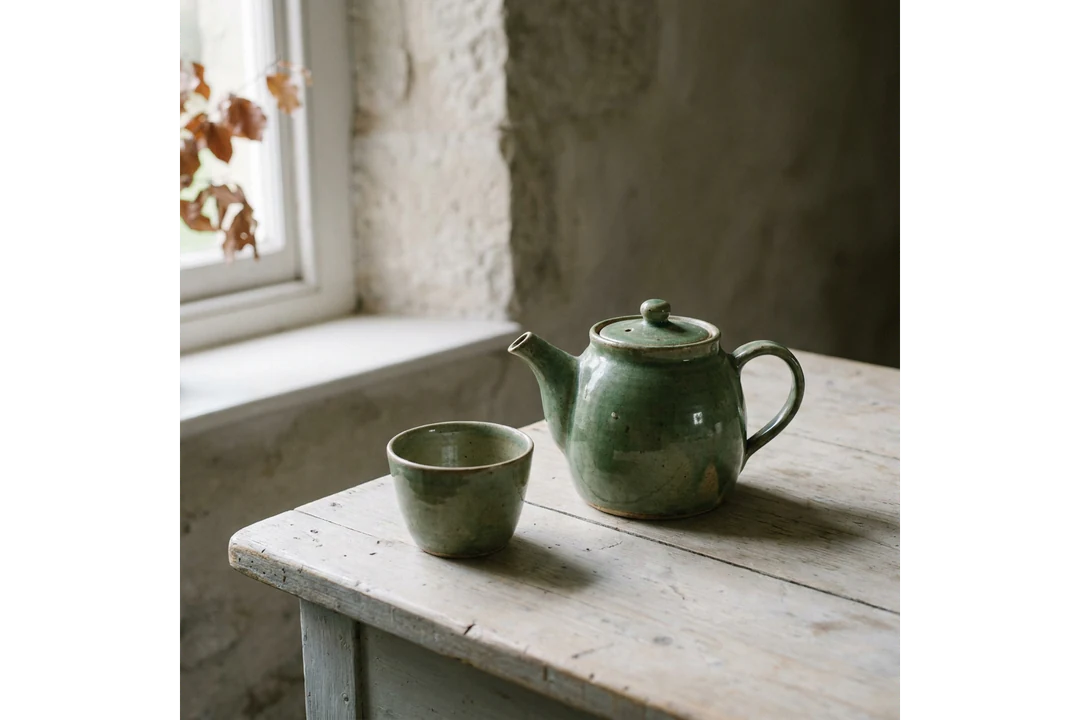
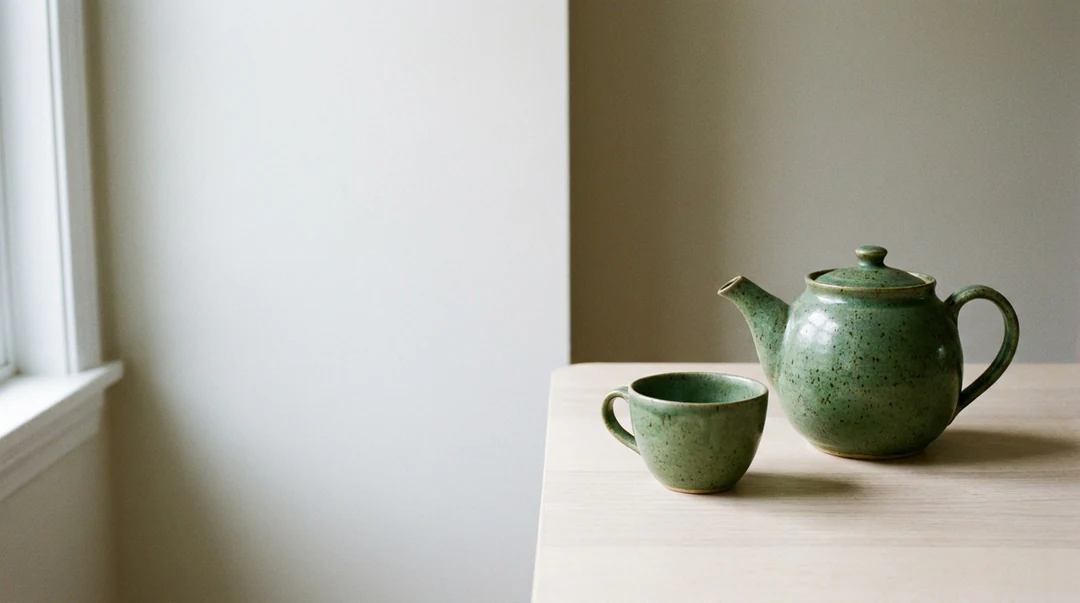
Green teapot and one cup on a pale table at right, lit softly from the left, with open space on the left for a headline

16:9 · Article header

Still life for a product story

Pick one subject and two or three supporting objects, then say where they sit. A green teapot and one cup on a pale table, placed right with soft light from the left, leaves the left side open for a headline. Say that in the prompt instead of adding more props. Check that the objects do not merge into each other.
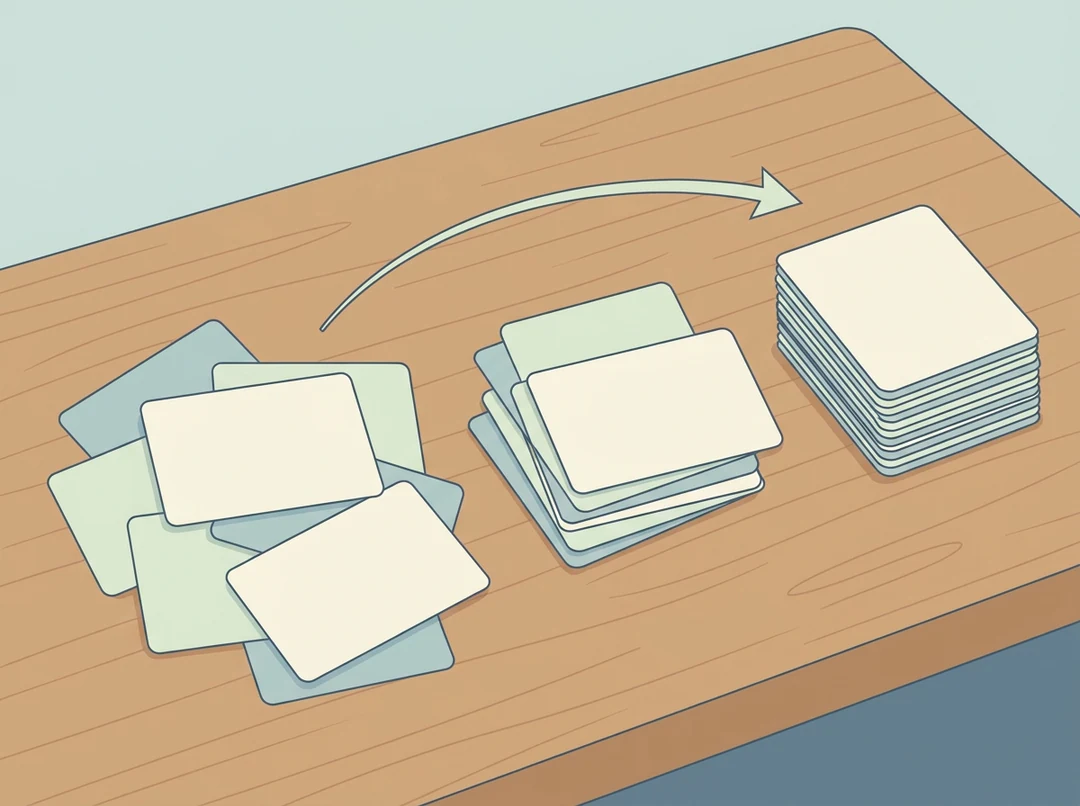
Three groups of paper cards sorted into a sequence on a desk, drawn as a clean editorial illustration with no labels

4:3 · Article card

Editorial illustration for an abstract topic

An abstract topic needs one visual idea before it needs a long prompt. Three groups of paper cards sorted into a sequence on a desk reads at card size; five symbolic meanings does not. Ask for clean shapes, one direction of movement and no written labels, then check whether the groups look ordered or cluttered.

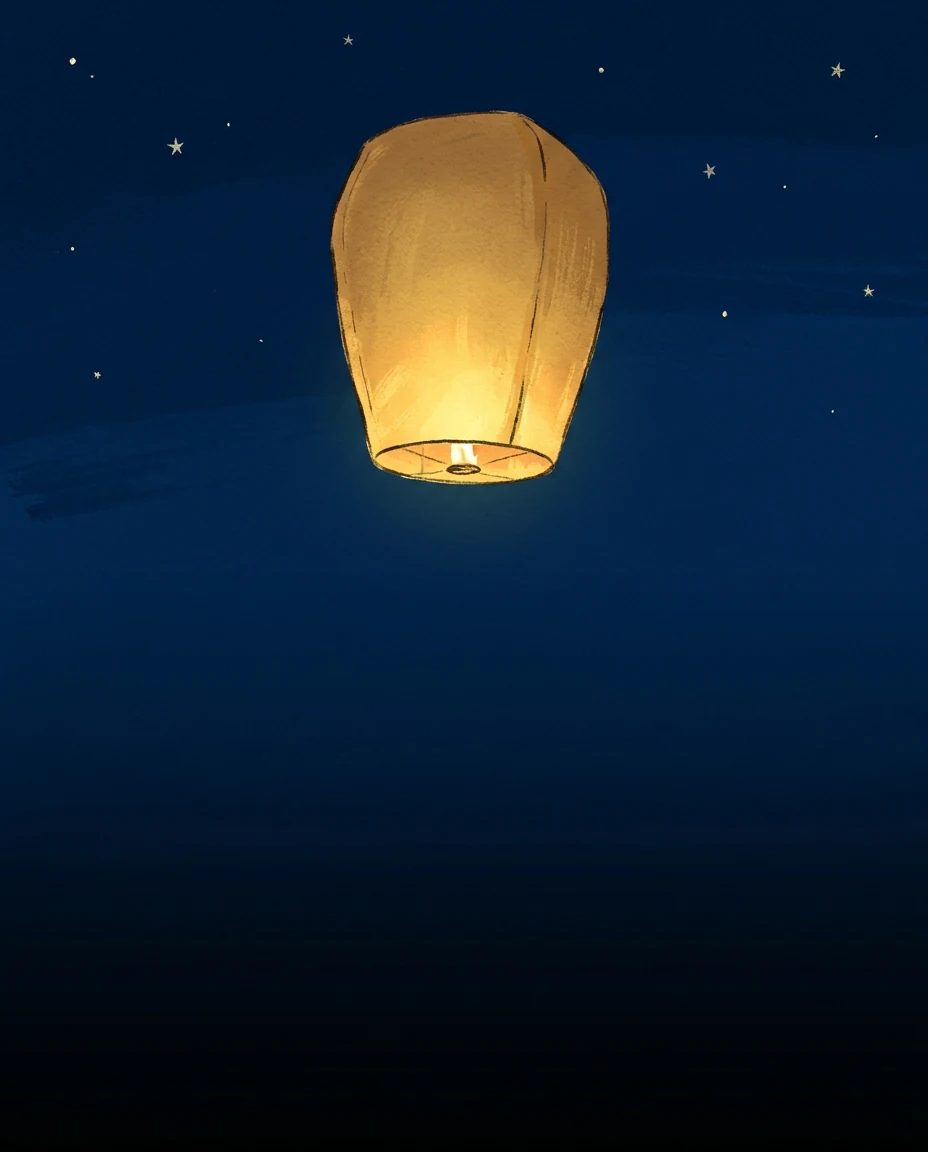
One bright paper lantern in the upper half of a tall 4:5 frame, with a clean lower area left for text

4:5 · Social post

Social card that survives the crop

Define one subject and one idea, then choose the ratio for where it will be seen. One bright paper lantern in the upper half of a tall frame, with a clean lower area for text added later, tells the generator where interest belongs. Test the crop at the size people will see, and add event details in your layout tool.

How to use text to image

Three steps in the creation card above.

  1. 1. Write the scene

    Write a text to image prompt for one subject and its setting in the prompt field, which takes up to 4,000 characters. Name the viewpoint, the light and the space your layout needs. If exact wording matters, plan to add it later in your own layout, because lettering inside generated pixels needs a word-by-word check.

  2. 2. Choose model and shape

    Pick Nano Banana or Nano Banana Pro in the text to image generator, then an aspect ratio, HD, 2K or 4K, one, two or four outputs, and PNG or JPEG. Set the ratio first, since the same scene is arranged differently in a square and a wide frame. Add reference images only when words are not enough.

  3. 3. Generate and compare

    One Nano Banana HD image costs 23 credits and one Nano Banana Pro HD image costs 45; changing model, resolution or count changes the quote shown on Generate. Review the whole composition and one critical detail at full size, then download, or change one choice and try again.

What the text to image generator does with your prompt

Four things a written prompt controls, and how to check each one in the result.

  1. 01

    Describe the scene, not a style label

    A text to image prompt works best when it names one subject, where it sits and what surrounds it. “A green teapot and one empty cup on a pale table” gives the model something to arrange; a list of adjectives does not. The prompt field has room for detail without a wall of text.

    • One subject and its setting first
    • Supporting detail beside the subject, not a long list
    Green teapot and one empty cup on a pale table, generated from a text prompt
    A single-subject still life prompt
  2. 02

    Set the light and the camera position

    Light and viewpoint change a picture more than extra objects do. Soft window light from the left, a low angle, or a wide frame with empty space on one side each give the text to image generator a clear direction. Change one of them at a time and compare the results to see what each line did.

    • Name the direction and softness of the light
    • Say where the empty space should be
    Two results of one text to image prompt lit from opposite sides
    The same prompt with the light moved to the other side
  3. 03

    Choose the ratio and resolution first

    Pick an aspect ratio and a resolution before you generate. A tall frame, a square and a wide frame each ask for a different arrangement of the same scene, so set the ratio for where the image will be used. The quote on Generate updates with every change.

    • Resolution from HD to 4K
    • A choice of one, two or four images
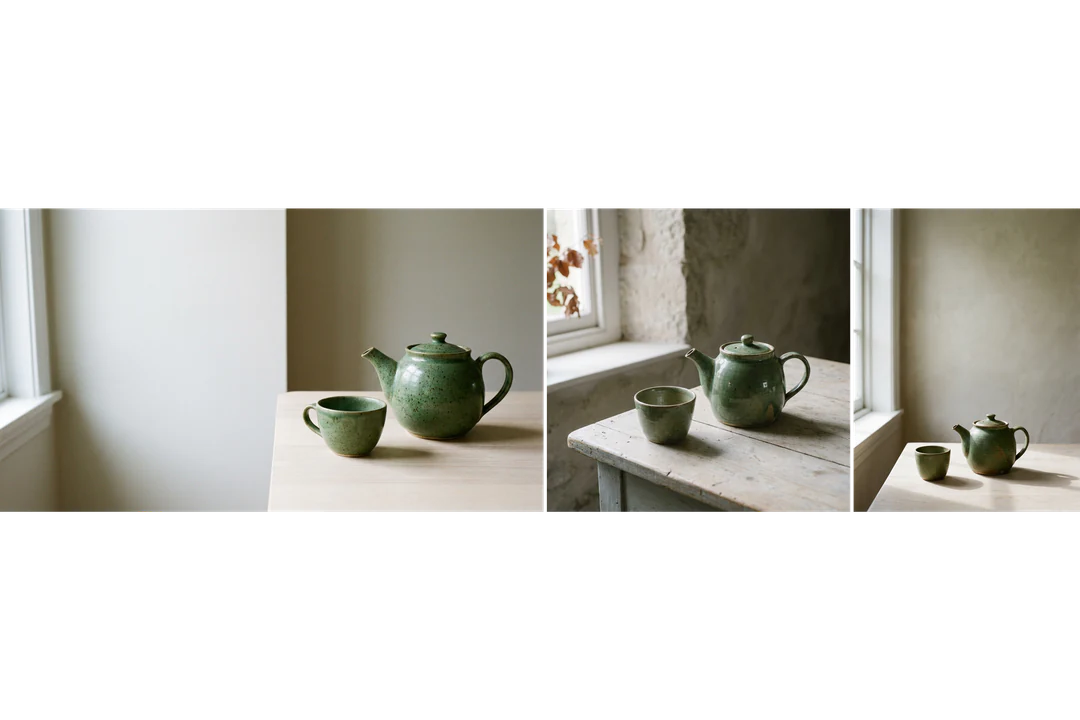
    One text to image scene arranged for wide, square and tall aspect ratios
    One scene set up for a wide, a square and a tall frame
  4. 04

    Add a reference only when words are not enough

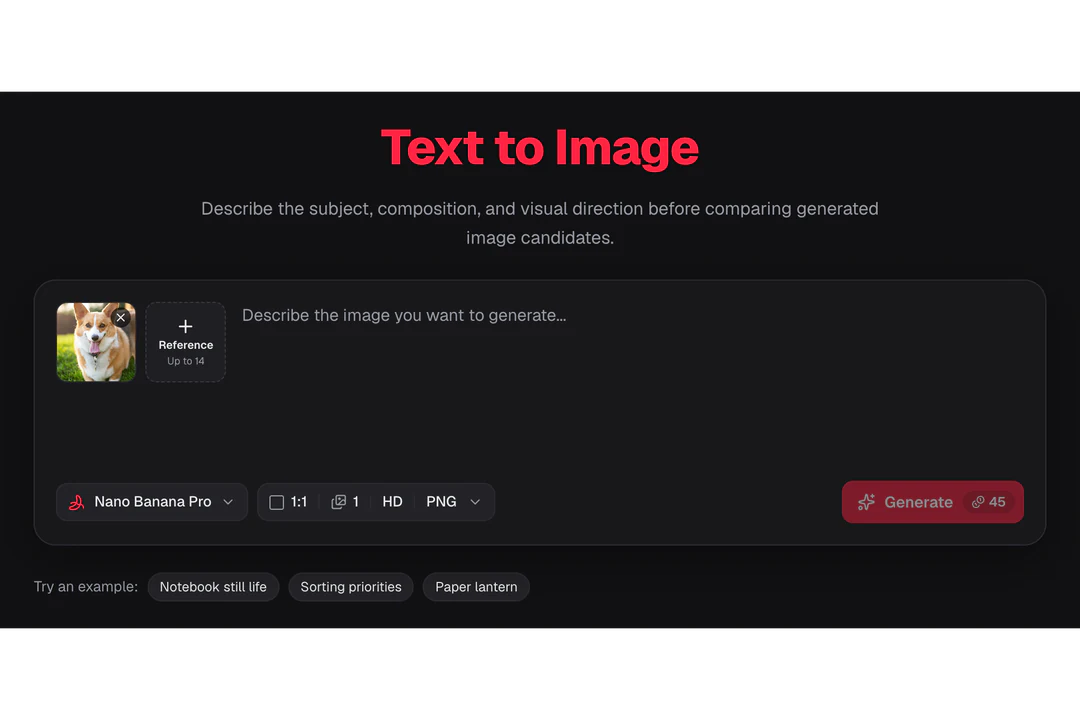
    Text to image starts from words, and you can add up to 14 reference images when a real object or a look has to be matched. Say in the prompt what each reference is for. When no reference is attached, the result is built from the prompt alone.

    • Up to 14 references per request
    • Name the job of each reference
    Creation card with a reference image slot beside the prompt field
    A reference image added next to the prompt

Keep exploring Potto AI

Pick the page that matches what the picture needs next.

Text to Image FAQs

  1. What is text to image?

    Text to image is the generation of an image from a written description alone. The prompt can set the subject, the composition, the light and the treatment without any uploaded reference. Potto AI works as a text to image AI generator: it uses the model and settings you choose to create images that you review and download. The prompt is a creative direction, not a guarantee that every instruction appears exactly.

  2. What should a useful image prompt contain?

    A text to image prompt should include the visible subject, its relationship to the setting, the composition, and the treatment needed for the destination. State a relevant constraint such as an uncluttered area beside the subject. Avoid conflicting directions and details that cannot be seen. Make the next revision address one observable problem.

  3. Can I generate exact words inside an image?

    You can request lettering, but verify every word and its readability in the completed result. For exact names, dates, labels, or longer copy, place editable text over a reviewed image in your layout. A generated image is not an editable text document, and a higher resolution does not prove that its writing is correct.

  4. Which settings can I choose before generating?

    Choose a model, an aspect ratio, HD, 2K or 4K, one, two or four outputs, and PNG or JPEG. The prompt field takes up to 4,000 characters. Set the ratio first, because the same scene is arranged differently in a square and a wide frame. Output dimensions are managed by the provider, so check the size of the downloaded file before using it in a demanding layout.

  5. How do I fix an image that is close but wrong?

    Name the one problem first: the subject is too small, the background too busy, the light too harsh or the treatment wrong. Then change only that instruction and keep the rest of the text to image prompt. If the right objects have the wrong relationship, rewrite which object is in front and which action matters. Generation is not a pixel-for-pixel experiment, so note other differences instead of crediting them all to your edit.

  6. Can text to image match a real product or person?

    Not reliably. A text to image prompt creates an imagined scene; it does not establish that an object matches a particular item’s shape, color, dimensions or materials, and a described character may not stay consistent from one image to the next. When the real item or person matters, add a reference image and compare each result with the source. A reference or a named model does not create an identity lock.

  7. Do I need an account to use text to image?

    You can type a prompt and choose the model, ratio and resolution before signing in. Generate opens the sign-in dialog, and your text to image prompt and settings are kept while you sign in.

  8. What if a text to image request fails?

    The task explains why it stopped and offers a retry; reserved credits are released for a failed or cancelled request. Use the cancel control to stop a running request, since leaving the page does not stop it. Rewriting the prompt after a finished image starts a new, charged request.

  9. How many credits does text to image use?

    Each image costs 45 credits with Nano Banana Pro at HD or 2K, or 23 with Nano Banana at HD; 4K and more images cost more. The Generate button shows the exact total for your settings before you confirm.

Potto AI

Turn your text into an image

Describe the subject, the light and the space your layout needs, then compare the results before you download.