
Skip to content
Potto AI

Change the background of a photo and check the edges

The same photo before and after the background is removed. The background changer then places the subject on a solid color or your own image, so you can change the background of a photo while only the area behind the subject changes.

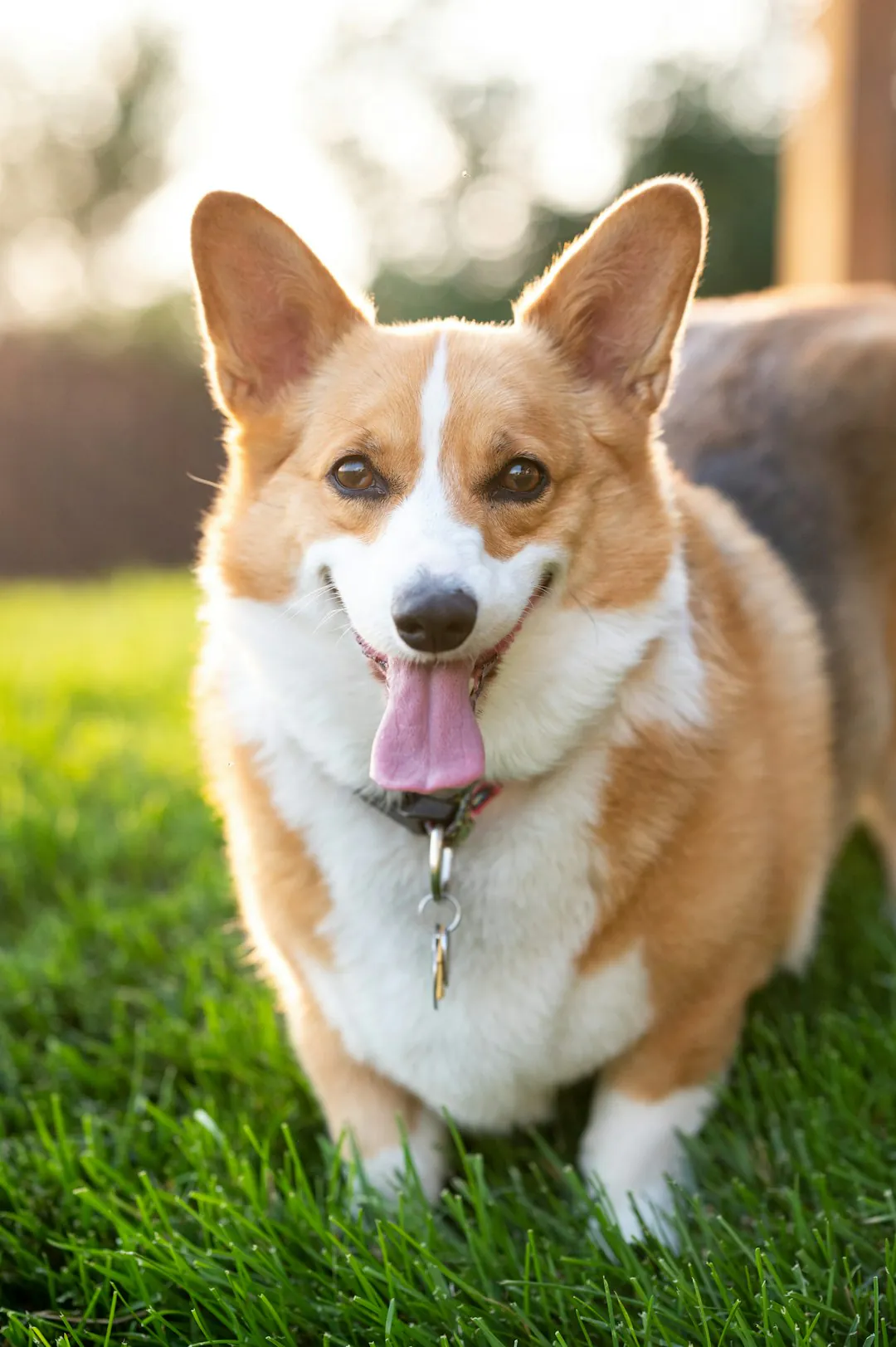
A corgi standing on grass
Original photo
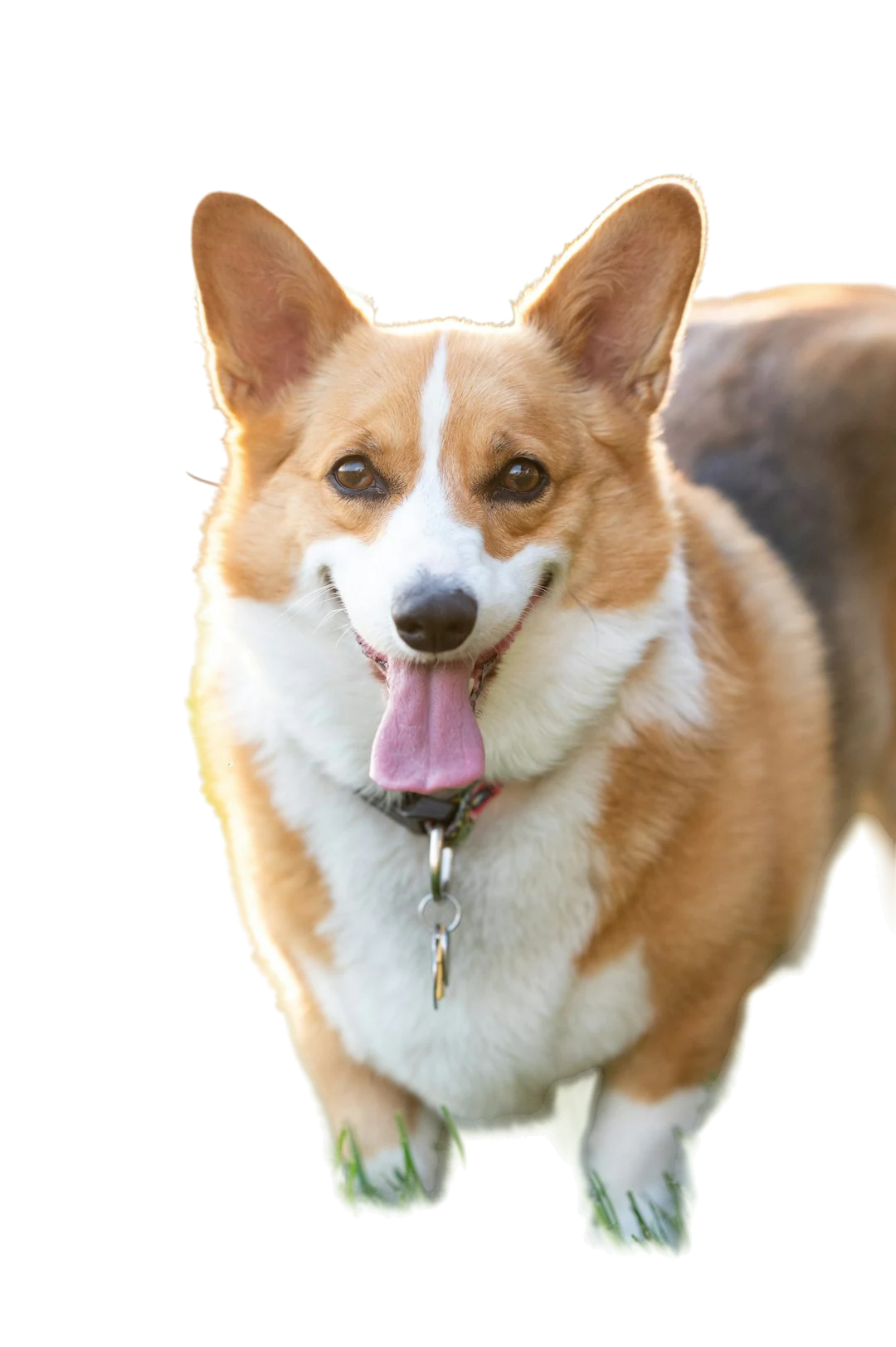
Corgi cut out from the grass by the AI background remover on a transparent background
Subject cut out ยท transparent

What stayed

The subject keeps its own pixels, pose, color and lighting. Nothing is relit, so a subject lit from the left still looks lit from the left on the new backdrop. Fur, hair, clothing and any gaps inside the subject should keep the shape they had in the original photo. A rough outline stays rough on any backdrop.

What changed

Whenever you change background, only the area behind the subject changes. It becomes transparent, one of eight preset colors, a custom color or your own background image. An uploaded image fills the canvas with a centered cover crop, so anything near its edges can be cut off. No shadow or new perspective is added. Switching between backgrounds only recomposes the picture in your browser.

What to check

Look at the edge on both a light and a dark backdrop. A pale fringe that disappears on white can show on black, and missing dark hair can hide on a dark color. Check glass, fine mesh and reflections, and any stray shadow that stayed attached to the subject. Zoom in on the preview to check fur, hairline and fingers before you download.

Where a changed background helps

Change background choices start from the placement: pick the backdrop first, then judge whether the edge holds up on it.

Studio headshot with the background removed by the AI background remover, hair edges intact

BackgroundSolid color

Team portraits

A shared solid color reduces the distraction of different walls and rooms, and you can change background for every portrait in the set with the same color. Test a few portraits first: a very dark color can hide dark hair, and a very pale one can show edge remnants around light clothing. The color does not standardize lighting, expression or camera angle, so start from photos with compatible framing. A custom color accepts a hex code, so you can match a brand palette.
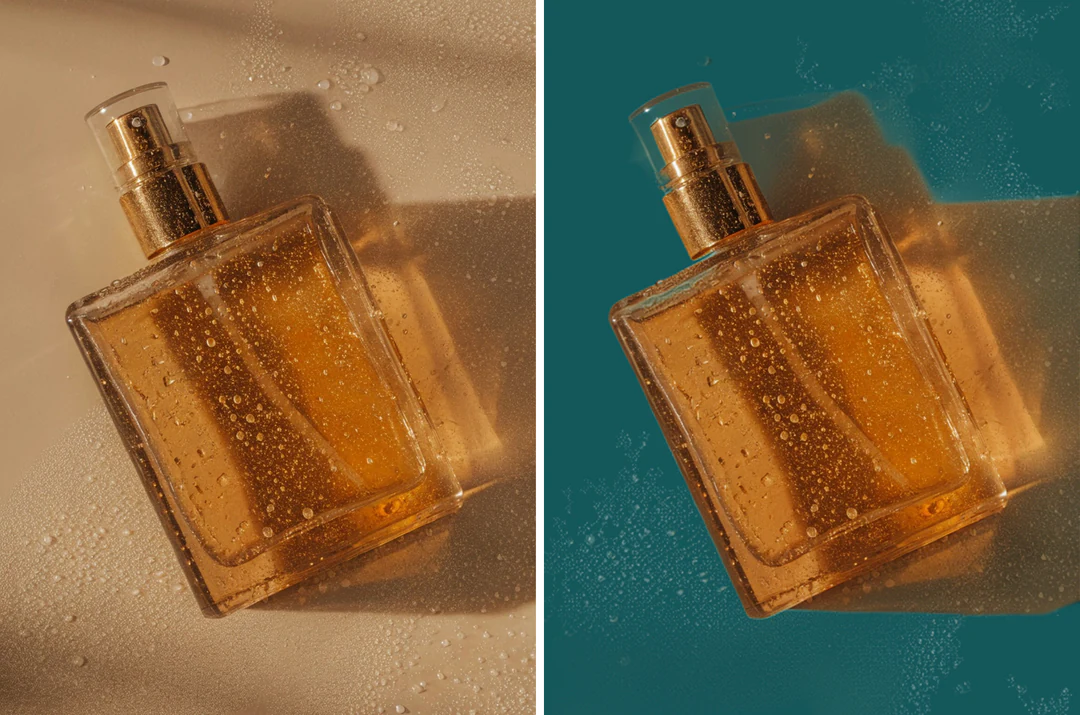

Product cutout on its original background beside the same cutout on a campaign color

BackgroundCampaign color

Product campaigns

Reuse one product cutout to change background colors for catalog, banner and social placements without removing the background each time. Test it on light and dark options, because transparent packaging and pale edges can carry traces of the original setting. The new background adds no contact shadow, so a product can look like it floats; a flat graphic treatment makes that deliberate. Keep the transparent PNG so each new color starts from the same cutout.

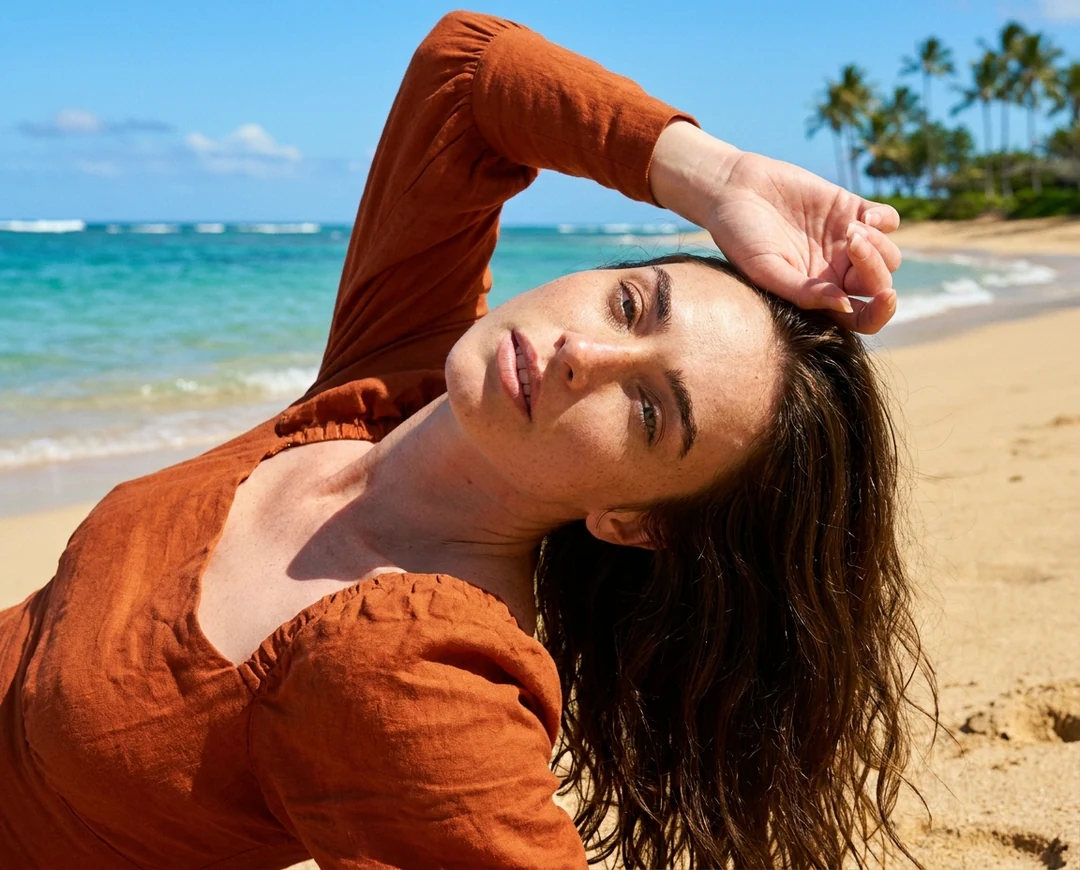
A smiling woman cut out and placed on a teal-to-indigo gradient backdrop for a speaker card

BackgroundYour image

Speaker and event cards

Use a solid color or a background image from your own event kit behind a speaker portrait. An uploaded background fills the frame and is cropped from the center, so keep logos and key elements away from its edges. Choose a background image at least as large as the portrait, because a small one is enlarged to fill the frame. Add the name, date and event title in your layout tool afterward; this page composes the subject and backdrop only.

How to change the background of an image

Three steps to change background in the panel above. Removal runs once; colors and background images are previewed in your browser.

  1. 1. Upload a complete subject

    Add one JPEG, PNG or WebP image up to 20 MB with the whole subject inside the frame. Pick a photo where the outline is readable: dark hair on a dark wall, glass and reflections make the separation less certain. Keep the original for comparison.

  2. 2. Cut out the subject and inspect the edges

    Click Generate to cut out the subject. The checkerboard marks transparent areas and does not appear in the download. Check hair, gaps between limbs, handles and small parts before you pick a backdrop. If the outline is wrong here, a new backdrop will not fix it; try a different source photo.

  3. 3. Choose a backdrop and download

    Change the background by picking transparency, a preset color, a custom color or your own image. Removal is the only charged step, 4 credits per image, shown on the Generate button before you confirm; trying other backdrops runs in your browser and starts no new removal. Download the transparent PNG, or the flattened composite as PNG or JPEG.

What changing a background involves

Four points that shape the result in the background changer: the cutout, the colors, your own image and the edge.

  1. 01

    A clean cutout comes first

    The background changer removes the background from your photo once and keeps the subject as a cutout. Everything you try afterwards sits on that cutout, so a wrong outline stays wrong on every backdrop. If the outline is off, try a different source photo.

    • Upload one complete subject, not a cropped one
    • Removal is the only charged step
    A corgi standing on grass
    The source photo. The whole subject must sit inside the frame.
  2. 02

    Eight preset colors and any color you pick

    Choose white, black, gray, red, yellow, green, blue or purple, use the color picker, or type a hex code in three- or six-digit form. A color is a flat fill, so there is no gradient or texture. Use your own image when you need one.

    • Colors are previewed in your browser
    • Try as many as you like before you download
    Studio headshot with the background removed by the AI background remover, hair edges intact
    The cutout before a backdrop is chosen.
  3. 03

    Use your own photo as the backdrop

    Upload a JPEG, PNG or WebP background up to 20 MB and the background changer places the subject over it. Your image fills the canvas with a centered cover crop, so keep logos and important content away from its edges.

    • Replace or remove it without running removal again
    • There is no stock-background library, so bring your own image
    A bright living room photo used as an example backdrop
    An example backdrop. Any JPEG, PNG or WebP you own works.
  4. 04

    Check the edges before you download

    Preview the cutout on a light and a dark color. A pale halo can appear on black, and missing dark hair can hide on a dark color. A more attractive backdrop can hide a cutout problem without fixing it, so look at the edge at the size you will use.

    • Download the transparent PNG, or a flattened PNG or JPEG
    • Keep the original photo for comparison
    Close view of a perfume bottle cutout on a teal background, with the glass edge and droplets kept
    Product photos with reflections need a close edge check.

Keep exploring Potto AI

When a new backdrop is not the whole job, these tools take the next step.

Change Background FAQs

  1. What does change background mean on this page?

    Here, to change background means to cut the subject out of your photo and place it on a solid color or on an image you upload. The background changer composes the cutout over your choice in the browser. It is not a stock-background library, and it does not generate a new photographic scene around the subject.

  2. How is background composition different from scene editing?

    Composition places an existing cutout over a chosen backdrop. Scene editing asks a model to create new surroundings, light or perspective from an instruction. The background changer does not relight the subject or add matching shadows, so when those relationships need to change, describe the new scene in the AI image editor instead.

  3. Which background colors can I choose?

    Choose one of eight presets (white, black, gray, red, yellow, green, blue and purple), pick any color with the color picker, or type a hex code in three- or six-digit form, with or without the leading #. A color is a flat fill, so there is no gradient or texture; use your own background image when you need one. Colors are previewed on the cutout in your browser, so you can try several before you download.

  4. Will my uploaded backdrop be shown without cropping?

    Your own image fills the result canvas with a centered cover crop. Parts of that image can therefore be cropped when its ratio differs from the canvas. Review the visible result, especially logos or important content near the edges, before downloading the flattened composition.

  5. What can I use as a background image?

    Use a JPEG, PNG or WebP image up to 20 MB, the same limits as the main upload. You can replace or remove it at any time without running the removal again. There is no stock-background library, so use your own photo or create a backdrop with the AI Image Generator first. A background smaller than the result is enlarged to fill the canvas and can look soft, so start from an image at least as large as your subject photo.

  6. Which files does the background changer accept, and what can I download?

    Upload one JPEG, PNG or WebP image up to 20 MB. The transparent cutout downloads as a PNG, because JPEG cannot keep transparency. With a color or image background you can download the flattened composition as PNG or JPEG. Very large composites are scaled down to fit a 16,000,000-pixel canvas, so check the downloaded dimensions rather than assuming the pixel size is unchanged.

  7. What should I check on the edges?

    Preview the cutout on a light and a dark color before you change the background for good. A pale halo can appear on black and missing dark hair can hide on a dark color. Look at hair, glass, fine mesh, reflections and gaps inside the subject, then view the whole image at the size you will use. A more attractive backdrop can hide a cutout problem without fixing it.

  8. Do I need an account to change a background?

    You can upload a photo before signing in. Cutting out the subject opens the sign-in dialog, and the photo stays in the background changer.

  9. What if the background changer fails?

    A failed cut-out shows the reason and a retry, and its credits are released. Swapping colors or backdrop images afterwards happens in your browser, so those changes never fail a charged task.

  10. How much does it cost to change a background?

    Cutting out the subject costs 4 credits per image. Trying different colors or your own background images after that is free, and the download is included.

Potto AI

Change the background of your photo

Upload a photo, cut out the subject and check the edges on a light and a dark color. Then use the background changer to switch to a solid color or your own image before you download.