4:316:9
Banner or video thumbnail
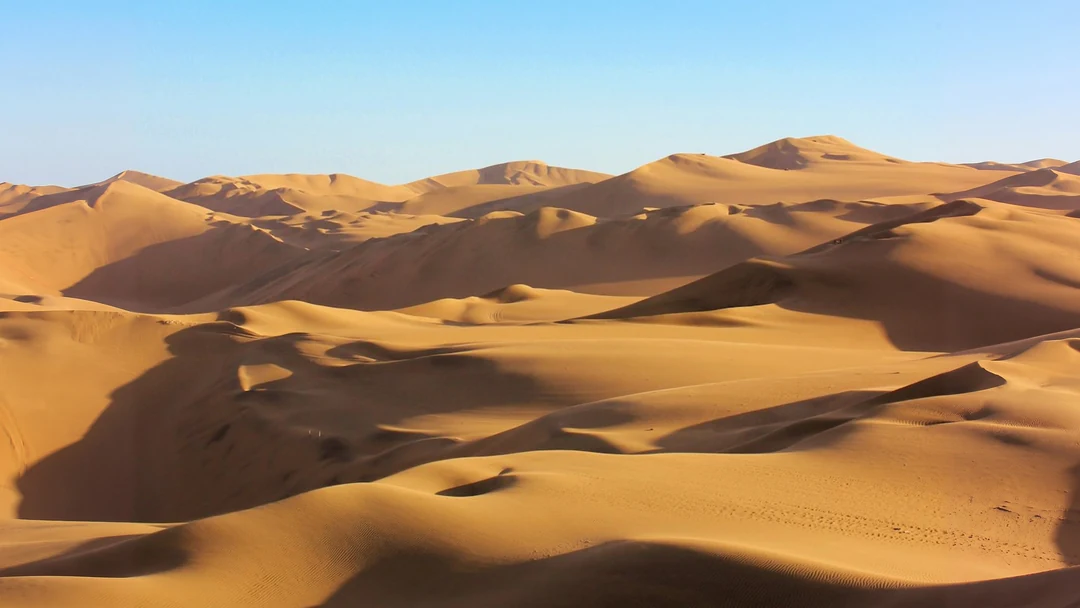
A wide ratio adds land and sky on both sides. Keep the subject put and use the new width for a headline. At 16:9 the canvas is 1280 × 720 or 1920 × 1080.
Widen or lengthen any photo with this AI image extender. It adds new scene around your original.
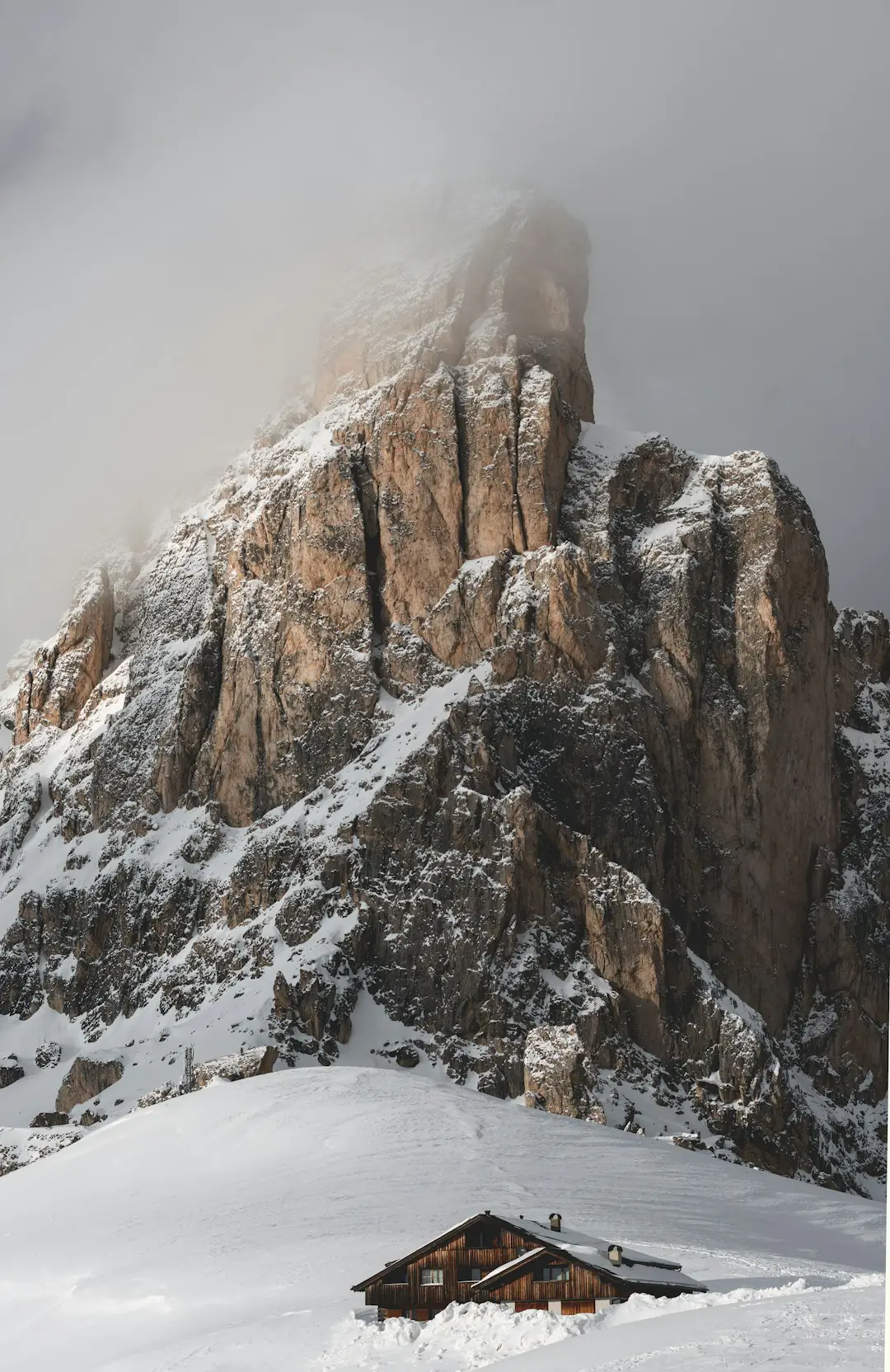
A lake photo extended from 4:3 to 16:9. The outline marks the original frame.
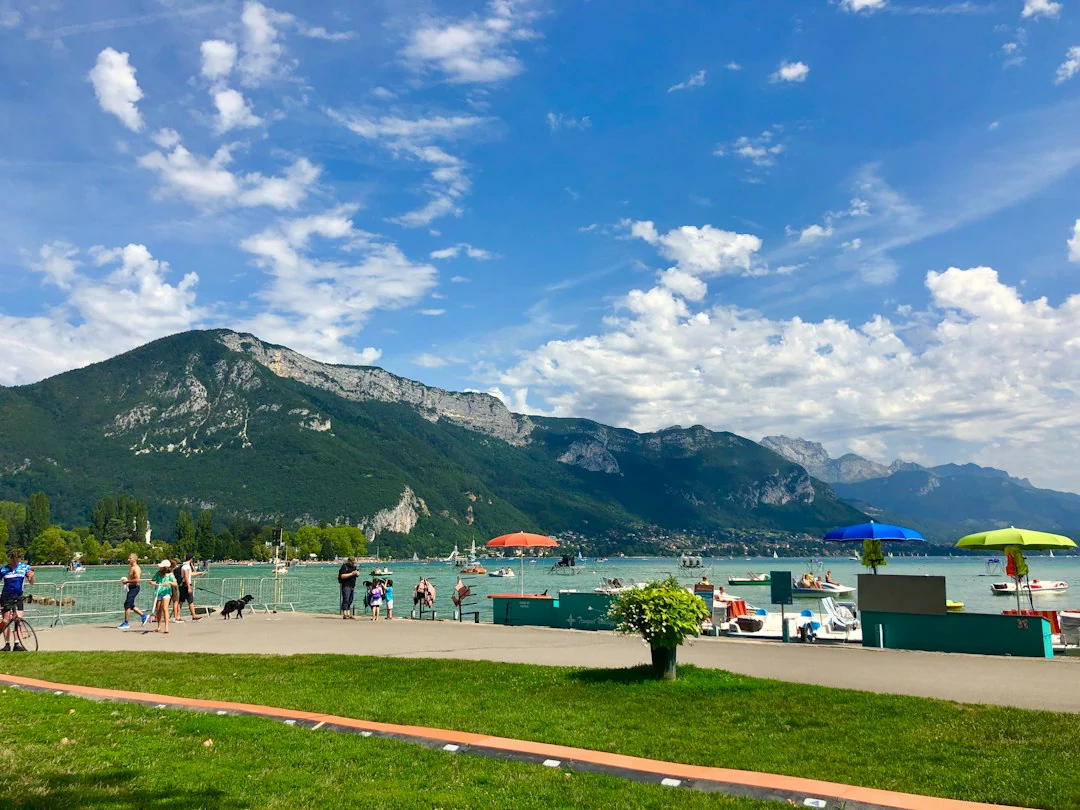
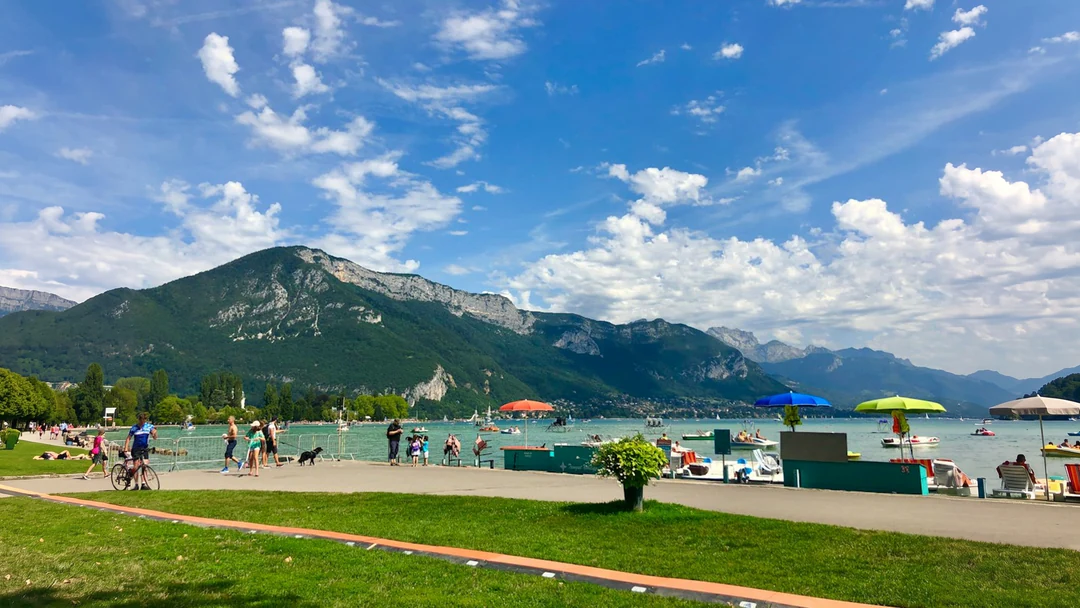
The shoreline, trees and reflection stay in place. The outline shows where your original ends.
Sky, slopes and water continue on both sides. The horizon runs on without a step.
Look for repeated textures and bent lines. Judge the result at the size you will use.
Pick the ratio for the placement first.
4:316:9
A wide ratio adds land and sky on both sides. Keep the subject put and use the new width for a headline. At 16:9 the canvas is 1280 × 720 or 1920 × 1080.
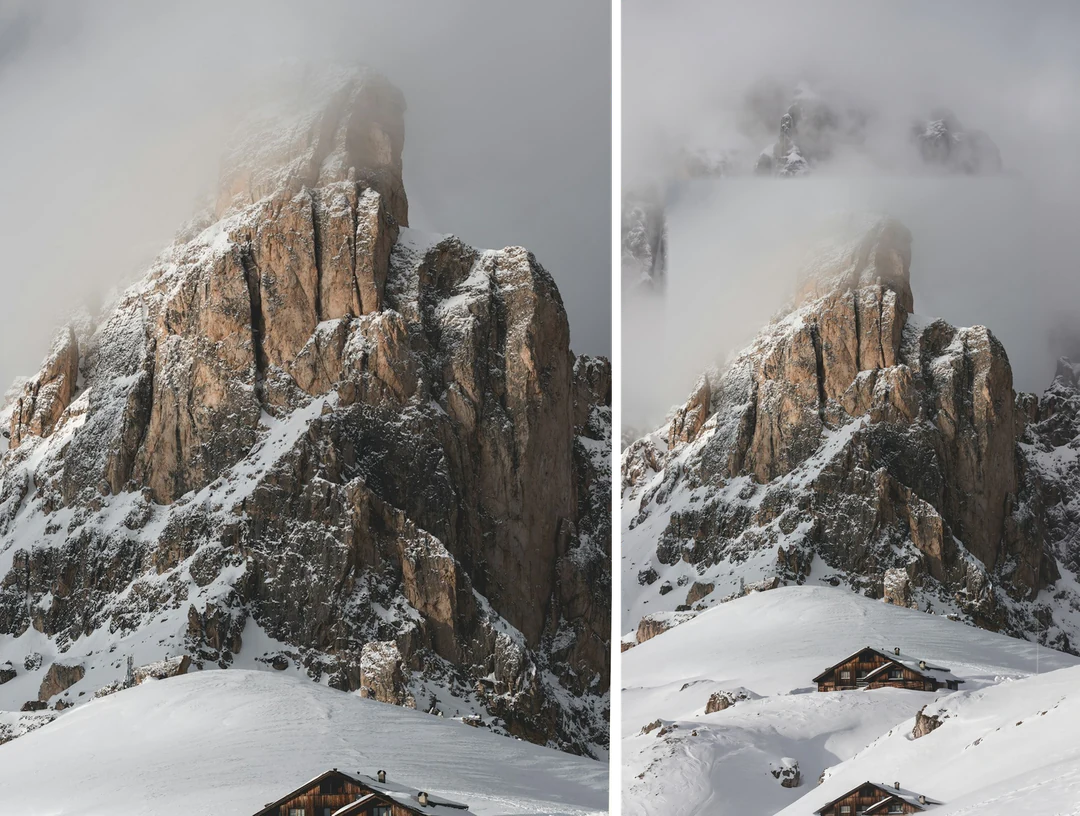
3:49:16
A tall ratio adds ground and sky above and below. Check the horizon and tall subjects. At 9:16 the canvas is 720 × 1280 or 1080 × 1920.
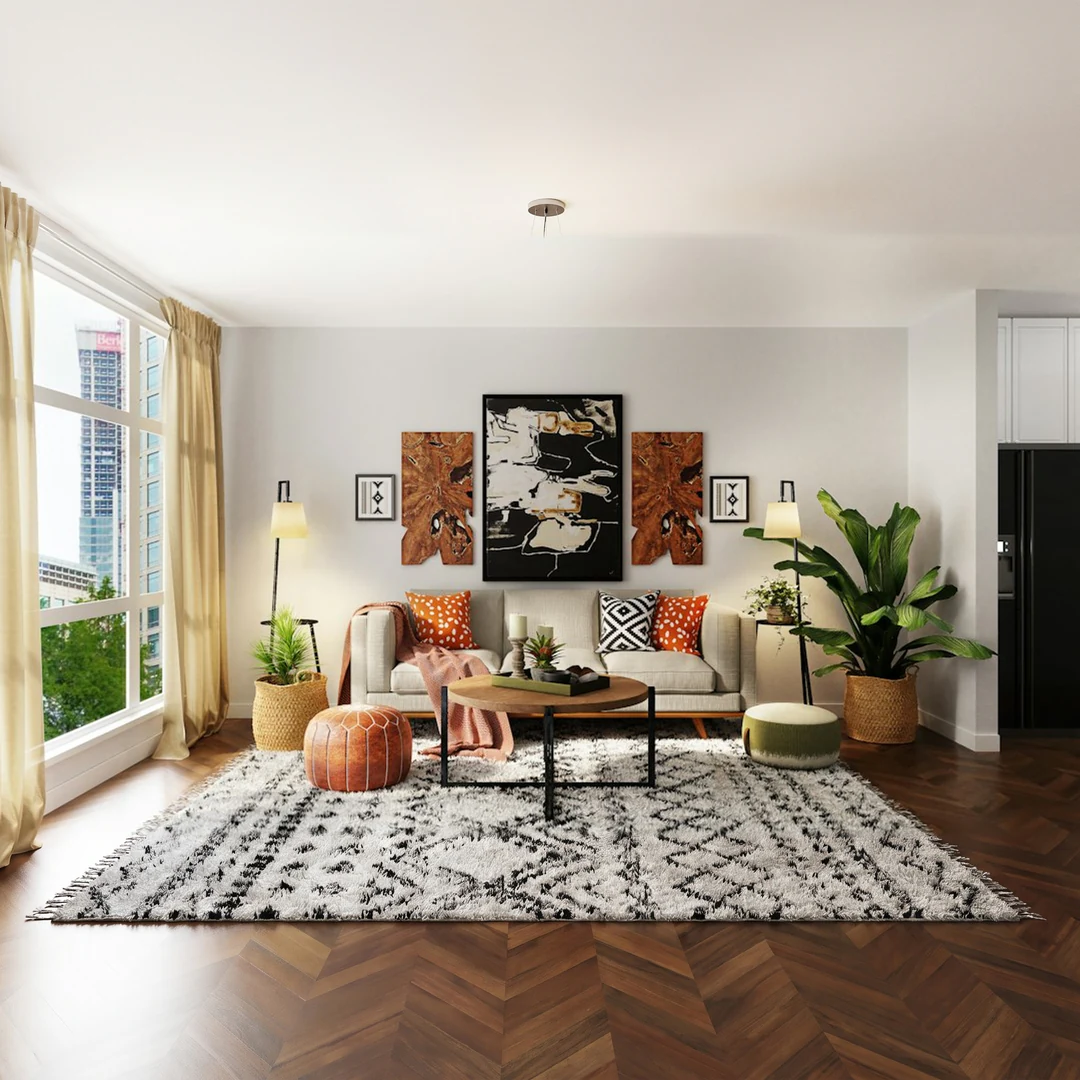
16:91:1
A square adds height to a wide image, so floors and ceilings extend. Check straight lines at the new top and bottom. At 1:1 it is 1280 × 1280 or 1920 × 1920.
Three controls let you expand image width or height.
Drop in your file. The stage shows where the original sits.
Choose a ratio and a size. The red area is what gets added.
Check the join against the original boundary, then download.
It changes the frame, not your image.
01
Start from 4:3 and extend to 16:9, 9:16, 1:1 or 3:4. The AI image extender adds the missing width or height.
02
The image scales to fit and sits in the middle. Only the area around it is generated. A narrow blended band smooths the join.
03
The extender continues sky gradients, floor lines and shadows. Review the join for steps and bent lines.
04
Pick Standard or HD for a banner, slide or story. The Generate button shows the credit cost first.
Need a different change? These tools start where the image extender stops.
What the AI image extender does, which ratios it supports and what to check.
An AI image extender adds new image area around a photo. It keeps your original in the middle and generates the rest. Some people search for it as expand image or uncrop. The added area is invented, not recovered.
AI expand image means growing a photo past its edges with a model. The AI image extender does exactly that. You pick the ratio, and it draws the missing area.
No. It generates the added area from the visible image. Treat it as a plausible guess, not the real scene.
An image extender changes the shape of the frame. An upscaler adds pixels to the same frame. Extend when cropping would lose content. Upscale when the picture is right but too small.
Upload JPG, PNG or WebP, 20 MB at most. Pick 1:1, 3:4, 4:3, 9:16 or 16:9. Standard has a 1280-pixel long edge. HD has 1920.
Skies, water, walls and fields extend well. Fences, windows and lettering need a closer look. So do people cut off at the frame.
It keeps your original centered. Faces and straight lines should stay as they are. Exact pixel-for-pixel output is not guaranteed.
Check the join first, then the new edges. Follow horizons, reflections and shadows across it. Download when the seam is invisible at your size.
Generate is off when the image already has the selected ratio. Pick a different ratio. A bigger gap between two shapes means more new area.
It costs 81 credits per image. You see the price on Generate before you confirm. A failed task releases its reserved credits. Pricing lists plans and packs.
You can upload an image and try the controls without one. Generating and downloading need an account. Your image and settings stay after sign-in.
Yes, if you are on a paid plan. Free plan images are for personal use. There is no Potto watermark. Extend only images you own or may edit. Do not pass off the new area as the real scene.
Upload an image, pick a ratio and check the join before you download.