Skip to content
Potto AI

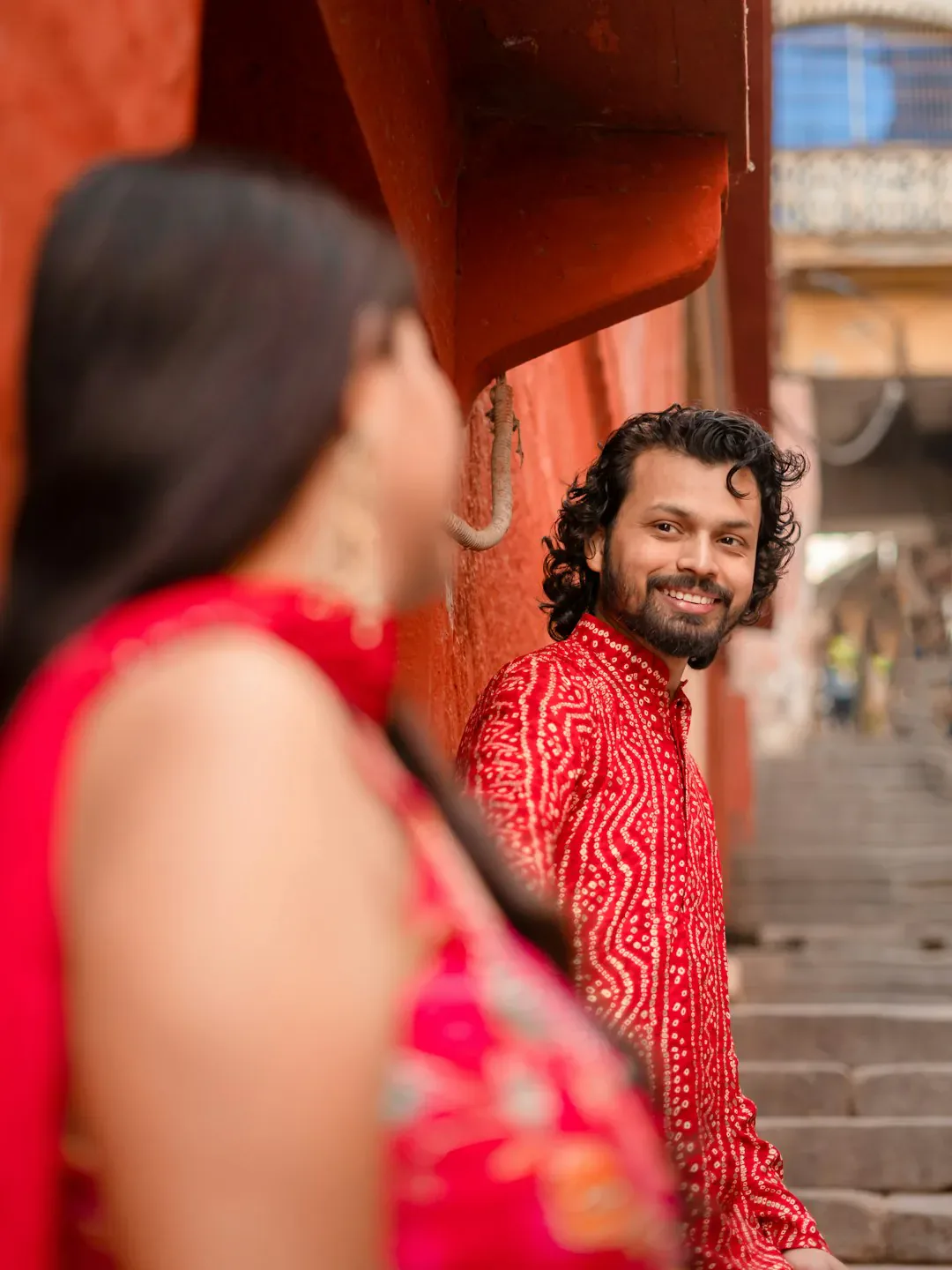
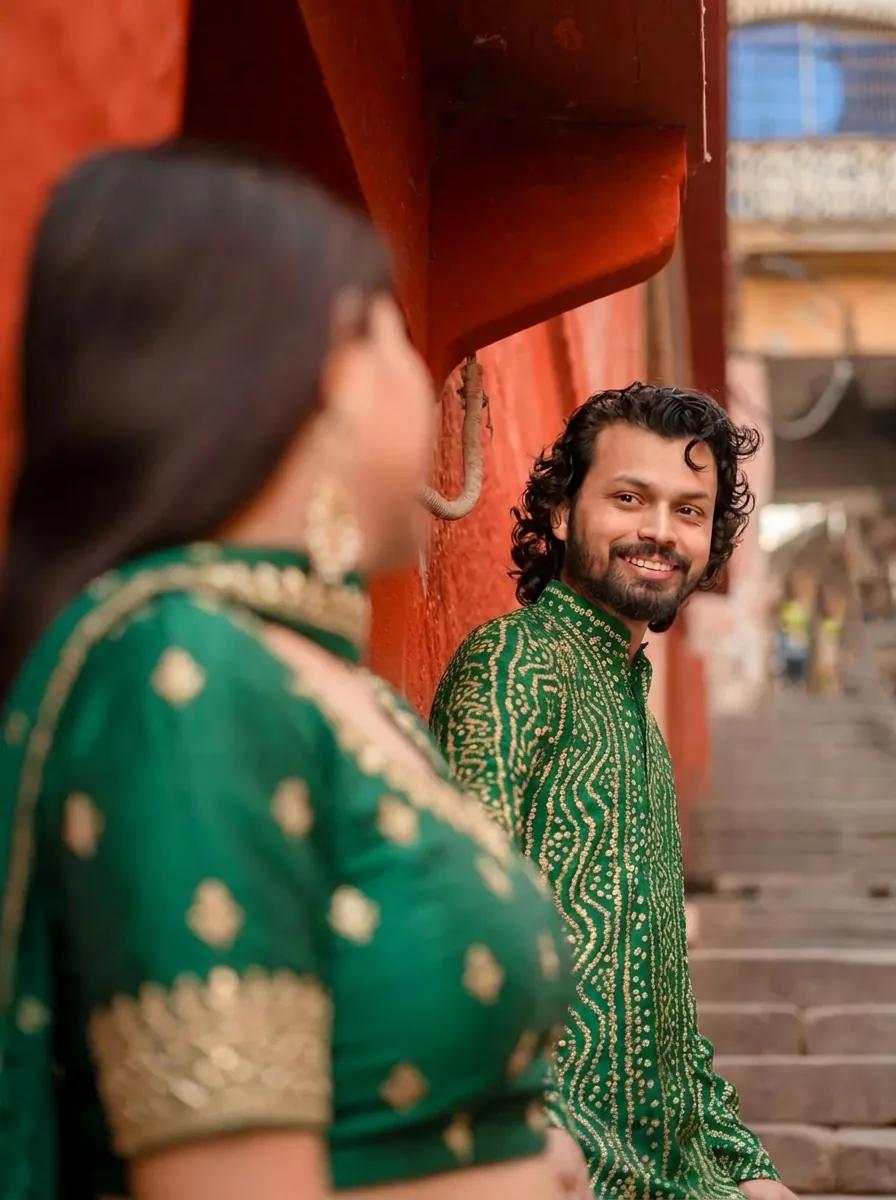
Matching outfits: the same group before and after

One group photo and the coordinated version generated from it. The output ratio follows your photo to the closest supported ratio, with 3:4 as the fallback.

Original photo of a couple in red outfits
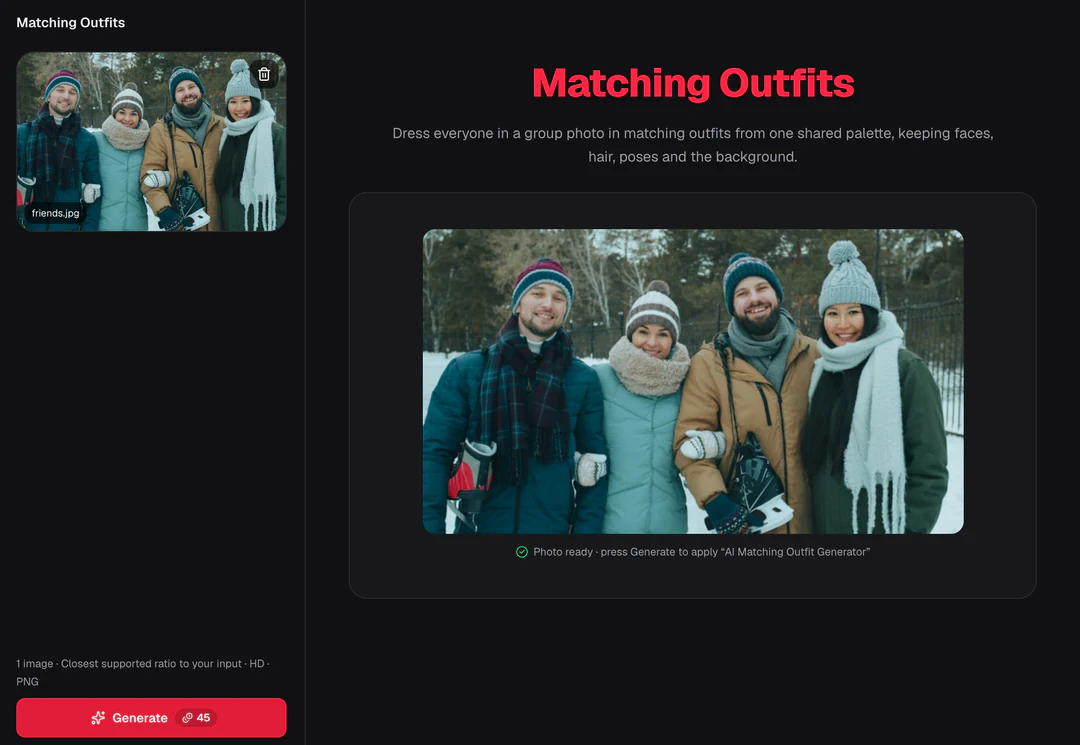
Original group photo
The same couple in coordinated green outfits
Matching outfits result · ratio follows the photo

What stayed

The recipe asks to keep every person's face, hairstyle and pose, and the background, exactly the same. Count the people first, then compare each face and the spacing between them with the original.

What changed

Clothing changes to coordinated outfits in one shared palette that the template chooses. They need not be identical, and you cannot pick colors or give each person a different garment.

What to check

Go person by person: eyes, expression, hands and sleeves. Look where arms overlap or a child is held, because a sleeve can drift onto the wrong person. Check that matching colors do not blend into the background.

Where a matching outfits concept fits

Three group situations. In each one the result is a coordination idea, not a shopping list.

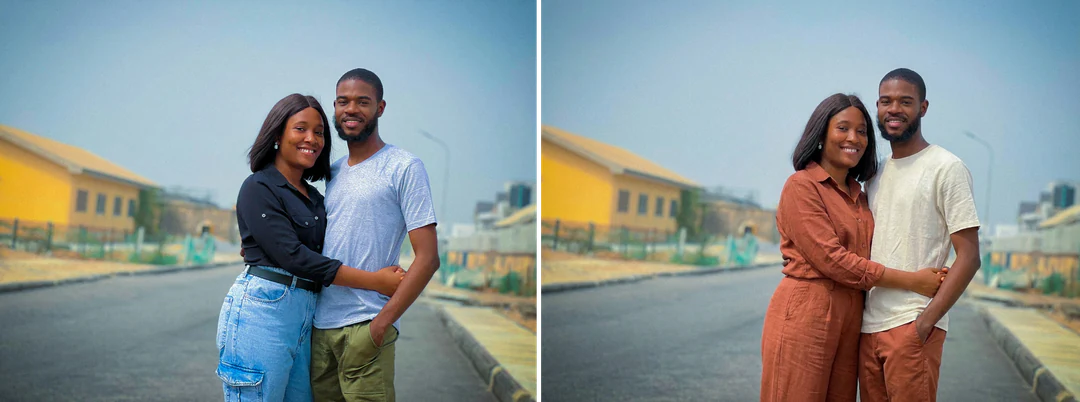
Couple photo beside the same couple in matching outfits with coordinated colors

Auto ratio · Couple

A couple planning a portrait session

Start with a clear photo of both people and use the result to discuss how coordinated the final look should feel. You may prefer related colors with different garments, or a stronger match. Check both faces, the space between you and any overlapping hands, then choose real outfits yourself.
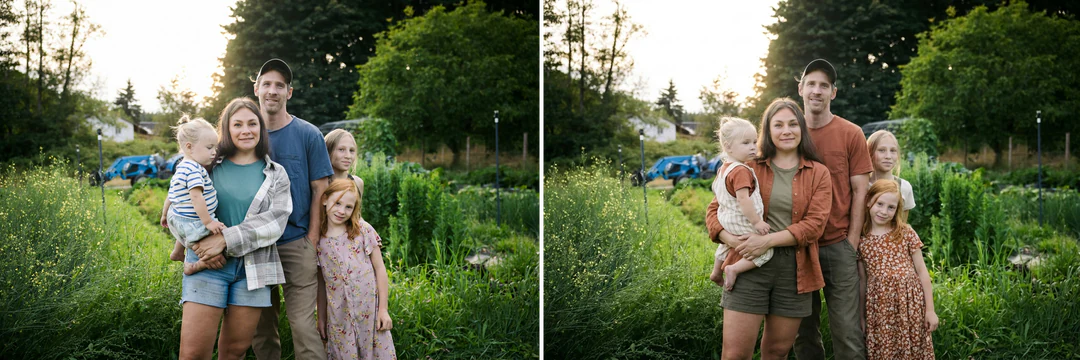
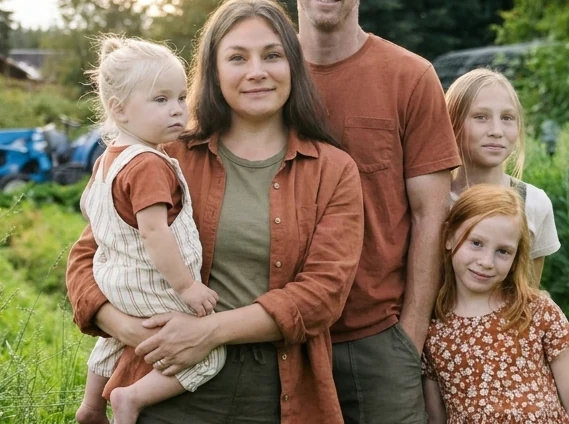
Family photo beside the same family in matching outfits from one shared palette

Auto ratio · Family

A family picking a shared direction

Use one photo where everyone is visible and the arrangement is easy to read. A shared palette can start a talk about whether a future photo should feel relaxed, festive or formal. Review every member, including smaller faces, and ask the people pictured whether they are comfortable with the image and its use.

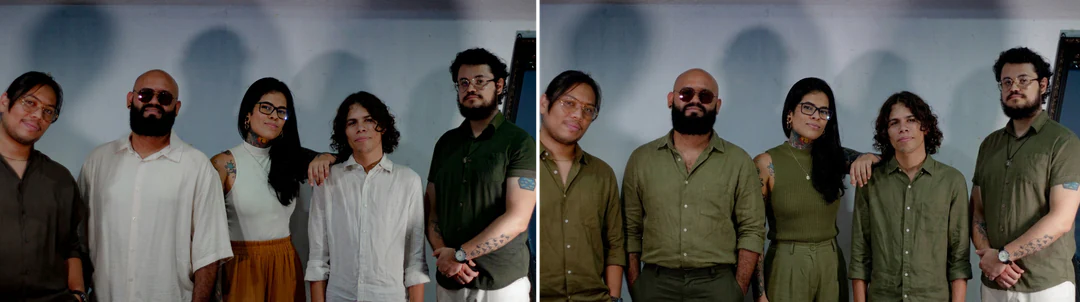
Group photo of five people beside a coordinated outfit version for a photo shoot brief

Auto ratio · Photo shoot

A brief for a group photo shoot

A photographer or stylist can read the level of coordination you want from a clearly labeled result. Keep the original group photo beside it. Do not ask the team to reproduce invented garments exactly; agree on real wardrobe options, comfort and lighting instead.

How to make matching outfits from a group photo

Upload a group photo, check the fixed output, then review every person before you download.

  1. 1. Upload one group photo

    Add one JPG, PNG or WebP image up to 20 MB, and use a photo you own or may edit. Every face should be large enough to inspect, with shoulders separated where possible. Tiny or half-hidden people, strong overlap and mixed lighting make the result harder to judge.

  2. 2. Check the fixed settings

    There is no color picker, outfit catalog or person selector; the panel shows the fixed output, one PNG at HD from Nano Banana Pro in the supported ratio closest to your photo, with 3:4 as the fallback.

  3. 3. Generate and review each person

    Each matching outfits result costs 45 credits, shown on Generate before you confirm. When the result is done, check every face, hand and sleeve against your original, agree on the use with the people pictured, then download it.

What the matching outfits template does to your group photo

Matching outfits coordinate what a group wears and leave the people alone. Four features cover who stays, the palette, the settings and the person-by-person check.

  1. 01

    Faces, hairstyles, poses and background stay

    Only the clothing is meant to change. Faces, hairstyles, poses and the background should come back as they were, which is why a photo with every face large enough to inspect works best; tiny or half-hidden people leave the model to guess.

    • Faces large enough to inspect
    • Tiny or half-hidden people are harder to judge
    Original group photo used for the matching outfits template
    The original group photo
  2. 02

    Coordinated outfits in one shared palette

    The template picks one palette and builds every outfit from it, using similar shades or a related range of light and dark pieces rather than one uniform. You decide whether the group reads as a whole while each person still looks like themselves.

    • One automatic palette for the group
    • No per-person wardrobe fields
    The group dressed in coordinated outfits in one shared color palette
    Matching outfits result
  3. 03

    No color picker, and the ratio follows your photo

    There is no color picker, outfit catalog or person selector to set. The output uses the supported ratio closest to your photo, and each run costs 45 credits.

    • One image per run
    • Separate shoulders where you can
    Matching Outfits control panel showing the fixed settings summary
    The panel shows the fixed settings before you generate
  4. 04

    Check sleeves where arms overlap

    Go person by person through eyes, expression, hands and sleeves. Look where arms overlap or a child is held, since a sleeve may land on the wrong person, and check that matching colors do not blend into the background.

    • Ask the people pictured about the image and its use
    • Agree on real wardrobe options separately
    Close view of overlapping arms and sleeves in a finished matching outfits result
    Check where one person's sleeve meets another

Keep exploring Potto AI

Pick the task that matches what you want to do with the group photo.

Matching Outfits FAQs

  1. What are matching outfits?

    Matching outfits are clothes that share colors or styling so a group looks coordinated. This template dresses the people in one reference photo in coordinated outfits from a single palette, without making every garment identical. It is a visual idea for planning a portrait session, not real clothing or fit information, so compare every person afterwards.

  2. Can I assign a specific outfit to each person?

    This fixed template has no per-person wardrobe fields or garment selector. It applies one automatic coordination direction to the group. Use a custom editing brief for a more specific concept, and review each person afterward. A shared palette in a generated picture is not a verified clothing order.

  3. Can I choose the color palette?

    No. This page applies one shared palette direction that the template chooses, and it has no color swatches or color values to select. The model may coordinate through similar shades or a related range of light and dark pieces, and the clothing does not have to be identical. Judge whether the group reads as a whole and each person still looks distinct, and do not treat screen colors as fabric samples.

  4. Which group photos are difficult?

    Pictures with tiny faces, heavy overlap, partly hidden bodies, or cropped garment areas leave more room for interpretation. Choose a source where people and clothing boundaries are clear. Inspect hands, sleeves, and the person count after generation; a good central face does not prove the whole group was preserved.

  5. Is this a virtual fitting service?

    No. The image does not measure bodies, identify available garments, or simulate physical fit. It can help discuss a coordinated look. Use actual sizing, product details, and wardrobe decisions separately if you plan a real group outfit.

  6. Can I change one person's outfit or add a holiday setting?

    Yes, with another template; this page always coordinates the whole group. AI Clothes Changer gives one person a new outfit and keeps the rest, Christmas Photos adds lights and a tree around the group, and Christmas Cards frames it on a festive card.

  7. Does it work for two people as well as a big family?

    Yes. The template coordinates everyone visible in the photo, whether that is a couple or a family of eight. Small groups with faces large enough to inspect give the most reliable result; in a big group, check the people at the edges and the smallest faces first. To change the outfit of one person only, use AI Clothes Changer.

  8. How many credits does a matching outfits image use?

    45 credits per run for one PNG at HD in the supported ratio closest to your photo, made with Nano Banana Pro. The quote appears on the Generate button before anything is charged.

Potto AI

Make your matching outfits

Upload one clear group photo, review the credit estimate, and check each person against your original before using the result.