Skip to content
Potto AI

Article to Video

Paste a link to your article or its text, and Potto turns its headline, key points and conclusion into narrated scenes with captions. Edit them one by one, then export a vertical, wide or square MP4.

From article paragraph to video frame

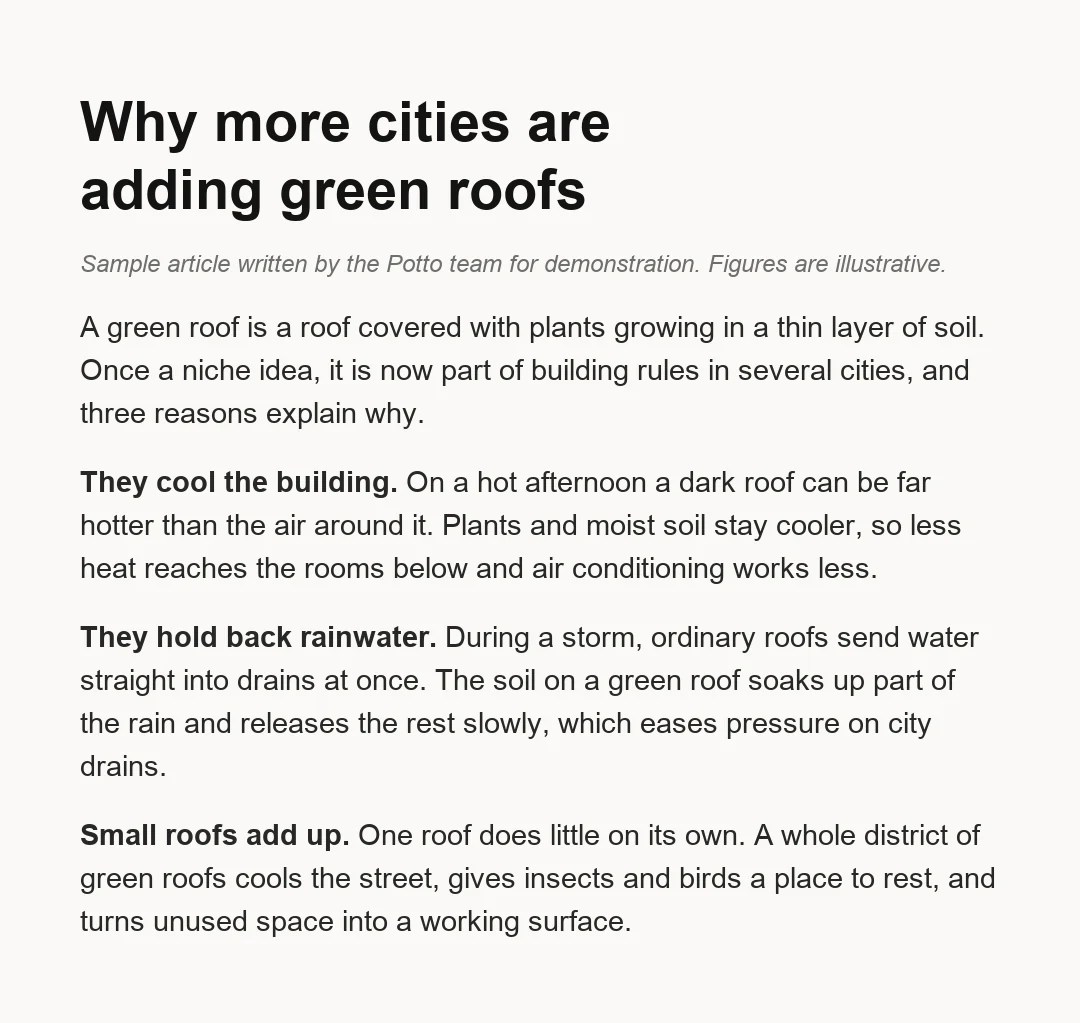
Three paragraphs of the sample green roofs article next to a frame they became in the vertical article to video sample. Short labels on screen come from the sample text; the sentences around them become narration.

Sample article titled Why more cities are adding green roofs, with three reasons in bold
Pasted article text · three reasons
Video frame · 0:08 · 9:16

What stays on screen

Each reason gets its own scene with a short label: they cool the building, the soil soaks up rain, small roofs add up. Article headings and claims a viewer should remember belong in a frame, not only in what is spoken.

What became narration

The explanation behind each reason is spoken and captioned. Writing is read at the reader's own pace; a script is heard once, so its sentences should be short and follow the order of what is on screen.

What to check before you export

Make sure the qualifiers survive. The sample says green roofs are not free and need care in their first two years, and that trade-off should still be heard in the narration. Compare every name and number in a frame with the source article.

What each kind of article should become

Before you turn an article into a video, tell the article to video AI what viewers should take away. The kind of article then decides length, frame and which points the script should leave out.

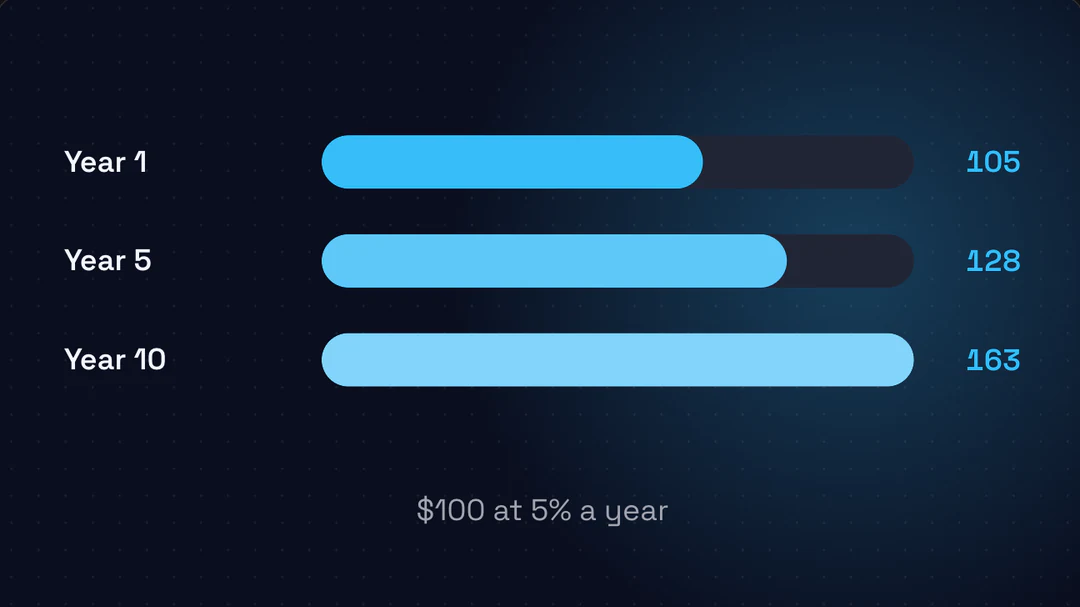
9:16 · 28s

Blog to video for posts you published

Blog to video works best when it leads with the main answer of the post and two or three points that support it, then sends viewers back to the full post. A wide frame suits the blog page itself; a vertical cut suits phones. For blog to video from a link, the post must be public and open without a login.
9:16 · 25s

News to video for updates and announcements

Paste the news URL or the story text, then ask for what happened, why it matters and what comes next. Keep dates, names and figures exactly as the article states them, and name the source on screen or in the narration. News to video in Potto works from the story you give it; it does not watch news sources or pick stories for you.

16:9 · 40s

Guides, newsletters and long articles

Pick one section or a few main items instead of the whole piece. A how-to guide becomes numbered steps; a newsletter becomes an item per scene. For a long read, paste only the part you want covered, or upload it as a document.

How to turn an article into a video

Blog to video, news to video and every other article to video project take three steps in the creator above. Generating and previewing are free, and a credit price appears before you export.

  1. 1. Paste a link or your text

    Paste your article's URL, or paste its text into the creator, and choose Article to Video under Video type. Add a sentence on who it is for and what they should remember; for news to video, include the date of the story. The URL must be a public http or https page; Potto reads that page and may read up to 2 more pages on the same site.

  2. 2. Review script, scenes and narration

    Read the script from the article to video AI against your source. Edit words on screen and voiceover for any scene, swap in a screenshot, or regenerate or replace an illustration. Check that names, numbers and qualifiers still match the source article.

  3. 3. Preview, then export an MP4

    Watch a preview in your browser for free. Export a 1080p MP4 at 30 fps in 9:16 for phones, 16:9 for websites or 1:1 for feeds. Credits are charged only when you export, based on length, narration and illustrations.

What the article to video AI does with each article

Many blog to video and news to video tools read a page aloud over a slideshow. Potto's article to video AI rewrites your writing for viewing: the headline, key points and conclusion become animated text, lists and illustrations with narration and captions, so the result plays like a short explainer rather than a page read aloud.

  1. 01

    A script written from the article you paste

    Claude Opus 5.5 reads your article and drafts an outline, storyboard and narration script around its main point, evidence and conclusion. Scenes are rendered with Remotion, with AI-generated illustrations and voiceover. Potto does not fact-check what you paste, so the script is only as accurate as your source.

    • Outline, storyboard and script drafted by AI
    • Built from your own source
    Opening scene of the green roofs sample
  2. 02

    Start with a link or pasted text

    Blog posts and news stories start the same way: paste the URL of a public http or https page, and Potto reads that page plus up to 2 more pages on the same site. Pages that need a login cannot be read, so paste the text instead. Potto reads only what you give it in each project; it does not pull stories from news sources.

    • Public http and https pages
    • Pasted text for pages behind a login
    Green roofs sample, made from pasted text
  3. 03

    Narration in 32 languages, with captions

    Choose any of 32 narration languages or let Potto detect a language automatically. Captions highlight each word as it is spoken, so the clip still reads when it plays muted. Listen once at normal speed for names and terms taken from the article before exporting.

    • 32 narration languages or auto-detect
    • Word-by-word captions
    Study summary sample scene
  4. 04

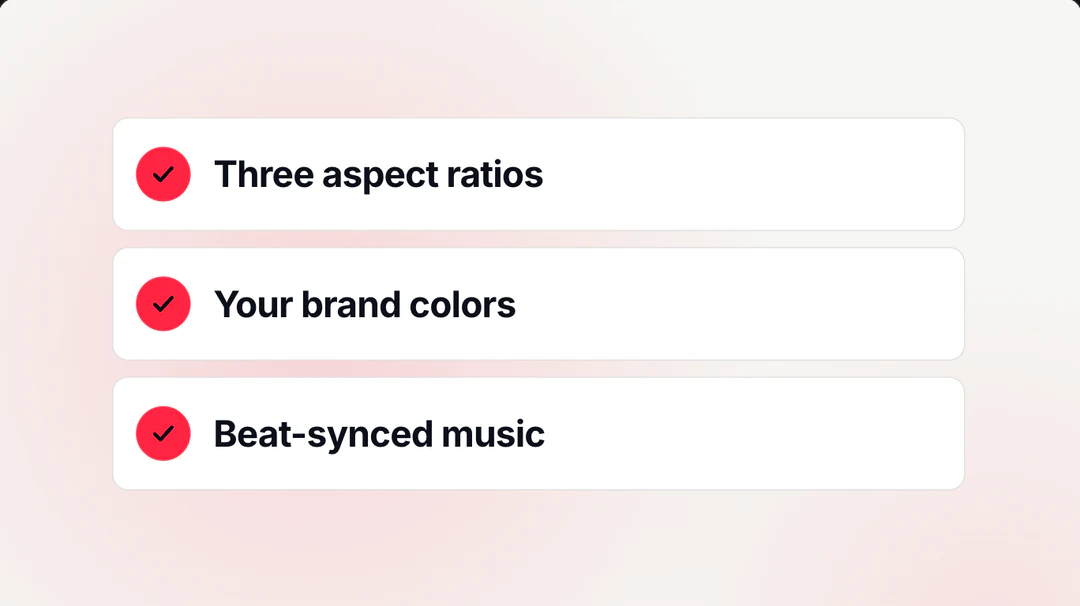
    Your brand colors, font and logo

    Select a brand kit, or turn on the default brand, and its four brand colors are applied to the visuals. Choose a font from Inter, Space Grotesk and Bricolage; your logo appears in opening and closing scenes.

    • Four brand colors in the visuals
    • Logo in opening and closing scenes
    Square report summary sample
  5. 05

    Vertical, wide or square MP4

    Export a 1080p MP4 at 30 fps in 9:16 (1080×1920), 16:9 (1920×1080) or 1:1 (1080×1080). Aspect ratio leaves the price unchanged, so pick whichever frame fits where it will play: phones, an article page or a feed.

    • 9:16, 16:9 and 1:1 frames
    • Price not affected by aspect ratio
    One sample report in 9:16, 16:9 and 1:1

Keep exploring Potto AI

Article to video is one way to start. These pages cover other starting points and tools to use alongside it.

Article to Video FAQs

What article to video means, how links and pasted text are read, and the edits, formats and prices to know before exporting.

  1. What is article to video?

    Article to video is the process of turning a written article, such as a blog post, a news story or a guide, into a short video that presents its main points with visuals, narration and captions, so people can watch the story instead of reading the whole page. Blog to video and news to video are the same idea applied to blog posts and news stories. A basic tool reads the text aloud over a slideshow. Potto's article to video AI reads your article, writes a storyboard and narration script, turns the headline, key points and conclusion into motion graphics, and renders an MP4. It does not film footage or generate a digital presenter.

  2. How do I turn an article into a video?

    To turn an article into a video, paste its link or its text into the creator at the top, choose Article to Video under Video type (or leave it on Auto), and add a sentence about your audience and goal. Potto drafts a script, storyboard, narration and captions; you edit them scene by scene, preview for free in your browser, and export an MP4 once it reads right.

  3. Can I paste a link instead of the article text?

    Yes, if your article is on a public http or https page, which is the usual way to start blog to video from a post you already published. Potto reads the page you link and may read up to 2 more pages on the same site. Pages that need a login cannot be read, and Potto asks for screenshots instead; for article to video, you can also paste its full text into the creator.

  4. Does Potto find or follow news sources automatically?

    No. Potto's article to video AI works only with what you give it in a project: a link or pasted text. It does not search for stories, subscribe to news sources or create videos on a schedule. For news to video, paste each news article's link or text yourself, and put the source and the date in your brief so the script can name them.

  5. Which articles work best for blog to video and news to video?

    Articles with one clear main point work best: a blog post that answers a question, a news article, a how-to guide or a newsletter item. Clear headings, exact numbers and a stated conclusion give Potto's article to video AI more to work with. For a long read, paste only the section you want covered, because one short clip cannot hold every paragraph.

  6. Does Potto check the facts in my article?

    No. Potto does not fact-check your article. The article to video script is built from what your source says, so names, numbers, dates and quotes are only as accurate as what you paste. Check them in the storyboard and again in the final MP4, and keep qualifiers such as "in several cities" next to the claim they limit.

  7. Can I edit the script and scenes before exporting?

    Yes. Before you export, you can edit what Potto's article to video AI drafted: the words on screen and the voiceover script for each scene. For visuals, you can swap in a screenshot, choose its focus point, regenerate an AI illustration or replace it with your own upload. Preview again after each change.

  8. What formats and sizes can I export?

    Potto exports a 1080p MP4 at 30 fps. Choose 9:16 (1080×1920) for phones, 16:9 (1920×1080) for a website or a blog page, or 1:1 (1080×1080) for feeds. A 4:5 frame and GIF export are not available.

  9. How many credits does article to video cost?

    Generating and previewing an article to video project in your browser is free; credits are charged only when you export. The price depends on duration, narration length and how many AI illustrations you use, and aspect ratio has no effect on it. For example, a 30-second video with English narration and no illustrations costs 153 credits, and adding 2 illustrations brings it to 199 credits. Each account can start up to 30 video projects and generate up to 60 illustrations a day.

  10. Can I upload my article as a PDF or Word file?

    Yes. PDF, PowerPoint (.pptx) and Word (.docx) files can be uploaded directly, up to 20 MB per file and 100 pages of text, and the first 12 pages can be used as visuals. For a long document, only its opening part is used to write the script, so put the section you want covered first. The PDF to Video page covers documents in more detail.

Potto AI

Turn an article into a video

Paste a blog post, a news story or any article by URL or as text, review the script and scenes, and see the credit price before you export an MP4.