AI Image Tools
These AI image tools cover every image task in Potto, from the first draft to the last fix.
AI Image24 tools
Create Image7
 AI Image GeneratorGenerate images from a prompt and references
 Text to ImageTurn a written prompt into an image
 Image to ImageRestyle or change an image you upload
 AI Photo GeneratorMake realistic photos from a prompt
 AI Art GeneratorPaintings, illustrations and other art styles
 AI Character GeneratorDesign a character and keep it consistent
 AI Picture GeneratorPictures for posts, slides and pages
GIF & Stickers3
Edit & Enhance14
 AI Image EditorChange parts of an image by describing the edit
- AI Photo EditorEdit photos with plain words
 AI Image ExtenderExtend an image to a new aspect ratio
- Image ExpanderWiden a photo without cropping
 Background RemoverCut the subject from its background
- Remove BGOne-click background removal
- Background ChangerPut the subject on a new background
- Transparent BackgroundExport the subject as a transparent PNG
 Image UpscalerEnlarge an image and keep it sharp
- Image EnhancerImprove light, color and detail
- Unblur ImageRecover detail in blurry photos
- Photo EnhancerClean up and sharpen everyday photos
 Watermark RemoverRemove watermarks from an image
 Text RemoverErase text from an image
Image Templates30 templates
All templates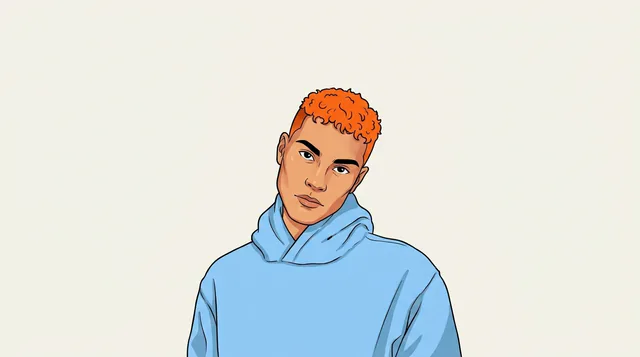 AI Cartoon Generator
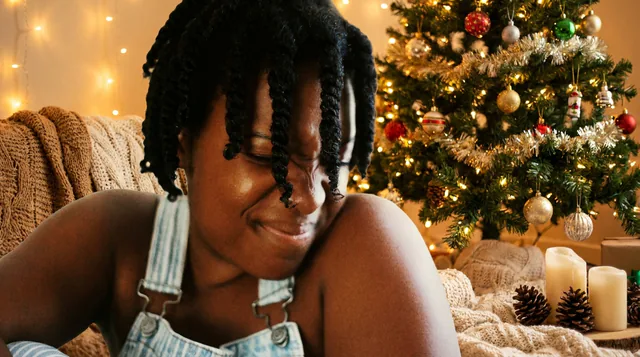 Christmas Photos
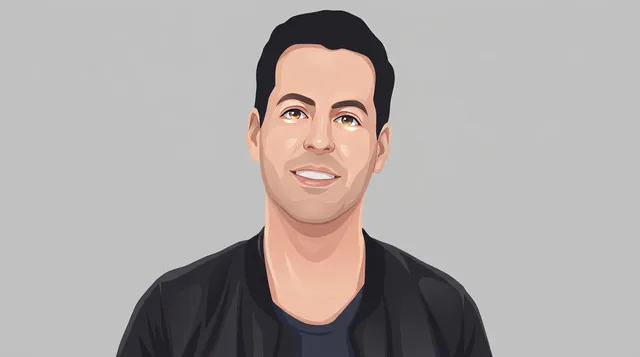 Avatar Maker
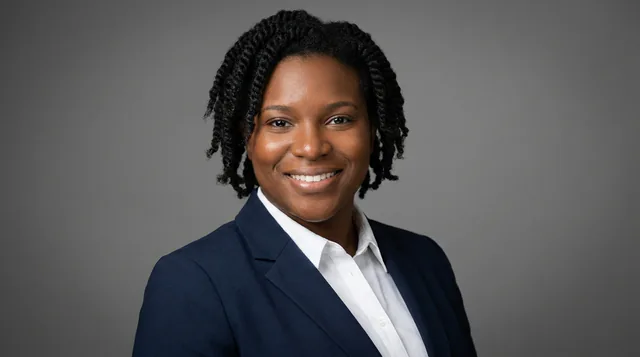 AI Headshot Generator
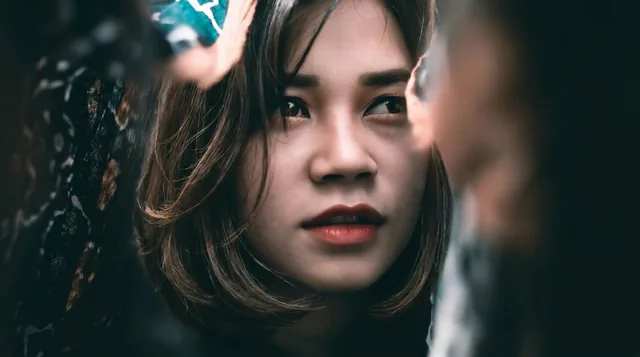 AI Hairstyle
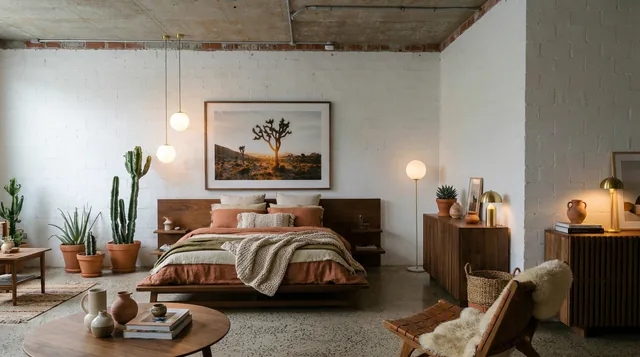 Interior Design
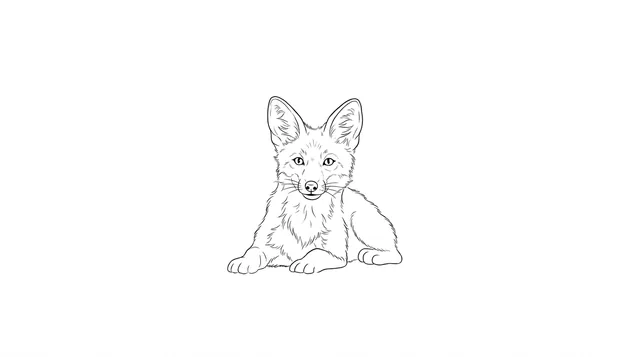 Tattoo Design
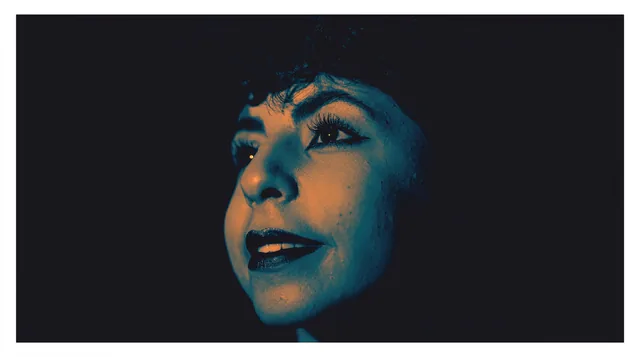 Album Cover
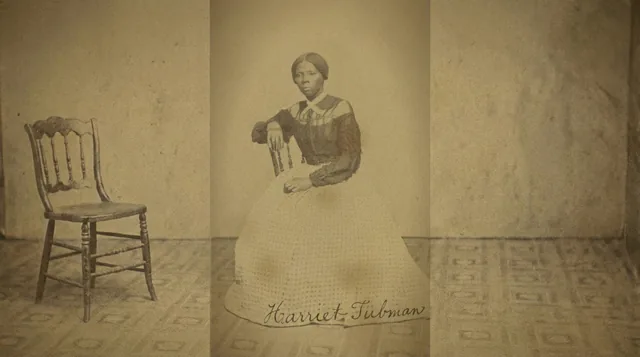 Old Photo Restoration
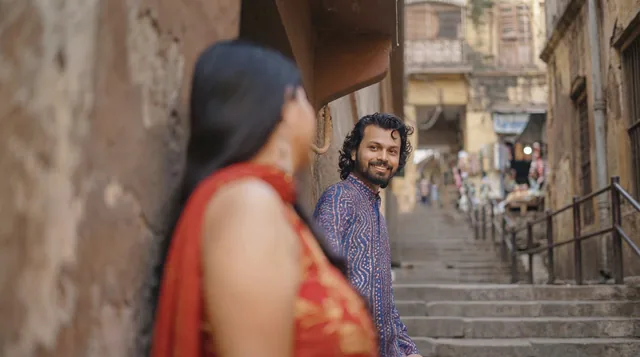 Colorize Photo
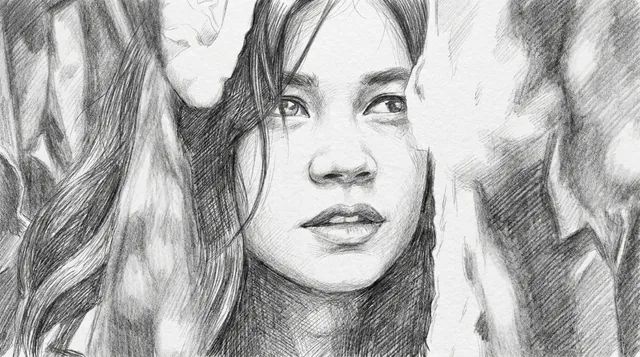 Photo to Sketch
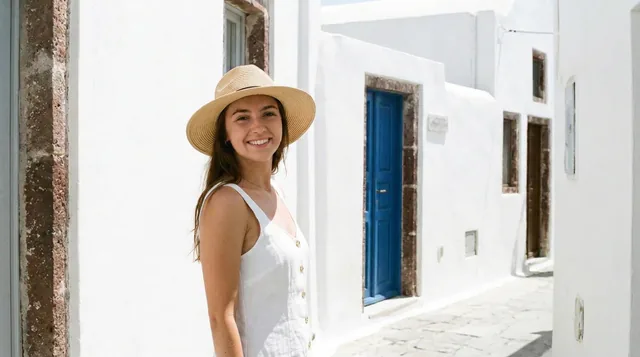 Remove People from Photo
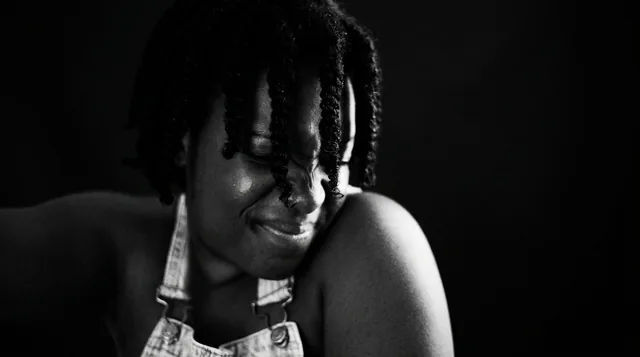 Black and White Photo
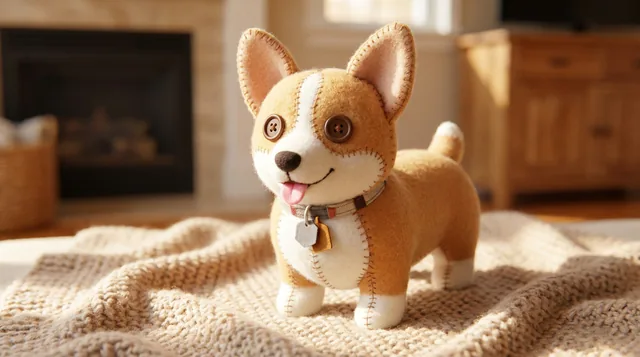 AI Plushie
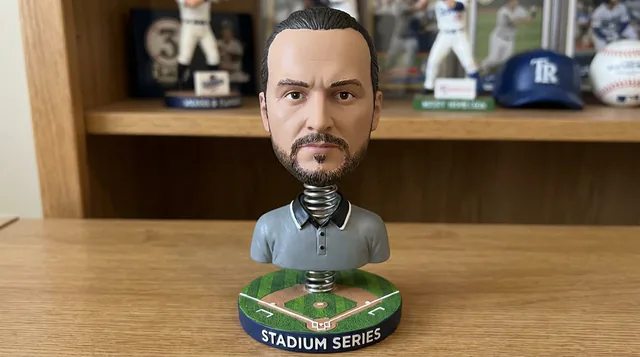 Bobblehead Maker
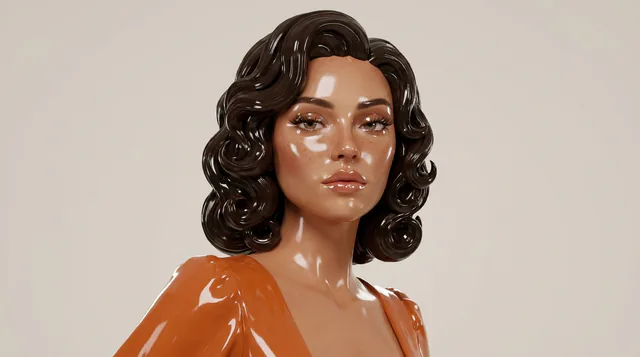 Doll Maker
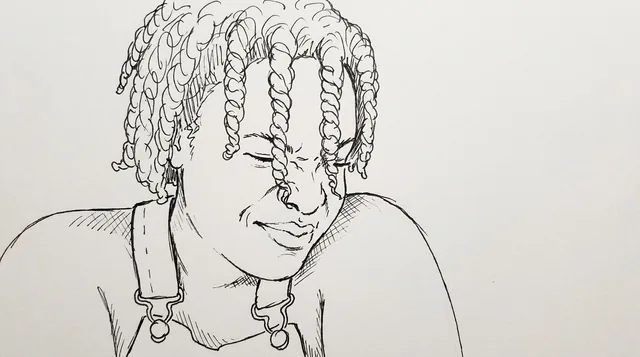 AI Doodle
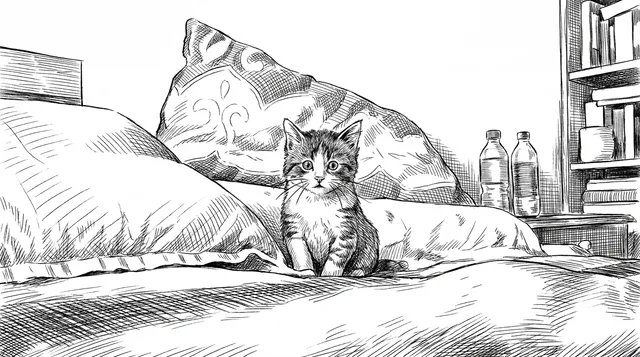 Ink Drawing
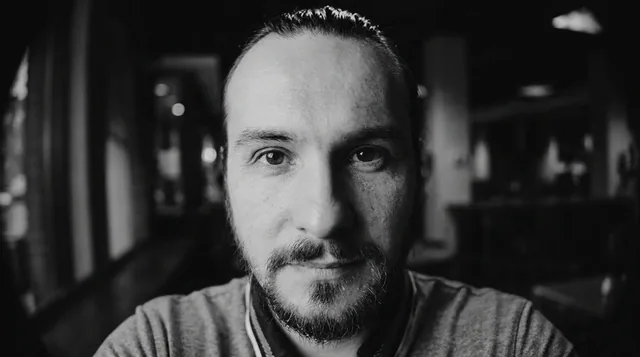 Fisheye Effect
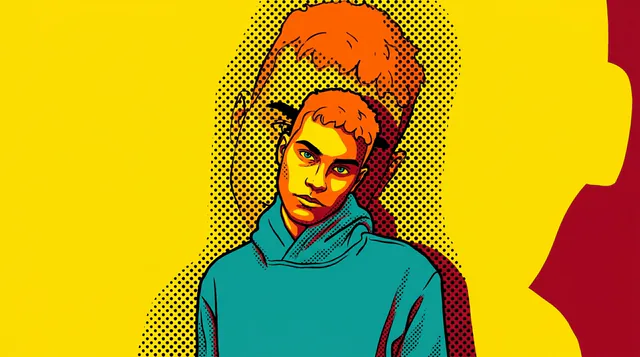 Pop Art Portrait
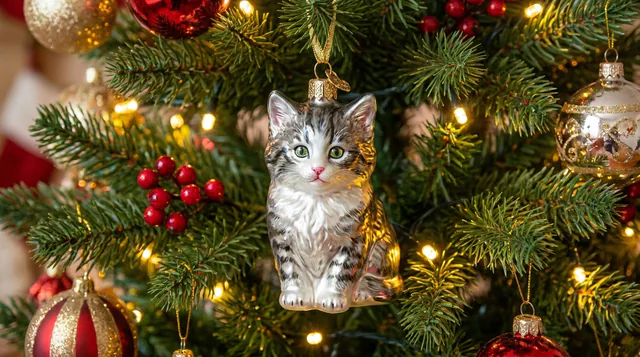 Christmas Ornament Ideas
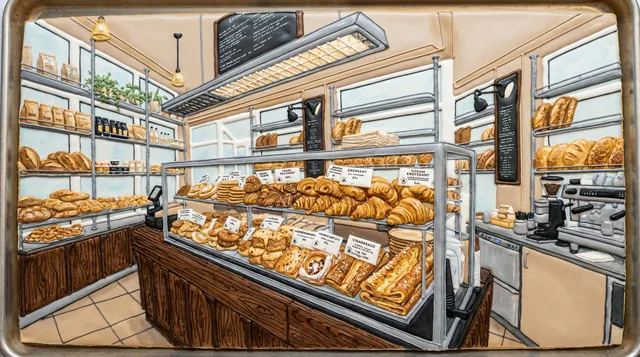 Cookie Art
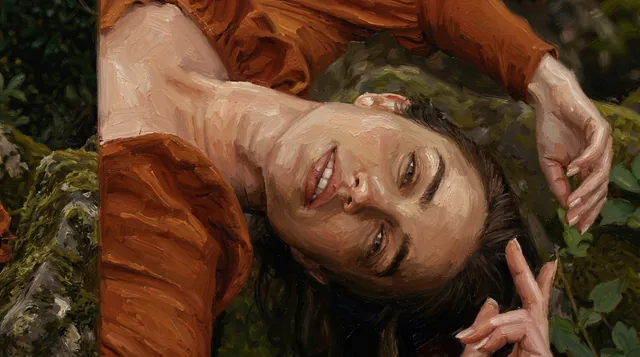 Photo to Painting
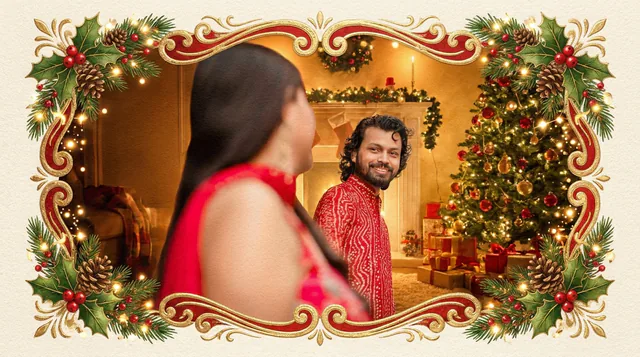 Christmas Cards
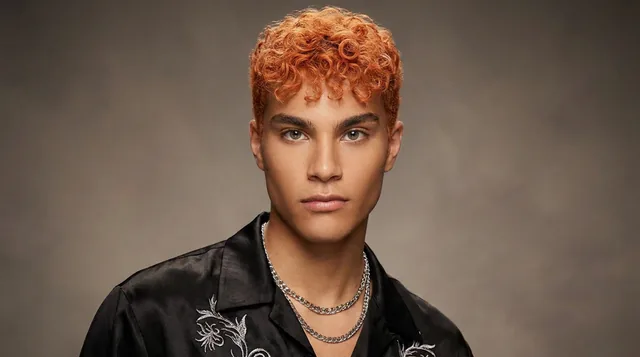 Kpop Photo
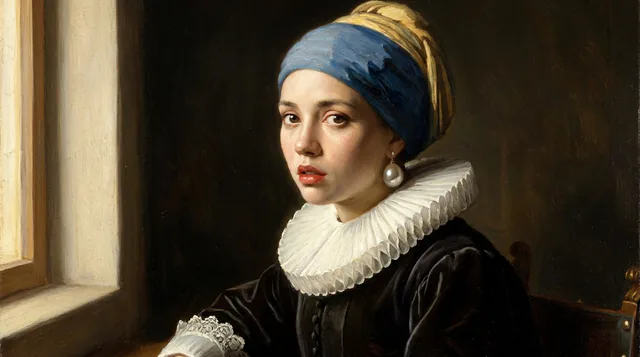 Girl with a Pearl Earring
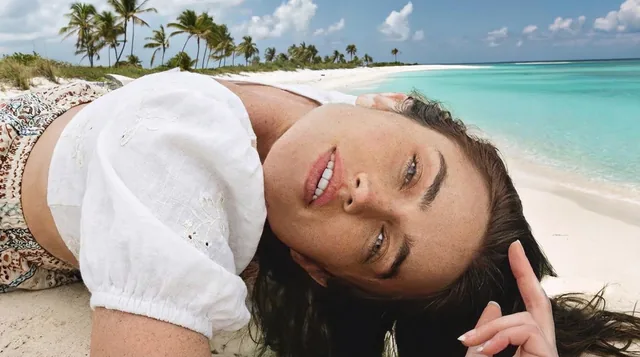 AI Clothes Changer
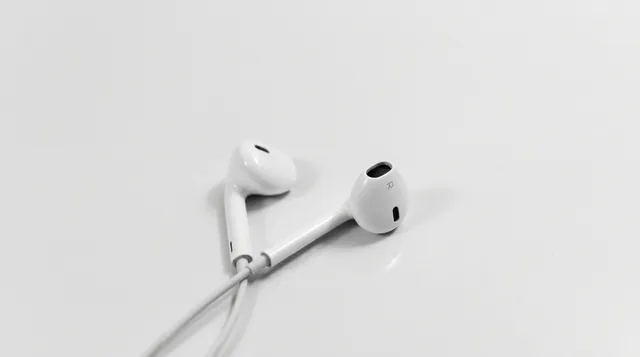 Product Photography
 Matching Outfits
 Keychain Design
How to choose an AI image tool
Match your task to one of these AI tools for image generation or editing.
Make a picture
Use Text to Image. Write a prompt and AI draws it.
Change one part
Use AI Image Editor. Describe the edit and add up to 14 references.
Clean a background
Use Background Remover. Get a transparent PNG for 4 credits.
Sharpen a small file
Use Image Upscaler. Enlarge a photo 2x or 4x.
Widen a photo
Use AI Image Extender. Pick 1:1, 3:4, 4:3, 9:16 or 16:9.
Clear a watermark
Use Watermark Remover on an image you own.
Make a GIF
Use GIF Maker. It turns a video or photos into a GIF in your browser.
Make stickers
Use Sticker Maker. Start from a sentence or a photo.
Try a style
Use an image template. Add one photo and pick a look.
Combine AI image editing tools
Most projects use more than one tool. These AI image editing tools work well together.
Sell a product
- Cut out the product with Background Remover.
- Place it in a scene with the Product Photography template.
- Sharpen the final file with Image Upscaler.
Restore a family photo
- Start with the Old Photo Restoration template.
- Add color with Colorize Photo.
- Enlarge the result with Image Upscaler.
Fix a photo for a banner
- Describe the fix in AI Image Editor.
- Widen the frame with AI Image Extender.
- Finish with a larger file from Image Upscaler.
Make a looping GIF
- Describe a small motion in AI GIF Generator.
- Download the GIF and the sprite sheet.
- Turn a video clip into a second loop with GIF Maker.
What goes in and what comes out
Each group of AI tools for image generation and editing takes different input.
| Tools | You add | You get |
|---|---|---|
| Image generators | A prompt, and reference images if you want them. | AI draws images in HD, 2K or 4K at the ratio you pick. |
| Edit tools | One photo. | An edited photo, such as a cutout, a sharper image, a wider frame or a cleaner scene. |
| AI GIF Generator | A sentence, and one reference image if you want. | A looping GIF plus its sprite sheet. |
| GIF Maker | A video clip or up to 60 images. | A GIF made in your browser, with no upload. |
| Sticker Maker | A sentence, a photo or both. | Transparent PNG stickers or an animated GIF sticker. |
| Image templates | One photo. | A styled picture, such as a headshot, a cartoon portrait or a restored old photo. |
Credits and limits
Check these limits before you pick one of the AI tools for image generation.
- All Potto tools use one credit balance.
- Cost depends on the tool, the model and the size.
- Uploads can be up to 20 MB.
- Most tools use credits. GIF Maker is the exception.
- New accounts start with 100 credits.
- AI can make mistakes. Check faces, text and fine detail before you share.
Choose Your Plan
Choose your credits and generation priority. Potto does not add a visible watermark to your downloads.
Lite
Black Friday -50%Choose Lite$16$8/monthBilled $96 for the first year, then $192/year
- 2,000 monthly credits
- Up to 86 fast images
- Standard queue
- No Potto watermark
- Batch image tools
- Private creations
- All premium skills
Pro
Black Friday -50%Choose Pro$40$20/monthBilled $240 for the first year, then $480/year
- 5,000 monthly credits
- Up to 217 fast images
- Priority queue
- No Potto watermark
- Batch image tools
- Private creations
- All premium skills
- Recommended
Max
Black Friday -50%Choose Max$80$40/monthBilled $480 for the first year, then $960/year
- 15,000 monthly credits
- Up to 652 fast images
- Highest priority queue
- No Potto watermark
- Batch image tools
- Private creations
- All premium skills
AI image tools FAQs
What are AI image tools?
AI image tools are apps that make or change pictures with AI. Some draw a new image from a prompt. Others edit, enlarge or clean a photo you upload. Potto's AI image editing tools also cover GIFs, stickers and styled portraits.
Which AI image tools does Potto have?
Potto has AI image generation tools and photo editors. It also has background and watermark tools, an upscaler, GIF and sticker makers, and image templates. The list above gives each tool a short note. Every tool opens its own page with a creator on top.
What is the difference between AI image generation tools and AI image editing tools?
Generation tools draw a new image from your prompt. Editing tools change a photo you already have. Use a generator when you start from an idea. Use an editor when you start from a file.
What are image templates?
Image templates are ready-made styles. You add one photo. AI applies the style, such as a cartoon portrait, a headshot or a restored old photo. A template is faster than a prompt. A generator gives you more control.
Which AI image tool should I start with?
Start with what you have. Pick Text to Image for an idea and AI Image Editor for a photo. Pick Background Remover for a cutout and Image Upscaler for a small file.
Which models do the AI image generation tools use?
The generators use Nano Banana, Nano Banana Pro and GPT Image models. You pick the model in the creator. Each model page lists its sizes, references and credit prices. The full list is on AI Models.
What files can I add to an AI image tool?
Most tools take JPG, PNG or WebP files. Uploads are capped at 20 MB. Image Upscaler and Watermark Remover take up to 10 MB. The AI Image Editor takes up to 14 reference images in total.
How much do AI image tools cost?
The price follows the tool and the model. An HD image costs 23 credits with Nano Banana and 45 with Nano Banana Pro. Background removal costs 4 credits. Upscaling costs 2 credits at 2x and 6 at 4x. The total shows before you confirm.
Are there free AI image tools in Potto?
GIF Maker is free. It runs in your browser and needs no credits or account. New accounts also get 100 credits, enough for four HD images with Nano Banana. Other tools use credits from a plan or a credit pack.
Do I need an account to open an image tool?
No. You can open any tool and set it up first. Sign in when you press Generate. Your prompt, files and settings stay in place after you sign in.
Start with your first AI image tool
Pick a task from the list, or describe your picture in the creator.