Skip to content
Potto AI

Unblur an image and compare it with the source

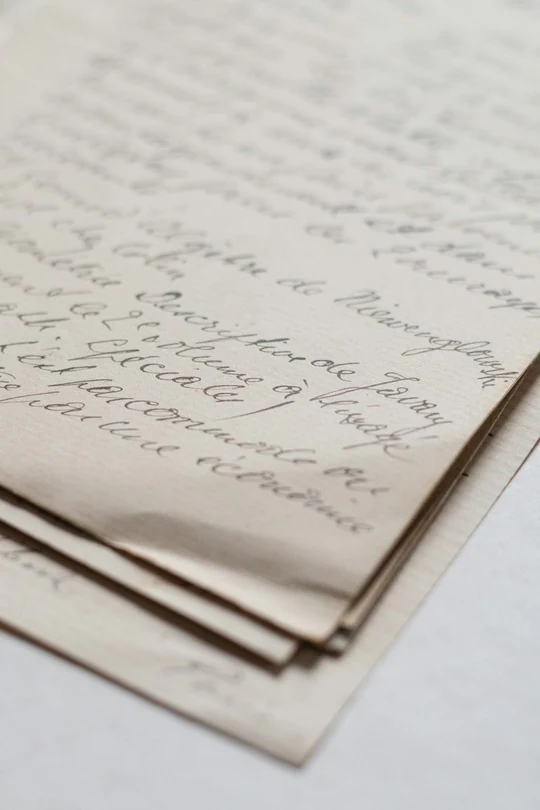
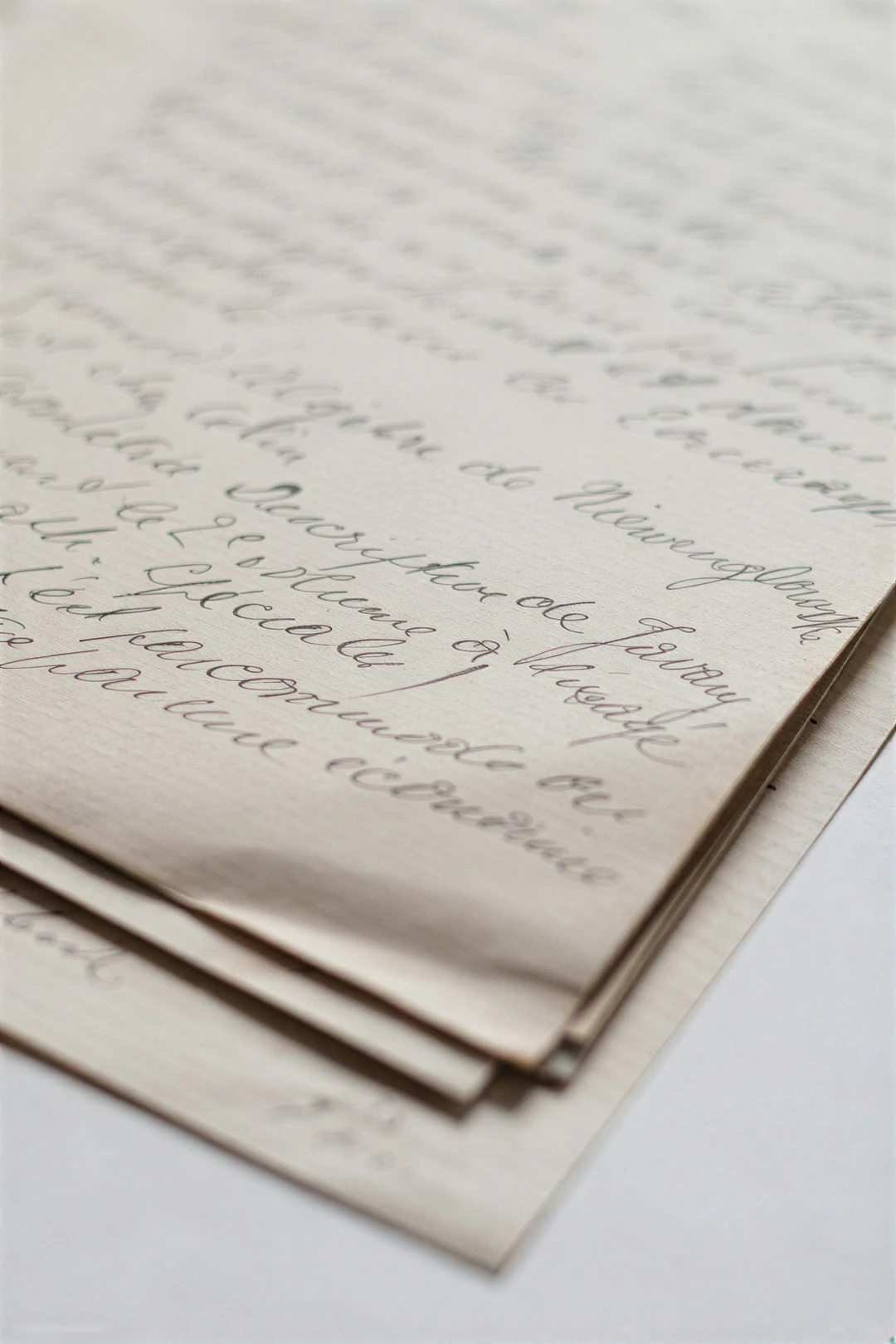
The same photo of handwritten pages as a slightly soft source and after unblurring. Decide first what must stay readable when you unblur an image, then judge the unblurred result at the size you will use.

The same handwritten pages at 540×810 before upscaling, soft ink strokes
Source · slightly soft
The same handwritten pages after unblurring at 2x, ink strokes and paper edges crisper
Unblurred · 2×

What stayed

The scene, the crop and the proportions stay the same, because the photo is enlarged rather than redrawn as a new scene. The untouched source remains the factual reference for every shape, face and word.

What was interpreted

Enlarging adds pixels, and the fine detail in them is inferred, so the picture is interpreted rather than un-blurred. Repeated strokes can look sharper while changing shape, and an unreadable word can gain a plausible letter that was never written. Textures such as paper, fabric and skin are redrawn.

What to check

Compare source and unblurred result at matching size. Inspect straight edges for doubled contours, smooth areas for new texture, and faces for expression. Judge a face by its expression and the proportions of its features, not by how crisp the eyelashes look. If the unblurred image is sharper but less useful, keep the original.

Where unblurring is worth trying

These three blurry photos are soft for different reasons. Before you unblur image detail, name the purpose, then decide how much interpretation is acceptable.

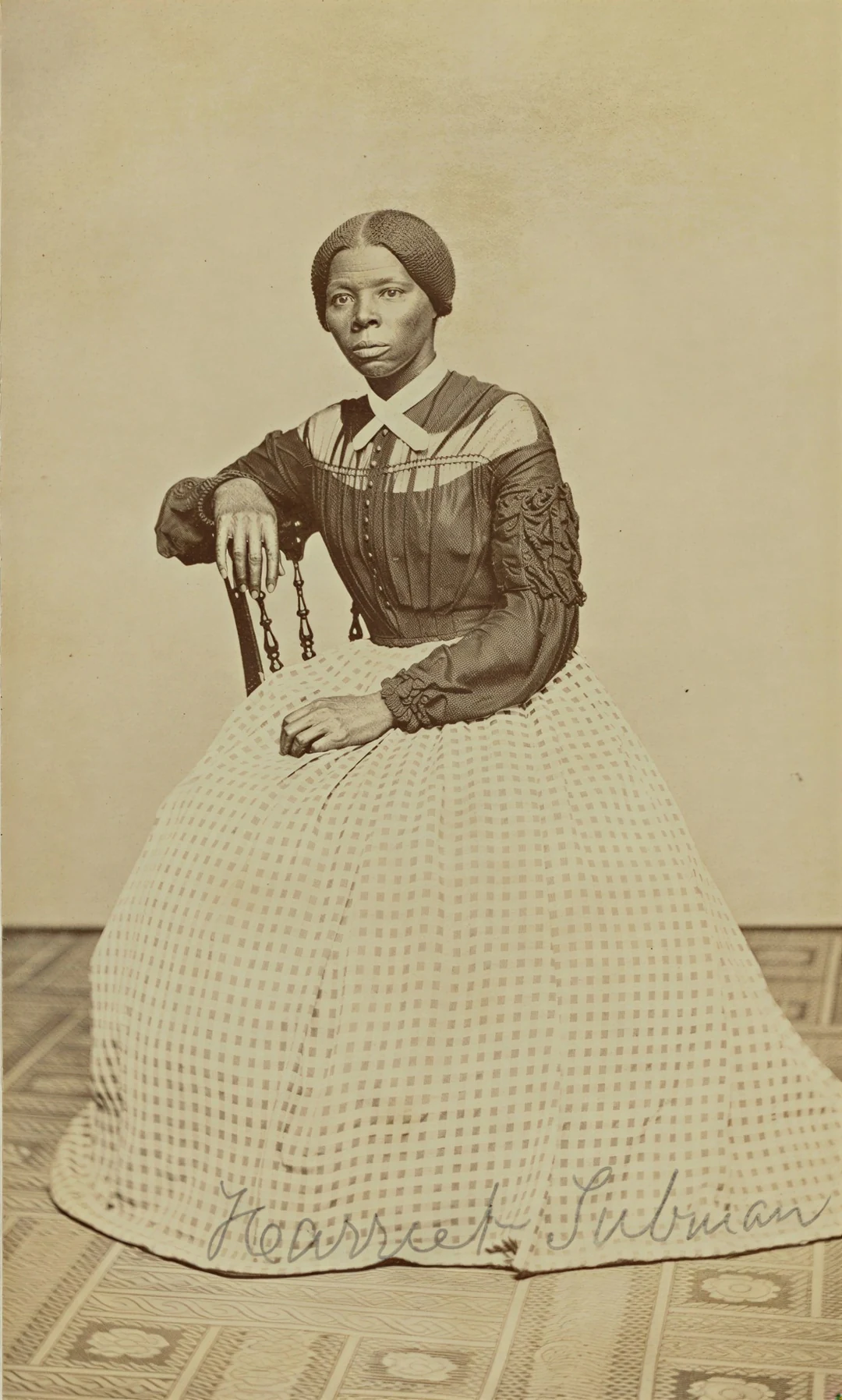
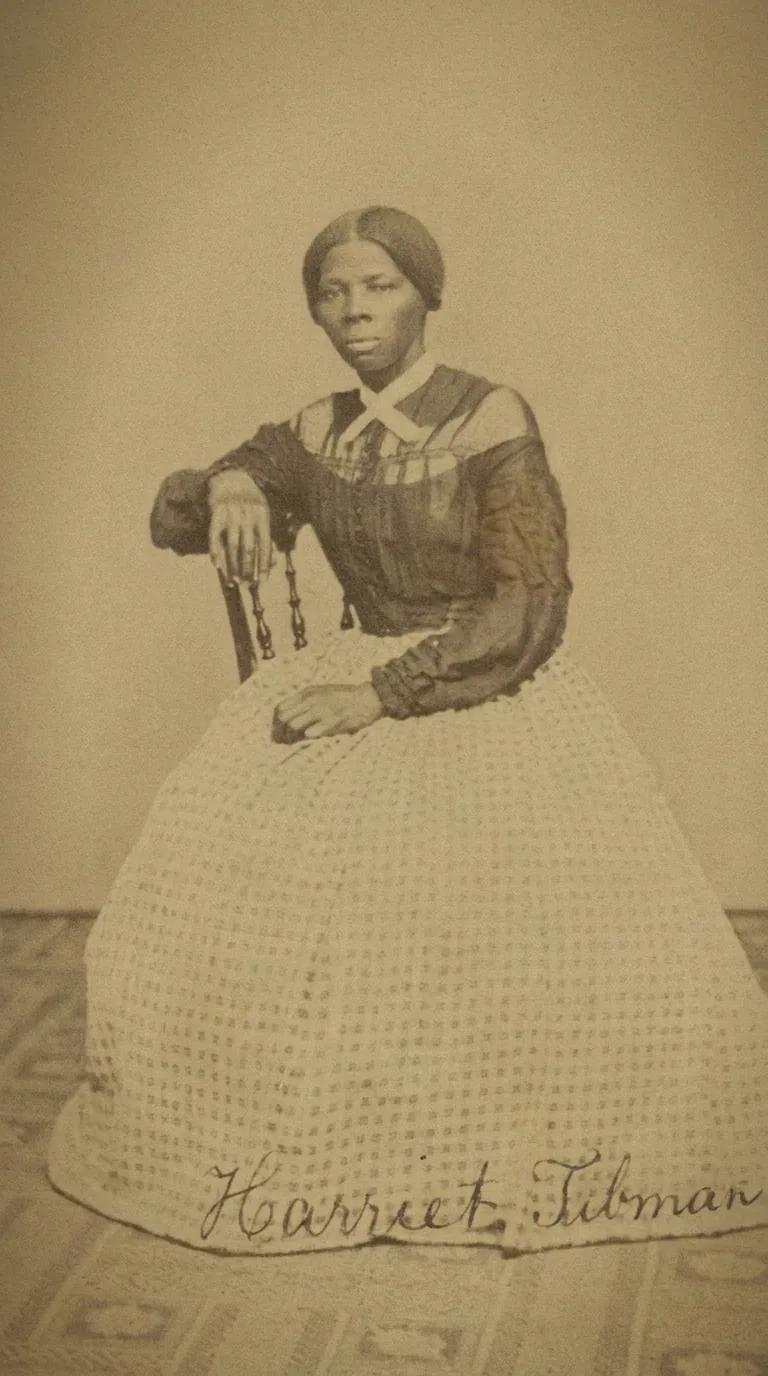
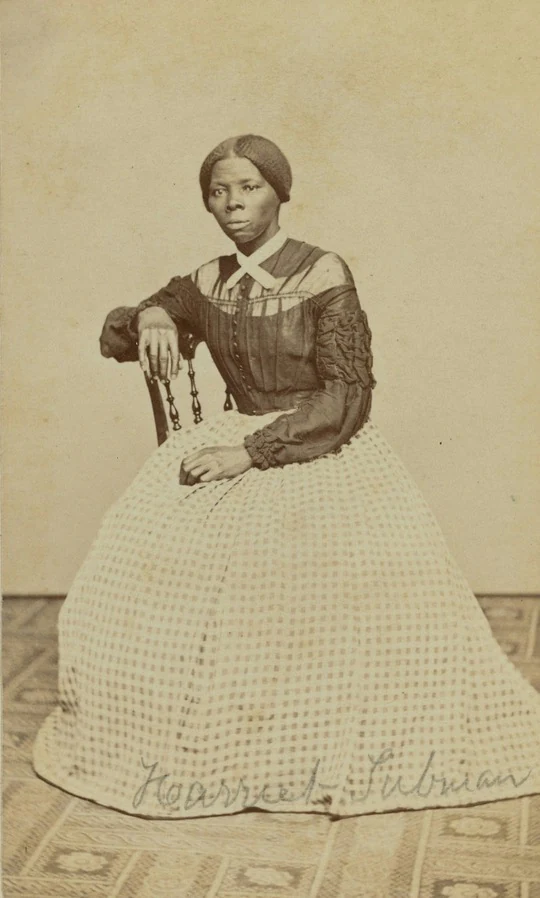
The same sepia portrait at 540×898 before upscaling, soft and low in detail

Soft2×

A family photograph for a small album

People are recognizable but slightly soft, and the use is an album page, not an identification record. Start from the camera file, not a messaging copy, and unblur the photo once; to unblur a photo twice rarely helps. Compare expressions first: eyes, smile and hairline. Eyelashes, irises and freckles are redrawn during enlargement, so check they still match the person. A polished face that looks like a different person is a poor trade. Keep the original and name the unblurred copy clearly.
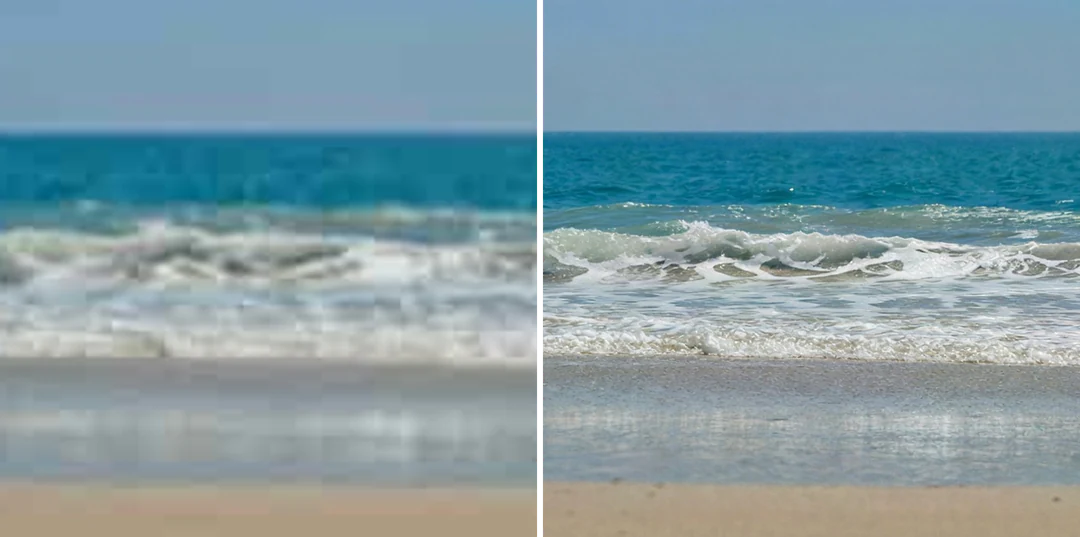
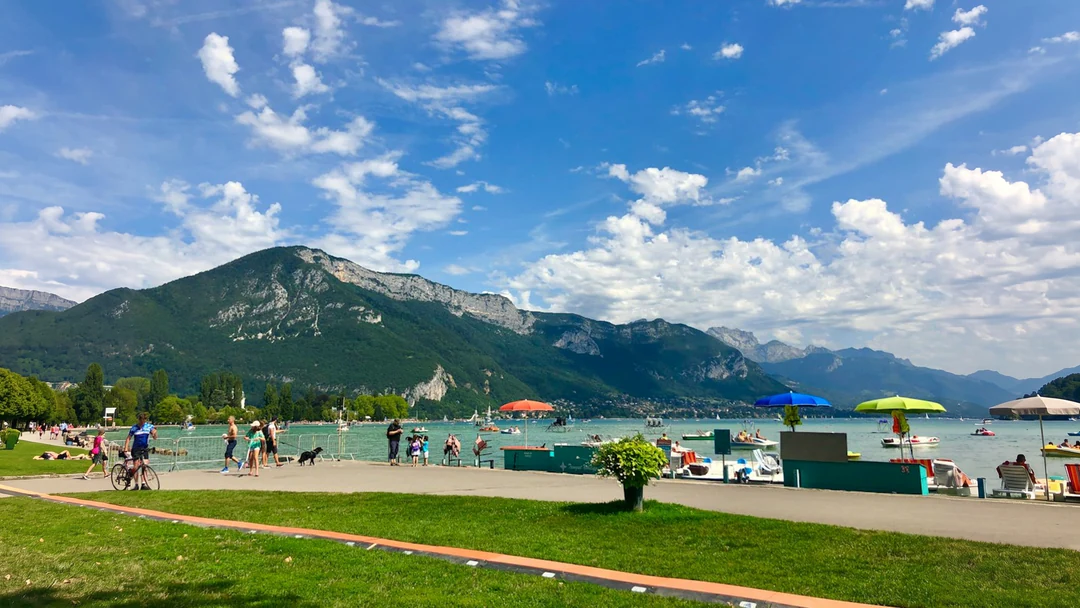
Small early digital photo of a shoreline beside its 4x unblurred version

Small4×

An early digital photo for a present-day screen

An old camera image looks blurry because it has few pixels. Enlarging gives room, but the extra pixels are inferred, so treat the unblurred result as a new rendition. Check large shapes first, such as the shoreline and rooflines, then repeated detail like windows and branches. Look for a better original before you unblur an archive copy. A source already 2,048 pixels on its long edge cannot use 2×.

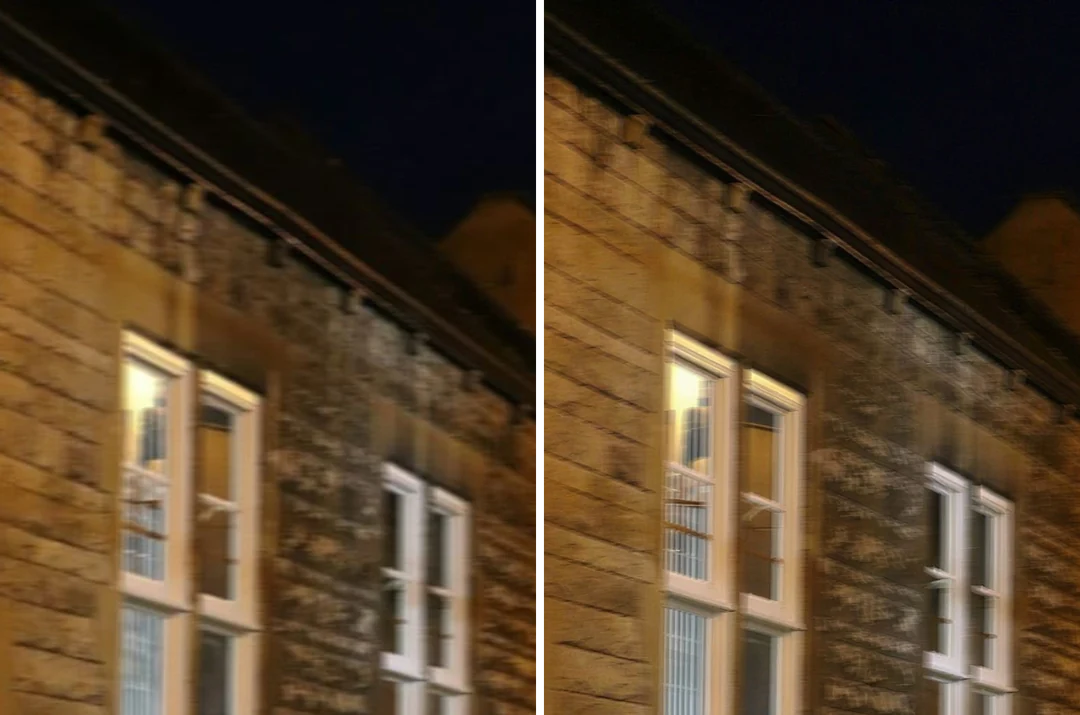
Dim handheld street photo with slight motion beside its 2x unblurred version, window frames in close-up

Moving2×

A handheld scene with slight movement

A dim handheld photo can hold camera shake and moving people at once, so one clean wall says little about the rest. Check straight lines such as window frames and lamp posts for doubled contours, and hands for merged shapes. If a second frame exists, compare it first. Start at 2×, because a larger scale leaves more room for invented detail. There is no motion-deblur control on this page, so a strong smear stays a blurry photo that this blur remover cannot undo.

How to unblur an image

Three controls in the panel above.

  1. 1. Identify the blur and upload the photo

    Look at a boundary that should be clear. Even smoothing suggests missed focus, one-direction trails suggest movement, and blocks suggest compression. Then add a JPEG, PNG or WebP up to 10 MB, ideally the original file, and check the size where you plan to use it. A photo that will be shown small may not need unblurring at all, and a blur remover cannot add information that was never captured.

  2. 2. Choose 2× or 4× for the destination

    2× has a 2,048-pixel long-edge limit and 4× has 4,096. The labels describe requested enlargement, not how much blur disappears; no scale removes blur by itself. A small slide portrait needs far fewer pixels than a wide background, and a larger scale can expose interpreted defects instead of resolving them. The result line reports the original size, the new size and the actual factor.

  3. 3. Generate and review one attempt

    Unblurring costs 2 credits per image at 2× and 6 at 4×, shown on the Generate button before you confirm. Compare the source and the result at matching size, then inspect a few key crops and the final layout. Keep the source, and do not run the same image again without a reason.

What unblurring does to a soft photo

Unblur Image enlarges the photo and interprets detail. These four points show where it helps and where to stay careful.

  1. 01

    Soft photos come back with cleaner edges

    Unblur Image gives soft edges more pixels, so they read more cleanly at the larger size. That makes it a fit for gentle softness, such as a family print scanned at low resolution, not a way to rescue a badly missed shot.

    • Best for softness caused by low resolution
    • The scene, crop and proportions stay the same
    A soft vintage studio portrait after unblurring at 2x, face and fabric sharper
    A soft vintage portrait after unblurring at 2×. Compare the face with the source.
  2. 02

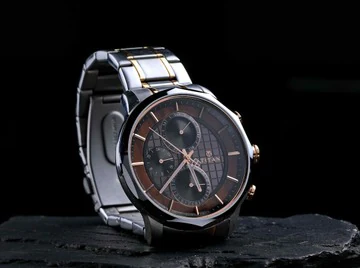
    A small, soft source can use 4×

    Early digital photos and small downloads are often both soft and tiny. Choose 4× when the photo must fill a present-day screen and 2× when it only needs to grow a little. The long edge is limited to 2,048 pixels at 2× and 4,096 at 4×, so the result can be smaller than the named factor.

    • 2 credits at 2× and 6 at 4×, quoted on Generate
    • JPEG, PNG or WebP up to 10 MB
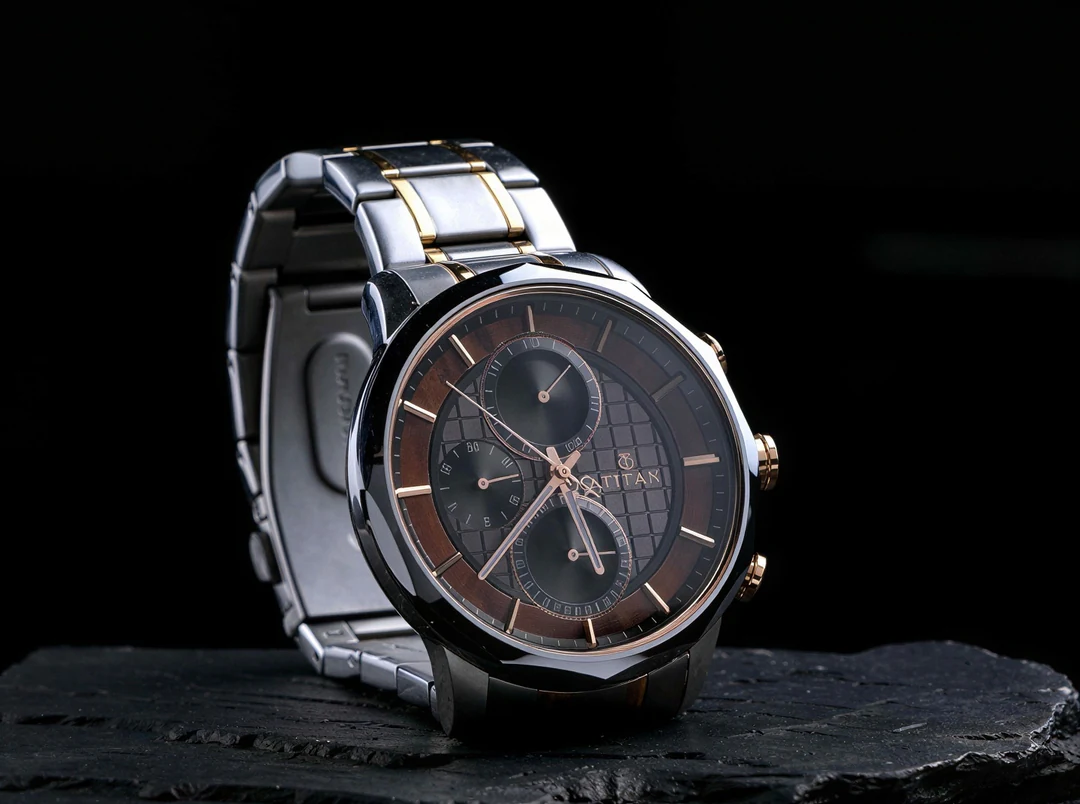
    The same watch photo at 360×268 before upscaling, blurry bracelet and dial
    A small, soft source. Pick the scale from the destination.
  3. 03

    Slight movement is judged, not reversed

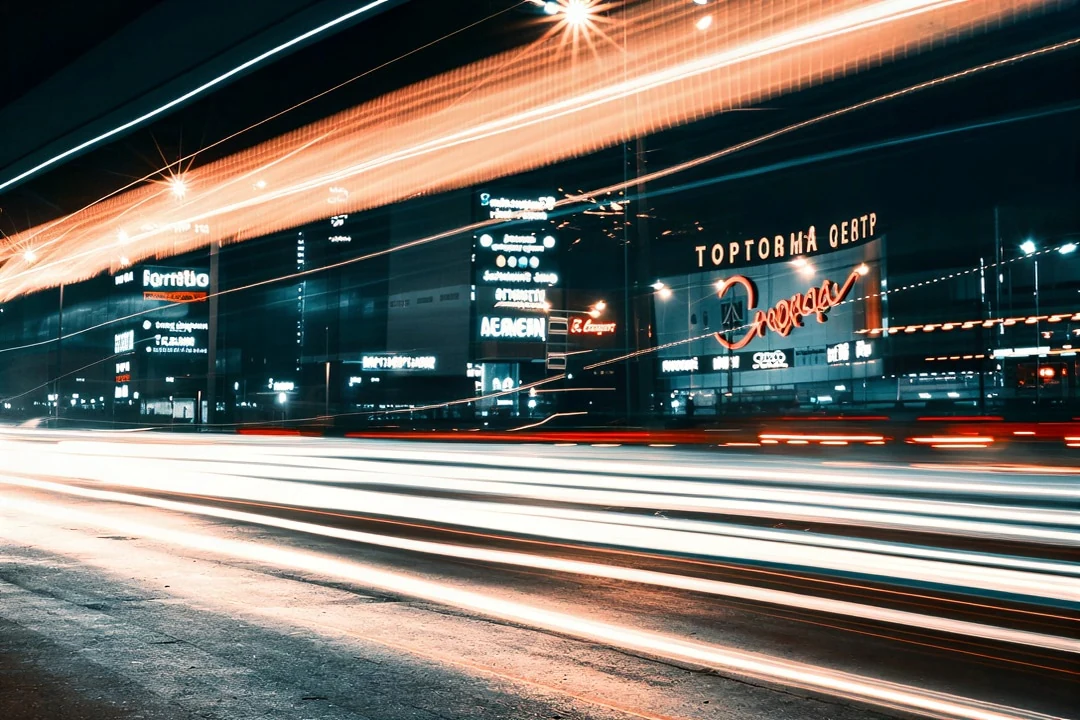
    Motion blur smears detail instead of only softening it, so Unblur Image interprets the picture rather than undoing the movement. A handheld scene with slight movement can look steadier, while heavy streaking usually stays visible.

    • Compare straight edges for doubled contours
    • Check smooth areas for new texture
    A night street scene with long-exposure light trails
    Light trails from a long exposure. Motion in a photo is interpreted, not reversed.
  4. 04

    Unreadable text and faces stay uncertain

    Unblur Image cannot recover names, numbers or small lettering the photo never recorded, and inferred detail can look sharp and still be wrong. Treat faces, signs and handwriting as unverified and check them against the source before you use the result.

    • Do not use an unblurred copy as evidence
    • Keep the source file beside the result
    The same handwritten pages at 540×810 before upscaling, soft ink strokes
    Handwriting that was never recorded cannot be recovered.

Keep exploring Potto AI

When blur is only part of the problem, these tools handle what Unblur Image does not.

Unblur image FAQs

What unblurring does here, how a blur remover differs from a sharpening slider, and what to check in an unblurred photo.

  1. What does unblur image mean?

    To unblur an image is to make a soft or blurred picture easier to read. On Potto AI this works by enlarging the image 2× or 4× and rebuilding its fine detail, not by reversing the blur, so heavy motion blur stays. The sharper detail is inferred, so compare the result with the source and do not treat it as recovered information.

  2. What is a blur remover, and how does Potto AI unblur a photo?

    A blur remover is a tool that tries to make a blurred photo look sharper. Potto AI's blur remover enlarges the image 2× or 4× and redraws the detail at the larger size. Soft edges and textures can look crisp afterwards, but that detail is the model's interpretation of your photo, not a recovery of what the camera missed.

  3. What is the difference between softness and motion blur?

    Softness comes from small dimensions, compression or missed focus; motion blur smears detail in one direction while the photo is taken. The two can appear together. There are no separate controls for each cause, so start from the best source you have and inspect the result for invented edges.

  4. Is unblurring different from upscaling?

    Here, no: unblurring uses the same 2× and 4× enlargement as the Image Upscaler, so switching pages does not unlock a stronger blur remover. Use whichever page matches your question. If scratches, fading or physical damage are the main problem, use Old Photo Restoration; if the image is already sharp but too small, use the upscaler.

  5. Can I recover unreadable names or numbers?

    Do not use a generated sharper-looking word as proof of the original. Verify names, numbers, and symbols against another reliable source, or retype known content as separate text. Receipts, identity documents, records, screenshots, surveillance frames and license plates are unsuitable material for an interpretation that might be treated as recovered truth. If that information is necessary, find a better photograph than a blurry photo, or the original document.

  6. Which files and scales can I use?

    Upload JPEG, PNG or WebP images up to 10 MB. The 2× option has a maximum output long edge of 2,048 pixels and 4× has 4,096, so the actual enlargement can be smaller than the named factor. A source already at or beyond a limit cannot use that scale, and in a batch one such image makes that scale unavailable for the group. Each image becomes its own task.

  7. Does unblurring crop my photo or change its file format?

    No. The result keeps the photo's proportions: when a size limit applies, the whole image is scaled to fit, never cropped or stretched. It also keeps the format you uploaded, so a JPEG comes back as a JPEG, a PNG as a PNG and a WebP as a WebP.

  8. What should I check in an unblurred result?

    Put the source and the unblurred result side by side at matching size. Check the whole composition, then a few meaningful crops such as eyes, an object's outline or the horizon, and finally the real layout. Watch for over-regular hair, repeated bricks, plastic-looking skin, light outlines and busy texture in plain areas. Generating again gives another interpretation, not verification, so keep the source.

  9. Do I need an account to unblur an image?

    You can upload a blurry image and choose 2× or 4× before signing in. Starting the unblur opens the sign-in dialog, and your image stays in place.

  10. What if unblurring an image fails?

    The task shows why it stopped and offers a retry, and the credits are released. Replace the file if the upload failed. Running unblur again on a finished result is a new, charged request.

  11. How much does it cost to unblur an image?

    Unblurring costs 2 credits at 2× and 6 credits at 4×. The amount is on the button before you confirm, and a failed task releases its credits.

Potto AI

Unblur your photo

Upload a blurry photo, choose 2× or 4× and compare the unblurred result with the source before you download.