Skip to content
Potto AI

GPT Image 2.5 Sunburst

Edit a photo with GPT Image 2.5 Sunburst by naming the one change you want, or generate a new image from a prompt, then compare the result with your source.

gpt-image-2.5-sunburstHD to 4KUp to 14 ReferencesPNG or JPEG
Enter a prompt to generate

Try an example

From a photo and one instruction to an edit with GPT Image 2.5 Sunburst

Start image editing with GPT Image 2.5 Sunburst from the photo you want to change. Write the change first, then list everything that must stay, and check the result against the original.

Name the change, then name what must stay

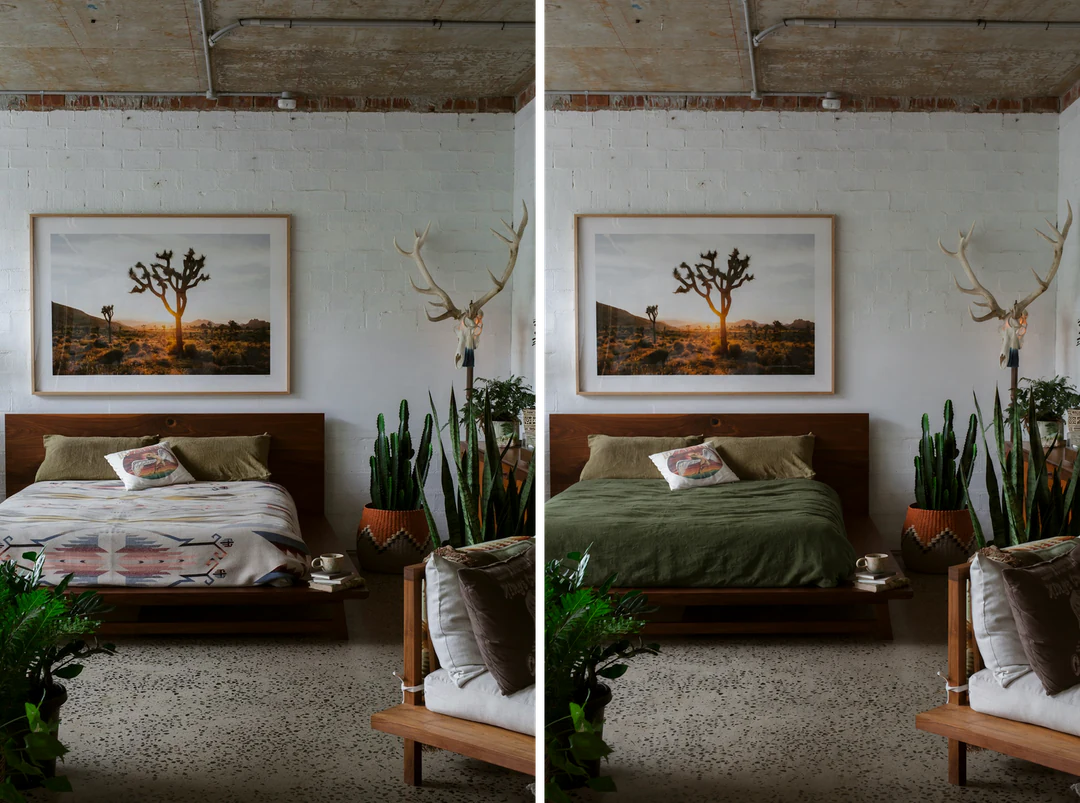
A precise edit needs two decisions: one change, and a short list of things to keep. Upload a photo of your room, write the change in the first sentence and the keep list in the second, and leave the rest of the picture alone. The pair shows the original photo beside the result of this instruction, edited with GPT Image 2.5 Sunburst.

Change
Replace the patterned blanket with plain deep green linen.
Keep
The pillows, wooden bed frame, framed photograph, plants and lighting.
Check
Where the new fabric meets the frame, and the way the folds fall.
Bedroom before and after a GPT Image 2.5 Sunburst edit that swaps the patterned blanket for plain green linen.
Original photo beside the edited result

Change only the bedding: replace the patterned blanket with plain deep green linen and keep the folds natural. Keep the pillows, wooden bed frame, framed desert photograph, plants, wall and lighting exactly as they are.

Change the light and keep the scene

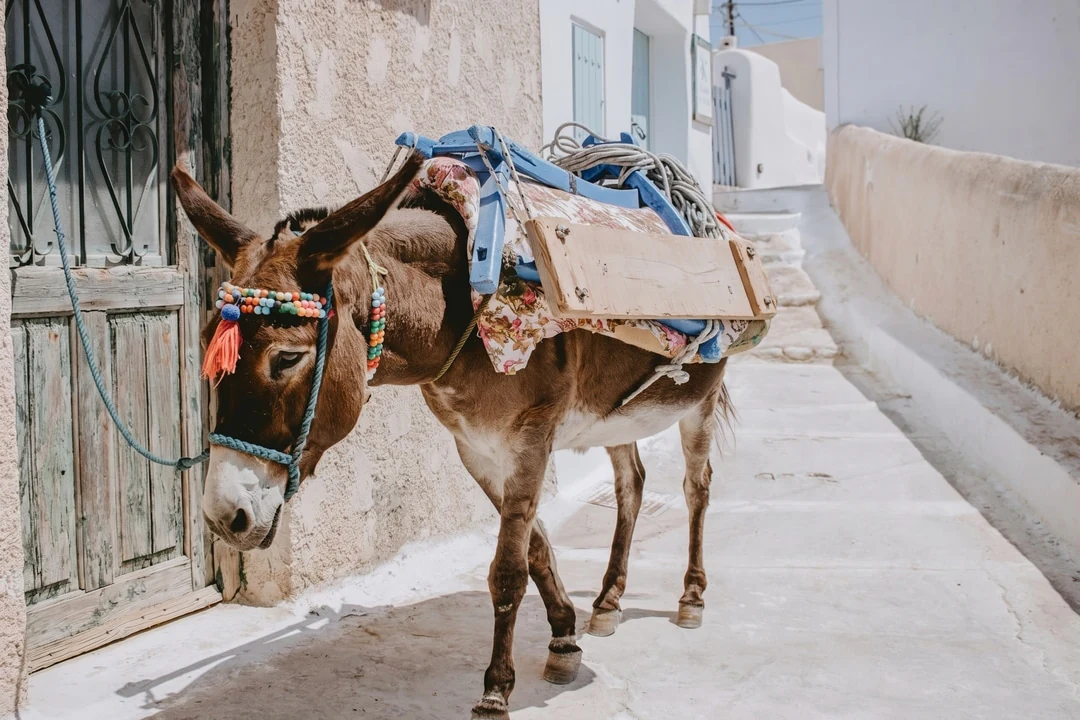
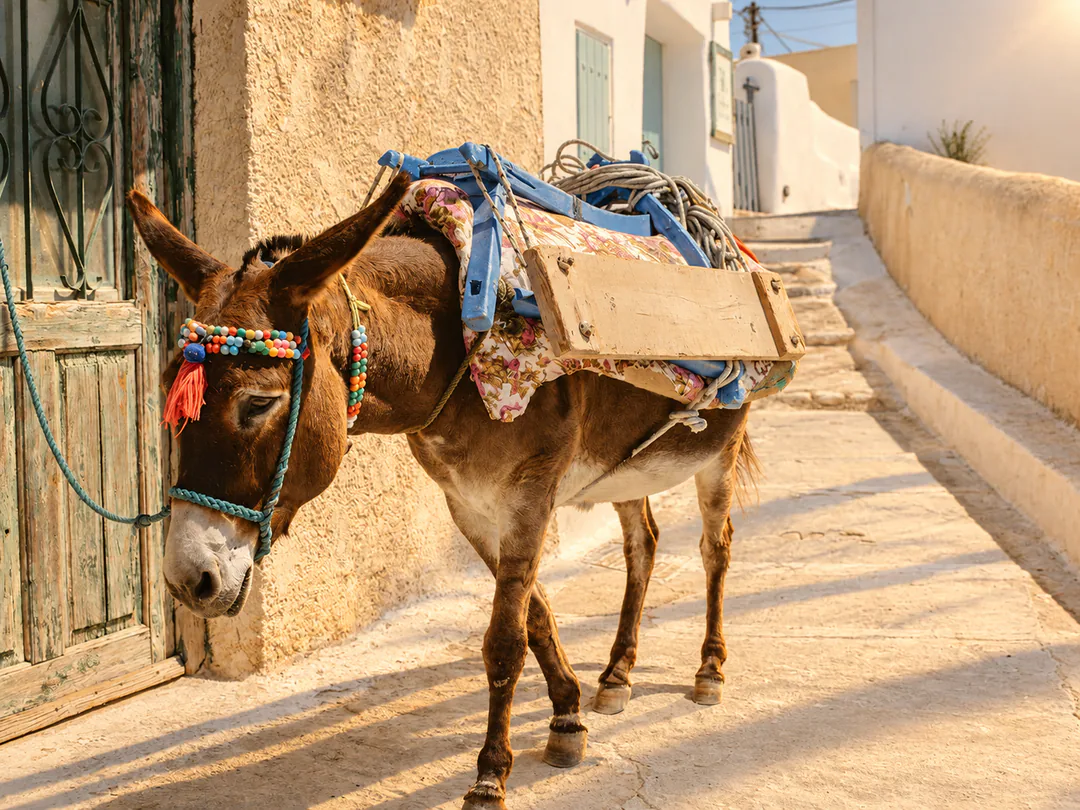
Upload a supported image and say what should stay recognizable and what should change. Here only the light changes: the donkey, saddle, bridle, green door and walls are named as fixed. An instruction like this guides the edit but does not guarantee an exact copy, so compare shadows, edges and small details with the source before you use the result.
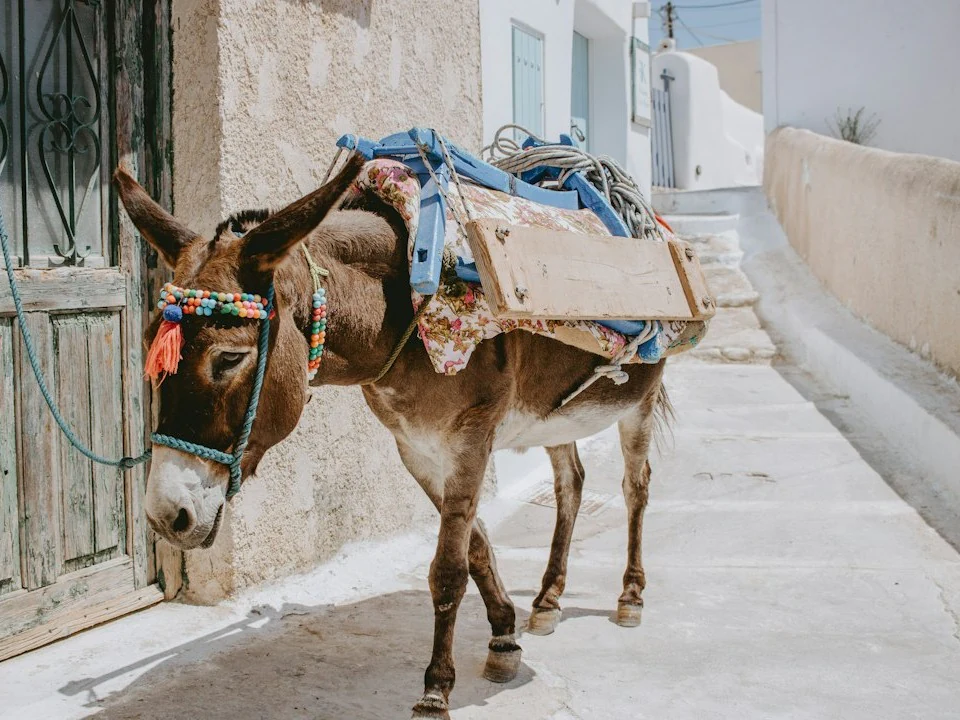
Donkey with a colorful bridle and a loaded saddle on a bright whitewashed street, used as the reference photo.
Reference photo
The same donkey and street after a GPT Image 2.5 Sunburst edit, in warm late-afternoon light with long shadows.
Result: the same street in late-afternoon light

How to edit a photo with GPT Image 2.5 Sunburst

Three actions in the creator above.

  1. 1. Add the photo and name one change

    Edit with GPT Image 2.5 Sunburst by adding the photo you want to change as a reference, up to 14 in total. In the prompt box, up to 4,000 characters, write the change first and then the things to keep. Refer to extra references by position, such as image 2, and say what each one is for.

  2. 2. Choose the ratio and output tier

    Pick GPT Image 2.5 Sunburst, then the aspect ratio of your source so the frame is not recomposed. Choose HD, 2K or 4K and one, two or four images. Start at HD while you test the wording, then raise the tier for the version you will use.

  3. 3. Generate, compare and download

    Review the quote on the Generate button: 5 credits per HD image, 9 per 2K and 15 per 4K, multiplied by the number of images, so two 2K images cost 18. Compare the result with your original at its real display size, then download it or edit it again.

What GPT Image 2.5 Sunburst edits in a photo

Four kinds of image editing with GPT Image 2.5 Sunburst, each with an instruction that names one change and lists what stays. Each pair shows the original beside the edited result.

  1. 01

    Change the words and keep the layout

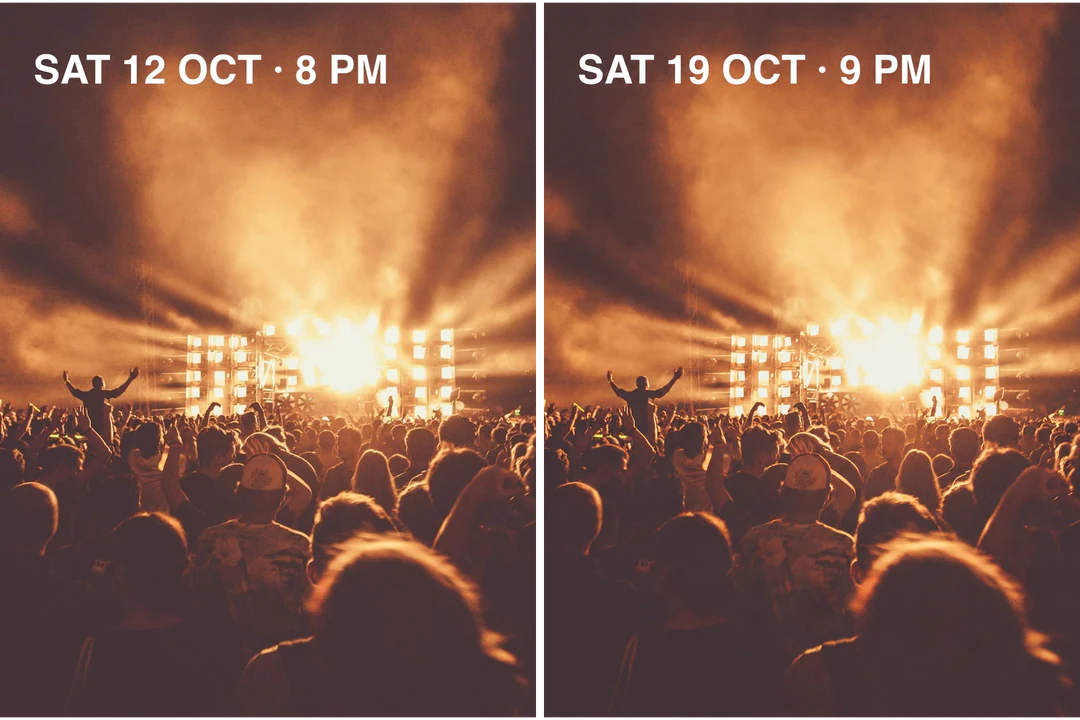
    Quote the exact new text, say where the line sits and name what to keep: the typeface, size, color and the photograph behind it. Edit a photo with GPT Image 2.5 Sunburst by changing a printed line: this poster's date changes from SAT 12 OCT · 8 PM to SAT 19 OCT · 9 PM. Read every character of the result, and keep approved wording in editable layout text when it must be exact.

    • Quote the exact new wording
    • Name the type, size and color to keep
    Concert poster before and after a GPT Image 2.5 Sunburst edit that changes the date line to SAT 19 OCT.
    Original poster beside the edited date line
  2. 02

    Swap the surface and keep the product

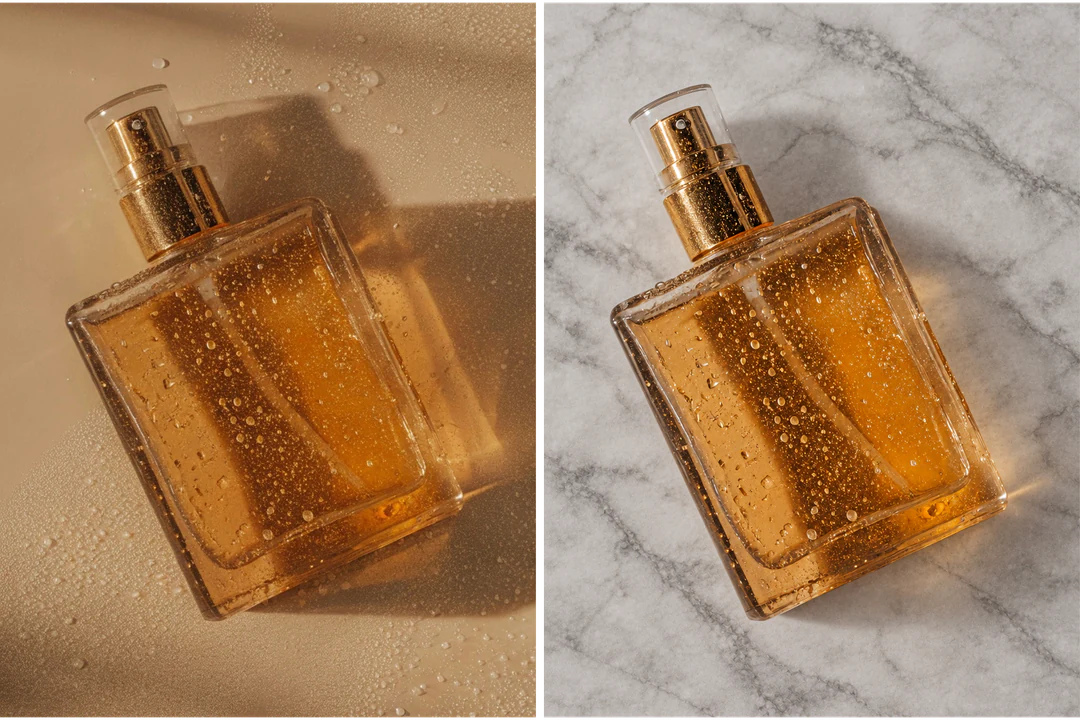
    Edit a photo with GPT Image 2.5 Sunburst when a product needs a new backdrop. Name the new surface and its light, then list the product details that must not move: the bottle shape, the liquid, the metal cap and the droplets on the glass. Check the reflections and the contact shadow, where an edit most often shows.

    • Describe the new surface and its light
    • List the product details to keep
    Perfume bottle before and after a GPT Image 2.5 Sunburst edit that swaps the beige surface for pale grey marble.
    Original photo beside the new surface
  3. 03

    Remove what should not be there

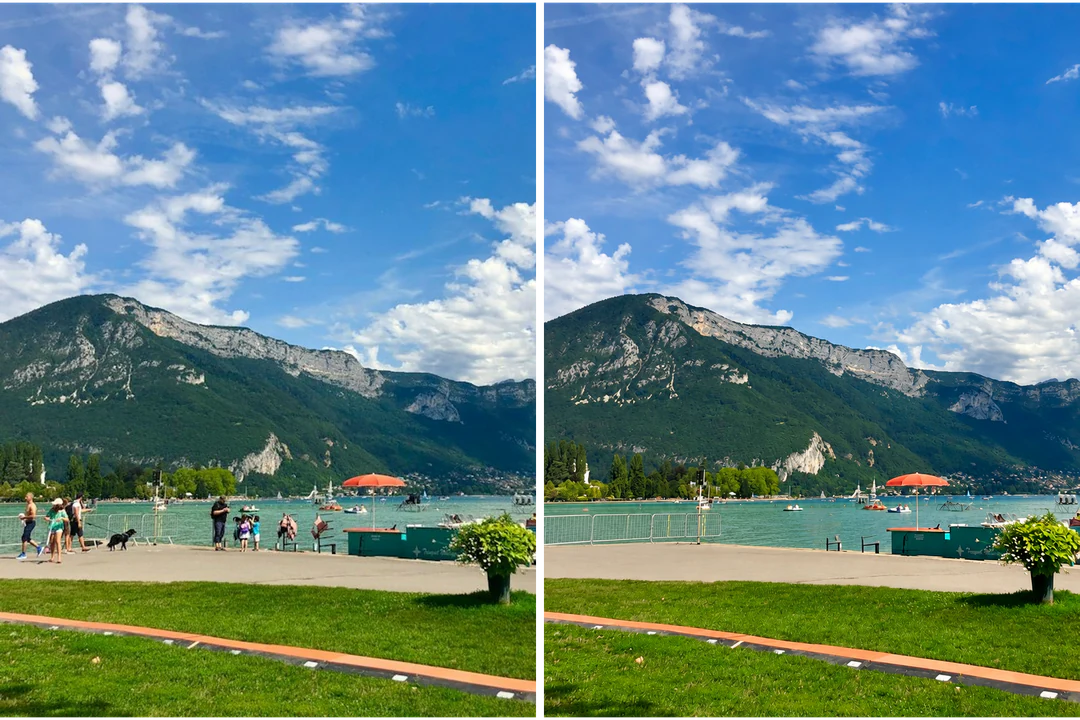
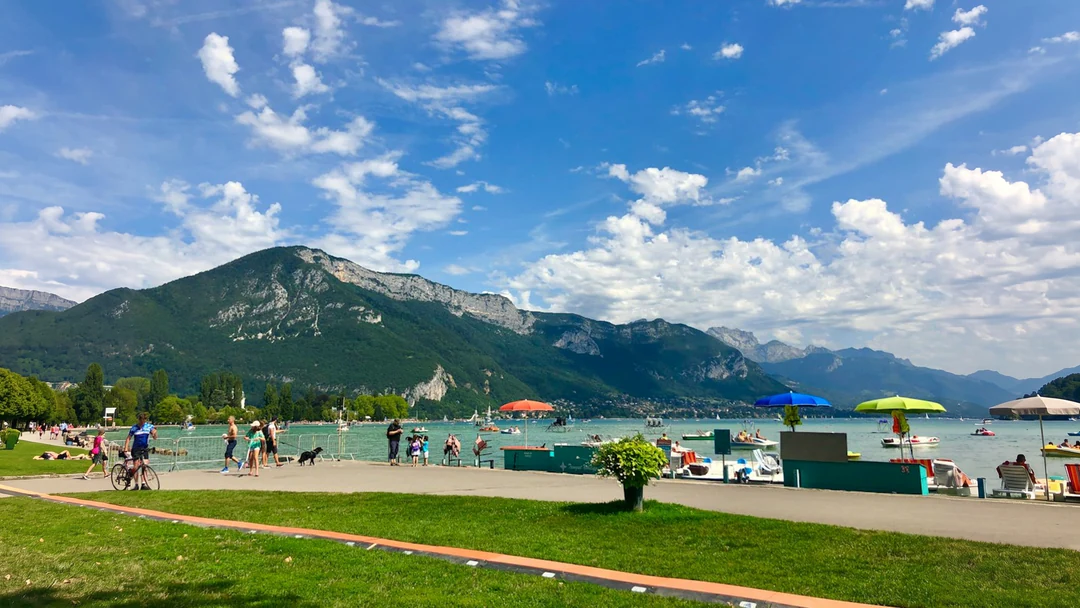
    Remove people with GPT Image 2.5 Sunburst by asking for the removal in one sentence and name what stays: the mountains, the water, the umbrellas and the planter. The model fills the empty space itself, so look at the ground and the water line where people used to stand, and repeat the instruction on the original if something is left behind.

    • Name every object to remove
    • Name the scenery that must stay
    Lakeside promenade before and after GPT Image 2.5 Sunburst removed every person and the dog from the scene.
    Original photo beside the cleared promenade
  4. 04

    Combine photos in one scene

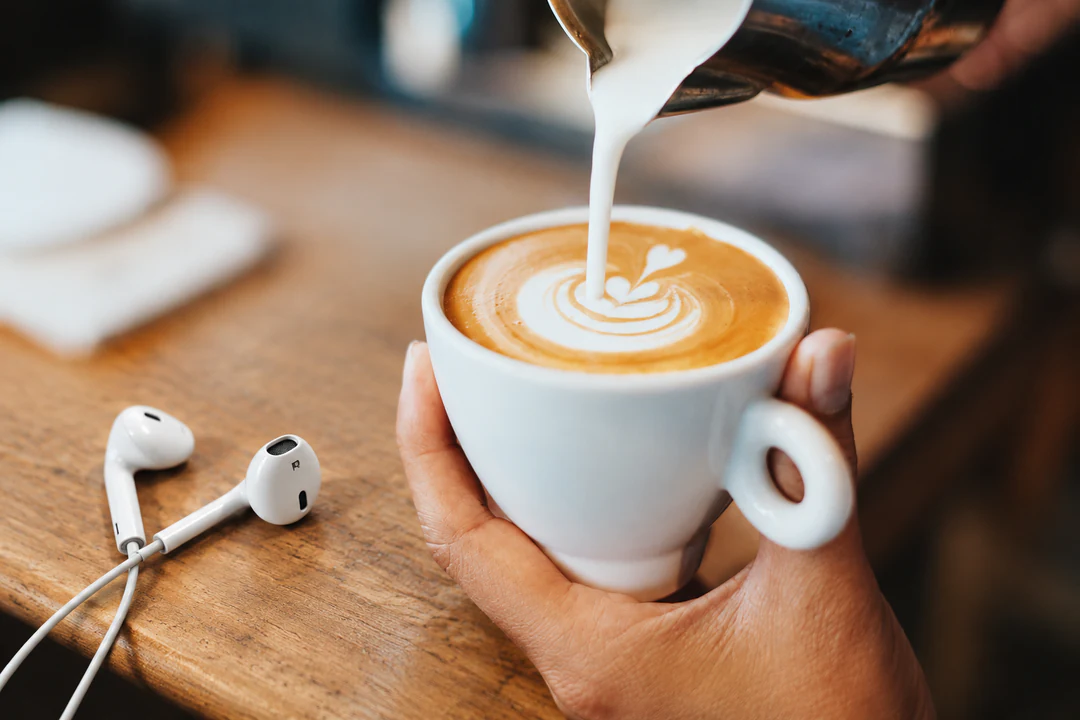
    Combine photos with GPT Image 2.5 Sunburst by adding up to 14 references and giving each one a job by its position. Here image 1 supplies a pair of earbuds and image 2 supplies a cafe counter, and the prompt asks for the earbuds on the counter in the same warm light. Several references guide the edit and do not guarantee an exact copy, so compare labels and proportions with each source.

    • Give each reference one job
    • Refer to references by position
    White earbuds resting on a wooden cafe counter next to a latte, combined from two photos with GPT Image 2.5 Sunburst.
    Earbuds from image 1 placed on the counter from image 2

GPT Image 2.5 Sunburst, Flare or Nano Banana Pro for the job

All three accept text and reference images and offer HD, 2K and 4K. Sunburst and Flare share the same credits, while Nano Banana Pro costs more per image, so compare them on one brief before you choose.

Model comparison
GPT Image 2.5 SunburstGPT Image 2.5 FlareNano Banana Pro
Best forPrecise image editing with strong instruction followingFast, high-quality everyday image generation and editing4K resolution and reasoning-guided quality, built for professionals
ResolutionHD · 2K · 4KHD · 2K · 4KHD · 2K · 4K
Reference imagesUp to 14Up to 14Up to 14
Credits per image5 HD · 9 2K · 15 4K5 HD · 9 2K · 15 4K45 HD · 45 2K · 80 4K

Keep working on the image you edit

Edit again with GPT Image 2.5 Sunburst when one part still needs attention. Use a tool when the next step is a fixed task, such as a cutout, a larger file or a new frame.

GPT Image 2.5 Sunburst FAQs

  1. What is GPT Image 2.5 Sunburst?

    GPT Image 2.5 Sunburst is OpenAI's image model for generating and editing images from text and image inputs, which OpenAI calls its most capable model for image generation and editing. OpenAI points it at workflows where editing precision matters most. In Potto AI it runs at a fixed medium quality setting, supports HD, 2K and 4K output, and accepts up to 14 reference images.

  2. What is image editing with GPT Image 2.5 Sunburst?

    Image editing with GPT Image 2.5 Sunburst means starting from a photo you upload and describing a change in words, so the model returns a new image that follows your instruction. You say what to change and what to keep, for example the bedding in a room or the date on a poster. The result is a regenerated picture, not a pixel-level patch, so compare it with your source.

  3. Can GPT Image 2.5 Sunburst change only one part of an image?

    You can ask for one change and list everything that must stay the same, and the model works from that instruction. The creator takes written instructions rather than a brush selection, so the boundary of the edit is set by your wording. Name the object to change, name the objects to keep, and check the areas around the edit in the result.

  4. Does everything outside my edit stay identical with GPT Image 2.5 Sunburst?

    No. The model draws a new image from your source and instruction, so small differences can appear outside the edit. Compare edges, small lettering, faces, hands and repeated patterns with the original. If something drifted, shorten the instruction to one change, restate what must stay, or return to the original photo.

  5. How many reference images can I add to GPT Image 2.5 Sunburst?

    Up to 14 in total. Add a reference only when it has a job, such as the photo to edit, a product to place, or a scene to place it in, and refer to them by position, for example image 1 and image 2. Several images do not guarantee that every detail is carried over, so compare the important details with each source.

  6. Can GPT Image 2.5 Sunburst change the text inside an image?

    You can ask for it by quoting the exact new words, saying where the line sits and naming the typeface, size and color to keep. Read every character of the result, because a model can still misspell or restyle a line. When wording must be exact, keep the approved text in an editable layout and use the generated image as the background.

  7. How is GPT Image 2.5 Sunburst different from GPT Image 2.5 Flare?

    In Potto AI the two cost the same, 5, 9 and 15 credits per image at HD, 2K and 4K, and both accept up to 14 references. Potto describes Sunburst for precise image editing with strong instruction following and Flare for fast, high-quality everyday generation and editing. Run the same brief on both before choosing, since neither name promises a better result for every task.

  8. When should I compare GPT Image 2.5 Sunburst with Nano Banana Pro?

    Compare them when the same brief leaves an important decision open, such as how well a precise edit keeps the rest of a photo or how fine detail holds at 4K. Sunburst costs 5, 9 and 15 credits per image, and Nano Banana Pro costs 45, 45 and 80. Keep the photo, prompt, ratio and review criteria identical so the comparison answers one question.

  9. Which sizes and formats does GPT Image 2.5 Sunburst output?

    It outputs PNG or JPEG in 10 aspect ratios at HD, 2K and 4K. A 1:1 image is 1024 by 1024 pixels at HD, 1920 by 1920 at 2K and 2880 by 2880 at 4K, and a 16:9 image is 1280 by 720, 2560 by 1440 and 3840 by 2160. OpenAI labels the 4K tier experimental, so check a 4K result at full size. For an edit, pick the ratio of your source so the frame is not recomposed.

  10. How do I refine an edit I only partly like with GPT Image 2.5 Sunburst?

    Name the single detail that is wrong and write the next instruction around it, keeping the parts that worked. Each round regenerates the whole picture, so details can drift when you chain several edits on the same result. If unwanted changes pile up, go back to the original photo and make the change in one clear instruction.

  11. How much does GPT Image 2.5 Sunburst cost?

    It costs 5 credits per image at HD, 9 at 2K and 15 at 4K. The number of images multiplies the price, so two 2K images cost 18 credits and four HD images cost 20. The Generate button shows the total before you confirm.

  12. Do I need an account to use GPT Image 2.5 Sunburst?

    You can write a prompt, add reference photos and choose settings before signing in. Generate opens the sign-in dialog, and everything you entered stays in the creator.

  13. What if a GPT Image 2.5 Sunburst request fails?

    The task explains why it stopped and offers a retry, and its credits are released. Stop a running request with the cancel control, since leaving the page does not stop it. Generating again after a finished image is a new request.

Potto AI

Make your next edit with GPT Image 2.5 Sunburst

Edit with GPT Image 2.5 Sunburst: add the photo, name the one change and list what must stay. Review the quote, generate, and compare the result with your source before you use it.