Skip to content
Potto AI

Colorize photo: the same black and white image before and after

One black and white photo and the colorized image generated from it. The result follows the supported ratio closest to your photo, with 3:4 as the fallback.

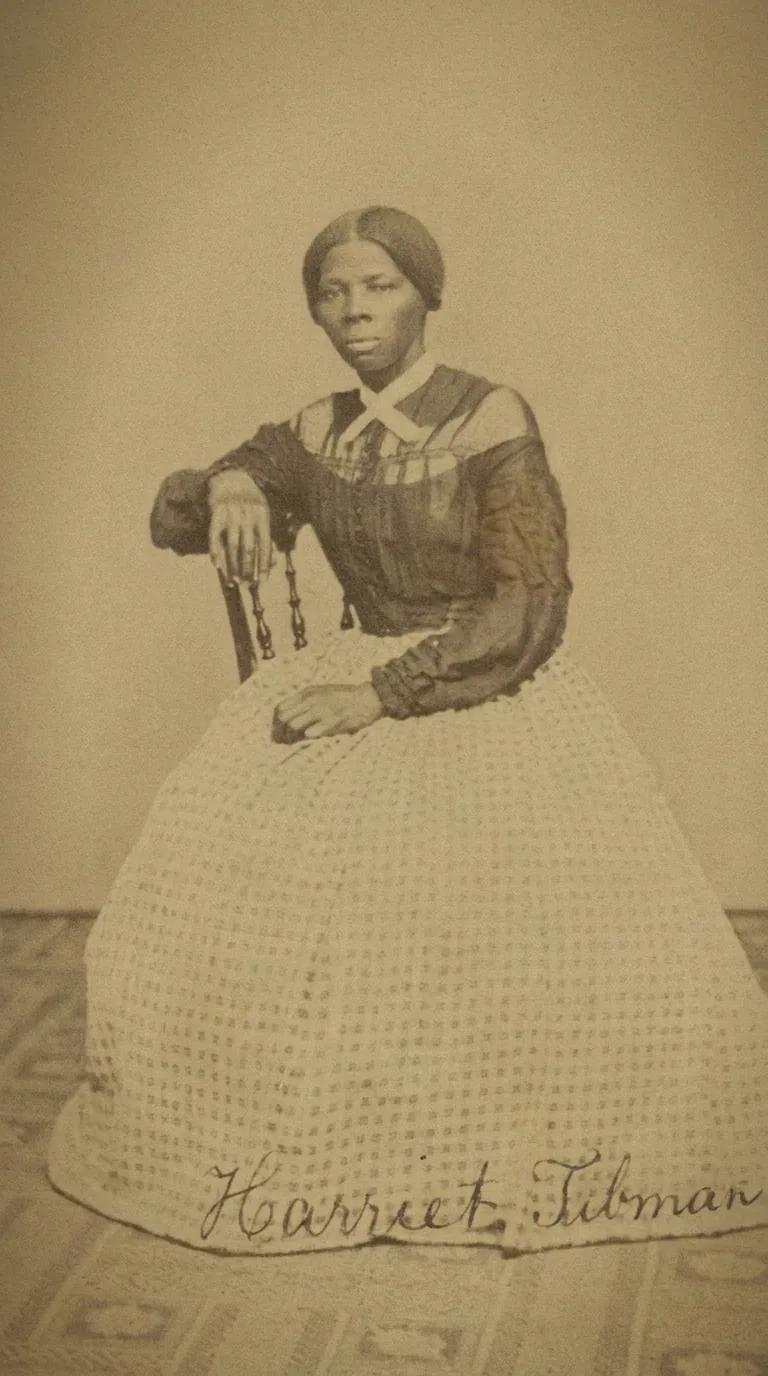
Original black and white photograph before colorizing
Original black and white photo
Colorized version of the same photograph
Colorize photo result

What stayed

The recipe asks to keep the composition, every detail, the texture and each facial feature exactly as in the photo. Compare faces, object outlines and positions with the original at the same size to see whether anything moved.

What changed

Only color is added: natural-looking skin tones, clothing colors and surroundings. These colors are a plausible estimate, not a record of the real ones. A warm wall or a green coat can look right and still be wrong for the actual scene.

What to check

Follow the color edges where skin meets hair, sleeves meet hands and objects overlap. Look for color spilling across an edge, one garment changing hue without a reason, or mismatched reflections. Check faces and small objects against the original, since the model can alter them. Look at gray areas too, such as a coat or a wall, because a flat gray can look like an unfinished area next to colored neighbors.

Where colorize photo fits

Three common uses. In each one the color is an interpretation, and the original scan stays the record.

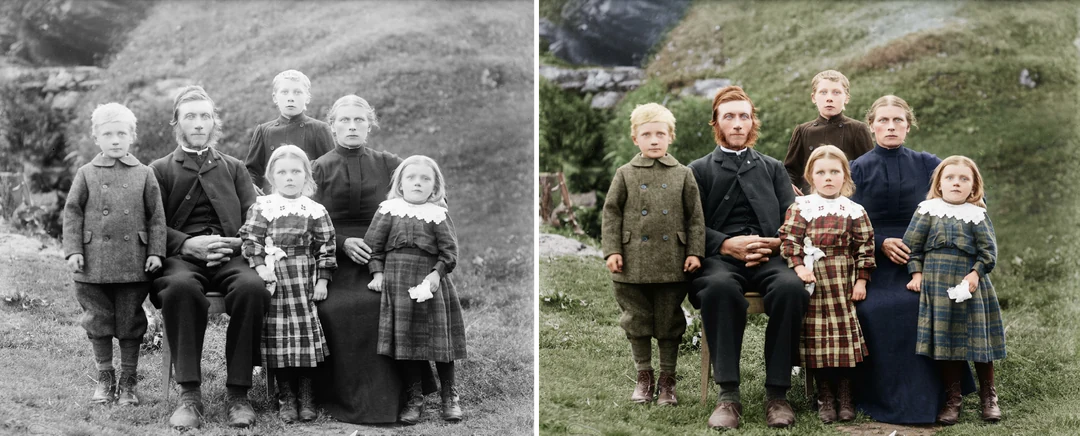
Black and white family photograph beside its colorized version

Family · Keepsake

Family photograph

Use a clear scan and check each face, the hair and the clothing after colorizing. The added colors can help relatives connect with the picture, but they may not match what people really wore. Show the result beside the original, label it as colorized, and keep the black and white scan for the family record.
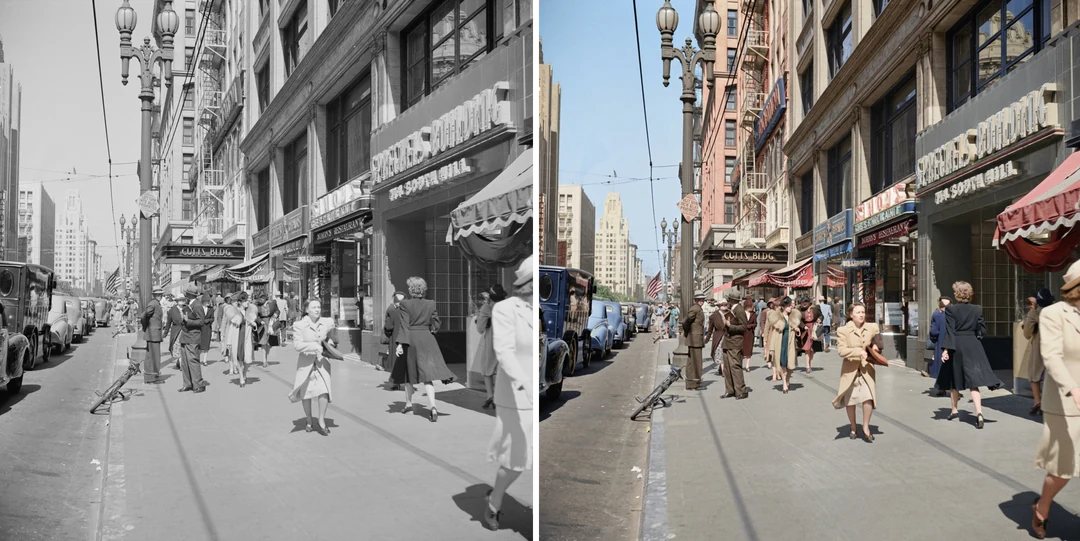
Black and white street scene beside its colorized version with signs, sky and cars in estimated colors

Street · Landscape

Street scene or landscape

Bricks, paint, signs, sky and water all receive estimated colors. Check that color stays inside object boundaries and that buildings or the horizon did not change. Season, weather and time of day change real colors a lot, so describe the result as one plausible version of the scene.

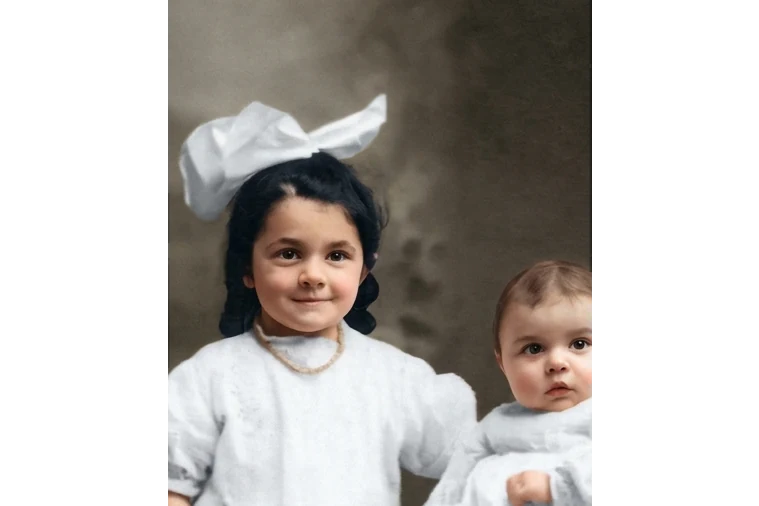
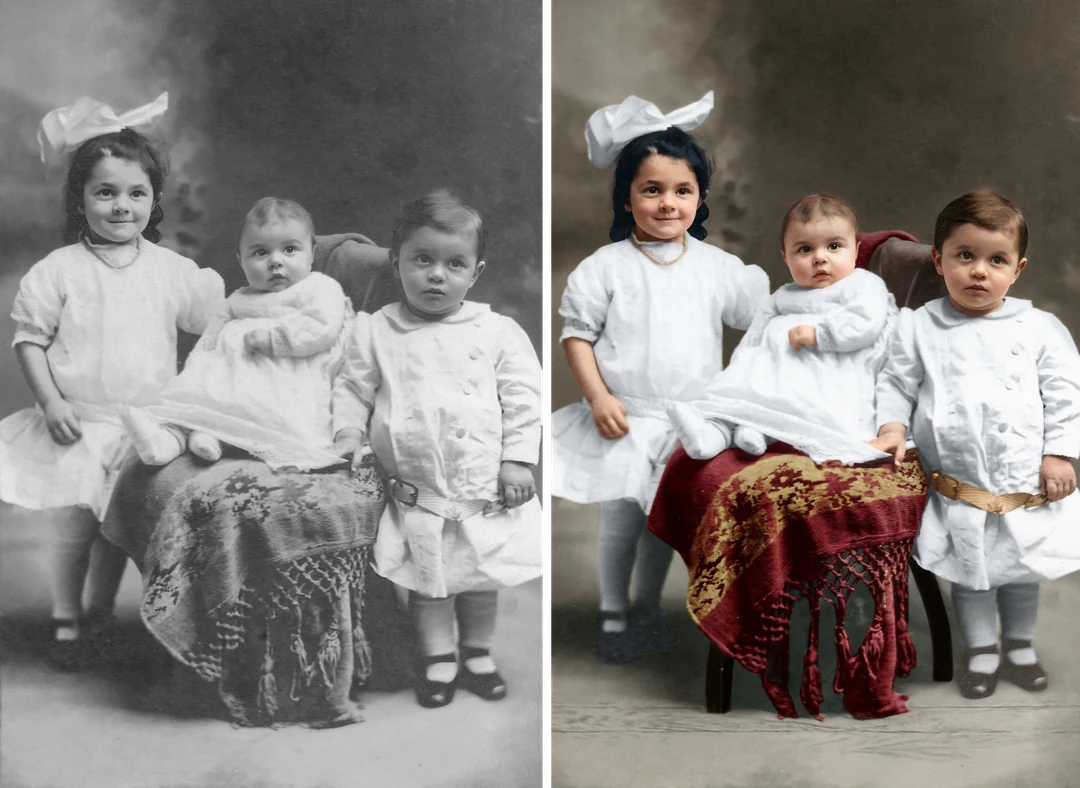
Black and white photo of three young children beside the colorized version of the same photo

Teaching · Study

Education or creative study

Place the original beside the colorized image to discuss how color changes what we see. Label both clearly and ask viewers which details are documented and which are inferred. If a uniform, flag or product color matters, check an independent source before making a claim. A short caption that says which colors are estimated helps the audience read the image correctly.

How to colorize a black and white photo

Upload a black and white photo, check the fixed output, then compare the color edges and faces with the original.

  1. 1. Upload one black and white photo

    Add one JPG, PNG or WebP image up to 20 MB, such as a scan or a photo of a print. Pick a sharp scan where skin, hair, clothing and background have clear edges. Keep your original file untouched and upload a copy. Crop away scanner edges and borders first, since they add nothing to the colorized image.

  2. 2. Check the fixed settings

    There is no color picker or style selector; the panel shows the fixed output, one PNG at HD from Nano Banana Pro in the supported ratio closest to your photo, with 3:4 as the fallback. If the photo is scratched or faded, repair it as a separate step first.

  3. 3. Generate and compare

    Each colorize photo result costs 45 credits, shown on Generate before you confirm. When the result is ready, compare it with your original, check the color edges and faces, then download it and label it as colorized.

What colorize photo adds to a black and white image

The photo colorizer adds color and keeps every detail where it was.

  1. 01

    Start from a sharp black and white scan

    Colorize photo works from the file you upload, so pick a scan where skin, hair, clothing and background have clear edges. Crop away scanner borders first, and repair scratches or fading as a separate step before colorizing.

    • One JPG, PNG or WebP image per run
    • Keep your original file and upload a copy
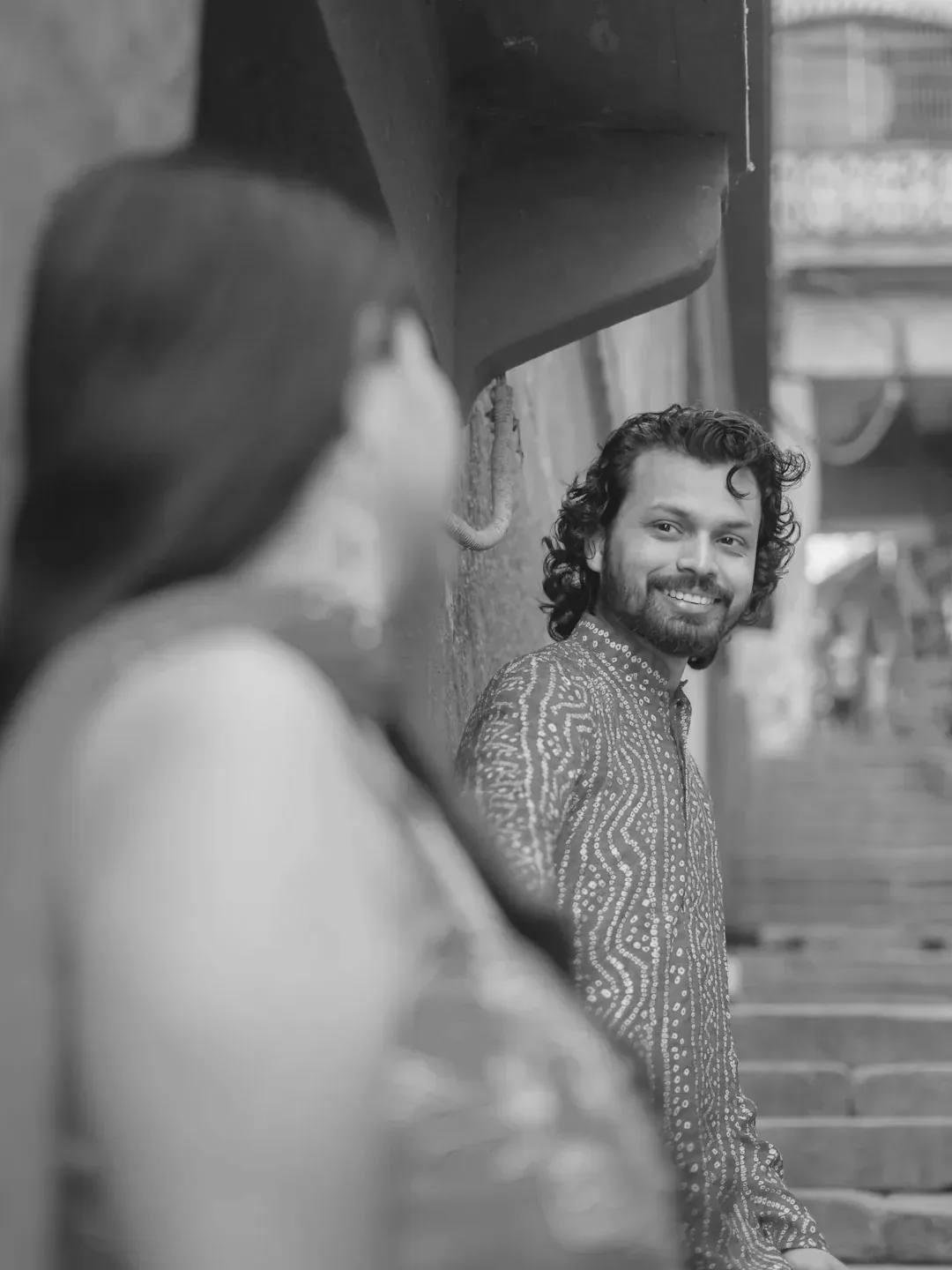
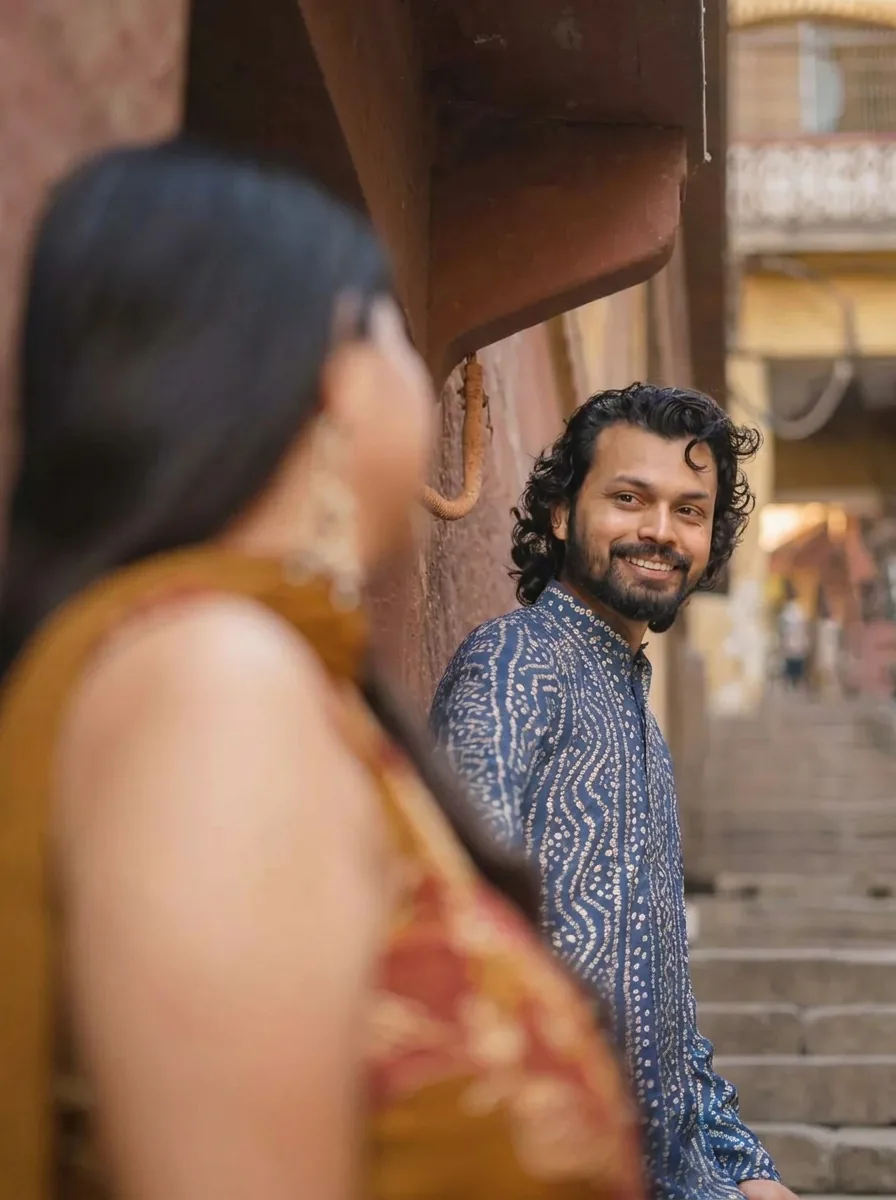
    Black and white photo of a man and a woman in a narrow street
    Original black and white photo
  2. 02

    Natural-looking color, nothing else moves

    Realistic skin tones, clothing colors and surroundings are added, while the composition, texture and each facial feature are meant to stay exactly as in the photo. The palette is the model's plausible estimate, not a record of the real colors, so a warm wall or a green coat can look right and still be wrong.

    • No color picker or style menu: the template chooses
    • The ratio follows your photo, with 3:4 as the fallback
    Color version of the same street photo with warm skin tones and clothing colors
    Colorize photo result
  3. 03

    Check the edges and label it as colorized

    Follow the color edges where skin meets hair, sleeves meet hands and objects overlap, and look for color that spills across a boundary or a garment that changes hue. Colors that matter historically need a separate source.

    • Compare faces and small objects with the original
    • Show the original beside the colorized image
    Color edges around a child's face and white dress in a colorized photo, inspected at full size
    Color edge check

Keep exploring Potto AI

Related ways to improve an old or monochrome photo.

Colorize Photo FAQs

  1. What does colorize photo mean?

    To colorize a photo is to add color to a black and white or monochrome photograph. This template works as a photo colorizer: it proposes natural, plausible colors for skin, clothing and surroundings while asking to keep the composition, texture and faces exactly as they are. It does not recover the real original colors or establish historical facts, so keep the source and compare both.

  2. Which photo works best for colorizing?

    Use a sharp black and white scan or a photo of a print, with clear edges between skin, hair, clothing and background. People, street scenes and landscapes all work as inputs. JPG, PNG and WebP are accepted, up to 20 MB. Keep your original file untouched and upload a copy. If the photo is scratched or badly faded, repair it first and colorize the repaired copy.

  3. Is colorization the same as restoration?

    No. Colorization adds a color interpretation; restoration addresses damage, fading, or missing-looking detail. Use the restoration template when repair is the main task. If both are used, save the stages separately and do not treat the generated colors or repaired details as verified history.

  4. How can I check historically important colors?

    Compare them with reliable records, other photographs, or documented material information. Treat the model’s choices as plausible guesses when no evidence exists. A natural skin tone or convincing uniform color does not prove accuracy. Record known corrections separately before requesting an edit.

  5. What visual errors should I review?

    Check color boundaries around skin, hair, clothing, and overlapping objects, then compare texture, faces, and object placement with the source. Clean color edges and faithful composition are distinct criteria. A useful result should not need unrequested structural changes to appear colorful.

  6. Can I choose the colors or repair damage at the same time?

    No. There is no color picker; the template chooses one plausible palette, and it only adds color. Repair scratches and fading first with Old Photo Restoration, then colorize the repaired copy. To correct one color you know is wrong, describe that change in the AI photo editor afterwards.

  7. How much does it cost to colorize a photo, and what file do I get?

    45 credits per run for one PNG at HD in the supported ratio closest to your photo, with 3:4 as the fallback, made with Nano Banana Pro. The amount appears on the Generate button before you confirm.

Potto AI

Colorize your photo

Upload one black and white photo, review the credit estimate, and compare the colorized result with your original before using it.