Skip to content
Potto AI

Remove people from photo: the same scene before and after

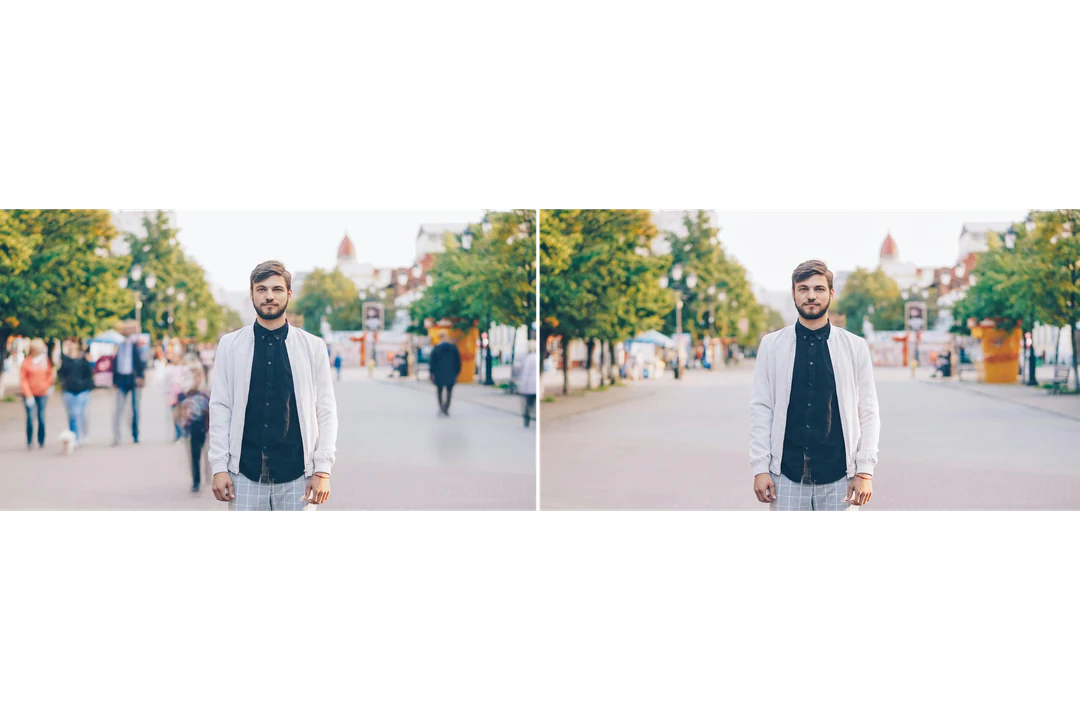
One reference photo and the result with background people removed. The result uses the closest supported ratio to your photo.

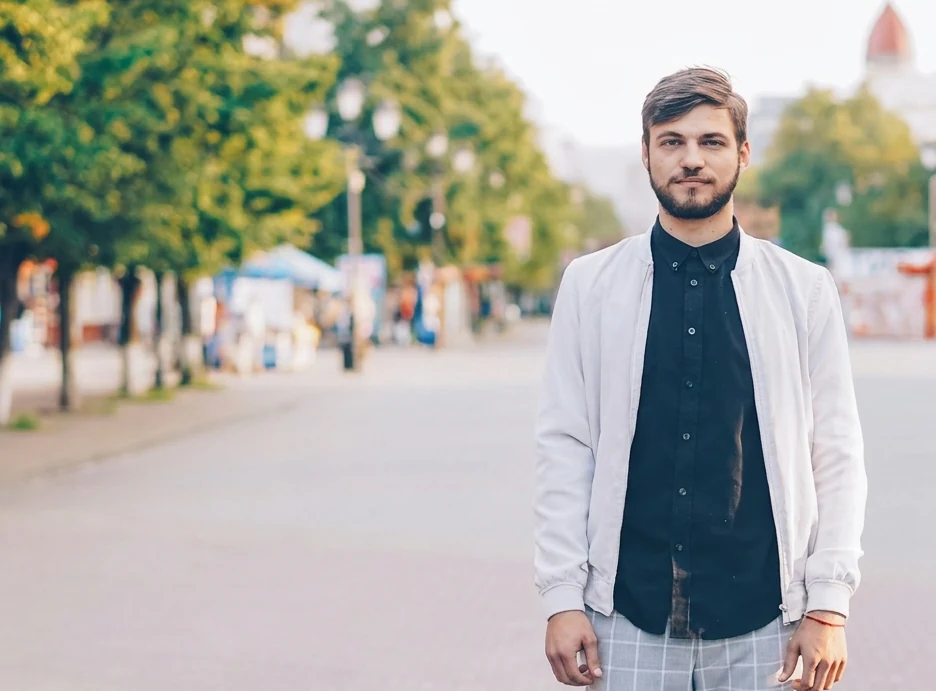
Original street photo with people behind the main subject
Original photo
The same photo with the background people removed and the scene filled in
Remove people from photo result

What stayed

The recipe asks the model to keep the main subject and everything else in the scene the same. Compare the subject with the original photo first: the outline, hands and clothing matter most where a removed person overlapped them.

What changed

The people behind the main subject are replaced with matching architecture, ground and lighting as a generated background fill. This generated fill is not a view of what was really hidden behind them, so treat it as an invented patch of the scene.

What to check

Review the generated fill at full size. Inspect paving lines and shadows where the removed people stood, check the background lines of railings and building edges across the fill, and look for leftover reflections. Repeated textures such as sand, grass or brick can look smeared when you view the image at full size.

Where removing people from a photo helps

Three common cases where you remove background people from photos. Use the cleaned image as an edited picture, and keep the original when the scene has documentary value.

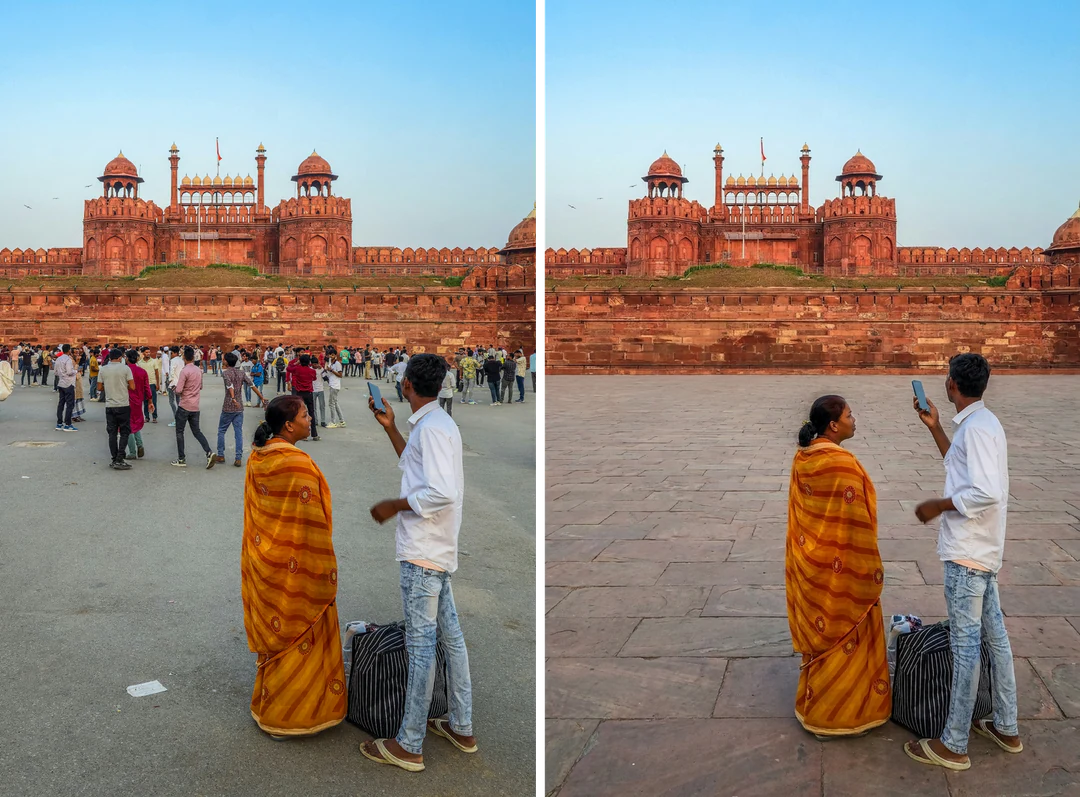
Travel photo of two people at a fort with crowds behind, beside the same photo with the crowd removed

Input ratio · Travel

Travel portrait

Choose a photo where the main person is clearly separate from the people farther away. After generating, compare the subject’s face, hair and clothing edges, then inspect where the passersby stood. Keep the original scene record too. The edited travel portrait is a changed memory, not proof that the place was empty.
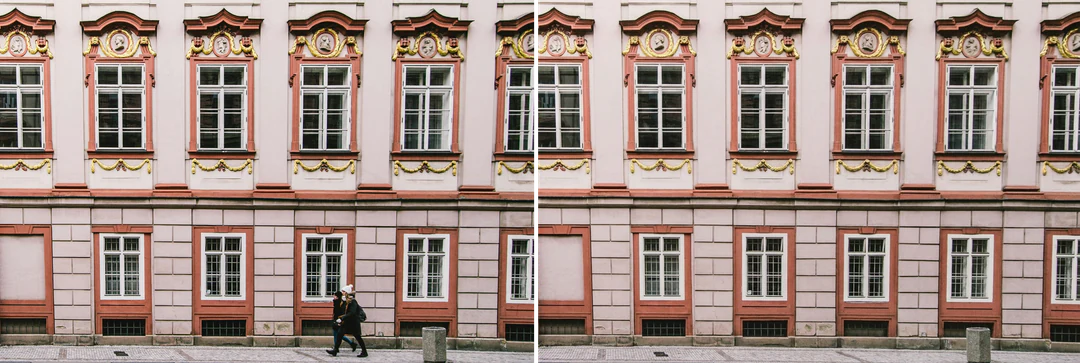
Street scene with small figures in front of repeated windows beside the same scene with them removed

Input ratio · Building

Building or street scene

Small figures can interrupt repeated windows, columns or paving. Repeated structures are where reconstruction errors show up first, so count visible elements and follow lines through the edited area. If a window, sign or entrance looks invented, do not use the image as an accurate record.

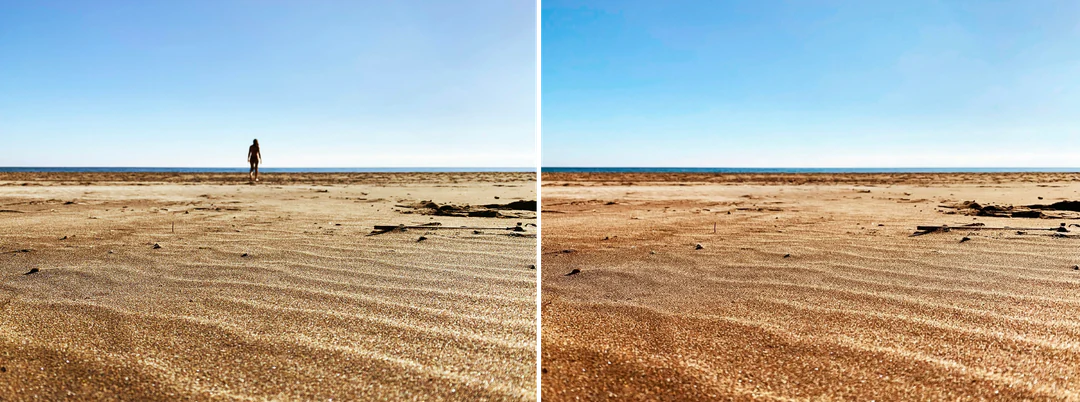
Beach photo with a distant person beside the same photo with the sand and horizon continued

Input ratio · Outdoor

Beach or park photo

A distant person against sand, grass or sky is simpler to remove than one in a busy street. Still, look at the horizon, footprints, shadows and foliage. A plausible cleanup is fine for a personal picture, but use the original when the photo records who was there.

How to remove people from a photo

Upload a photo, check the fixed output, then inspect the filled area before you download.

  1. 1. Upload one photo

    Add one JPG, PNG or WebP image up to 20 MB as your source photo. Pick a photo where the main subject is clear and the people to remove are visually separate from it. There is no brush or person picker, so a crowded group is a poor input.

  2. 2. Check the fixed settings

    There is no selection, ratio or style control; the panel shows the fixed output, one PNG at HD from Nano Banana Pro in the ratio closest to your photo. Crop the photo first if an edge distraction can simply be cut off.

  3. 3. Generate and inspect

    Each remove people from photo result costs 45 credits, shown on Generate before you confirm. When the result is done, check that the right people are gone and the subject remains, review the filled scene carefully along its lines, then download it and keep the original.

What Remove People from Photo does to your scene

The people remover targets people in the background and keeps the main subject in place.

  1. 01

    Pick a photo with one clear subject

    The template works on people behind the main subject, so the subject needs to stand apart from them. There is no brush or person picker, which keeps the task to one upload but makes a crowded group a poor input.

    • Upload one JPG, PNG or WebP photo, with no selection step
    • People who overlap the subject are the hardest case
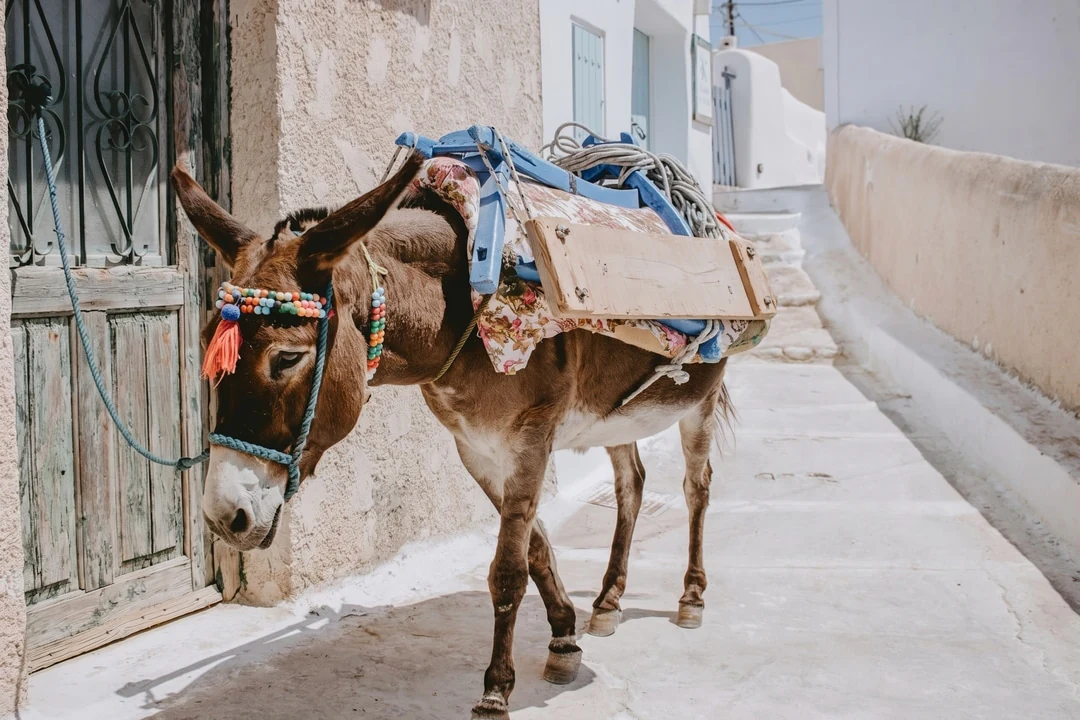
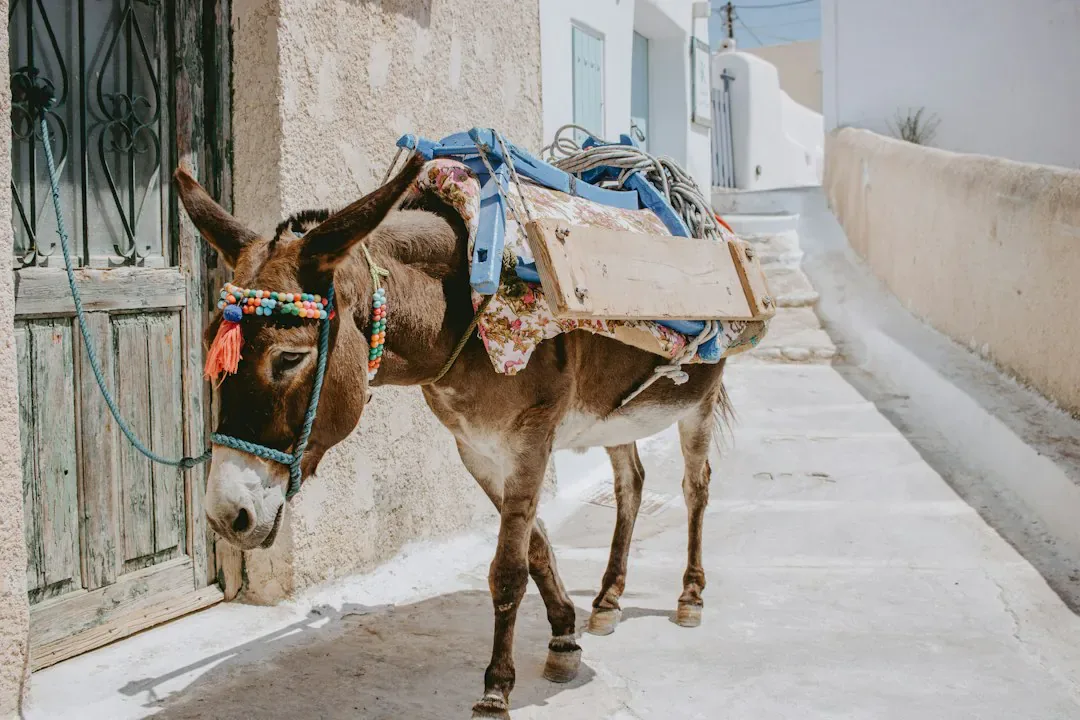
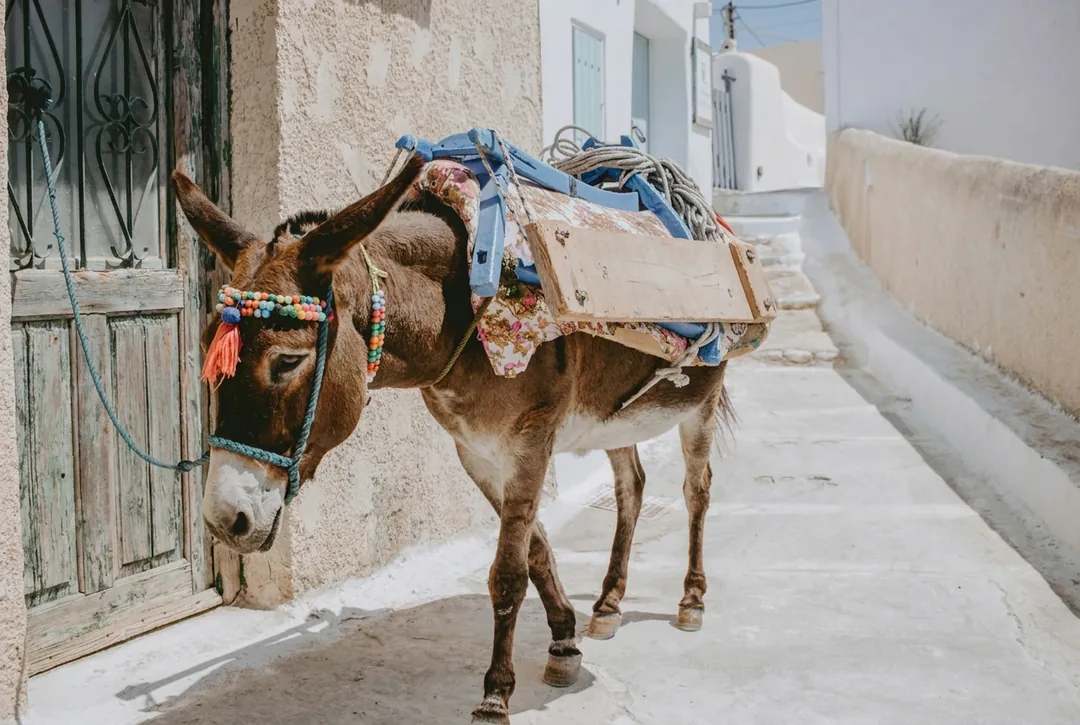
    Decorated donkey standing in a narrow whitewashed street
    A photo where the main subject is easy to tell apart
  2. 02

    The gap is filled with the surrounding scene

    The people behind the subject are replaced with architecture, ground and lighting that match the rest of the photo. The fill is generated, so it shows a plausible continuation of the scene, not what was really hidden behind them.

    • The main subject and the rest of the scene are kept the same
    • Follow paving lines, railings and shadows through the filled area
    Close view of a street behind a man where background people were removed and the scene was filled in
    Result with background people removed
  3. 03

    Keep the original next to the edit

    Removing people changes what the photo records, even when the result looks natural. Save the cleaned image as a separate file and keep the untouched original, so you can always show what the scene really looked like.

    • One PNG at HD, at the ratio closest to your photo
    • Label the edit when the photo documents a real place
    Original street photo and the cleaned photo with background people removed, side by side
    Original and edit side by side

Keep exploring Potto AI

Other ways to clean up or change a photo after removing people.

Remove People from Photo FAQs

  1. What does remove people from photo mean?

    It means editing a picture so unwanted people in the background are replaced with a believable continuation of the scene. This template works as an automatic people remover: it targets people behind the main subject and asks to keep that subject unchanged. The filled area is generated, not recovered from behind them, so compare the scene and the subject before using the result.

  2. Can I select a specific person with a brush?

    This preset does not expose a manual selection brush or person selector. It uses the fixed background-people instruction. If one specific person must be removed, use a custom image-editing request and review the result. Ambiguous groups can be unsuitable for automatic cleanup.

  3. Does the fill show the real hidden background?

    No. The model interprets what could plausibly continue behind the removed person. It cannot recover a verified view of an area absent from the source. A sign, artwork or window behind a removed person may come back as invented shapes or lettering, so do not treat it as accurate content.

  4. What should I inspect around the main subject?

    Compare the main subject’s outline, hands, clothing, and objects near any overlap with a removed person. Then inspect architecture, paving, repeated textures, and shadows in the fill. An apparently clean background is not sufficient if important source details changed.

  5. When is automatic removal the wrong choice?

    Automatic removal is the wrong choice when you need to remove one person from a group and keep everyone else exactly, when a person covers a large part of the main subject, or when the scene behind them contains text or artwork that must be accurate. It is also not an anonymization tool: reflections and other bystanders can remain. Use another real photograph, a crop, or a narrower edit instead.

  6. Should I keep the original photo?

    Yes. Keep the original photo unchanged and store the cleaned result as a separate file. The removed people and filled surroundings are meaningful changes, even if the result looks natural. When the presence of people is factual information, such as a record of an event, use the original and describe the cleaned image as edited.

  7. How much does removing people from a photo cost, and what file do I get?

    45 credits per run for one PNG at HD in the supported ratio closest to your photo, with 4:3 as the fallback, made with Nano Banana Pro. The amount appears on the Generate button before you confirm. HD is an output tier, not a print-size guarantee, so check the downloaded dimensions before placing the result in a design.

Potto AI

Remove people from your photo

Upload one photo with a clear main subject, review the credit estimate, and compare the finished image with your original before using it.