Skip to content
Potto AI

Uncrop a photo to a wider frame

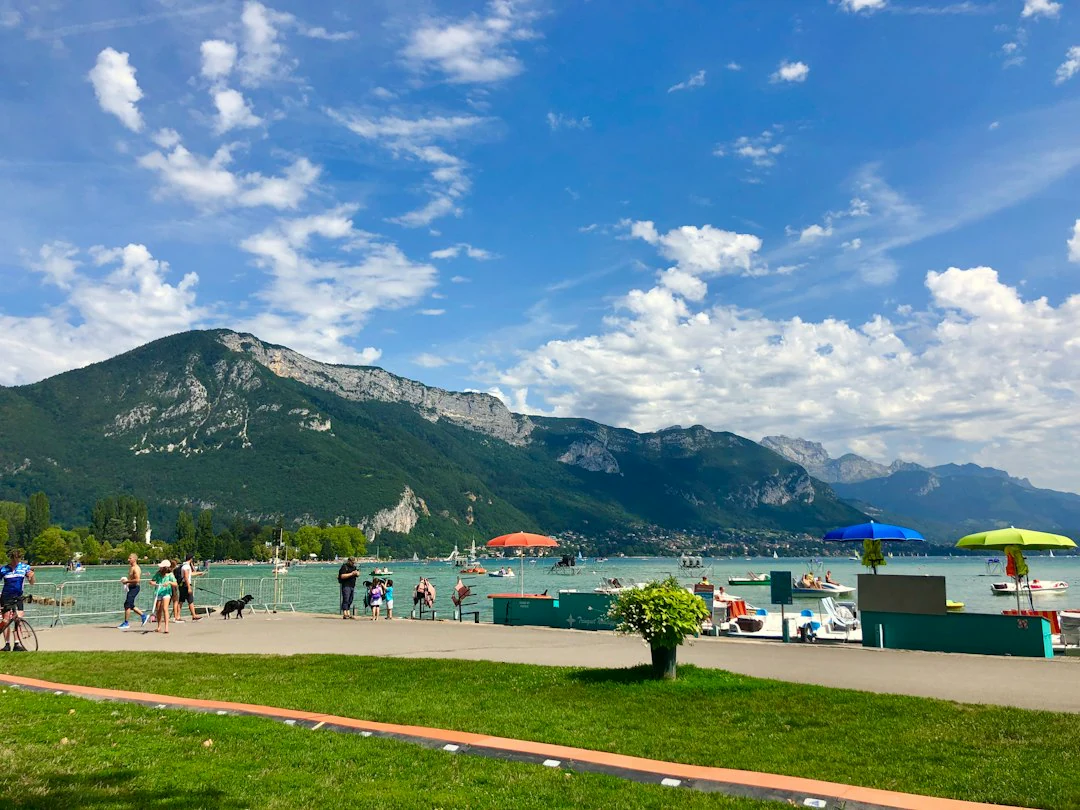
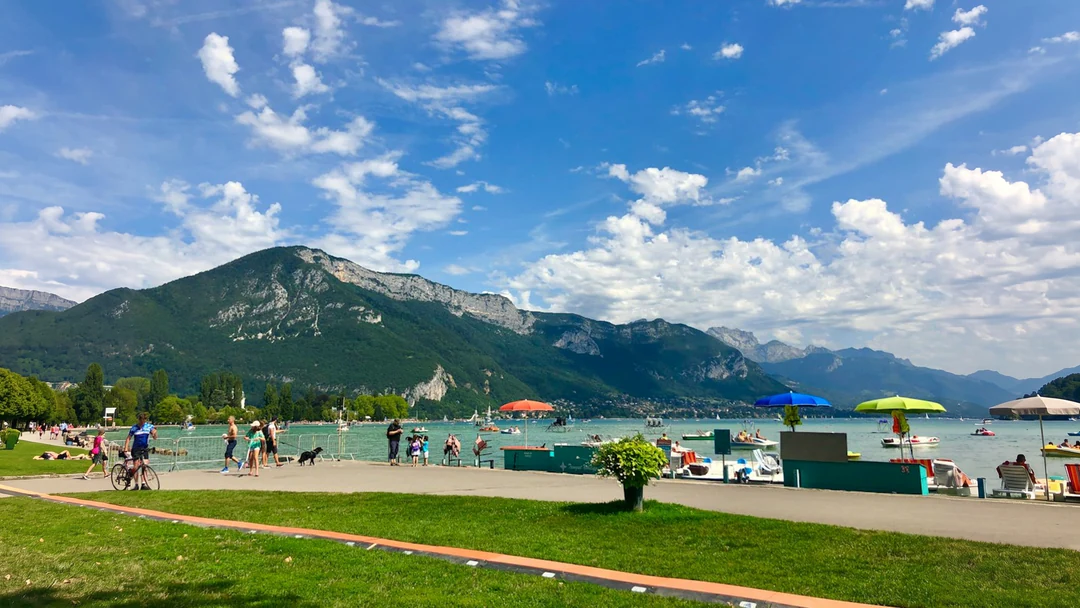
The same lake photo before and after an uncrop from 4:3 to 16:9. The outline marks the original frame; everything outside it is new.

The original 4:3 lakeside mountain photo before it was extended to 16:9
Original · 4:3
Lakeside park and mountains extended from a 4:3 photo to a 16:9 frame with the uncrop tool
Expanded · 16:9

What stayed

In an uncrop the original photo is scaled to fit and centered in the new canvas, so the shoreline, trees and reflection keep their place in the frame. A narrow blended band at the join smooths the transition into the new area.

What was added

The uncrop continues sky, mountain slopes and water on both sides of the original. Follow the horizon line and the reflections from the original edge into the new area and check that they meet without a step.

What to check

New areas in an uncrop are generated, not recovered. Look for repeated textures, bent lines and objects that were never in the scene, and judge the join at the size you will use.

Choose the uncrop ratio by where the image goes

Uncrop adds space in the direction the target ratio needs. Choose the uncrop ratio for the placement first, then judge what the new space has to contain.

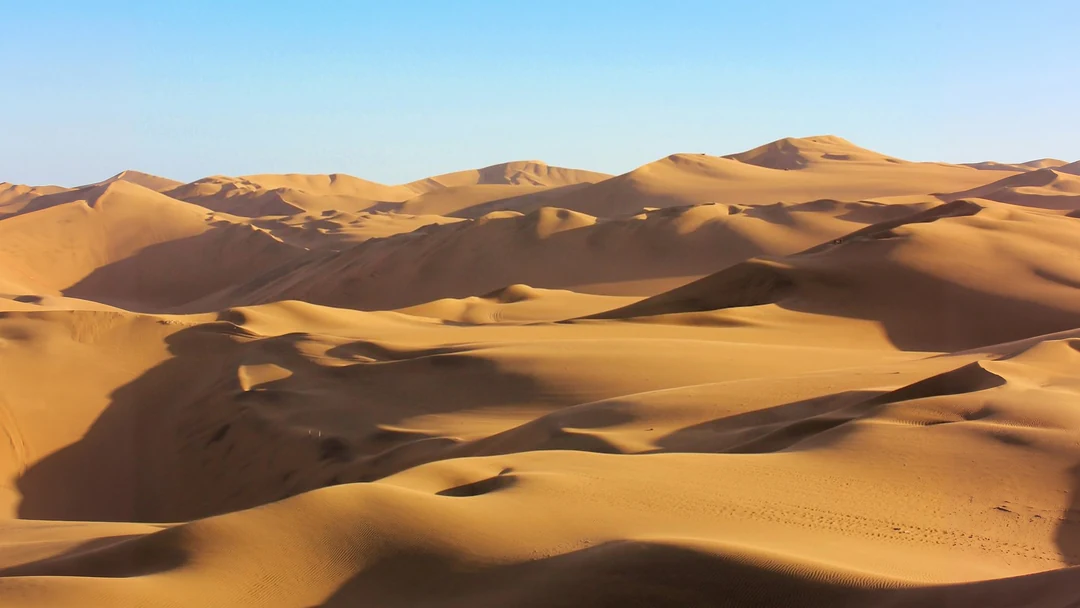
A desert landscape in a 16:9 frame

4:316:9

Banner or video thumbnail

An uncrop to a wide ratio adds land and sky on both sides of the photo. Keep the subject where it is and use the new width for a headline. At 16:9 the canvas is 1280 × 720 pixels at Standard or 1920 × 1080 at HD. Plain skies, water and walls continue most cleanly.
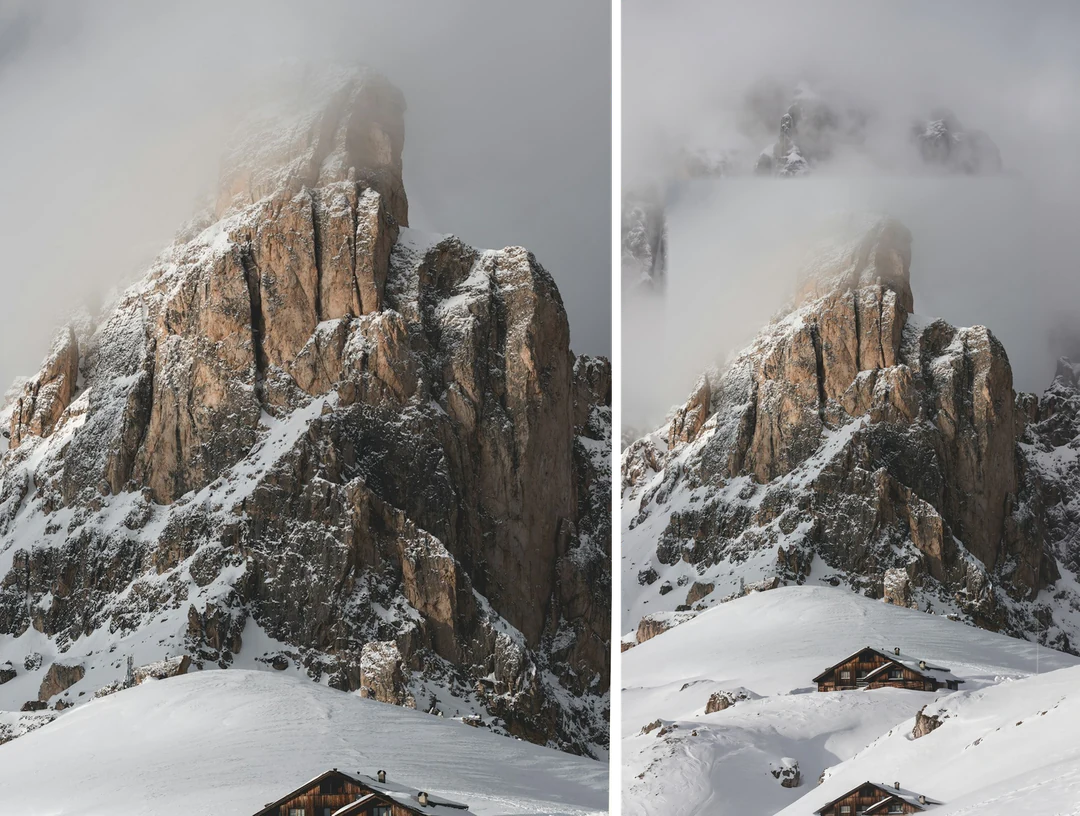
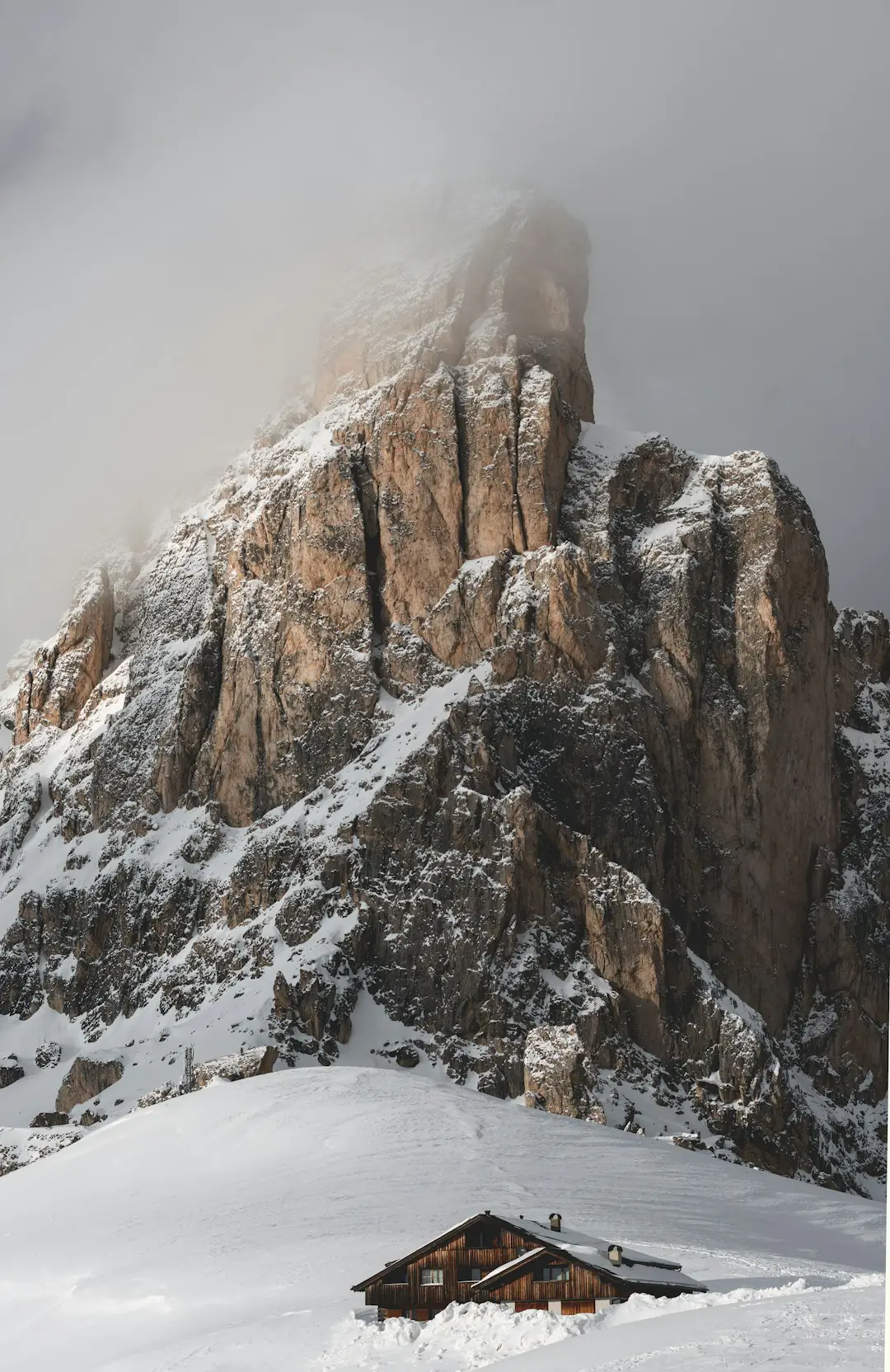
A 3:4 mountain photo beside the same peak uncropped to 9:16 with more sky above and snow below

3:49:16

Story or vertical cover

An uncrop to a tall ratio adds ground and sky above and below the photo. Check the horizon and the tops of tall subjects where new detail meets the original edge. At 9:16 the canvas is 720 × 1280 pixels at Standard or 1080 × 1920 at HD. A large jump in ratio means more of the scene is generated, so inspect it closely.

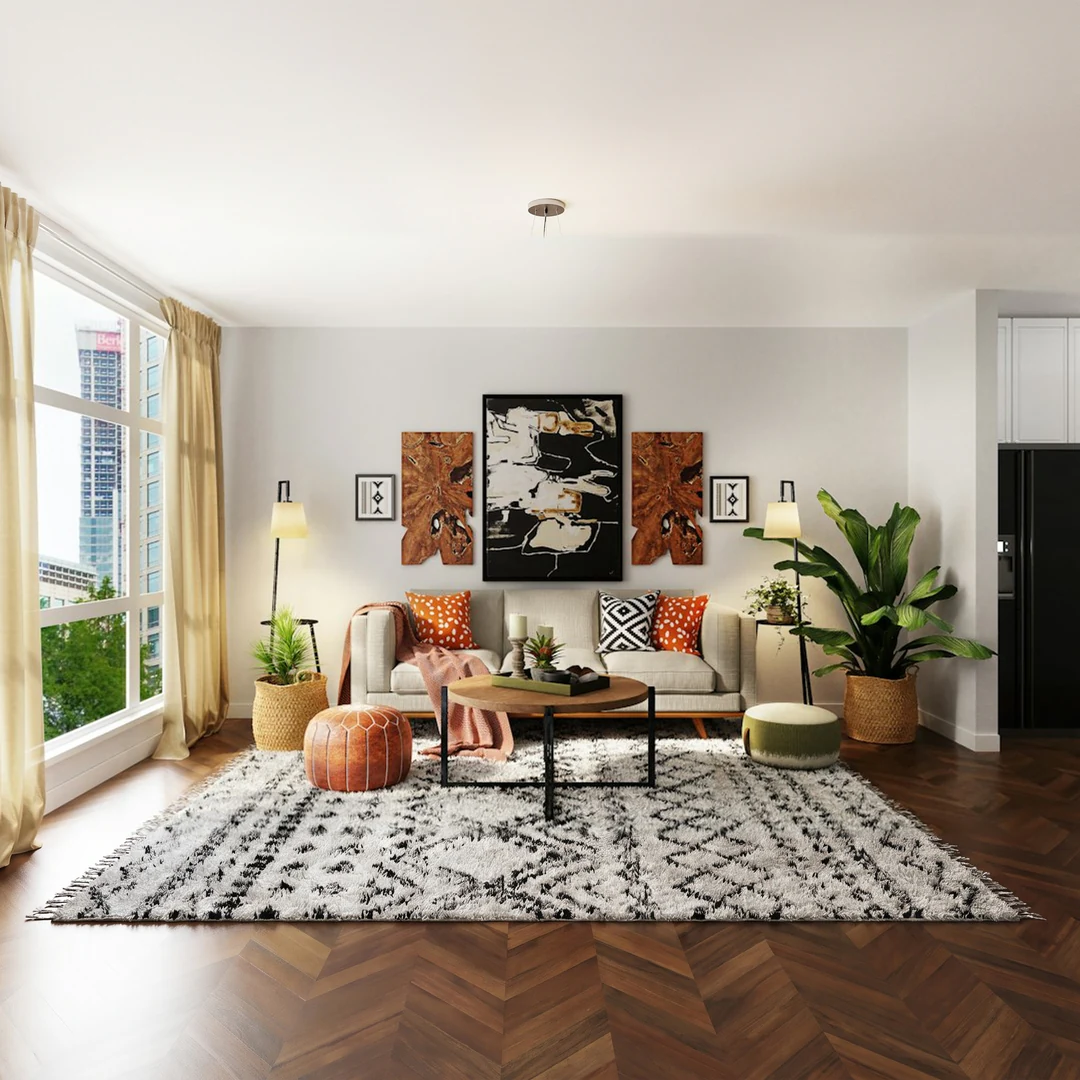
A living room in a 1:1 frame

16:91:1

Square post

To uncrop a wide photo to a square adds height, not width, so floors and ceilings get extended. Check straight lines and perspective along the new top and bottom edges. At 1:1 the canvas is 1280 × 1280 pixels at Standard or 1920 × 1920 at HD. Test the result in the post crop before you download it.

How to uncrop an image

Three controls in the panel above. The credit estimate is on the Generate button before you confirm.

  1. 1. Upload the photo

    Add a JPG, PNG or WebP image up to 20 MB. The stage previews where the original sits in the new frame, so you can judge the uncrop layout before anything is generated.

  2. 2. Pick ratio and size

    Choose one of the five ratios, then Standard (1280-pixel long edge) or HD (1920). The red area on the stage is what the uncrop will generate. Generate stays unavailable if the photo already has the selected ratio.

  3. 3. Generate and review the edges

    Uncrop costs 81 credits per image, shown on the Generate button before you confirm. Compare the uncrop result with the original boundary, then download it or send it to another tool.

What uncrop does to your image

Uncrop changes the frame, not the photo. Here is what happens to the pixels you keep and to the added area around them.

  1. 01

    Choose a canvas ratio instead of a crop

    Start from a 4:3 photo and get 16:9, 9:16, 1:1 or 3:4 without cutting off the subject. Instead of trimming what you already have, the AI image extender adds the missing width or height around it.

    • Wide, tall and square canvas from the same image
    • The subject stays where you placed it
    A desert photo uncropped from 4:3 to 16:9 for a website banner
    Uncropped to 16:9 for a website banner
  2. 02

    The original frame stays as it was

    The original image is scaled to fit and centered in the new canvas, and only the added area around it is generated. A narrow blended band at the join smooths the change from the original frame into the new area.

    • The original frame stays centered in the canvas
    • Show original boundary to check the join
    Lakeside park and mountains extended from a 4:3 photo to a 16:9 frame with the uncrop tool
    Original frame kept, both sides added
  3. 03

    New areas follow the light and perspective

    The added area continues the sky gradient, the floor lines and the direction of the shadows in your image, so it can read as part of the scene. Review the join for steps, bent lines and repeated textures before you download.

    • Check that straight lines continue past the edge
    • Check the light direction against the original
    A living room uncropped from 16:9 to 1:1 with the ceiling and floor extended
    Interior uncropped to 1:1
  4. 04

    Sized for where the image will run

    Pick Standard (1280-pixel long edge) or HD (1920) for a banner, a slide or a story. Uncrop costs 81 credits per image, and the estimate shows on the Generate button before anything runs.

    • 1280 × 720 to 1920 × 1080 and story sizes
    • Credits shown before you generate
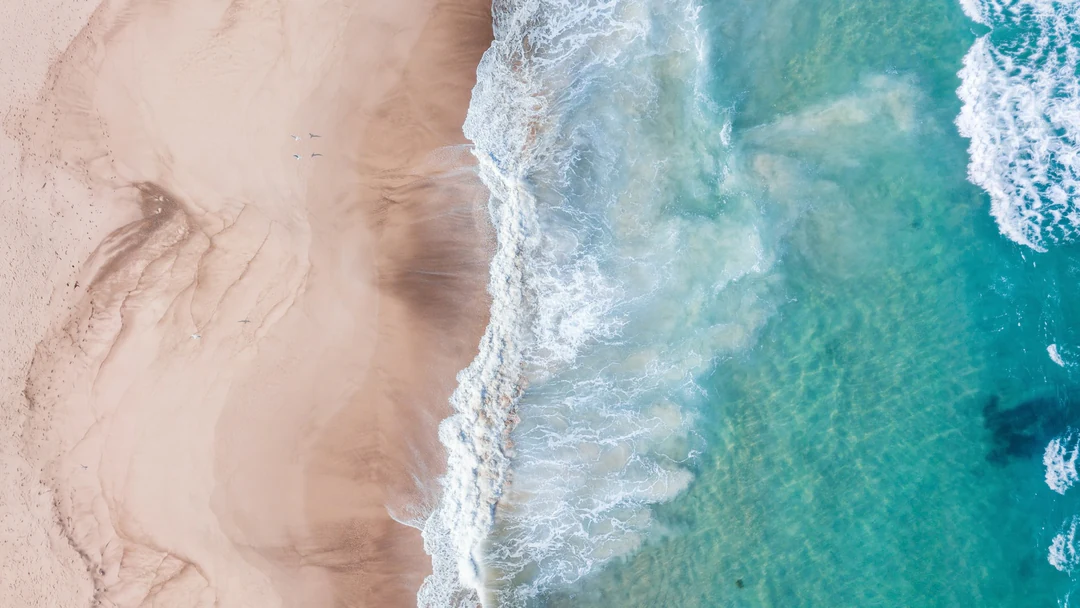
    An aerial wave photo uncropped to 16:9 for a slide background
    Uncropped to 16:9 for a slide background

Keep exploring Potto AI

Uncrop changes the frame. When the image needs a different kind of change, these tools pick up where it stops.

Uncrop FAQs

What uncrop does, which ratios and sizes it supports, and what to check where the new area meets the original.

  1. What is uncrop?

    Uncrop, also called an AI image extender, generates new image area outside an existing frame, so a photo can take a new shape without cutting off the subject. Potto AI places your original in a canvas of the ratio and size you choose and fills the space around it. The added surroundings are generated, not recovered evidence of what the camera did not capture.

  2. Can uncrop recover what was cut off?

    No. The added area is generated from the visible image, not restored from the original scene. Treat the uncrop as a plausible continuation and check it before use. Do not present the expanded region as evidence of what was outside the camera frame.

  3. How is uncrop different from upscaling?

    Uncrop changes the extent and shape of the scene by adding surroundings. Upscaling enlarges the pixel dimensions of the existing frame. Choose uncrop when important content would be lost by cropping; choose an upscaler when the existing composition is right but too small for the placement.

  4. Which files, ratios, and output sizes can I use?

    Upload JPG, PNG or WebP up to 20 MB; the result keeps the upload format. Choose one of the five ratios in the panel, then Standard, with a 1280-pixel long edge, or HD, with a 1920-pixel long edge. For example, 16:9 is 1280×720 or 1920×1080. Pick the ratio and size from the layout the image is going into.

  5. What images work best?

    Photos with continuous backgrounds such as sky, water, walls or fields uncrop most cleanly. Busy edges, repeating patterns such as fences or windows, lettering, and people or product parts cut off at the frame need closer review, because the model has to infer how they continue. If the task depends on the real appearance of something cut off, start from a more complete source.

  6. Will the original center be unchanged?

    The original photo is scaled to fit and centered in the selected canvas, with a narrow blended band at the join. Inspect the original center after the uncrop, important objects, faces, and straight lines before accepting the expansion. The source remains the factual reference; the result is an expanded derivative, not a guarantee of pixel-for-pixel preservation.

  7. What should I check in the result?

    Start with the original center, then the join, then the new edges. Follow horizon lines, reflections, shadows and straight lines across the boundary, and look for repeated textures or objects that were never in the scene. Download only when the join is invisible at the size you will use, and keep the original as the reference.

  8. Why is Generate unavailable, and how much new area will be added?

    Generate is unavailable when the photo already has the selected ratio, so pick a different one. The gap between the original shape and the target shape decides how much new area is generated: a vertical photo turned into a wide banner needs far more invented side content than a small change of ratio.

  9. How do I check the expansion cost?

    Uncrop costs 81 credits per image, and the amount appears on the Generate button before you confirm. Trying another ratio is a new request with its own cost. If a task fails, its reserved credits are released. Subscriptions and one-time credit packs are explained on Pricing.

  10. Do I need an account to generate and download?

    You can upload a photo and try the ratio and size controls before signing in. Generating and downloading need an account; the sign-in dialog keeps your photo and settings in place.

  11. Can I use the result commercially?

    Yes, on a paid plan; images made on the free plan are for personal use. Potto adds no watermark to downloads. Uncrop only photos you own or have permission to edit, and remember that the extended area is invented, so do not present it as part of the original scene in a product claim or news use.

Potto AI

Uncrop your photo to a new ratio

Upload a photo, choose the new ratio and check the edges before you download.