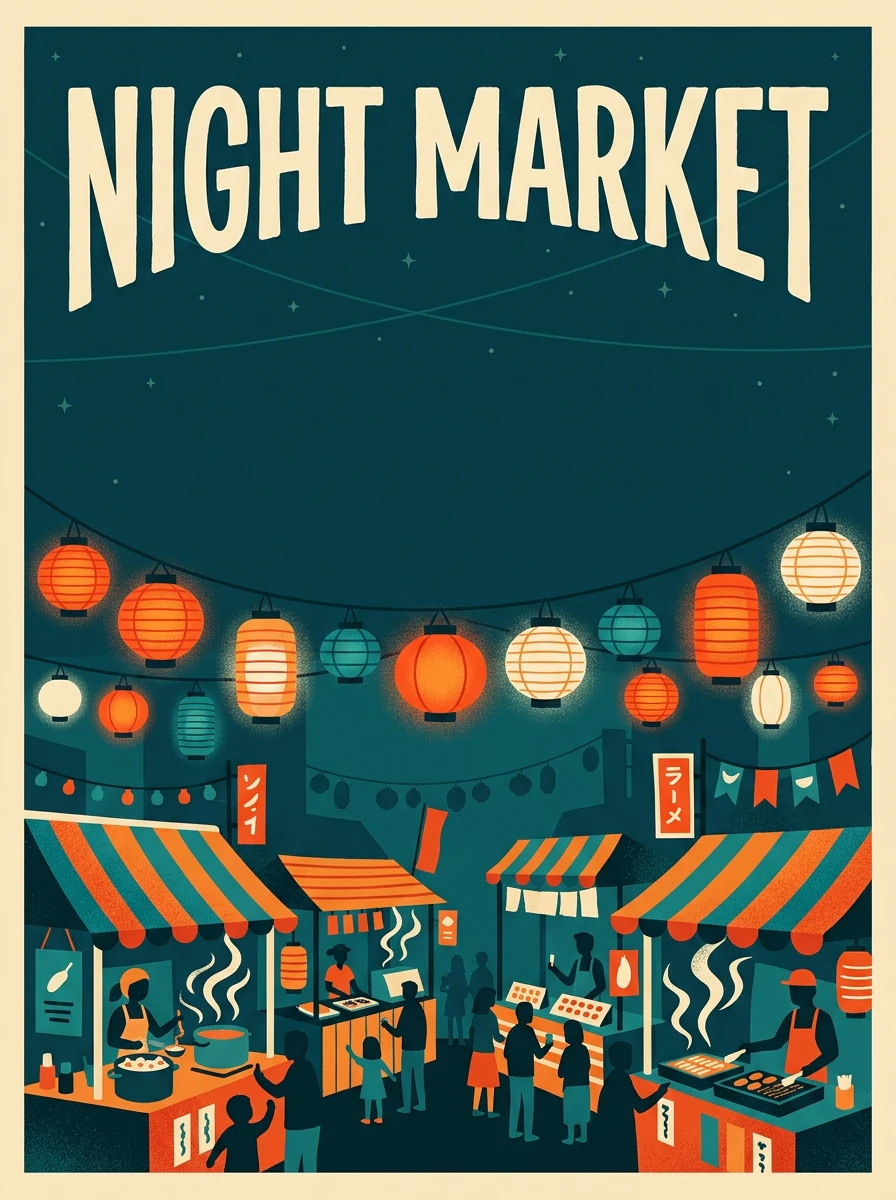
3:4 · Poster
A poster or invitation
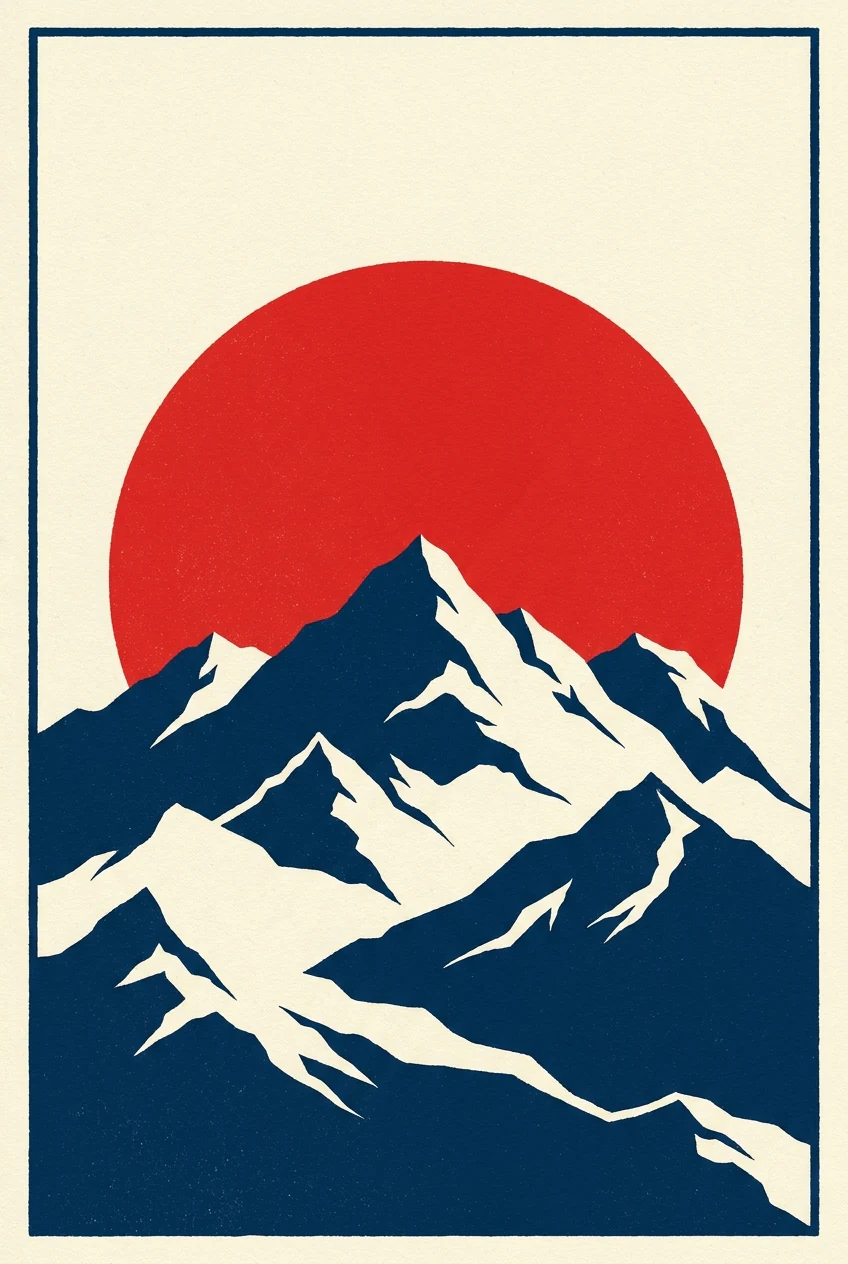
Ask for a tall frame with a quiet band for the headline. Describe the scene, the palette and the mood. Add the date and place later in your own layout. Read any lettering inside the picture before you print it.
Type what you want to see. The AI picture generator turns your words into a picture. Add a photo if you want to guide it.
Try an example
Two AI pictures, two looks. Both are square, so you can set them side by side.
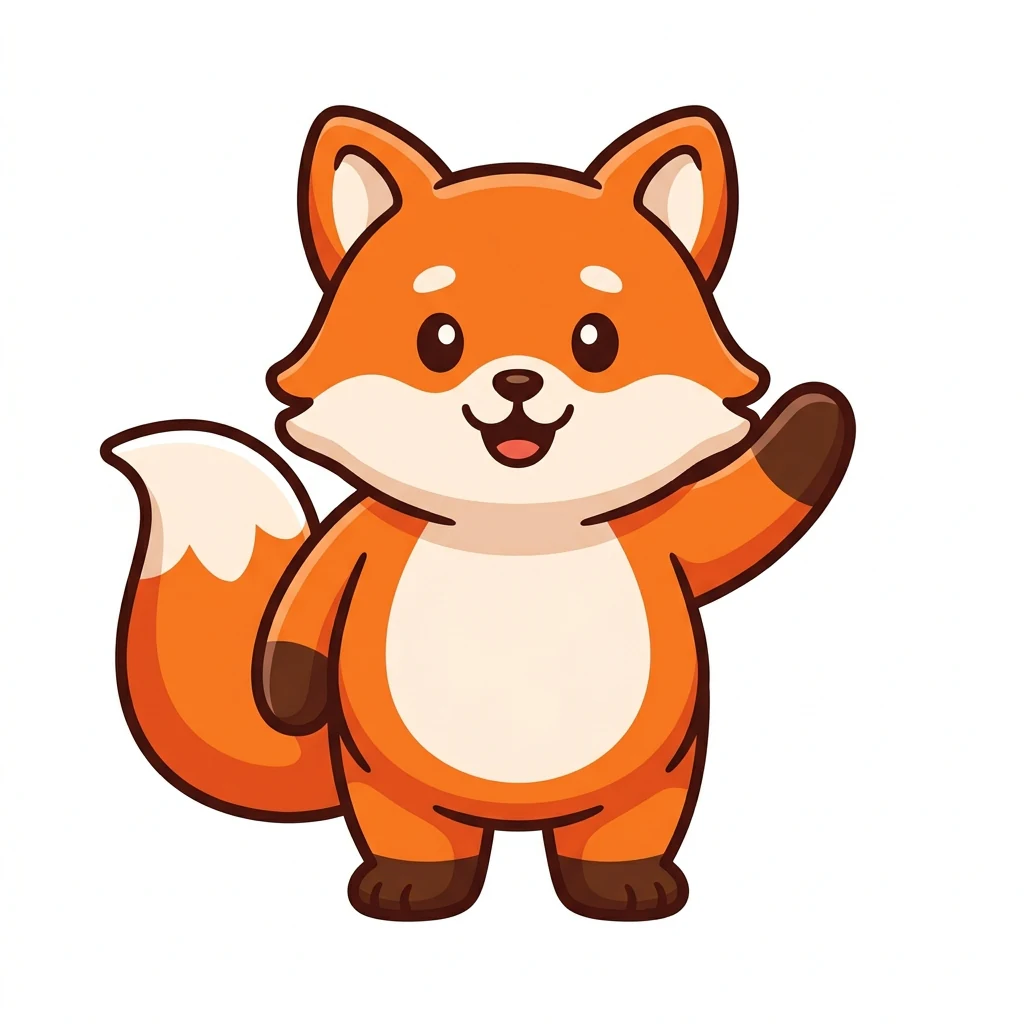
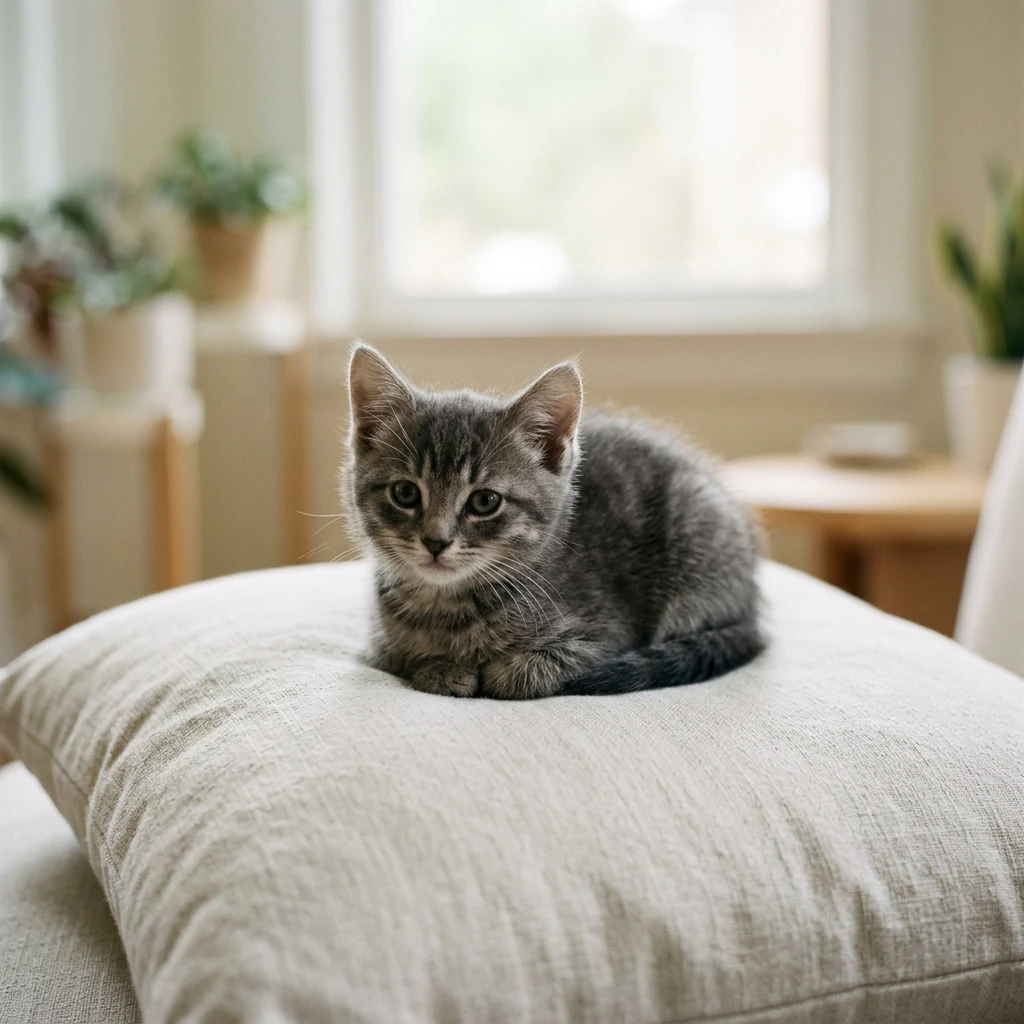
Both pictures are square. Each has one clear subject and a calm background. One subject keeps a picture easy to read at a small size.
The look. The fox has flat shapes and bold outlines. The kitten has soft light and fur. Style words steer this part of the prompt.
Look at ears, paws and whiskers at full size. Then shrink the picture to a small circle. A good profile picture still reads there.
Each card names a job, a shape and one thing to check.
3:4 · Poster
Ask for a tall frame with a quiet band for the headline. Describe the scene, the palette and the mood. Add the date and place later in your own layout. Read any lettering inside the picture before you print it.
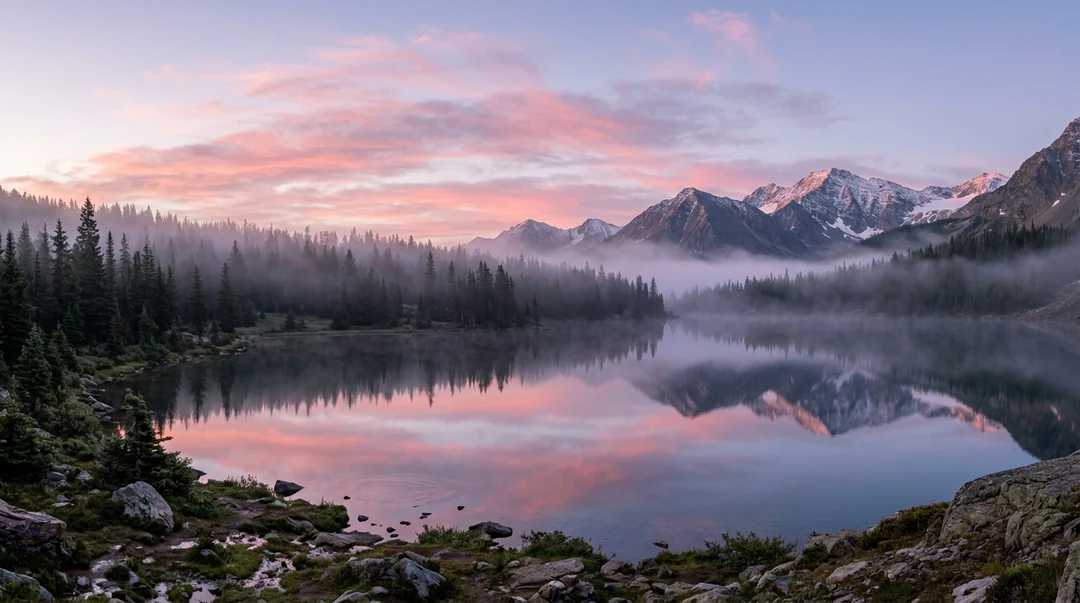
16:9 · Wallpaper
Choose 16:9 for a desktop and 9:16 for a phone screen. Describe a calm scene with open sky or water where icons will sit. Pick 2K or 4K for a large screen. Check the edges after you crop.
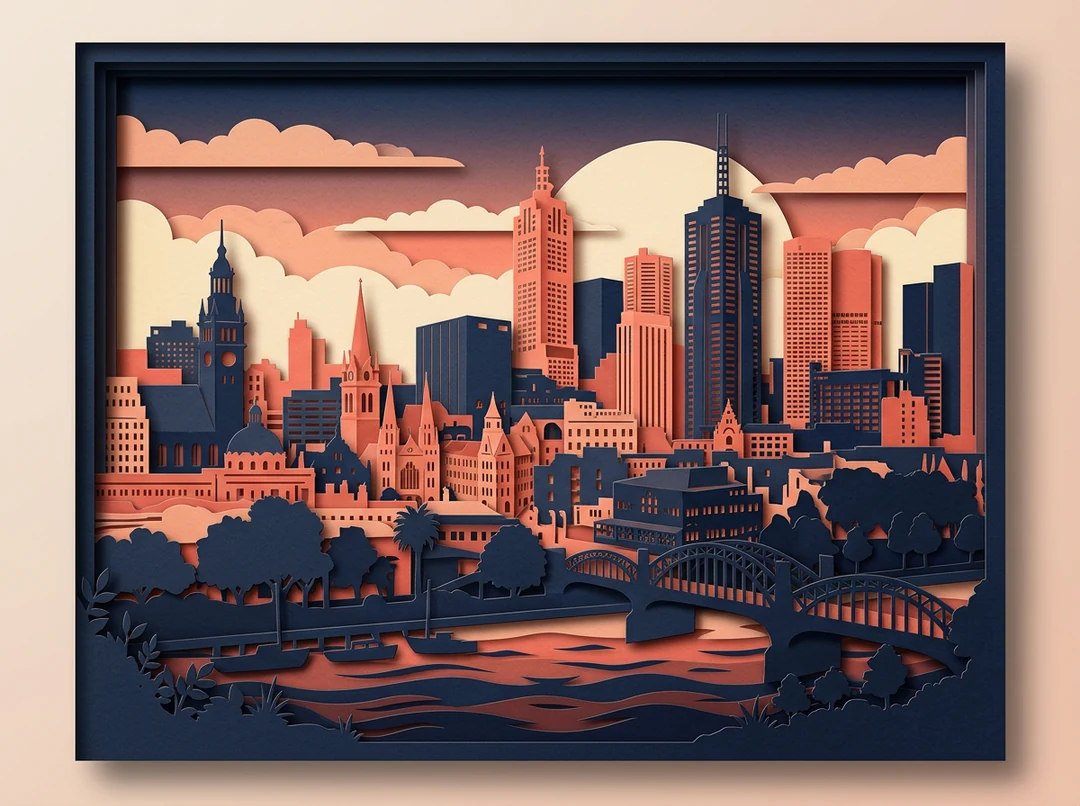
4:3 · Wall art
Choose a style that suits a room, such as layered paper cut. Describe the city, the colors and the light. Pick 4K for a big print. View the file at full size before you order a frame.
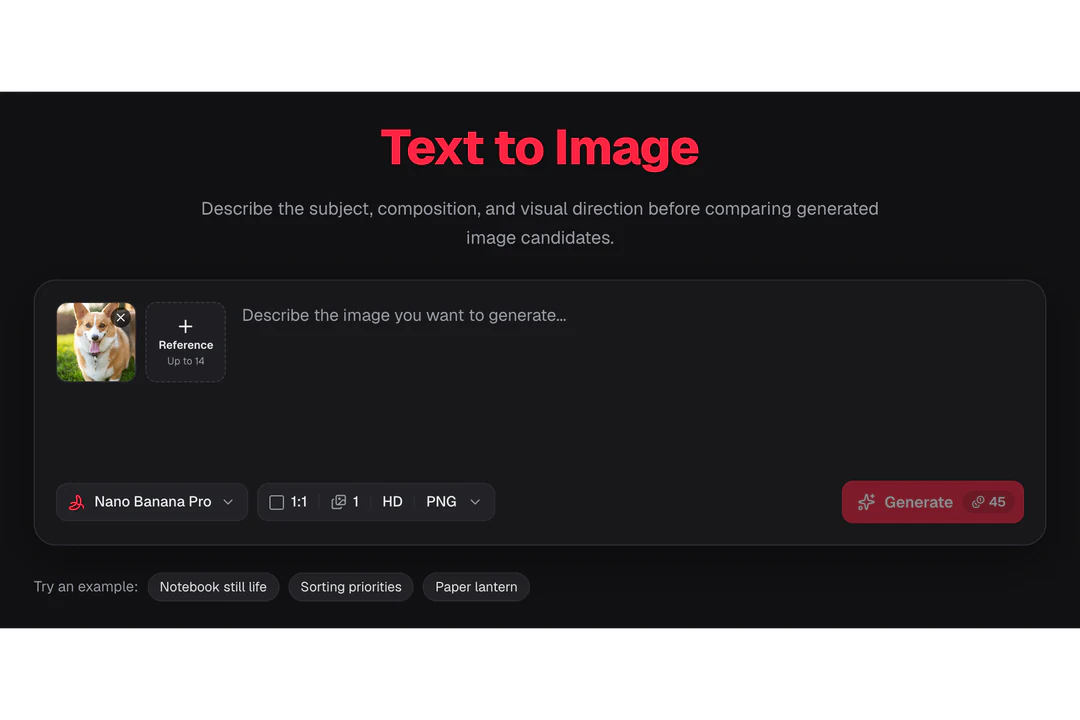
Use the AI picture generator in three steps, in the card at the top of this page.
Name the subject first. Then add the style, the light and the place. Your prompt can be 4,000 characters long. Leave out words you will add later, such as a headline.
Choose a shape for where the picture will go. Choose HD, 2K or 4K, and one, two or four pictures. A reference photo is optional. Say what it is for, such as the subject or the palette.
Nano Banana costs 23 credits for each HD picture. Nano Banana Pro costs 45. Check the result, change one thing and try again.
The AI picture generator reads four things from your words. Each one shows in the result.
01
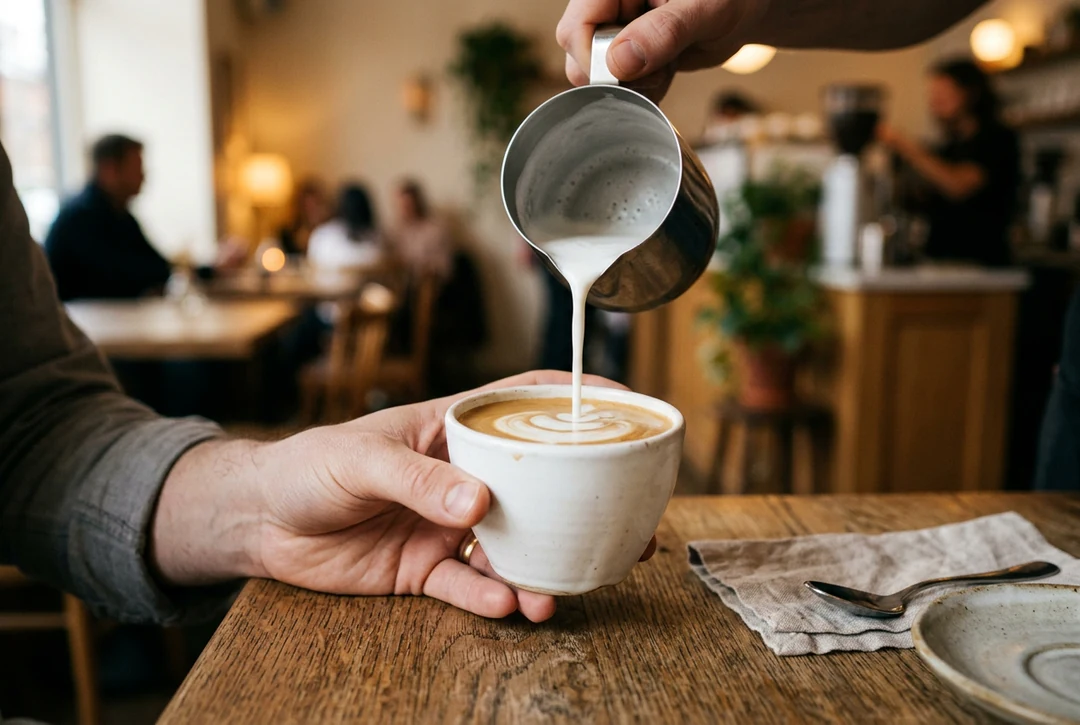
Start with one subject and one action. A hand pouring milk into a cup is clearer than a busy cafe. Add small details after the first result.
02
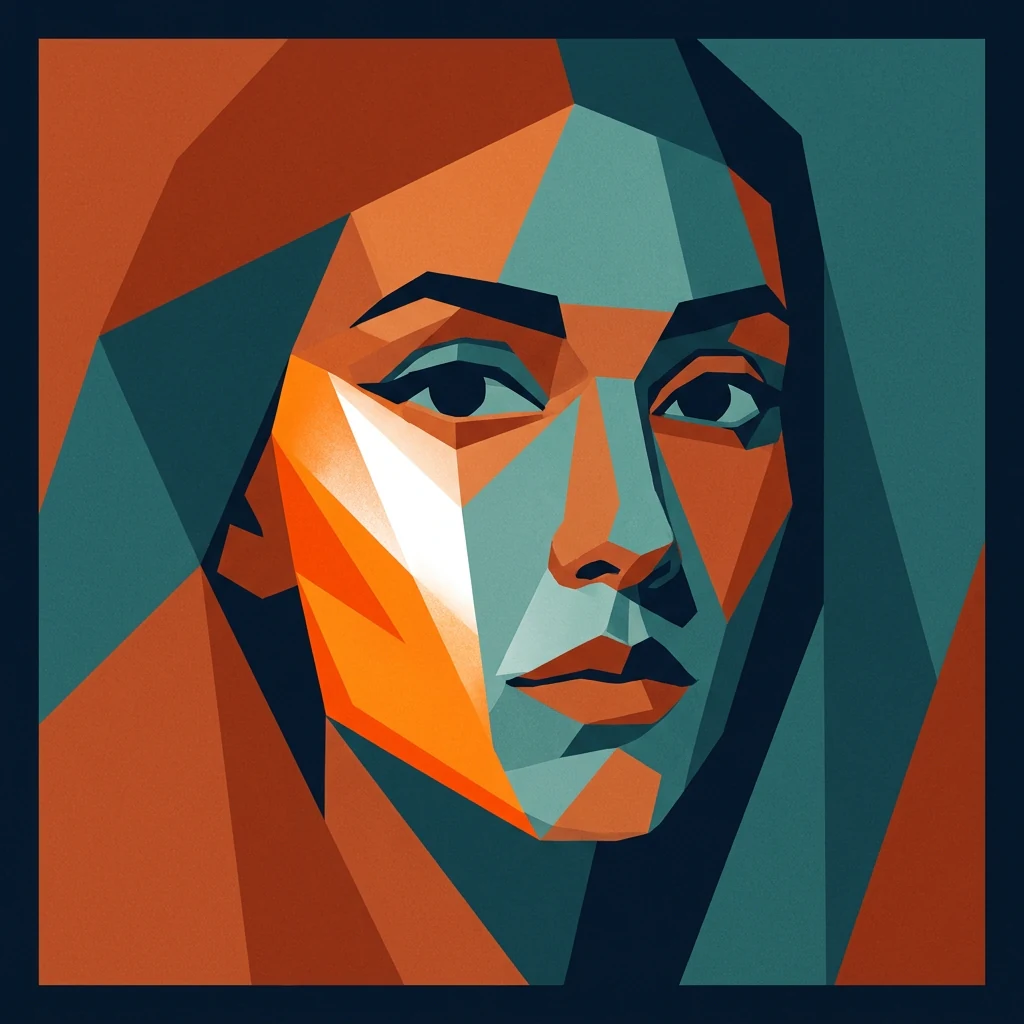
Words like photo, flat vector, pencil or paper cut change the whole picture. Name one style, not five. Reuse the same words when you want a matching set.
03
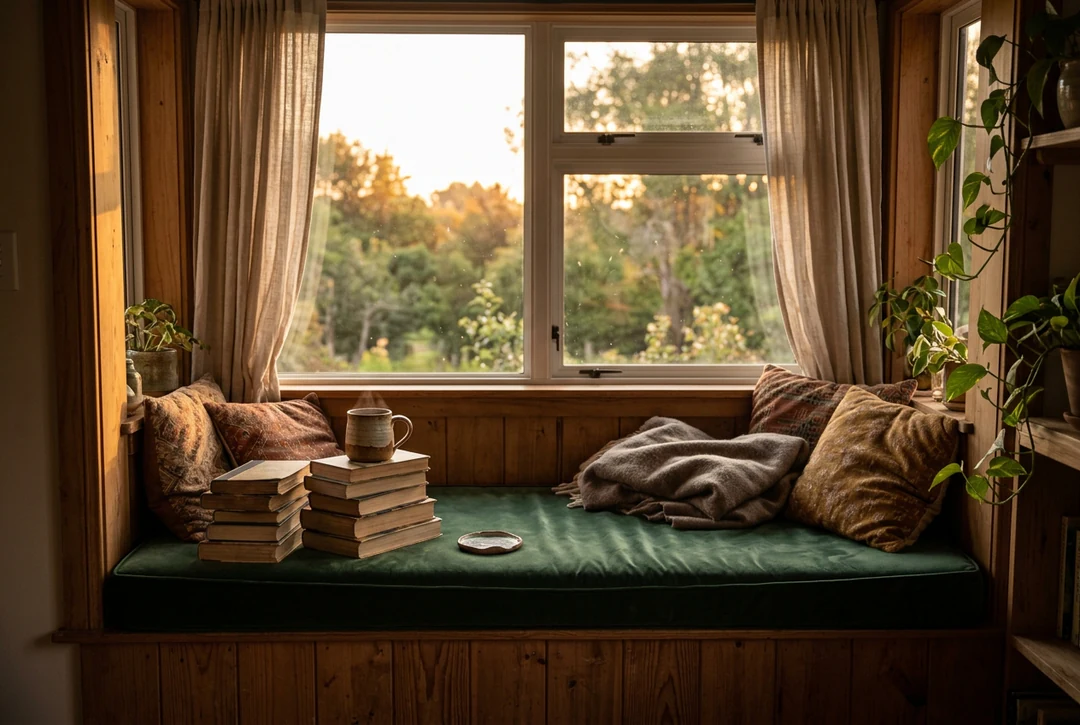
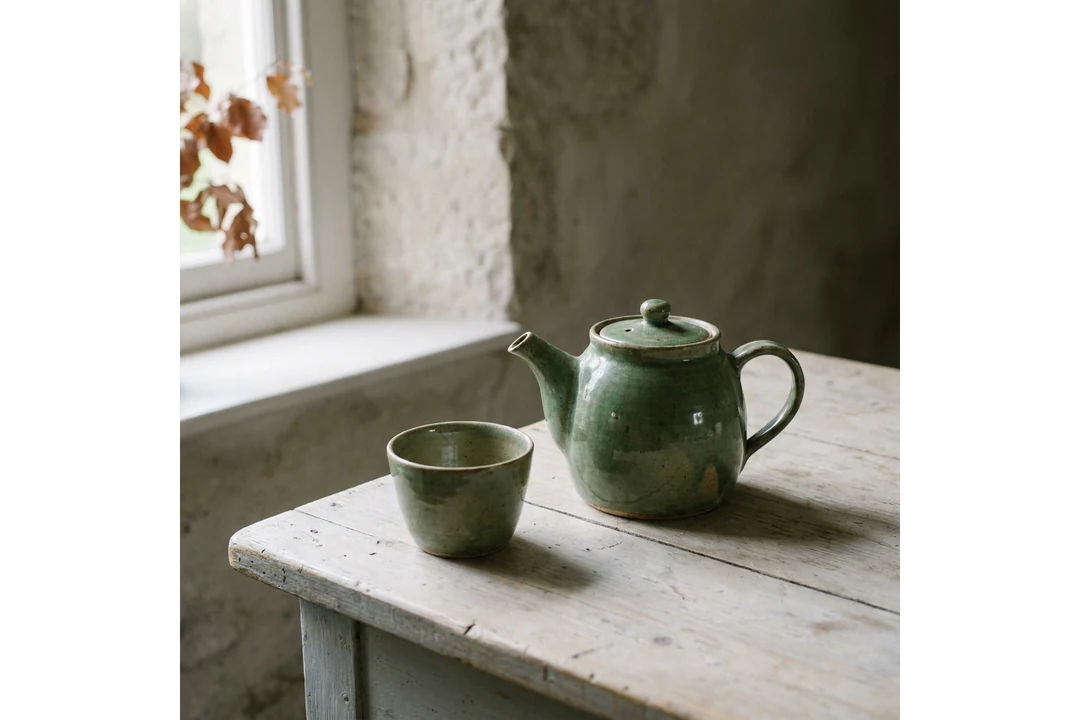
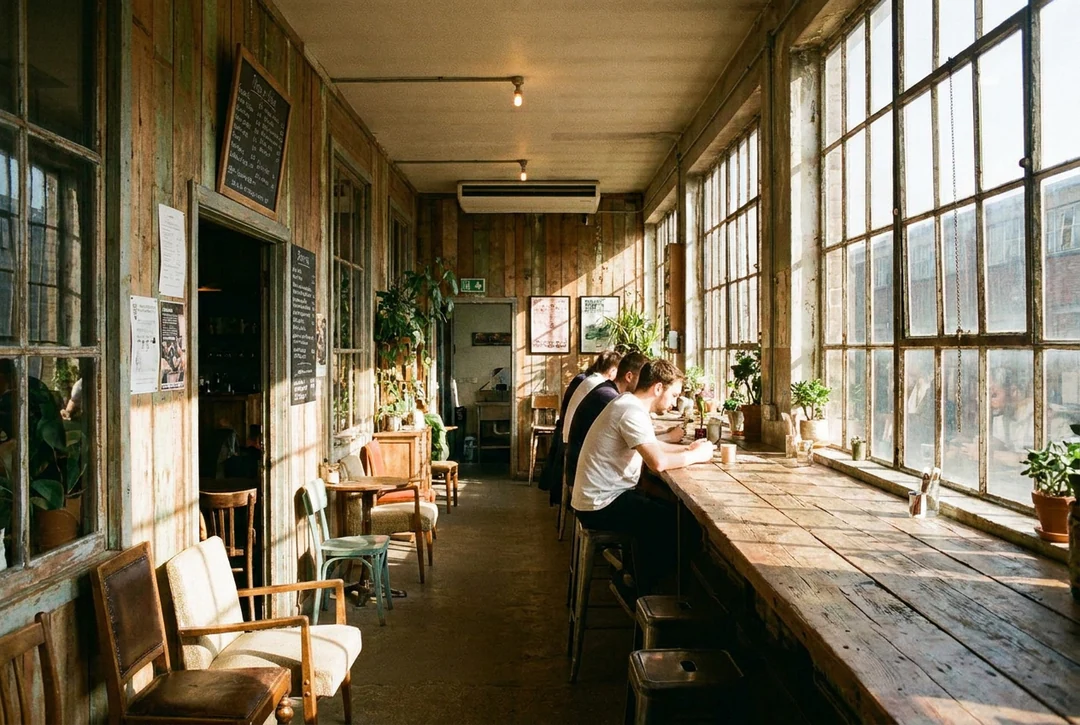
Morning window light, a dusk street and a gray hillside feel different. Name the place and the time of day. Then check that the shadows agree.
04
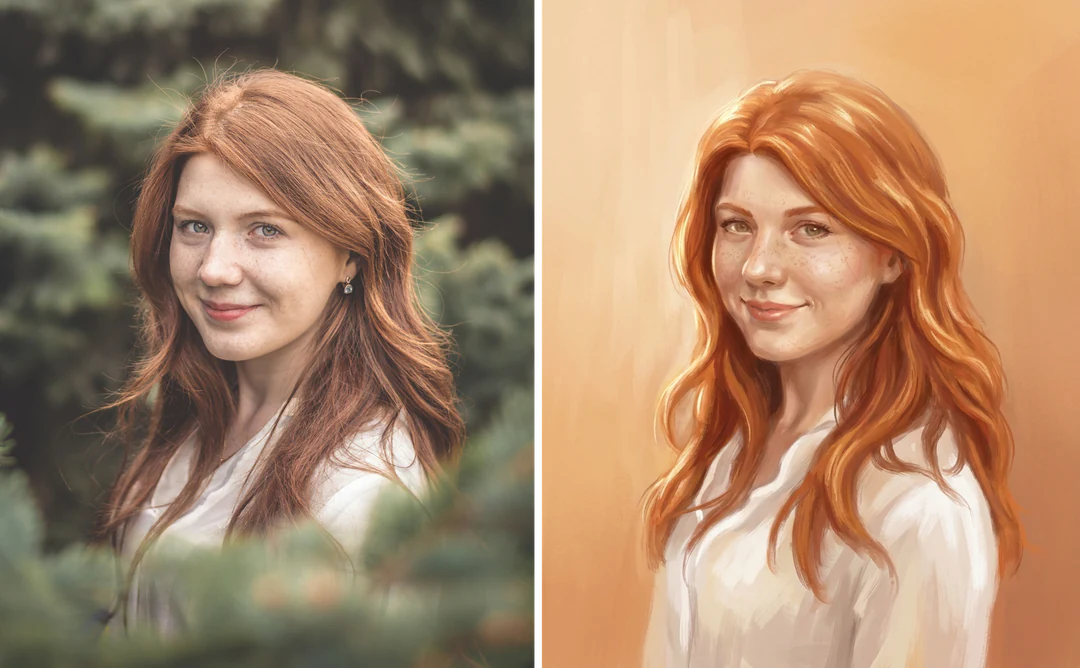
Add up to 14 reference photos. Tell the prompt what each one does. The picture will not copy it exactly. Faces, logos and fine texture can shift.
Need something more specific? Try one of these pages.
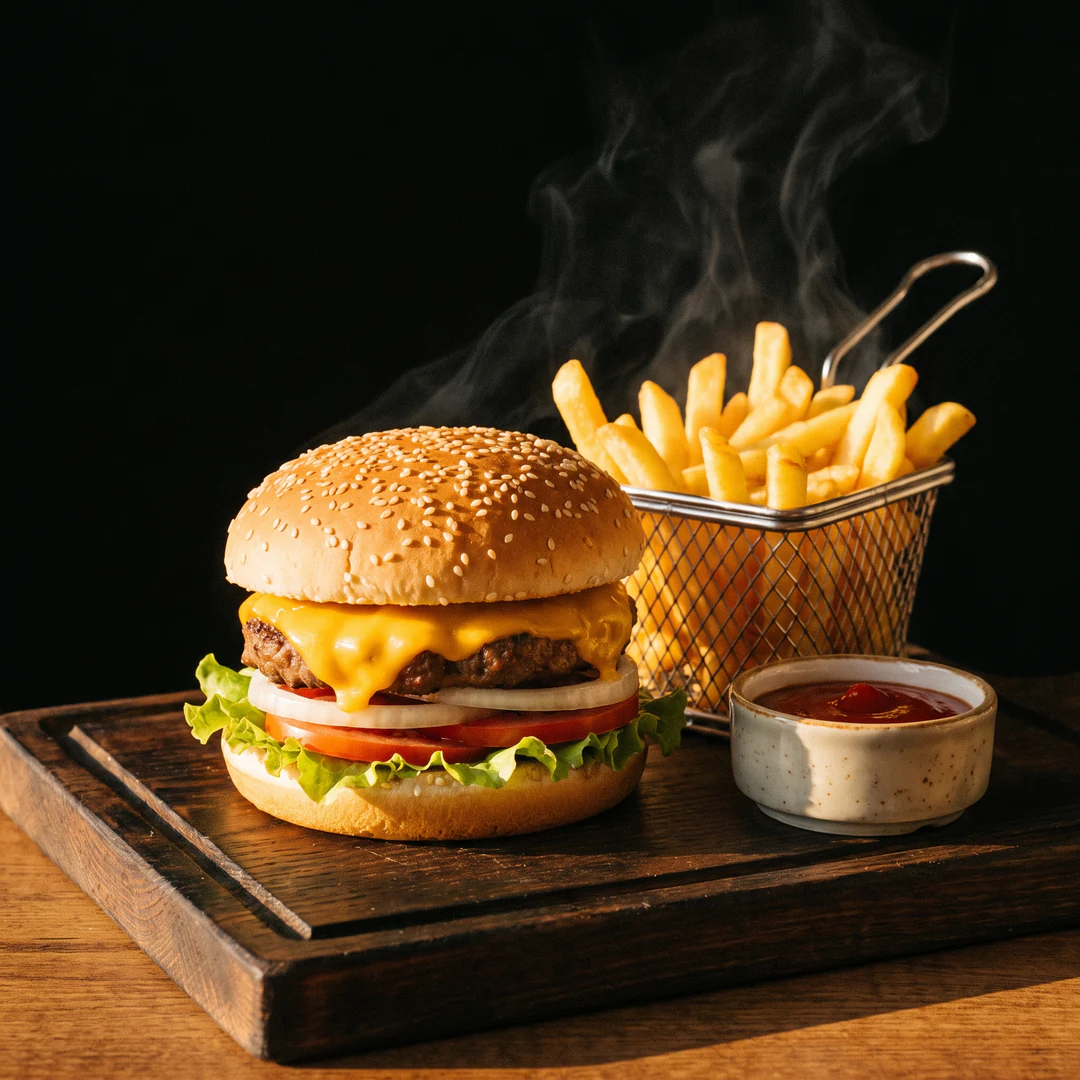
An AI picture generator makes a new picture from words. You describe what you want to see, and it draws one. You can add reference photos too. Potto AI returns a finished image you can download.
Write the subject, the style and the light in the prompt box. Pick a shape and a size, then press Generate. A prompt can run up to 4,000 characters.
A new account gets 100 credits. That pays for four HD pictures with Nano Banana, at 23 credits each. Nano Banana Pro is 45 credits per HD picture. The total shows before you confirm.
Yes. You can attach as many as 14 reference photos. Name the job of each photo in your words, such as subject, colors or layout. The new picture is not an exact copy. Small details can change.
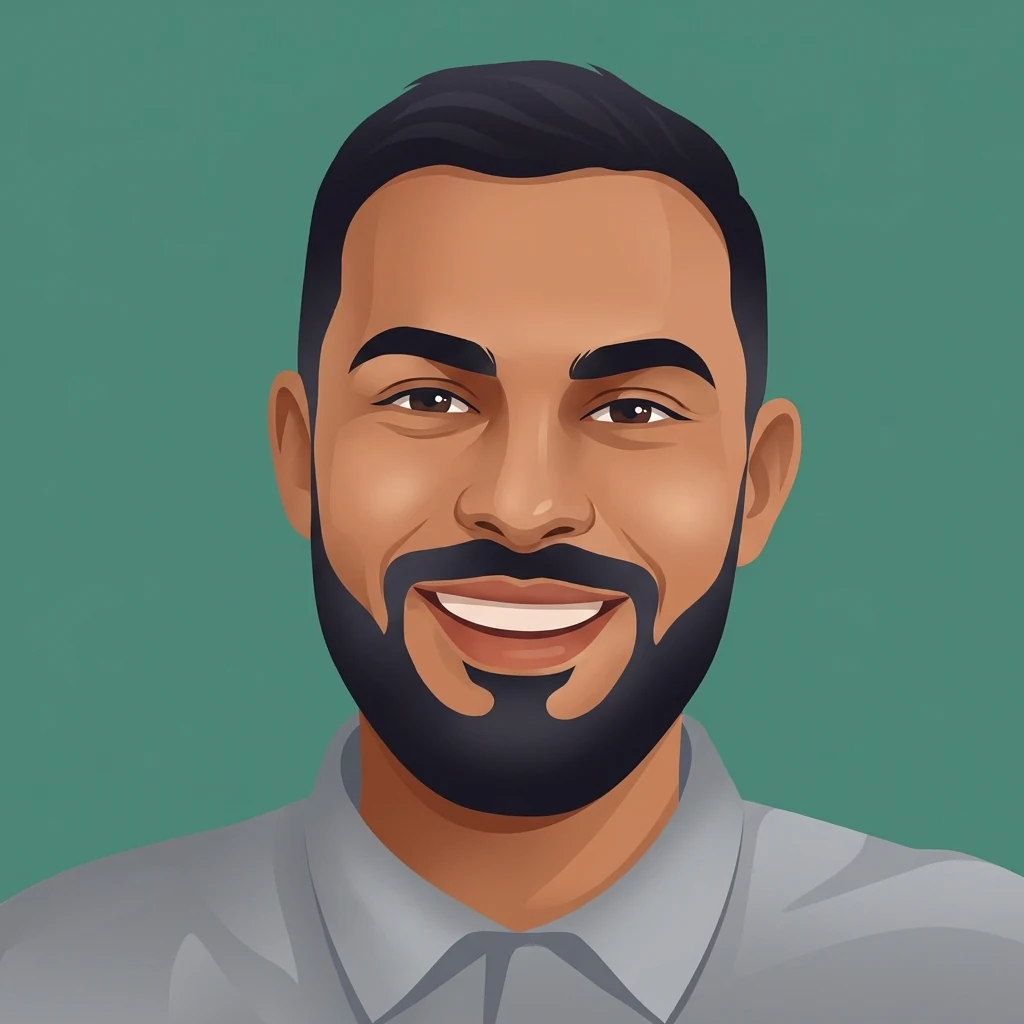
Yes. Describe an original character or a simple icon in a 1:1 frame. Keep the face large and the background plain. View the result in a small circle before you upload it. To turn your own photo into an avatar, use the avatar maker.
Match the shape to where the picture will go. Square 1:1 fits a profile picture. A 4:5 frame fits a feed post. Tall 9:16 fits a phone. The card offers 10 ratios, from 1:1 to 21:9, and three sizes.
A picture is never repeated pixel for pixel. Change one thing in the prompt at a time. Zoom in to check paws, hands, small lettering and edges. More resolution adds pixels, not accuracy.
You can write the prompt, add photos and pick settings first. Sign-in appears when you press Generate. Your prompt and settings stay in place.
The task says why it stopped and offers a retry. Reserved credits come back. Press cancel to stop a running request. Closing the page does not stop it. A new picture after a finished one is a new, charged request.
Write a few words about what you want to see. Then check the AI picture before you share it.