How to expand an image with AI: pick 1:1, 3:4, 4:3, 9:16 or 16:9, keep the original in the center, check the seam. One image costs 81 credits.
To expand an image with AI, upload a JPG, PNG or WebP of up to 20 MB, pick a new ratio such as 9:16 or 16:9, and the model draws new picture area around your photo while it keeps the original in the center. One image costs 81 credits. You get a wider or taller picture without cropping anything out of the photo you started with.
This guide covers how to expand an image with AI step by step, which photos expand well, and how to check the seam where your photo meets the new area. It also sorts out the names. Outpainting, uncrop image and generative expand all describe drawing new picture area outside the original frame. Expand image, AI expand image, image extender and photo extender are the words people search for when they need a tool that does it. The last part covers limits, because an AI expand image result is a guess about the scene, not a copy of it.
Key facts (checked November 2026):
Potto's image expander and AI image extender accept JPG, PNG and WebP files of up to 20 MB.
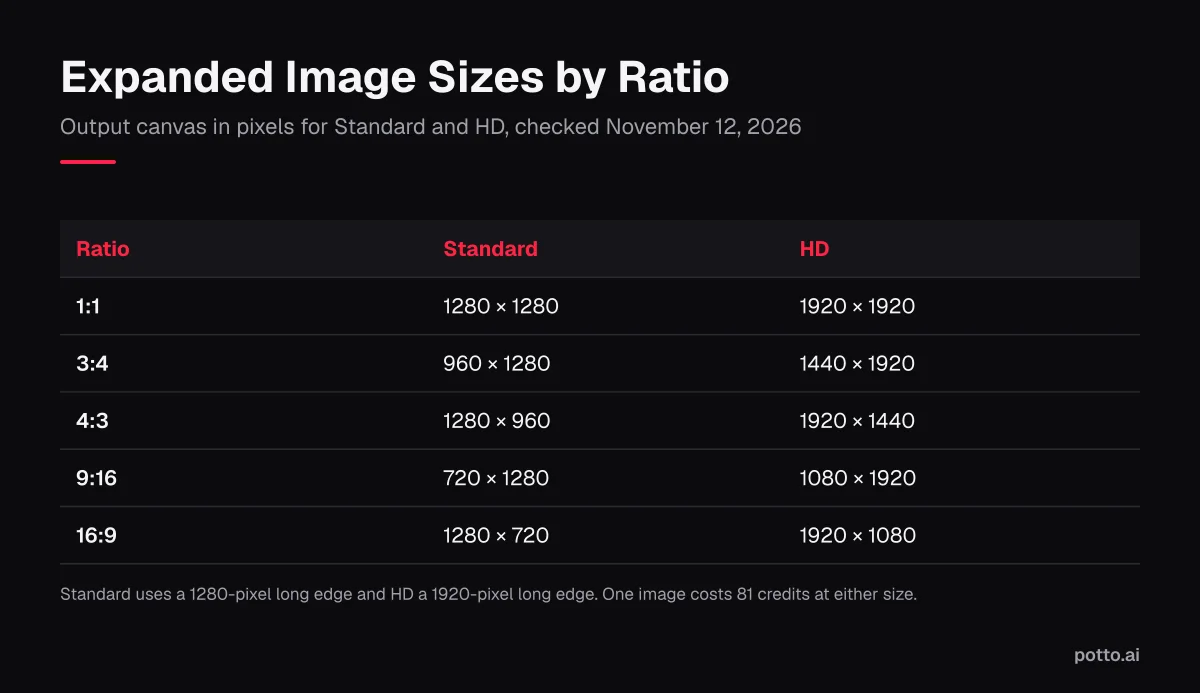
The tools offer five target ratios: 1:1, 3:4, 4:3, 9:16 and 16:9.
Standard output has a 1280-pixel long edge and HD output has a 1920-pixel long edge.
One image costs 81 credits at either size, and credits for a failed task are released.
The original photo is scaled to fit and placed in the center; only the area around it is generated.
Expand vs Upscale
To expand an image is not the same as to upscale it. An upscaler adds pixels inside the same frame, so a small photo becomes a larger file with the original ratio. An image extender or photo extender adds new area outside the frame, so the ratio changes. A landscape photo can become a tall story, and the new height shows more sky and ground.
Pick by the problem you have. If the picture is right but too small, upscale it. The enlarges a photo 2x for 2 credits or 4x for 6 credits. If the picture has the wrong ratio for a post, a banner or a story, expand it. Cropping to a tall ratio throws away most of the width. When you expand an image with AI instead, you keep the whole original and add only what the new ratio needs.
Outpainting is the technical name for drawing new picture area outside a photo. A model reads the light, color and edges of your photo and paints new area past the border. Other tools call it uncrop image and generative expand. Outpainting, uncrop image and generative expand describe the same idea, and so does AI expand image. On Potto, the image extender uses Nano Banana Pro to draw the new area.
How to Expand a Wide Photo to a Tall Story
A common job is turning a wide 16:9 photo into a tall 9:16 story or phone wallpaper. The same steps work for any of the five ratios.
Open the image expander and drop in your photo. JPG, PNG and WebP work, up to 20 MB.
Pick a new ratio that differs from the original ratio. The stage marks the new area in red, above and below your photo.
Pick Standard or HD.
Press Generate. The button shows the price first: 81 credits.
Check the seam first, then compare the center with your original and download.
When a wide photo becomes a tall story, the original keeps its full width and sits in the middle. New area fills above and below. That is a lot of new picture area, because a tall story frame is more than three times as tall as a wide frame of the same width. The farther the target ratio is from the original ratio, the more the model has to invent.
The Generate button stays off when the photo already has the ratio you picked. Choose a different ratio to continue. You can load a photo and set the controls without an account. You sign in to generate and download, and your photo and settings stay in place.
Keep the Original in the Center
The image extender scales your photo to fit the new frame and places the original in the center. It does not crop your photo and does not move the subject. A photo of any original ratio works, and the only target ratio you cannot pick is the one it already has. Only the space around it is generated, and a narrow blended band smooths the join.
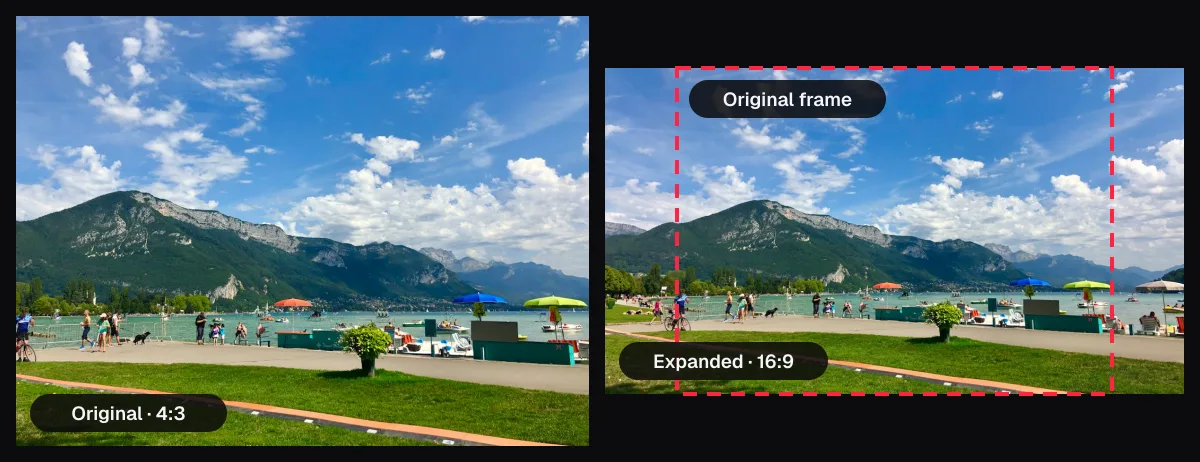
In the example above, a lakeside photo was expanded from 4:3 to 16:9. The dashed frame marks the original. Everything left and right of it is new area: more lawn, more path, more lake and more mountain. The shoreline, the trees and the reflection inside the original frame stay where they were.
The tool tries hard to keep the original in the center unchanged, but an exact pixel match is not promised. Faces and straight lines inside your photo should stay as they are. Still, compare the center with your original file before you download. If a face or a logo in the middle looks different, run it again.
Which Photos Expand Well
The source photo decides most of an AI expand image result. Any photo extender has an easy time with some scenes and a hard time with others.
Easy scenes
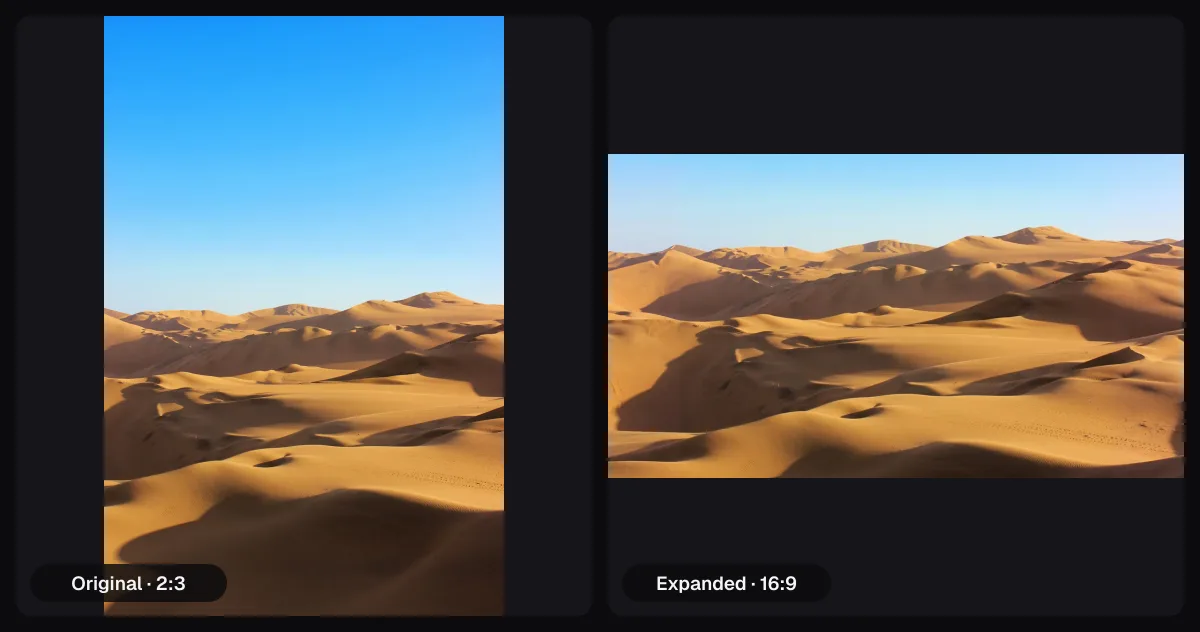
Open scenes expand well. Sky, sand, water, fog, grass and plain walls have soft texture and no hard rules. When you expand image edges into a clear sky, there is little to get wrong. The desert below went from a tall photo to a wide banner, and the dunes and sky simply continue on both sides.
Hard scenes
Repeating structures are harder for any image extender or photo extender. Fences, windows, tiles, railings and bookshelves have to line up and repeat at the right spacing. Lettering is hard too, because the model has to guess the rest of a word or a sign. Look closely at these parts of an expanded image.
People at the edge
People cut off at the frame edge need the closest look. If a shoulder, a hand or half a face touches the border, the photo extender has to draw the missing half. It will draw something, but it is a guess. In the lakeside example, a cyclist was cut off at the left edge of the original. In the expanded image he is whole, and the part outside the original frame is invented.
Check the Seam
The seam is where your original meets the new area. Check the seam first, because it is the most important part of drawing new picture area outside a photo. A good expanded image has no visible join at the size you will use it.
Use this order, and always check the seam first:
Look at the band just outside the original frame.
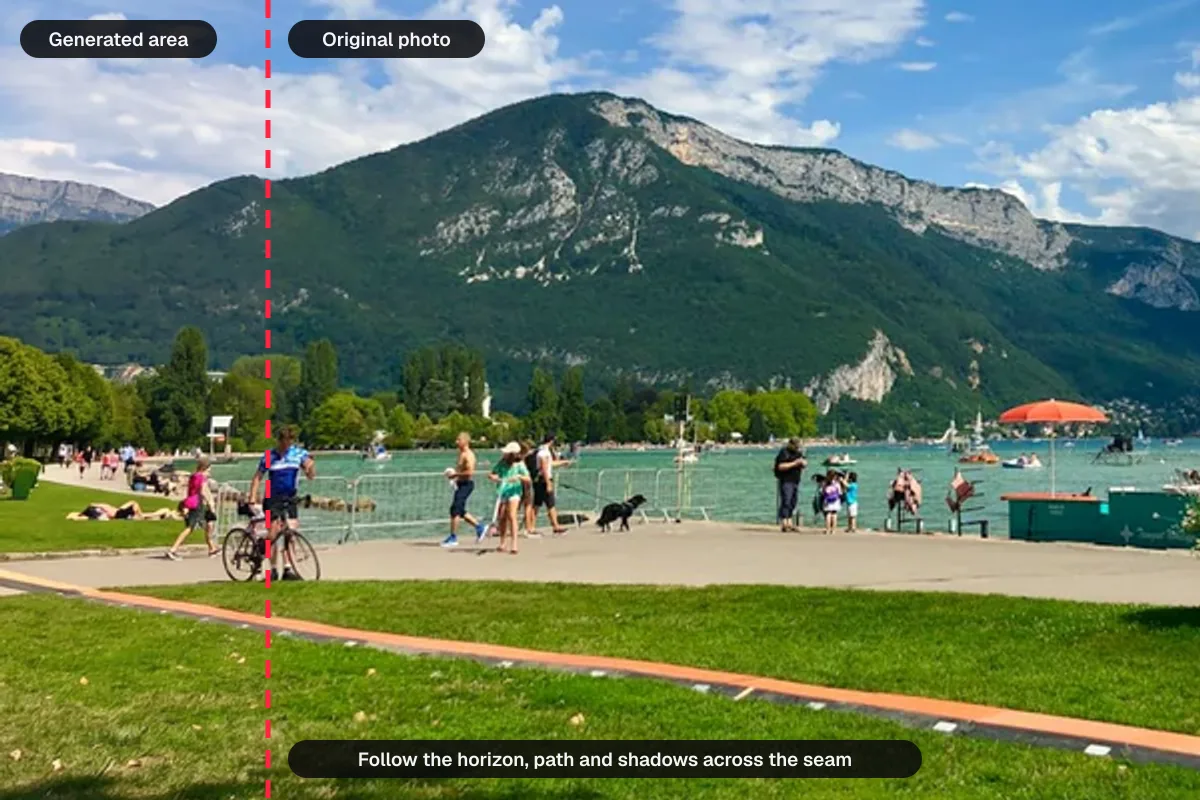
Follow the horizon across the seam. It should run on without a step.
Follow paths, fences, shorelines and roof lines. Straight lines should stay straight.
Check shadows and reflections. Light should come from the same side in both parts.
Look for repeated textures, such as the same cloud or the same bush twice.
Zoom out to the size you will post or print. A tiny flaw at 400% may not matter at phone size.
In the close-up above, the path, the lawn edge and the mountain ridge all cross the seam cleanly, so the added part matches the original. That is what you want to see when you check the seam. If one of them bends or steps, run the expansion again or pick a target ratio closer to the source ratio. An AI expand image result with a smaller jump between ratios has less new picture area to invent.
Ratios and Sizes
Every AI expand image job on Potto picks one of five ratios, and each ratio has two sizes. Standard uses a 1280-pixel long edge, and HD uses a 1920-pixel long edge. A 16:9 image is 1280 × 720 at Standard and 1920 × 1080 at HD. One image costs 81 credits at either size, so pick HD unless you need a smaller file.
Pick the ratio for where the picture will run, not for the ratio of the source. A tall ratio adds sky and ground above and below, which suits a story or a vertical cover. A wide ratio adds room on both sides, which leaves space for a headline on a banner or a video thumbnail. A square ratio adds height to a wide photo, so floors and ceilings extend for a feed post.
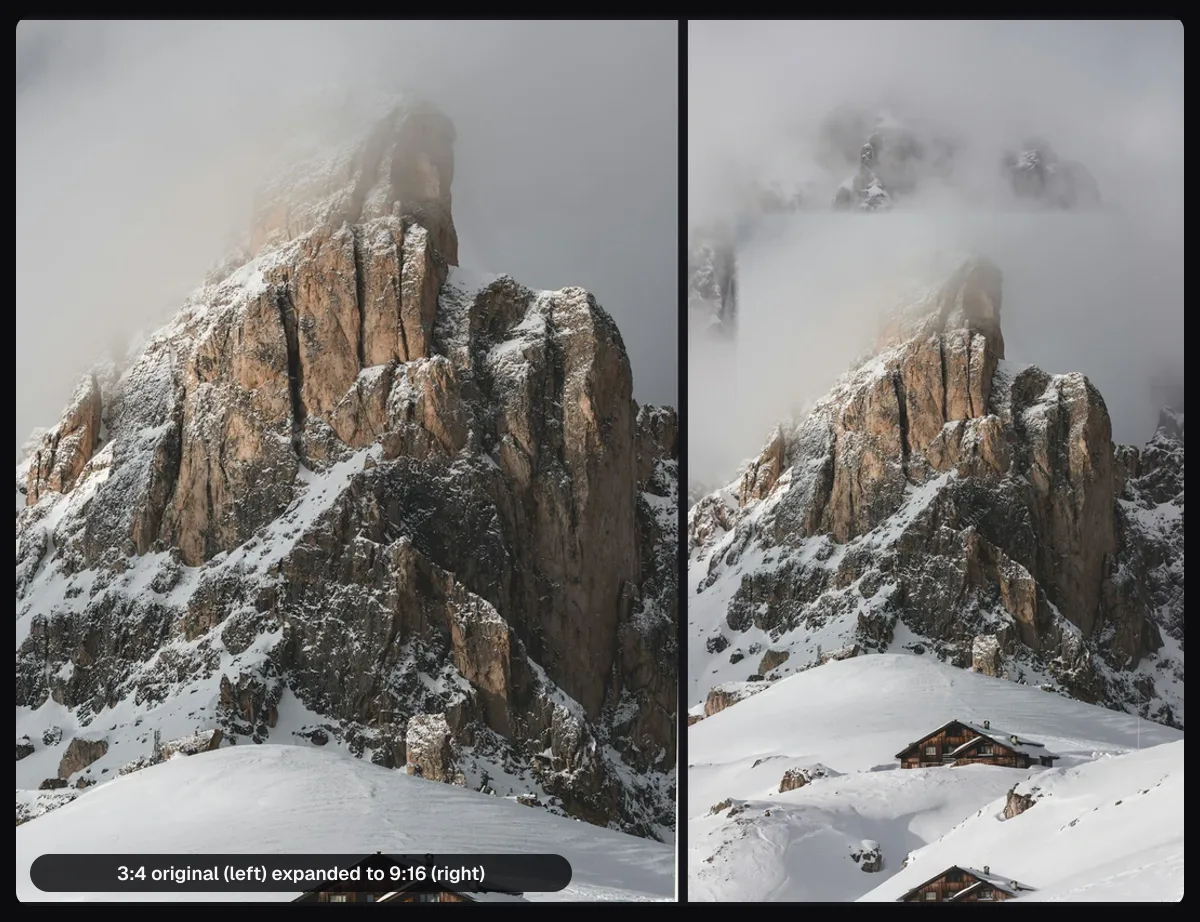
The mountain above went from 3:4 to 9:16. The tool added fog and rock above the peak and more snow and a second cabin below. Each of those additions is new area, so check the seam first and then the rest of the expanded image.
What It Cannot Do
An AI image extender or photo extender cannot recover what was cut off. The area outside your photo was never captured, so there is nothing to find. The model draws a plausible guess from what it sees inside the frame. Treat an AI expand image result as an illustration of what might be there, not a record of what was there.
That matters for some uses. Do not use an expanded image as evidence of a real scene, such as a property listing that shows land that is not there. Do not pass off the new area as part of the original photo. Extend only images you own or may edit.
It also does not fix the photo itself. Blur, noise and bad light inside the original stay. If the photo is too small, upscale it after you expand it. If the subject needs a clean transparent edge instead of more scene, remove bg does that job for 4 credits. For edits inside the frame, such as changing light or removing an object, use the AI photo editor.
Cost and free credits
Each AI expand image run costs 81 credits at Standard or HD. A new account gets 100 credits, which covers one expansion. After that, a plan or a one-time credit pack adds more credits. The Lite plan is $20 a month for 2,000 credits, which covers 24 expansions. Credits held for a failed task come back to the account.
Two Pages, One Job
Potto has two pages for this job. The image expander and the AI image extender run the same tool, with the same five ratios, the same sizes and the same price. Use whichever name you searched for, whether that was image expander, image extender or photo extender. Both keep the original in the center, and both charge the same price per image.
FAQs
How do I expand an image with AI?
To expand an image with AI on Potto, upload a JPG, PNG or WebP of up to 20 MB, pick one of five ratios and a size, and press Generate. The tool keeps your photo in the center and draws new area around it. One image costs 81 credits.
What is outpainting?
Outpainting is drawing new picture area outside the border of an existing image. A model reads the light, colors and edges of the photo and continues the scene. Uncrop image and generative expand are other names for the same job.
Does an expanded photo show the real scene outside the frame?
No. The new area was never in your photo, so the model invents it from what it can see. It can look right and still be wrong, so treat it as an illustration and check people, text and buildings at the edge.
Should I expand or upscale a small photo?
Upscale a small photo when its ratio is right and you need more pixels. Expand it when you need a different ratio, such as a tall story from a landscape photo. If you need both, expand first and then upscale the result.
Can I use an expanded image for my business?
Yes, on a paid plan. Images made on free credits are for personal use, and Potto adds no watermark on any plan. Do not present the new area as part of a real scene.
Sources
Potto AI, image expander and AI image extender pages, tool registry and pricing page (checked November 12, 2026).
Potto AI
Make your next launch video.
Take what sparked your interest and turn it into a video or an image of your own. Bring screenshots, a topic or a prompt.