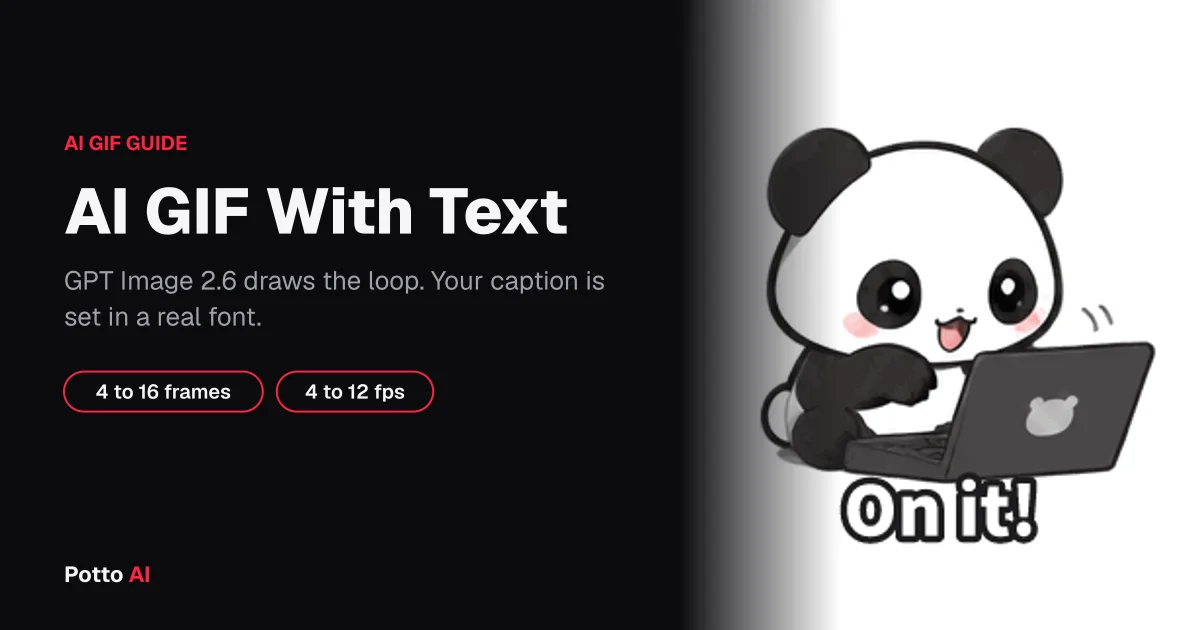
Make an AI GIF with text from one sentence. GPT Image 2.6 draws the frames of the loop, and Potto sets your caption in a real font, spelled exactly as typed.
An AI GIF with text starts with one sentence: GPT Image 2.6 draws the frames of a short loop in a single pass, and Potto sets your caption in a real font, spelled exactly as you typed it. You pick the frame count and a speed from 4 to 12 fps. A reference image keeps the same character from one GIF to the next. After the GIF is made, you can change its speed for free.
This guide shows how a sentence becomes a looping AI GIF, how to write the prompt, which frame and speed settings fit which motion, and how captions work. It also covers what an AI GIF maker of this kind does not do, so you know when to reach for a different tool. Every example was made in Potto's AI GIF generator with text captions where shown.
Key facts (checked November 2026):
OpenAI's image generation guide says both GPT-Image-2.6 models, Flare and Sunburst, support animated GIF output through the Image API.
OpenAI's guide allows 2 to 16 frames per GIF, with 9 frames as the default.
OpenAI's guide also warns that the model "can still struggle with precise text placement and clarity".
OpenAI's model page lists GPT-Image-2.6 Flare image output at $30 per million tokens.
Potto's AI GIF generator makes a looping GIF of up to 16 frames from a sentence, with an optional caption of up to 20 characters, for 15 credits.
How a Sentence Becomes a Looping AI GIF
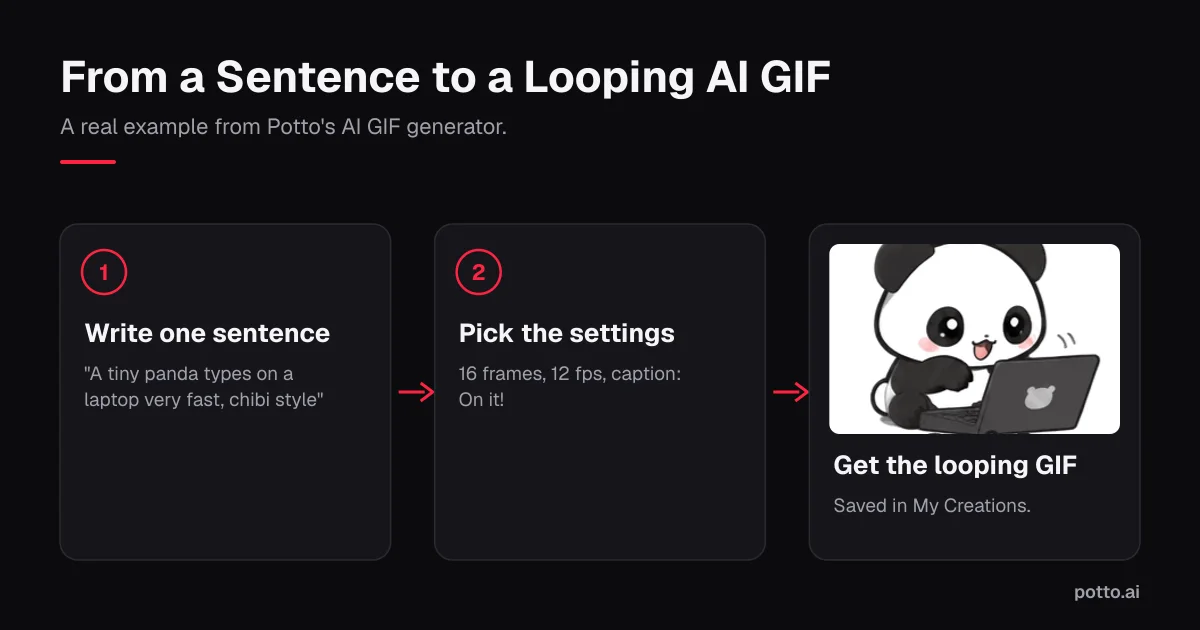
An AI GIF from text needs no drawing skills. The AI GIF generator needs only a sentence. You do not draw frames, and you do not upload a video. GPT Image 2.6 draws every frame of the loop together, in a single image request. Potto then cuts the frames apart and encodes them into a GIF.
Drawing the frames together matters. Each frame is the next step of a single continuous motion, so the subject keeps the same size, position and colors throughout. The prompt also asks for the last frame to lead back into the first. That is why the finished AI GIF loops: the end flows into the start, and the motion plays forever.
The caption is a separate step. GPT Image 2.6 never draws your words. When you add a caption, the model leaves room at the bottom of each frame, and Potto writes the caption there in a real font once drawing is done. That split is what makes an AI GIF with text reliable: the picture comes from the model, and the letters come from a font.
Most AI GIFs finish within a minute. Drawing the frames takes almost all of that time. The finished GIF is saved in My Creations, so you can download it again later.
Write the Prompt for an AI GIF
To make an AI GIF from text, start with the prompt. A good prompt names a single subject and an action that repeats. "A panda typing on a laptop" works. "A panda walks into an office, sits down and starts typing" does not, because that is a scene with several steps, not a loop.
Add a style. Flat cartoon, chibi, pixel art and clay all suit a small looping GIF. Keep the background simple. The generator asks for a flat background that matches in every frame, because a busy scene would flicker from frame to frame. Leave out camera moves and scene changes.
A prompt can run to 1,000 characters, but a sentence or two is usually enough. This is text to GIF at its simplest: the words are the only input you must give. Here are prompts from real examples on the AI GIF generator, with their settings:
Prompt
Frames
Speed (fps)
Caption
A small orange cartoon cat gives a thumbs up and nods happily, flat cartoon style
16
12
收到!
A round yellow smiley face laughs until tears fly, flat cartoon reaction
9
8
LOL
A tiny panda types on a laptop very fast, chibi style
16
12
On it!
A corgi wags its tail and tilts its head, flat cartoon style
16
8
none
A coffee mug with steam curling up, flat icon style
9
6
none
Small motions repeat best. A wave, a nod, a wink, a wagging tail, rising steam and a beating heart all fit the format. A full turn of a detailed product is harder, because a short loop leaves little room for a big change.
Pick Frames and Speed
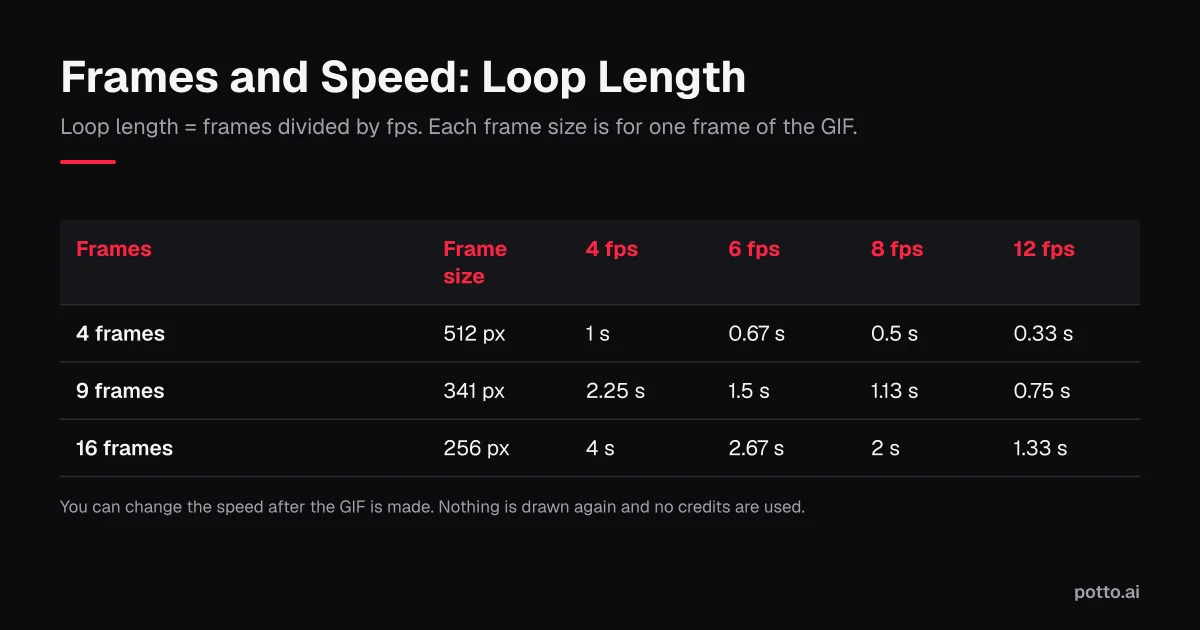
The frames setting decides how many drawings make up the loop. The speed decides how fast they play. Together they set the length of each loop: frames divided by fps.
4, 9 or 16 frames
4 frames: best for a simple back-and-forth, like a nod, a blink or a pulse. Each frame is 512 px, so detail stays sharp.
9 frames: a middle choice for waves, bounces and a head turn. Each frame is 341 px.
16 frames: the smoothest motion, but each frame is 256 px. Use it for walks, spins and rising steam. Fine detail and thin lines get lost first.
The trade-off comes from drawing every frame of the loop in a single image. More frames means each frame gets less of the canvas. Pick 4 frames when the subject has small details that must stay crisp, and the top setting when smooth motion matters more.
4 to 12 fps
Pick 4, 6, 8 or 12 frames per second. A slow 4 fps feels like a flipbook. 8 fps suits most loops. 12 fps feels lively, which fits typing, laughing and excited reactions. At 8 fps, 16 frames make a 2-second loop. At 12 fps, 4 frames make a loop of a third of a second.
Add a Caption to an AI GIF
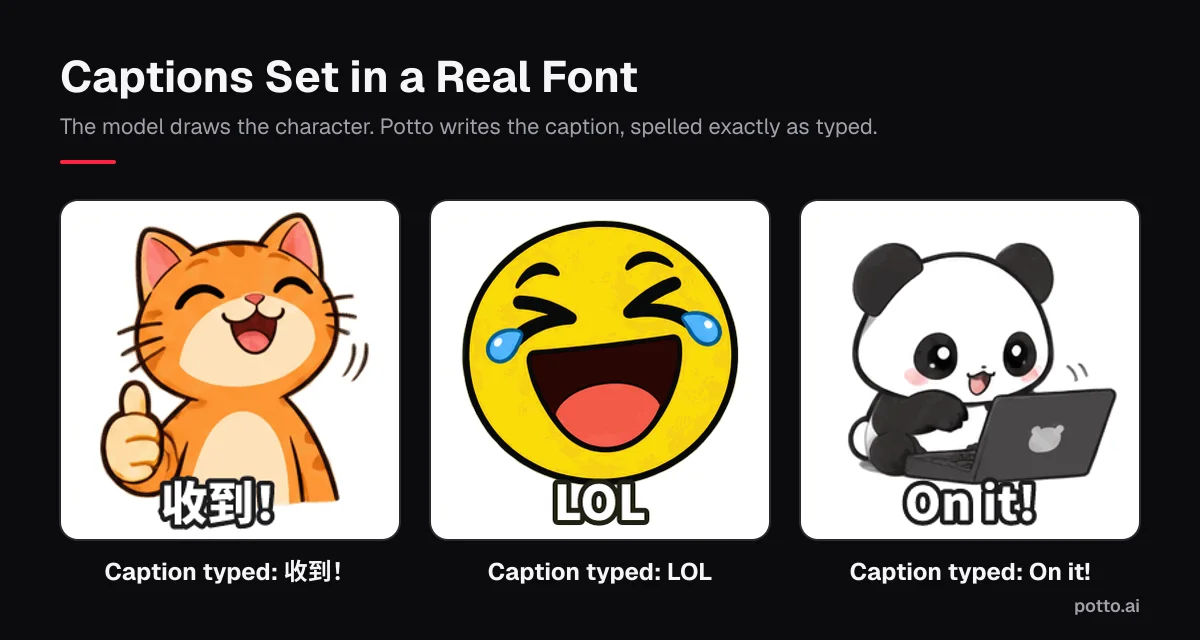
A caption turns a loop into a reply. Type up to 20 characters, such as "Got it!", "LOL" or "收到". Potto sets the caption in a real font along the bottom of every frame. The caption is spelled exactly as you typed it, and the caption stays still while the subject moves.
Latin, Chinese, Japanese and Korean captions all work. Emoji can't be added, because the font has no emoji. Short captions read best at chat size: two or three English words or a few Chinese characters. A longer caption gets a smaller font so it stays on one line. Bold letters in a real font stay readable even when small.
This is the main difference from asking an image model to write the text itself. OpenAI's own guide says the model can still struggle with precise text placement and clarity. A text to GIF tool that draws letters with the model can drop a letter, swap two of them or blur them between frames. A caption set by a font does none of that. That is the job of an AI GIF generator with text built in.
Here is the panda GIF in motion, with the caption "On it!". It is a GPT Image 2.6 GIF made on Potto from the prompt in the table above.
Keep the Same Character
A text-only prompt gives a new-looking character each time. To keep a character, add a reference image. It can be a mascot, a drawing, a product photo or a character you made before. PNG, JPG and WebP files of up to 20 MB work. The AI GIF generator keeps the subject from that image and draws it in motion. This is image to GIF AI in practice: your picture goes in, a moving version comes out.
You can also reuse a GIF you already like. Under a finished GIF, pick "Use this character". That GIF becomes the reference for your next run, so a series of reaction GIFs can share a mascot. Each run is drawn fresh, so small details can still shift between GIFs.
Change the Speed Later
The speed is not locked in. After an AI GIF is made, you can switch it to 4, 6, 8 or 12 fps. Nothing is drawn again, and changing the speed uses no credits. The new speed is saved in My Creations.
This makes testing cheap. Generate once at 8 fps, then try a faster speed for a livelier reply or 6 fps for a calmer loop. Only a new drawing costs credits. Each AI GIF costs 15 credits, whatever the frame count, the speed or the caption. You need to sign in to generate, and the exact price shows next to the Generate GIF button.
What an AI GIF Maker Does Not Do
An AI GIF maker built on a handful of frames is made for a short loop. It is not a video tool. Long scenes, story beats and camera moves don't fit. Big jumps between frames break the illusion, so ask for small motion that repeats.
The AI GIF generator does not lip-sync, swap faces or make real-person video. It does not turn a video you already have into a GIF either. For that, use the free GIF maker, which converts a clip or photos into a GIF in your browser. Our guide on how to make a GIF walks through its settings. In the AI GIF generator, image to GIF AI means a still picture used as a reference, not a video.
Two runs of the same prompt give two different GIFs. If the first loop misses, generate again. Each new try is charged as a new GIF.
AI GIF or Sticker?
An AI GIF keeps a plain background behind the subject. That suits chats, docs and sites. When you want the character cut out on a transparent background, use the AI sticker maker instead. It draws a pack of 4 or 9 transparent stickers, or one animated sticker as a transparent GIF, with the same captions in a real font.
FAQs
How do I make an AI GIF from text?
Write one sentence about a subject and a small motion that repeats, such as "a corgi wags its tail". Choose the frames and a speed, add a caption if you want it, and press Generate GIF. GPT Image 2.6 draws the frames, and Potto turns them into a looping GIF. That is the whole text to GIF process.
Can I put text on an AI GIF?
Yes, an AI GIF on Potto can carry a caption of up to 20 characters. The caption is written in a real font after drawing, so the spelling never changes between frames. Latin, Chinese, Japanese and Korean text work; emoji do not.
Why do details move between frames?
Details move because the model draws each frame as a new drawing instead of tracing the one before. Outlines, small patterns and thin lines can shift slightly. Simple subjects on plain backgrounds move the least, and 4 frames keep more detail than 16.
Can I use my own image as a reference?
Yes, add a PNG, JPG or WebP reference image of up to 20 MB. This is the image to GIF AI route. The AI GIF generator keeps the subject from that image and animates it. Use the same image every time to keep a character across many GIFs.
How is the AI GIF generator different from the GIF maker?
The AI GIF generator draws a new loop from your words and uses credits. The GIF maker converts a video or photos you already have, runs in your browser and costs nothing. Use the first when you have an idea and the second when you have footage.
What is a GPT Image 2.6 GIF?
A GPT Image 2.6 GIF is a looping GIF whose frames are drawn by OpenAI's GPT Image 2.6 model. On Potto, GPT Image 2.6 Flare draws every frame of the loop in a single request, which keeps the subject steady. Potto handles the caption, the loop timing and the GIF file.
Sources
All sources were read on 2026-11-12. Model details and prices are OpenAI's and may change.